How To Resolve High hard drive and CPU Usage with Windows Defender Scans
Summary: The following article deals with resolving an issue with the laptop or desktop locking up. This is because of the Windows Defender scan. It forces up to 100% usage of the device's Hard Disk Drive (hard drive) and Central Processing Unit (CPU). ...
This article applies to
This article does not apply to
This article is not tied to any specific product.
Not all product versions are identified in this article.
Instructions
Table of Contents:
- Is your Laptop or Desktop locking up during Windows Defender scans?
- Why is this happening?
- Method I: Ensure that no other Adware, Anti-malware, or anti-virus software is installed or not fully removed
- Method II: Prevent Windows Defender from scanning a specific folder on your laptop or desktop
- Method III: Slow the scan by lowering the set affinity of Windows Defender on your laptop or desktop
- Method IV: Disabling Windows Defender through group policies on your laptop or desktop
Is your laptop or desktop locking up during Windows Defender scans?
Does your laptop or desktop lock up during Windows Defender Scans?
When you check the system performance on an application such as the Process Explorer, is MsMpEng.exe showing excessive usage of the laptop or desktops resources?
Does this cause the device to grind to a slow crawl or lock up by using 80 to 100 percent of the devices resources?
If any of the above statements are true, then you should read through the following section of this article.
Why is this happening?
The following sections are the methods that Microsoft recommends stopping the MxMpEng.exe file from causing high hard drive and CPU usage on your laptop or desktop.
MsMpEng.exeis the core process of the Windows Defender anti-malware application.- Windows Defender comes pre-installed on Windows 11 and Windows 10 but is an optional download on older Operating Systems like Windows 7 and 8.
- This issue with
MsMpEng.exetaking 100 percent of the hard drive and CPU usually occurs when Windows Defender is scanning the laptop or desktop for malware. The Windows Defender scan is getting stuck on a few files while checking malware. When that is happening, it should be restricted or disabled to bring it back to normal use.
Method I: Ensure that no other Adware, Anti-malware, or anti-virus software is installed or not fully removed
MsMpEng.exe - Its role is to scan files for spyware, and quarantine or remove them if they are suspicious. It also scans your laptop or desktop for known worms, harmful software, viruses, and other such programs.
Note: Best practice is to have only ONE anti-malware, anti-virus, or anti-spyware program on your laptop or desktop at a time. Do Not have multiple programs running or installed simultaneously. These programs conflict and find each other as files to be quarantined and deleted.
Windows 11 and Windows 10
Windows Defender comes installed by default with Windows 11 and Windows 10.
That means that any additional software is installed after Windows Defender: Windows defender keeps them from installing or running correctly.
-
Right-click the Start Icon and choose Control Panel from the menu.
-
Go to Programs and Features and remove any of these types of programs that are listed there.
Method II: Prevent Windows Defender from scanning a specific folder on your laptop or desktop
One reason for the high load is the MxMpEng.exe file scanning its folder. If you have a known folder on your laptop or desktop that is causing Windows Defender an issue, you can get Windows Defender to ignore it.
Windows 11, Windows 10, and Windows 8
-
Click the Start Icon and type Windows Defender. Double-click the icon when it appears in the search list.
-
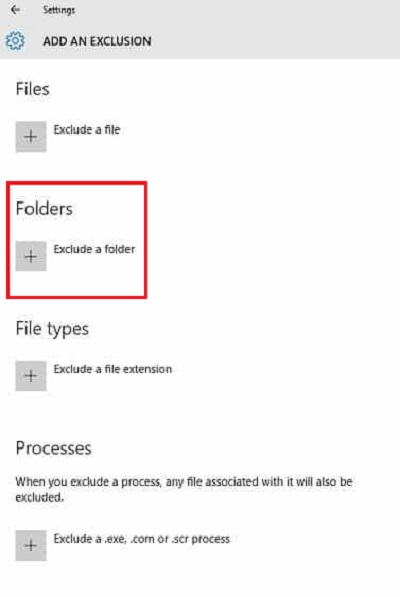
Click Settings and select Add an exclusion from the bottom of the window.
-
Choose Exclude a folder and enter the path of the wanted directory. In this case:
C:\program files\windows defender
Method III: Slow the scan by lowering the set affinity of Windows Defender on your laptop or desktop
You can set the MsMpEng.exe file to use a specific processor in the device to avoid high CPU usage. However, it cuts the scan speed of Windows defender and the fan runs slower than usual. Is slow scan speed better for you than having high CPU usage? Apply the following steps to set the affinity in limited mode.
Windows 11, Windows 10, and Windows 8
-
Open Task Manager:
-
Right-click the taskbar and select Task Manager.
-
Right-click the Start Icon, select Task Manager.
-
Click the Start Icon and type Task Manager, click the task manager icon from results.
-
-
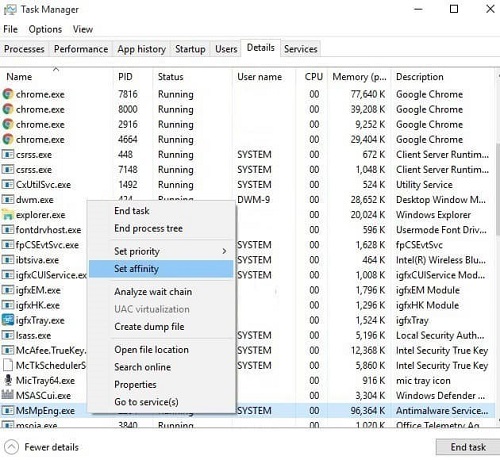
Go to the Details tab.
-
Right-click the process name msmpeng.exe and select Set affinity.
-
Choose the CPU limit that you allow the process to use.
Note: For normal CPU usage, select 50% for
MxMpEng.exe (That is one core of a dual-core CPU, two cores of a quad-core CPU, and so on.)
Method IV: Disabling Windows Defender through group policies on your laptop or desktop
Disabling Windows Defender is a severe answer that solves your issue that is related to high CPU usage.
Note: Your laptop or desktops protection suffers without any anti-virus software installed. If you disable Windows Defender, ensure you have another anti-malware application to install in its place. This can be either free or paid, but ensure you have something that is installed in Windows Defenders place.
-
Open a Run Window and type
gpedit.msc:-
Press the Windows logo and the R keys together.
-
Open the start menu and select Run.
-
-
This opens the Group Policy Editor. (This is only available on Pro and Enterprise editions. There are ways to install it on Home editions, but this article does not cover them.)
-
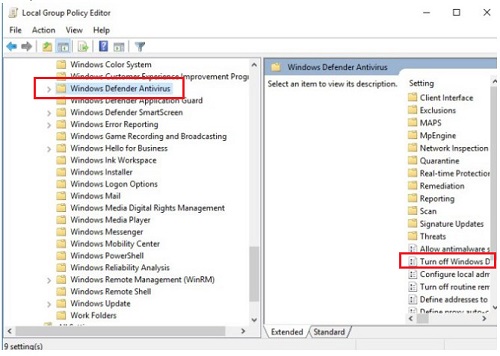
Scroll down the tree structure on the left of the screen until you get to Computer Configuration. Open it and go to Administrative Templates, then Windows Components. Look for Windows Defender anti-virus.
-
In the pane on the right of the screen, double-click Turn-off Windows Defender anti-virus.
-
A Properties window opens, choose Enabled, and click Apply and OK to save the change, then close all the windows.
Article Properties
Article Number: 000128249
Article Type: How To
Last Modified: 19 Apr 2026
Version: 9
Find answers to your questions from other Dell users
Support Services
Check if your device is covered by Support Services.