Dell Latitude Diagnostic LED and Battery Indicator Codes
Summary: Learn what Dell Latitude diagnostic LED, battery, and beep codes mean and how to use indicator patterns to identify and troubleshoot hardware problems.
This article applies to
This article does not apply to
This article is not tied to any specific product.
Not all product versions are identified in this article.
Instructions
- Dell Latitude E-series laptop battery
- Dell Latitude E-series Diagnostic LEDs
- Dell Latitude D-series laptop battery
- Dell Latitude D-series Diagnostic LEDs
- Dell Latitude Tablet LEDs
This article provides information about the Diagnostic LED codes for Dell laptops and tablets. Find information about common troubleshooting steps, helpful links to battery, AC adapter, and other troubleshooting guides to resolve battery and AC adapter-related issues.
Dell laptops have different types of onboard visual (LED) and audible (beep code) diagnostic indicators to help detect the symptoms of failed hardware components. Most of these symptoms are related to a failure to power on, complete power on self-test (POST), screen issue, or an issue with booting into the operating system. To learn more about how to troubleshoot such issues, see: Resolve No Power, No Post, No Boot or No Video
Choose a section below that relates to your computer model to view the information within.
Note: Some laptops use a sequence of audible beep codes to indicate a possible hardware component failure. See the Beep Codes table in the Dell Latitude section below for more information about how to use these codes to troubleshoot your computer.
Dell Latitude E-series laptop battery
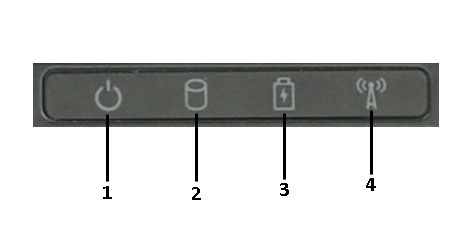
Power or battery light - Turns white or amber to indicate the power status and remaining battery charge. See the tables below.
| LED Light Description | |
|---|---|
| 1 | Power Light |
| 2 | Hard drive light |
| 3 | Battery status light |
| 4 | Wi-Fi light |
Battery light state
| Battery State | LED Behavior | Next Steps |
|---|---|---|
|
An unsupported or non-Dell AC adapter is attached to your laptop. |
Alternately blinking amber light and white light |
|
|
Temporary battery failure with AC adapter present |
Alternately blinking amber light with steady white light |
|
|
Fatal battery failure with AC adapter present |
Constantly blinking amber light |
|
|
Battery in full charge mode with AC adapter present |
Light off |
No further actions are required. |
|
Battery in charge mode with AC adapter present |
White light on |
No further actions are required. |
Note: To learn more about laptop battery troubleshooting, see: How to Troubleshoot Dell Laptop Battery Issues
If the laptop is connected to an electrical outlet, the power or battery light operates as follows. For specific information about your Dell laptop, see the User Manual of your Dell laptop.
| Power State | Charging status | LED Behavior |
|---|---|---|
|
On |
Any (0-100%) |
Solid white |
|
Standby |
Any (0-100%) |
Breathe white (slow increase and decrease in illumination). |
|
Off, hibernate |
>90% charge |
Off |
|
Off, hibernate |
= 90% charge |
Solid white |
If the laptop is running on battery power, the power or battery light operates as follows. For specific information about your Dell laptop, see the User Manual of your Dell laptop.
| Power State | Remaining battery power | LED Behavior |
|---|---|---|
|
On |
= 10% charge |
Solid white |
|
On |
<10% charge |
Solid amber |
|
Standby |
= 10% charge |
Breathe white (slow increase and decrease in illumination). |
|
Standby |
<10% charge |
Solid amber |
|
Off, hibernate |
Any (0-100%) |
Off |
Note: Helpful troubleshooting resources
Dell Latitude E-series Diagnostic LEDs
Currently Shipping Models
The three LED indicator lights are located near the front right-side of the computer, as shown below:
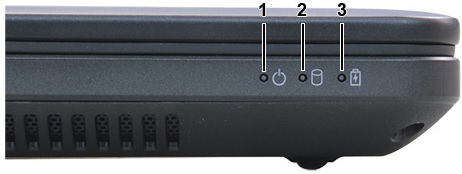
The battery LEDs on these laptops blink in an amber or white pattern to indicate hardware component failures. Use the table below to determine what each LED flash sequence means.
Note: The first number in the LED Flash Sequence column represents the number of amber-colored flashes, while the second number represents the number of white-colored flashes.
Example:
The battery LED will stop blinking for 1.5 seconds between the amber and white flashes, and the sequence will repeat after a 3 second pause.
Example:
No Memory or RAM detectedis (2,3): The battery LED blinks two times in amber, then three times in white.
The battery LED will stop blinking for 1.5 seconds between the amber and white flashes, and the sequence will repeat after a 3 second pause.
The following table depicts the amber and white blinking patterns with possible troubleshooting resolution:
| LED Flash Sequence | Fault Description | Faults |
|---|---|---|
| 2,1 | CPU | Possible CPU Failure |
| 2,2 | Motherboard BIOS | Motherboard (Includes BIOS Corruption or ROM Error) |
| 2,3 | Memory | No memory or RAM detected |
| 2,4 | Memory | Memory or RAM failure |
| 2,5 | Memory | Invalid Memory Installed |
| 2,6 | Motherboard Chipset | Motherboard or Chipset Error |
| 2,7 | LCD | LCD Failure |
| 3,1 | RTC Power Failure | CMOS Battery Failure |
| 3,2 | PCI or Video | PCI or Video Card or Chip Failure |
| 3,3 | BIOS Recovery 1 | Recovery Image Not Found |
| 3,4 | BIOS Recovery 2 | Recovery Image Found But Invalid |
Note: If the error code is not listed above, contact Dell Technical Support. To learn more about Dell ePSA diagnostics, see: Resolve Hardware Issues using ePSA Diagnostics
Legacy Models:
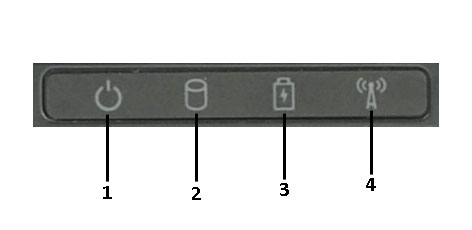
| LED Light Description | |
|---|---|
| 1 | Power Light |
| 2 | Hard drive light |
| 3 | Battery status light |
| 4 | Wi-Fi light |
The table below shows how to read the LED codes on a Dell laptop when a possible error occurs:
Storage LED
 |
Battery LED
 |
Wireless LED
 |
Fault Description | Next Steps |
|---|---|---|---|---|
| Blinking | Solid | Solid | A possible processor failure has occurred. | Contact Dell Support |
| Solid | Blinking | Solid | The memory modules are detected but has encountered an error. | See: How to diagnose and resolve common memory issues on a Dell Computer |
| Blinking | Blinking | Blinking | A system board failure has occurred. | Contact Dell Support |
| Blinking | Blinking | Solid | A possible graphics card or video failure has occurred. | See: How to Troubleshoot Display or Video Issues on Dell Laptop LCD Panel |
| Blinking | Blinking | Off | The computer failed during hard drive initialization or Option ROM initialization. | See: How to resolve HDD (Hard drive) issues on a Dell Computer |
| Blinking | Off | Blinking | The USB controller encountered a problem during initialization. | Check ports for damage and remove any USB devices.
See: USB Ports Not Working on Windows: Solve Common USB Issues |
| Solid | Blinking | Blinking | No memory modules are installed or detected. | See: How to diagnose and resolve common memory issues on a Dell Computer |
| Blinking | Solid | Blinking | The LCD encountered a problem during initialization. | See: How to Troubleshoot Display or Video Issues on Dell Laptop LCD Panel |
| Off | Blinking | Blinking | The modem is preventing the computer from completing POST. | Try reseating or removing any Modem cards. |
| Off | Blinking | Off | The memory failed to initialize, or it is unsupported. | See: How to diagnose and resolve common memory issues on a Dell Computer |
Note: Helpful troubleshooting resources
Dell Latitude D-series laptop battery
Battery Status
If the computer is connected to an AC adapter, the battery light operates as follows. For specific information about your Dell laptop, see the User Manual of your Dell laptop.
- Solid Green - The battery is charging.
- Flashing Green - The battery is almost fully charged.
If the computer is running on battery power, the battery light operates as follows. For specific information about your Dell laptop, see the User Manual of your Dell laptop.
- Off - The battery is adequately charged (or the computer is turned off)
- Flashing orange - The battery charge is low.
- Solid orange - The battery charge is critically low.
Note: Helpful troubleshooting resources
Dell Latitude D-series Diagnostic LEDs
LED Error Codes
The following table shows the possible LED codes that may display in a no-POST situation:
| Flash Code | Description | Next Step |
|---|---|---|

Num Lock Flashing, Caps Lock On, Scroll Lock On |
The microcontroller is handing control of the computer to the processor. This code persists if no processor is detected. |
|

Num Lock On, Caps Lock Flashing, Scroll Lock On |
The memory has encountered an error. |
|

Num Lock Flashing, Caps Lock Flashing, Scroll Lock Flashing |
A system board component is faulty. | Replace the system board. |

Num Lock Flashing, Caps Lock Flashing, Scroll Lock On |
The video card is preventing the computer from completing POST. |
|

Num Lock Flashing, Caps Lock Flashing, Scroll Lock Off |
The keyboard is preventing the computer from completing POST. |
|

Num Lock Flashing, Caps Lock Off, Scroll Lock Flashing |
The USB controller encountered a problem during initialization. |
|

Num Lock On, Caps Lock Flashing, Scroll Lock Flashing |
No SODIMMs are installed. |
|

Num Lock Flashing, Caps Lock On, Scroll Lock Flashing |
The LCD encountered a problem during initialization. |
|

Num Lock Off, Caps Lock Flashing, Scroll Lock Flashing |
The modem is preventing the computer from completing POST. |
|
Note: Helpful troubleshooting resources
- How to Check Battery Health Status on Dell Laptops
- Resolve Hardware Issues using ePSA Diagnostics
- How to Troubleshoot Dell Laptop Battery Issues
- Dell Laptop Battery Warranty Support
Dell Latitude Tablets
Beep Codes
The computer may emit a series of beeps during startup if the display cannot show errors or problems. These series of short, repetitive beeps, called beep codes, identify various computer faults.
| Beep Code | Fault Description | Suggested Remedy |
|---|---|---|
| 1 | BIOS ROM checksum in progress or failure | System board failure (covers BIOS corruption or ROM error). |
| 2 | Memory | No memory or RAM detected |
| 3 |
|
System board failure |
| 4 | RAM Read/Write failure | Memory or RAM failure |
| 5 | Real-time clock power failure |
|
| 6 | Video BIOS test failure | Video card or Chip failure |
| 7 | CPU cache test failure | Processor failure |
| 8 | LCD | LCD failure |
LED Error Codes
The Power Button LED, or an agreed-upon alternate LED, blinks in a repeating pattern to communicate diagnostic information. See the table below for these LED blinking codes and their corresponding errors.
Note: For the
No memory or RAM detectederror, the Power Button LED blinks two times followed by a pause, and then repeats until the computer is powered off.
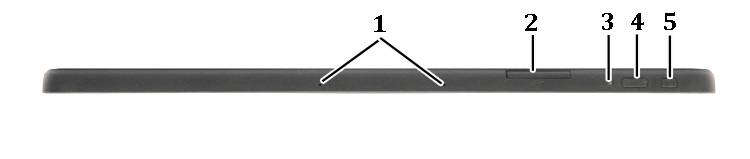
Figure 13: LED Codes
| LED Code | Fault Description | Suggested Remedy |
|---|---|---|
| 1 | System Board: BIOS ROM failure | System board (covers BIOS corruption or ROM error). |
| 2 | Memory | No memory or RAM detected |
| 3 |
|
System board failure |
| 4 | Memory | Memory or RAM failure |
| 5 | Real-time clock failure |
|
| 6 | Video BIOS | Video card or Chip failure |
| 7 | CPU | Processor failure |
| 8 | LCD | LCD failure |
Note:
What to do next? - If the LED codes point towards possible battery failure, see the Dell knowledge base articles.
What to do next? - If the LED codes point towards possible battery failure, see the Dell knowledge base articles.
- How to Improve the Performance of a Dell Laptop Battery
- How to Check Battery Health Status on Dell Laptops
- Resolve Hardware Issues using ePSA Diagnostics
- How to Troubleshoot Dell Laptop Battery Issues
- Dell Laptop Battery Warranty Support
Affected Products
Dell Plus, Dell Pro, Dell Pro Max, Dell Pro Plus, Dell Pro Premium, Latitude, Dell Pro RuggedArticle Properties
Article Number: 000131044
Article Type: How To
Last Modified: 28 Oct 2026
Version: 16
Find answers to your questions from other Dell users
Support Services
Check if your device is covered by Support Services.