BitLocker Cannot Be Enabled When You Change the Boot Sequence to Legacy Mode
Summary: This article provides the steps to resolve BitLocker asking for a recovery key after changing to Legacy mode.
This article applies to
This article does not apply to
This article is not tied to any specific product.
Not all product versions are identified in this article.
Symptoms
BitLocker Cannot Be Enabled
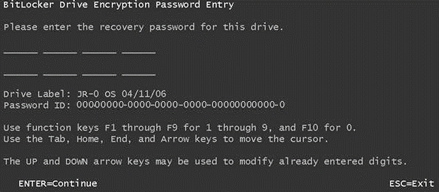
XPS 12-9250 and Latitude 12-7275 Users have reported that BitLocker cannot be enabled when you change the Boot sequence to Legacy mode in the BIOS setup menu. Windows asks the User to enter the recovery key every time during a warm boot or cold boot if you enable BitLocker in the legacy mode with the Windows 8.1 or 10.
Cause
These systems are designed for boot only in the Unified Extensible Firmware Interface (UEFI) boot mode using the Windows 10, so if you change to the legacy boot mode the system prompts for the BitLocker key recovery.
Resolution
Return the BIOS to UEFI Boot
You can resolve this issue by returning the system to the UEFI boot mode.
- From a power off state, power on the system and Press F2 boot into the BIOS setup menu.
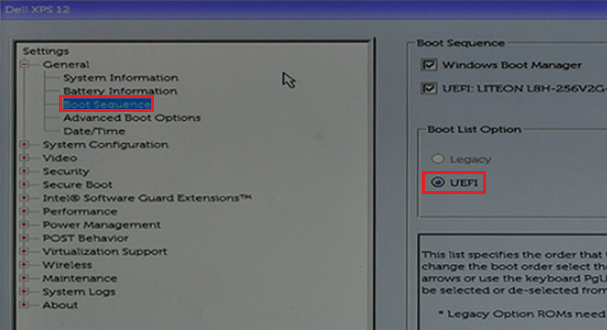
- Choose "Boot sequence" and change the option from "Legacy" to "UEFI" then press "Apply" on the right-down corner.
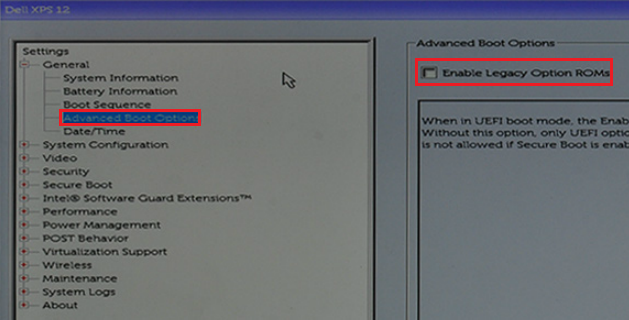
- Choose "Advance Boot options" and disable "Enable Legacy Operation ROMs" then press "Apply" on the right-down corner.
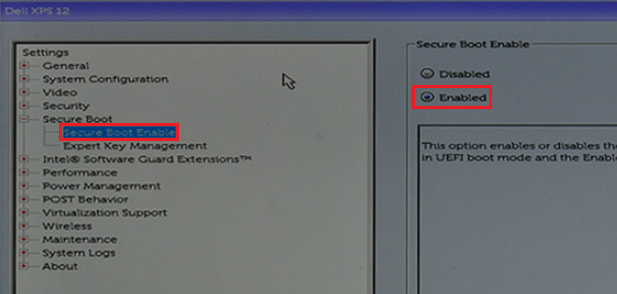
- Choose "Secure Boot" -> "Secure Boot Enable" and change the option from "Disabled to Enabled," then press "Apply" on the right-down corner.
- Press "Exit" on the right-down corner and wait the system reboot.
Affected Products
Latitude 7275, XPS 12 9250Article Properties
Article Number: 000141374
Article Type: Solution
Last Modified: 01 May 2026
Version: 8
Find answers to your questions from other Dell users
Support Services
Check if your device is covered by Support Services.