How to Upgrade Intel Rapid Storage Technology Driver for Intel Optane
Summary: Learn how to upgrade the Intel Rapid Storage Technology Driver for PCs with Intel Optane
This article applies to
This article does not apply to
This article is not tied to any specific product.
Not all product versions are identified in this article.
Resolution
To upgrade Intel Rapid Storage Technology driver for PCs with Intel Optane enabled, follow the instructions below.
-
Disable Intel Optane Memory volume
- On the system tray, double-click on the Intel Rapid Storage Technology icon
- Click Intel Optane Memory tab
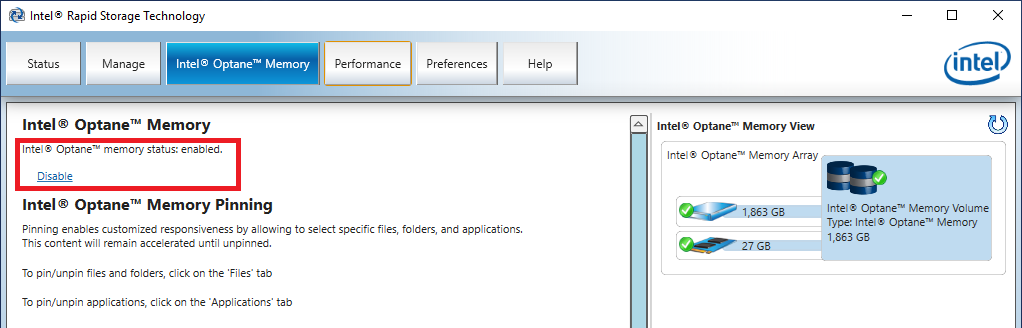
- Click Disable to start the disable process
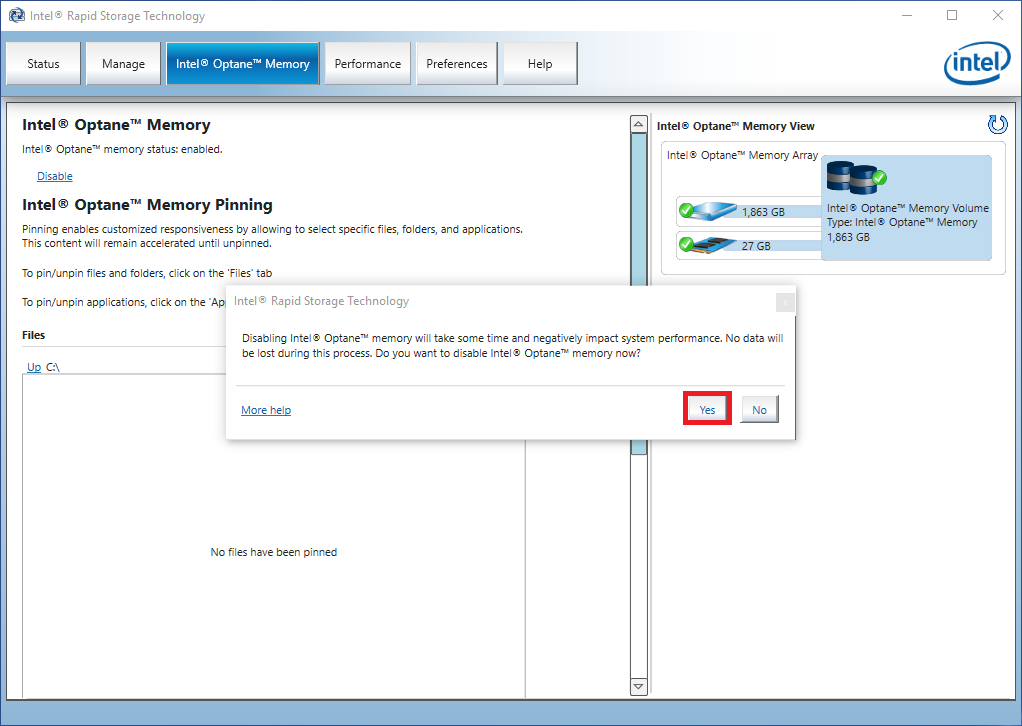
- In the confirmation window, click Yes
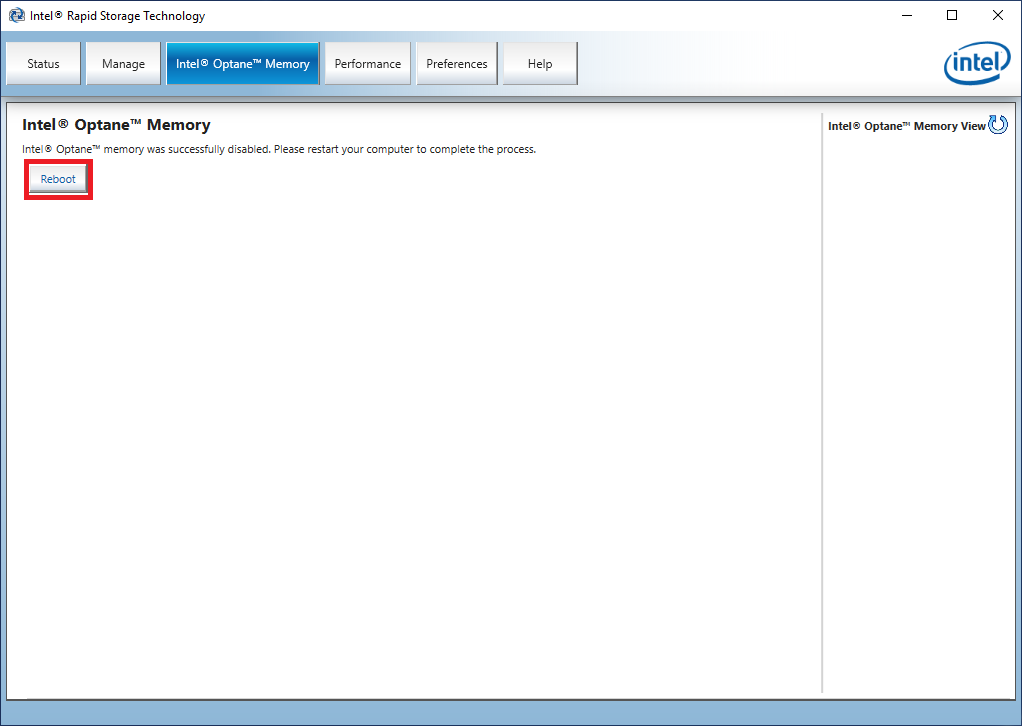
- Once the process is complete, click Reboot
-
Download and Install the latest Intel Rapid Storage Technology driver
- Browse to Dell Drivers & Downloads website and download the Intel Rapid Storage Technology driver for your Dell PC
- Double-click the downloaded driver installation file and follow the on-screen instructions to complete the driver installation
- Once the driver installation is complete, restart the PC
-
Enable Intel Optane Memory volume
- On the system tray, double-click on the Intel Rapid Storage Technology icon
- Click Intel Optane Memory tab
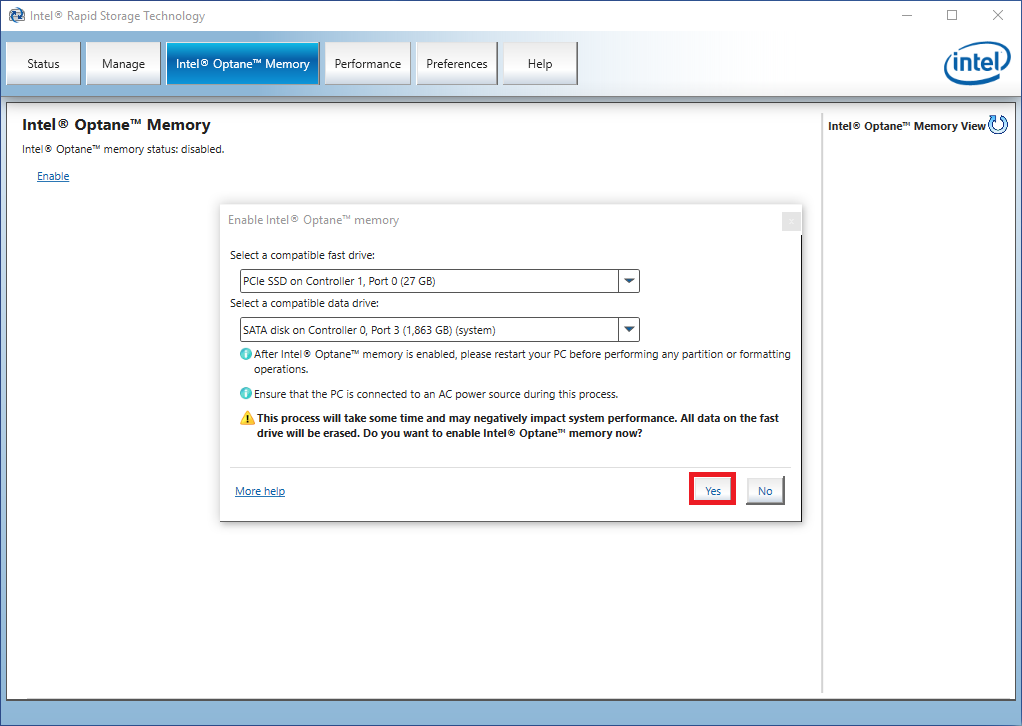
- Select the drive to be accelerated and click Enable to start the enabling process
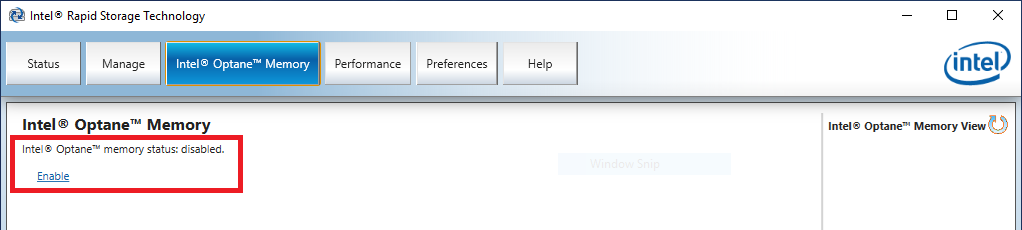
- In the confirmation window, click Yes
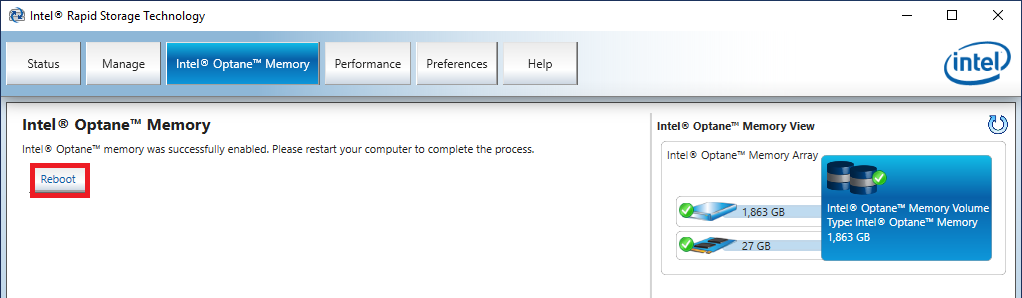
- Once the process is complete, click Reboot
Article Properties
Article Number: 000145254
Article Type: Solution
Last Modified: 02 May 2026
Version: 4
Find answers to your questions from other Dell users
Support Services
Check if your device is covered by Support Services.