Alienware and Dell Gaming Computer Overclocking
Summary: Learn about select Alienware and Dell G Series computers that support CPU overclocking to improve performance. This article explains what CPU overclocking is and how to resolve common issues with CPU overclocking. ...
This article applies to
This article does not apply to
This article is not tied to any specific product.
Not all product versions are identified in this article.
Instructions
Table of contents
- What is CPU overclocking?
- Support for CPU Overclocking
- CPU Overclocking vs. Intel Turbo Boost
- How to change the CPU overclocking settings on my computer?
- What to do if something goes wrong?
What is CPU overclocking?
CPU Overclocking is a way to custom tune your computer. You can adjust the power, voltage, core, memory settings, and other key system values for ultimate performance. It speeds up your components and your gameplay. It can also help with processor-intensive tasks.
Support for CPU Overclocking
Overlocking control options vary. They may be limited, depending on the computers configuration. (For Example: CPU, Memory, cooling solution, and so on.)
Alienware and G-series computers only support overclocking when operating through the BIOS or the Alienware Command Center (AWCC). This is with the configuration that was originally built and shipped from Dell.
Overclocking Preset Profiles
CAUTION: Altering the clock frequency or voltage may damage or reduce the useful life of the processor and other components in the computer. It may reduce the stability and performance of the computer. The Product warranty may not apply if the processor is operated beyond its specifications.
CPU Overclocking vs. Intel Turbo Boost
While you can make permanent changes to the processor, memory, and motherboard settings to increase the overall speed by overclocking. Intel Turbo Boost Technology accelerates the processor for peak loads. It automatically allows processor cores to run faster than the rated operating frequency if they are operating below power, current, and temperature specification limits.
How to change the CPU overclocking settings on my computer?
See the following link to the online Alienware Command Center Documentation page and select the version of the AWCC application installed on your computer. Each version has its own customized how to instructions:
The following information identifies where you can find the settings section of your AWCC application:
For AWCC version 5.x:
- The fusion section of the Alienware Command Center Application
For AWCC version 6.x:
- The performance section of the Alienware Command Center Application (From the performance page in system mode, go to Creating an Overclocking Thermal Preset.)
NOTE: Use the following steps to identify the installed version of AWCC:
-
Go to the Windows control panel and go to Uninstall or change a program.
-
Check the installed version of Alienware Command Center Package Manager.
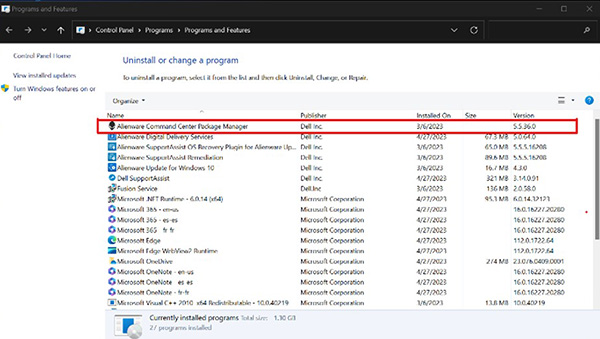
(Figure.1 Version 5.5.36.0 is displayed)
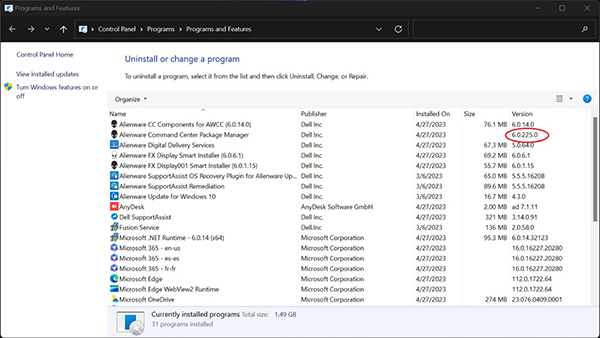
(Figure.2 Version 6.0.225.0 is displayed)
Using the settings in the BIOS
See the BIOS section of your computer's manual. To access the documentation of your Dell computer, go to Dell Product Manuals.
Thermal Considerations
Depending on the computers design, Overclocking may not bring any improvement if the thermal environment does not allow the CPU to dissipate more power or heat.
What to do if something goes wrong?
To revert any overclocking changes, reset the BIOS or UEFI to factory defaults:
- Press the F2 key while turning on the computer.
- In the BIOS, press the F9 key to load defaults.
- Press the F10 key to save and exit.
Additional Information
 Out of warranty? No problem. Browse to the Dell.com/support website and enter your Dell Service Tag and view our offers.
NOTE: Offers are only available for US, Canada, UK, France, Germany, and China personal computer customers. Server and Storage are not applicable.
Affected Products
Alienware, G Series, G Series, AlienwareArticle Properties
Article Number: 000178575
Article Type: How To
Last Modified: 06 May 2026
Version: 16
Find answers to your questions from other Dell users
Support Services
Check if your device is covered by Support Services.