Dell EMC VxRail: vCenter Error "The ramdisk 'root' is full. As a result, the file * could not be written."
Summary: vCenter is showing errors for a host: "The ramdisk 'root' is full. As a result, the file * could not be written."
This article applies to
This article does not apply to
This article is not tied to any specific product.
Not all product versions are identified in this article.
Symptoms
Symptom 1: The root for the Ramdisk is at 100% Use%.

Root shows Use% 100%.
Symptom 2: The root for the ramdisk is full, and the following error shows when running:
You see an error ending with "socket.error: [Errno 2] No such file or directory"
OR
Log files are missing or not being updated in /var/log/.
OR
You cannot install HA agent on the affected ESXi host.
- Use putty to ssh to the ESXi host.
-
vdf -h
- Verify root shows 100%.
Example of output:
Root shows Use% 100%.
Symptom 2: The root for the ramdisk is full, and the following error shows when running:
esxcli software vib list
You see an error ending with "socket.error: [Errno 2] No such file or directory"
OR
Log files are missing or not being updated in /var/log/.
OR
You cannot install HA agent on the affected ESXi host.
Cause
Two possible causes:
1. Files were manually copied to a host and the incorrect path (that is, one outside /vmfs/volumes) was used.
1. Files were manually copied to a host and the incorrect path (that is, one outside /vmfs/volumes) was used.
2. If a persistent scratch space is not available, ESXi stores this temporary data on a ramdisk. This is constrained in space. This may be problematic in low-memory situations but is not critical to the operation of ESXi. Information that is stored on a ramdisk does not persist across reboots, so troubleshooting information such as logs and core files could be lost. If the host's persistent scratch location is configured improperly, intermittent issues may occur due to insufficient space for temporary files and log files not updating.
Resolution
1. For file issues, review VMware KB: RAM disk is full (2001550) (vmware.com) and follow the steps below.
2. To resolve this issue, review VMware KB: https://kb.vmware.com/s/article/1033696 and follow the steps below.
- If an administrative action caused the error, delete the files that use the incorrect path or move them to a datastore.
OR
- Use putty to ssh to the ESXi host.
-
find / -size +1024k -exec du -h {} \; | less - Move or delete any old or stale left over ESXi host log bundles.
2. To resolve this issue, review VMware KB: https://kb.vmware.com/s/article/1033696 and follow the steps below.
- Use putty to ssh to the ESXi host.
-
df -h

- Annotate the file path for the 'Filesystem' "VMFS-L", which shows under 'Mounted on'. NOTE: This is a symbolic link that goes to the directory which is the volume WITHOUT 'OSDATA-' at the beginning. As an example, using the information from the screenshot above, the file path VMFS-L is 'Mounted on' shows as '/vmfs/volumes/OSDATA-604f7166-b35be91f-0d4c-005056281a17'.
- Log in to vCenter.
- Click the host in question.
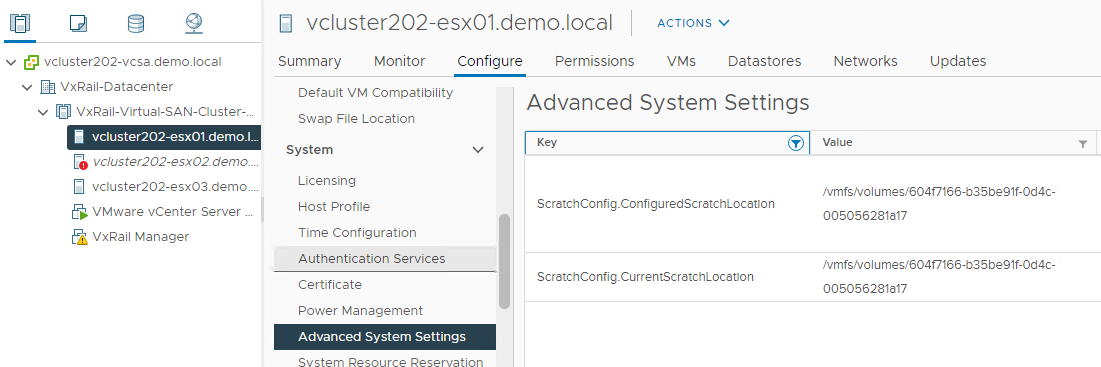
- Go to Configure > System > Advanced System Settings.
- Filter the Key for 'scratchconfig'.
- Look for 'ScratchConfig.ConfiguredScratchLocation'.
- Insert the file path from step 3 without "OSDATA-." As an example: '/vmfs/volumes/OSDATA-604f7166-b35be91f-0d4c-005056281a17' should be entered as '/vmfs/volumes/604f7166-b35be91f-0d4c-005056281a17'.
- Put the host into Maintenance Mode, and restart the host.
- When the host restarts, log in to vCenter to verify 'ScratchConfig.ConfiguredScratchLocation' AND 'ScratchConfig.CurrentScratchLocation' are showing the correct directory path added in step 9.
Affected Products
VxRail 460 and 470 Nodes, VxRail Appliance Family, VxRail Appliance Series, VxRail G Series Nodes, VxRail D Series Nodes, VxRail E Series Nodes, VxRail P Series Nodes, VxRail S Series Nodes, VxRail V Series NodesArticle Properties
Article Number: 000193942
Article Type: Solution
Last Modified: 24 Oct 2023
Version: 2
Find answers to your questions from other Dell users
Support Services
Check if your device is covered by Support Services.