How to attach files to your service request through the Dell support portal.
Summary: In some situations Dell Technical Support may request evidence to perform a more assertive diagnosis, this article illustrates how to attach files to your service request through the Dell support portal. ...
This article applies to
This article does not apply to
This article is not tied to any specific product.
Not all product versions are identified in this article.
Instructions
| emoji |
What do you need to know before you begin?
|
- Visit https://www.dell.com/support/incidents-online/pt-br/SrSearch
- Enter a service request number and click the 'Search' button.

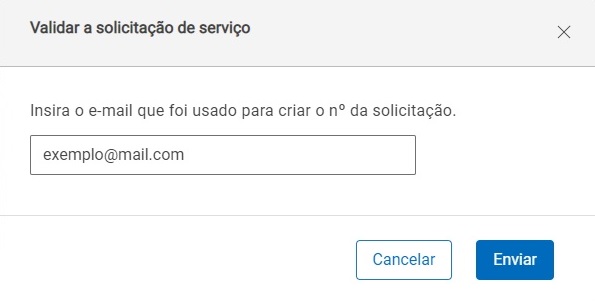
- Enter the email that was used to create the service request and click the 'Submit' button.
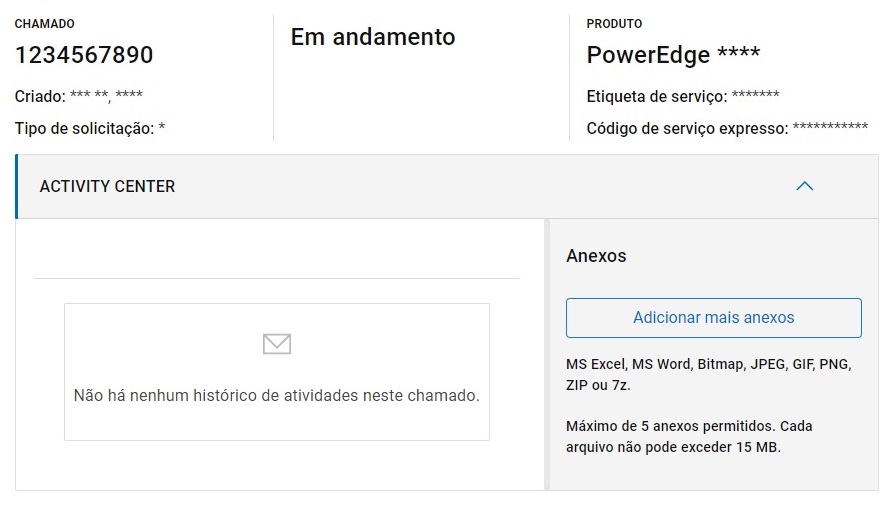
- Under ACTIVITY CENTER note the Attachments area, select the 'Add more attachments' button.
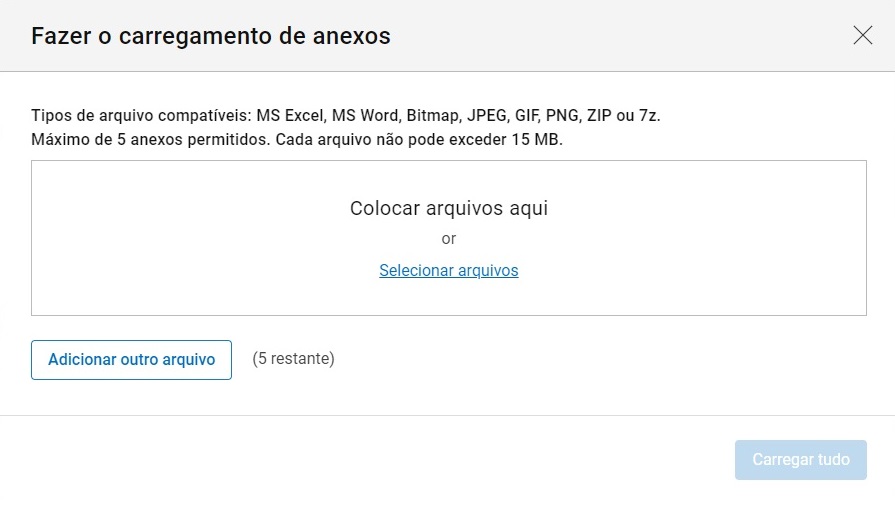
- Click 'Select Files'.
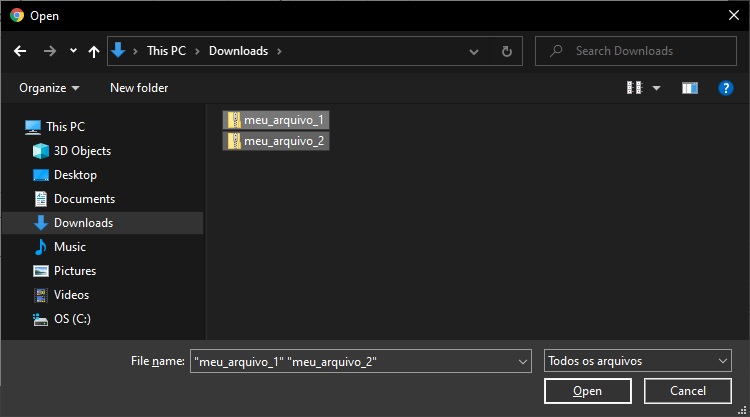
- Select the file or files you want to attach and click the 'Open/Open' button.
- Confirm that all files are in the list, if not, click the 'Add another file' button and select the missing file, when complete click the 'Load All' button.
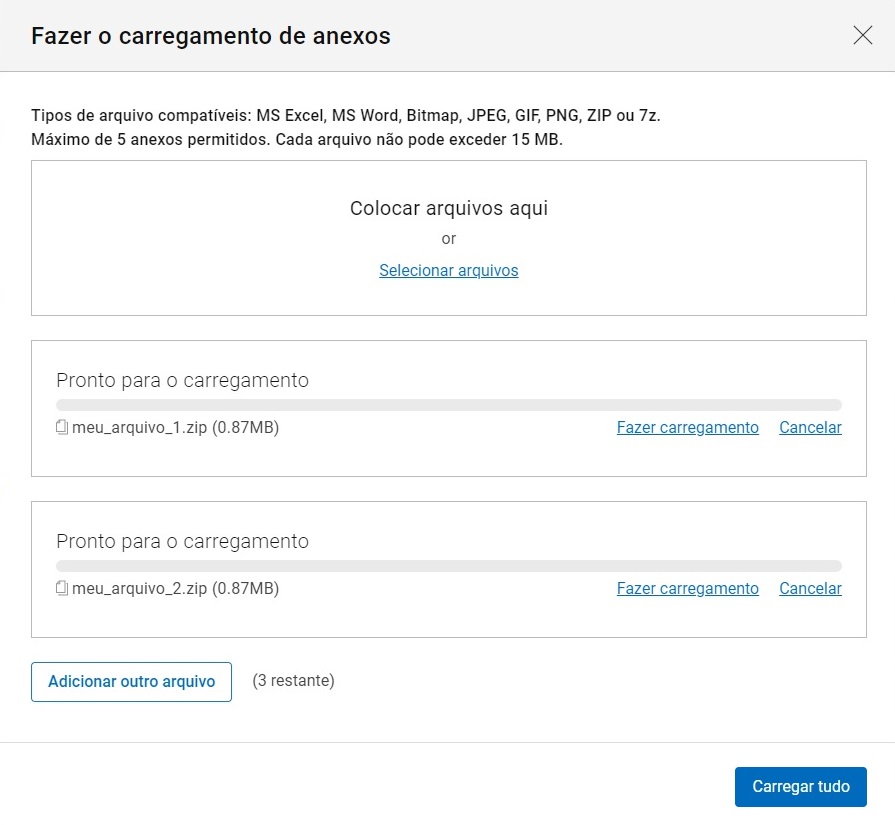
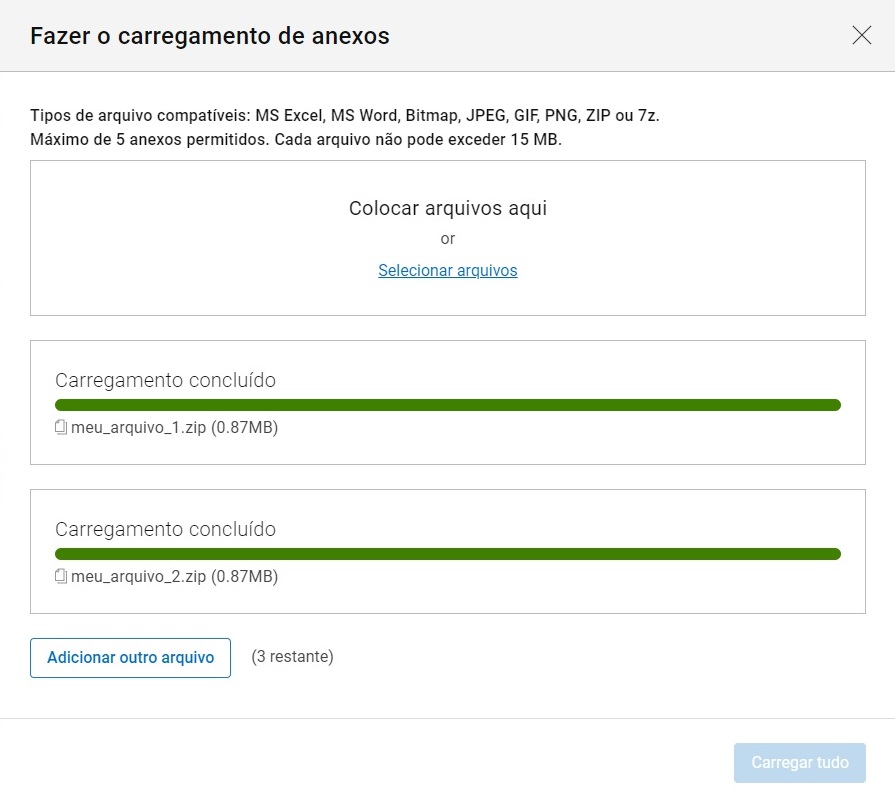
- Wait until all files have completed loading.
Affected Products
PowerEdgeProducts
ServersArticle Properties
Article Number: 000194683
Article Type: How To
Last Modified: 12 May 2026
Version: 6
Find answers to your questions from other Dell users
Support Services
Check if your device is covered by Support Services.