PowerStore: How to replace management IPs
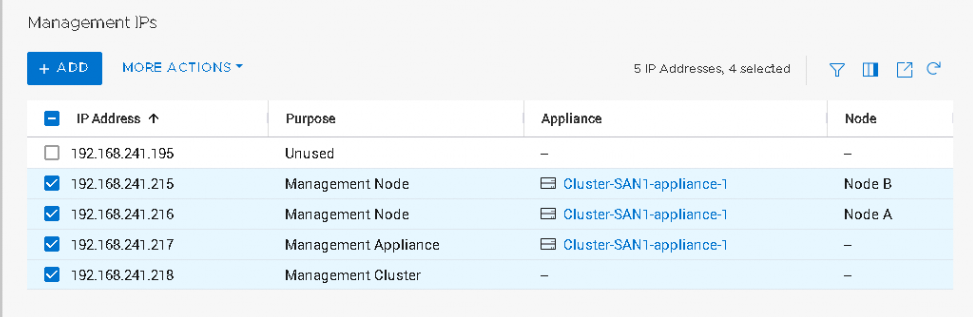
Summary: Array reinitialized with undesired IPs and want to remove them. Delete option grayed since IPs are in a used state.
This article applies to
This article does not apply to
This article is not tied to any specific product.
Not all product versions are identified in this article.
Instructions
Settings - Reconfigure - Edit Management Network
Reconfigure Management Network
There are no active import sessions.
There are no active replication sessions.
After the reconfiguration process is complete, the VASA provider is registered again with the new cluster IP address.
PSTCLI can be used, but user interface is easier.
Reconfigure Management Network
Changes made to the Cluster IP of the management network require the existing connection to be reset or PowerStore Manager to be reloaded Note: If unable to reconnect, verify that the updated Management Settings information is correct and try again in 10 minutes.
Ensure that:
All infrastructure services (DNS, NTP, vCenter, so on) are accessible from the new management network.There are no active import sessions.
There are no active replication sessions.
After the reconfiguration process is complete, the VASA provider is registered again with the new cluster IP address.
PSTCLI can be used, but user interface is easier.
pstcli> network show
*** Get the ID of your Management Network.

pstcli> network -id NW1 replace -vlan_id 0 -gateway 192.168.73.1 -prefix_length 24 -cluster_mgmt_address 192.168.73.40 -mtu 1500 -ip_pool_addresses 192.168.73.41,192.168.73.42,192.168.73.43 -dns_addresses 192.168.69.3,192.168.69.4 -ntp_addresses 192.168.69.3,192.168.69.4
Additional Information
Example: Customer wanted to replace IPs already being used by another device.
Affected Products
PowerStore, PowerStore 1000TArticle Properties
Article Number: 000197870
Article Type: How To
Last Modified: 02 Oct 2024
Version: 1
Find answers to your questions from other Dell users
Support Services
Check if your device is covered by Support Services.