Blue Screen Error on Dell G15 5520 and Alienware M15 R7
Summary: This article provides information about the Dell G15 5520 and Alienware M5 R7 encountering Blue Screen errors in use.
This article applies to
This article does not apply to
This article is not tied to any specific product.
Not all product versions are identified in this article.
Symptoms
Dell G15 5520 and Alienware M5 R7 laptops may encounter a Blue Screen Error issue when in use, and there is no fixed error code.
Cause
N/A
Resolution
Short-term solution
- Update the BIOS.
- Update SSD Device Firmware.
- Update Drivers by Windows Update.
To download and install the BIOS, reference BIOS Update Guide.
How to Check System Model Name:
- Press Win +R
- Input msinfo32 in the search box
- Click OK. For example: Dell G15 5520(See Figure.1)
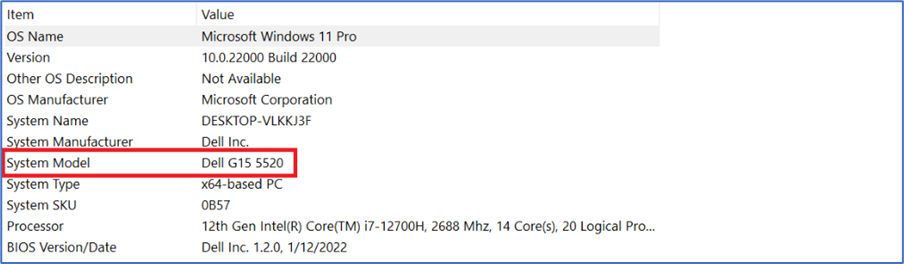
Figure 1 system model name - Find System Model
How to Check Storage Drive Information
- Right-click the Win icon on the desktop.
- Select Windows PowerShell(Admin).
- Type in the command wmic then press enter
- Type in the command diskdrive get caption, firmware revision then press enter.
- You can see the device model name and Firmware version in the list.
Reference for storage device information:
| Vendor | Family or Series | Capacity | Firmware version until May 2022 |
|---|---|---|---|
| Kioxia | BG4 | 256G/512G/1T | 10410106 |
| WDC | SN530 | 256G/512G/1T | 21113012 |
| Hynix | BC711 | 256G/512G/1T | 41002131 |
| Samsung | PM991a | 256G/512G/1T | 26303039 |
| SSSTC | CL1 | 256G | 22301116 |
| 512G | 22321116 | ||
| Adata | IM2P33F3a | 256G/512G | 92103061 |
| Kioxia | XG7 | 512G/1T | 10804105 |
| 2T/4T | 10904106 | ||
| Samsung | PM9A1 | 512G/1T | 36308229 |
| 2T | 36308129 | ||
| SSSTC | CA6 | 512G/1T/2T | 24201113 |
| WDC | SN810 | 512G/1T/2T | 61520012 |
| Micron | 3400 | 512G/1T/2T | 34000050 |
| Hynix | PC801 | 512G/1T/2T | 51002141 |
How to Download SSD Device Firmware:
-
Browse to the Dell Drivers & Downloads page:
-
Select the Operating System.
-
Under Category, select Firmware.
-
Locate the latest solid state drive Firmware Update.
-
Click Download and save the file to your computer.
-
Open File Explorer and browse to the location where the downloaded file is saved.
-
Double-click the download setup file and follow the on-screen instructions to complete the installation process.
Same steps if you want to download other drivers versions.
How to check the current driver version:
- Open Device Manager.
- Located to Storage controllers
- Select Intel RST WMD Controller 467 F(for example).
- Right-click, go to the Properties (See Figure.3)
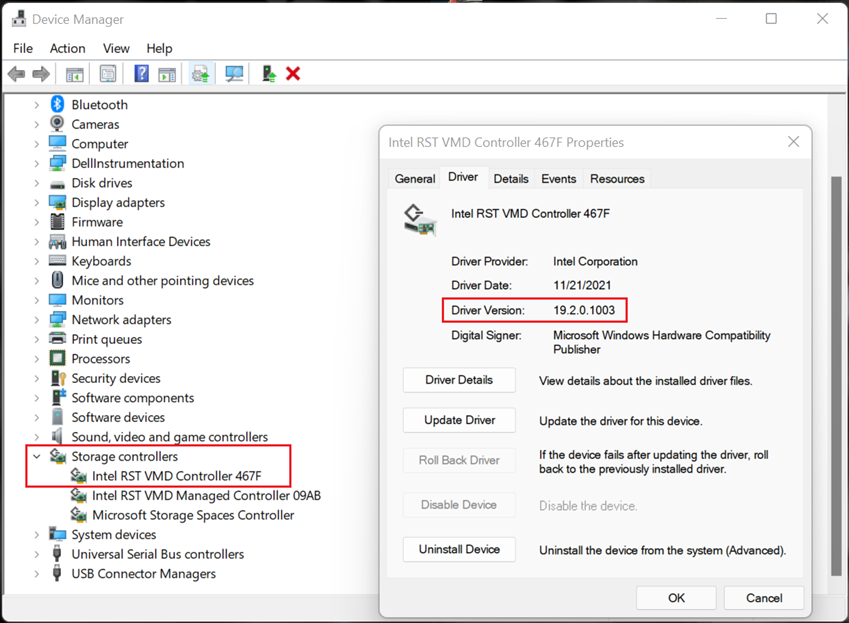
Figure 2 IRST driver controller
The same steps if you want to check other driver versions.
How to Update Drivers by Windows Update:
- Open the system Settings.
- Choose Windows Update.
- Click Check for updates, and wait for drivers to download and install.
- After all are installed, press Restart to apply all updates.
Related read
Affected Products
Alienware m15 R7, Dell G15 5520Article Properties
Article Number: 000200835
Article Type: Solution
Last Modified: 14 May 2026
Version: 8
Find answers to your questions from other Dell users
Support Services
Check if your device is covered by Support Services.