Live Optics | SC | Complete an SC Storage Array Profile
Summary: Live Optics supports profiling of the Dell SC storage array (SC series). Using the Live Optics collector, configuration and performance data is captured, analyzed, and compiled into a project for viewing. This article outlines the process to produce an SC storage array profile. ...
This article applies to
This article does not apply to
This article is not tied to any specific product.
Not all product versions are identified in this article.
Instructions
A video tutorial is also available here .
Before you begin, you must have the Live Optics collector. See Download the Live Optics collector for further information.
- Launch the Live Optics collector and select Storage from the left panel. Select SC from the options on the right panel.

- On the following screen, enter the DSM Data Collector hostname or IP address, username, and password. The username must be the admin or equivalent admin account. Click Next.
NOTE: In some cases, due to firewall restrictions, a jump box might be required. Instead, add the jump box IP and port in the following format (X.X.X.X:Port).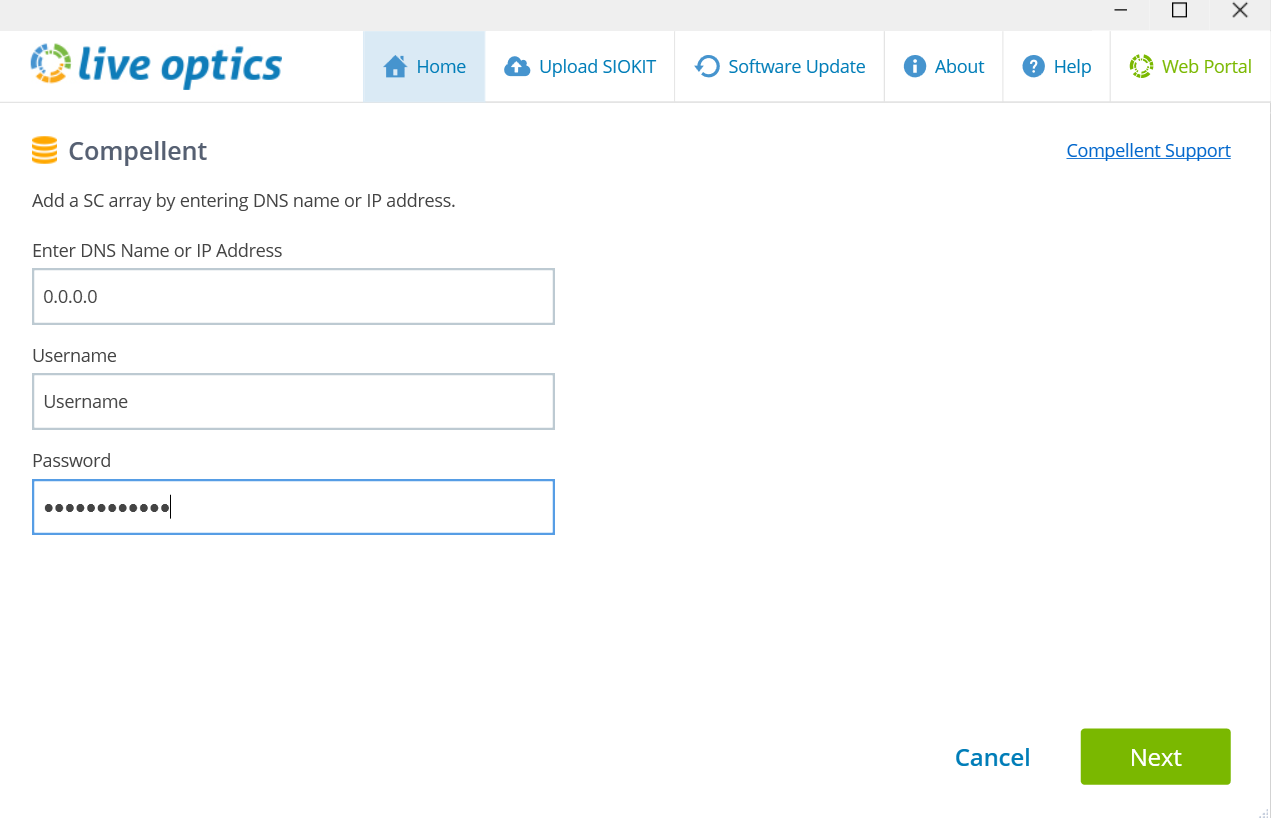
- The Live Optics collector connects to the DSM Data collector and displays a list of connected SC arrays.
NOTE: If one SC array is associated with the DSM Data collector, it connects automatically.
- Select the SC array for which you wish to create an array profile, and click Next.
- On the Upload Options screen, chose if you wish to upload your collection data automatically or manually (Automatically is the recommended default option).
- Enter a name for the array profile and click Next. The files are processed and uploaded to the web portal. During the upload, a status bar indicates the progress. As storage array data can be quite large, the upload may take some time to complete depending on the speed of your Internet connection.
- The Live Optics collector indicates when the upload is complete. You will also receive an email from Live Optics when your project is ready to view on the web portal. Click Quit to close the collector.
- If you selected the manual upload option, "I will upload later", your data is processed and saved to an encrypted file with the name [hostname]_SC.siokit. The file is written to the same folder from which the collector was launched. After the collection process completes, the file must be uploaded to the Live Optics web portal. To upload collection data manually, see Upload an SIOKIT file from the Live Optics collector or Upload an SIOKIT file from the Live Optics web portal.
- To view your project results, log on to the Live Optics web portal and select your project from the recent projects listed on the main dashboard.
- Use the Reports tab in the top right corner of the screen to download an Excel report containing your project details.
Additional Information
If you have any questions, please reach out to Live Optics Support at liveoptics.support@dell.com.
Affected Products
AnalyticsArticle Properties
Article Number: 000230694
Article Type: How To
Last Modified: 25 Mar 2025
Version: 3
Find answers to your questions from other Dell users
Support Services
Check if your device is covered by Support Services.