Dell Automation Platform: Enabling Connectivity for orchestrator
Summary: The procedure for generating an access key and PIN to enable connectivity for a Dell Automation Platform orchestrator varies with the environment. The Dell access key and PIN portal have been updated (on 1/12/2026) to present the user with two options for access key and PIN generation for the Dell Automation Platform orchestrator. ...
This article applies to
This article does not apply to
This article is not tied to any specific product.
Not all product versions are identified in this article.
Instructions
This article presents instructions and troubleshooting information for the following tasks:
- Generating and access key and PIN to enable connectivity for a Dell Automation Platform orchestrator
- Enabling connectivity when deploying an on-premises Dell Automation Platform orchestrator
Generating and access key and PIN to enable connectivity for a Dell Automation Platform orchestrator.
The Dell Automation Platform access key and PIN page changed in January 2026. The user is presented with two new options, but the descriptions are not aligned with Dell Automation Platform workflows. This article explains what options to select for different use cases.
Instructions:
The text that describes the options that appears on the access key and PIN portal is generic, it has not been optimized for the Dell Automation Platform.
Figure 1:

Table 1: Access key and PIN option selection for Dell Automation Platform use cases
| Use Case | Option | Required Inputs |
| Deploying a new on-premises, connected orchestrator | Yes, lets register | Location ID, Name or Address |
| Enabling connectivity on a SaaS orchestrator for serviceability features | No, already connected | Orchestrator SWID |
| Refreshing or changing the access key and PIN for a connected orchestrator, SaaS or on-premises | No, already connected | Orchestrator SWID |
The two options differ in how the user is authorized to generate an access key and PIN.
- Yes, lets register:
This option is used to enable connectivity for software products, like the Dell Automation Platform orchestrator before they have been deployed. Before deployment, the software instance does not have a Dell identifier, like a serial number, service tag or a SWID. This is the case when you are deploying a new on-premises Dell Automation Platform orchestrator.
In this case, the customer must specify the location where the software is installed, as specified in the software order. This option utilizes the user's Dell Identity account information and the location where the software is installed to grant the use permission to generate an access key and PIN. The location, sometimes referred to as the installed-at location, is specified as part of the Dell Automation Platform software order. If the company corresponding to the location matches the company associated with the user's Dell Identify account, then the user can generate an access key and PIN.
Note: This does not apply to Dell Automation Platform Software as a Service (SAAS) installations
- No, already connected:
This option should be selected when a software product has a Dell software identifier (SWID). This is the case when you want to enable connectivity on a SaaS orchestrator to take advantage of the Dell support features like call-home. It should also be selected if the user wants to refresh their connectivity certificates by regenerating an access key and PIN.
This option utilizes the user's Dell Identity account information and the SWID of the Dell Automation Platform orchestrator to grant the use permission to generate an access key and PIN. This is the same option used for hardware products, where a service tag is used in place of a SWID.
Enabling connectivity when deploying an on-premises Dell Automation Platform orchestrator
Instructions:
- Navigate to the Dell Automated Platform components product page (URL) and select the Generate Access Key link.
- Select Yes, let's register
- Enter the Location ID. (Preferred method)
- Navigate to Dell MyAccount
- Select License Activation
- Enter your LAC in the Search box and select Search by LAC
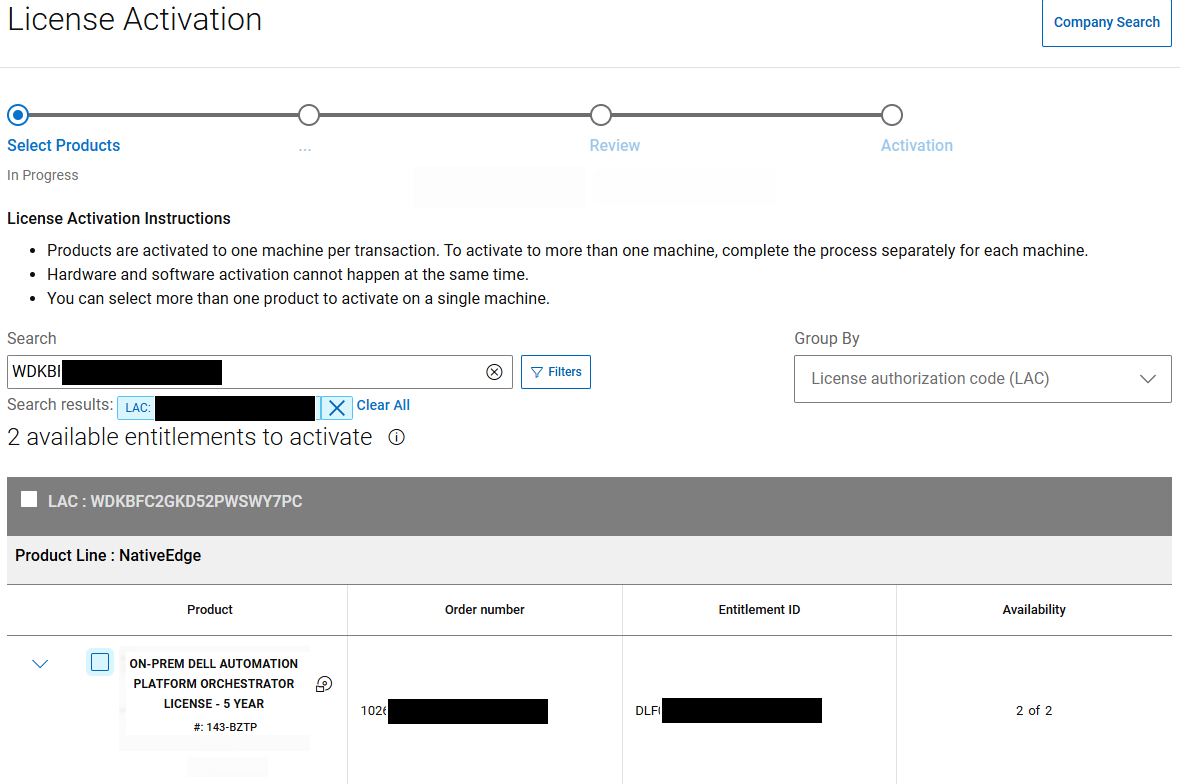
- Look for the ON-PREM DE AUTOMATION PLATFORM ORCHESTRATOR entitlement and select (check box)
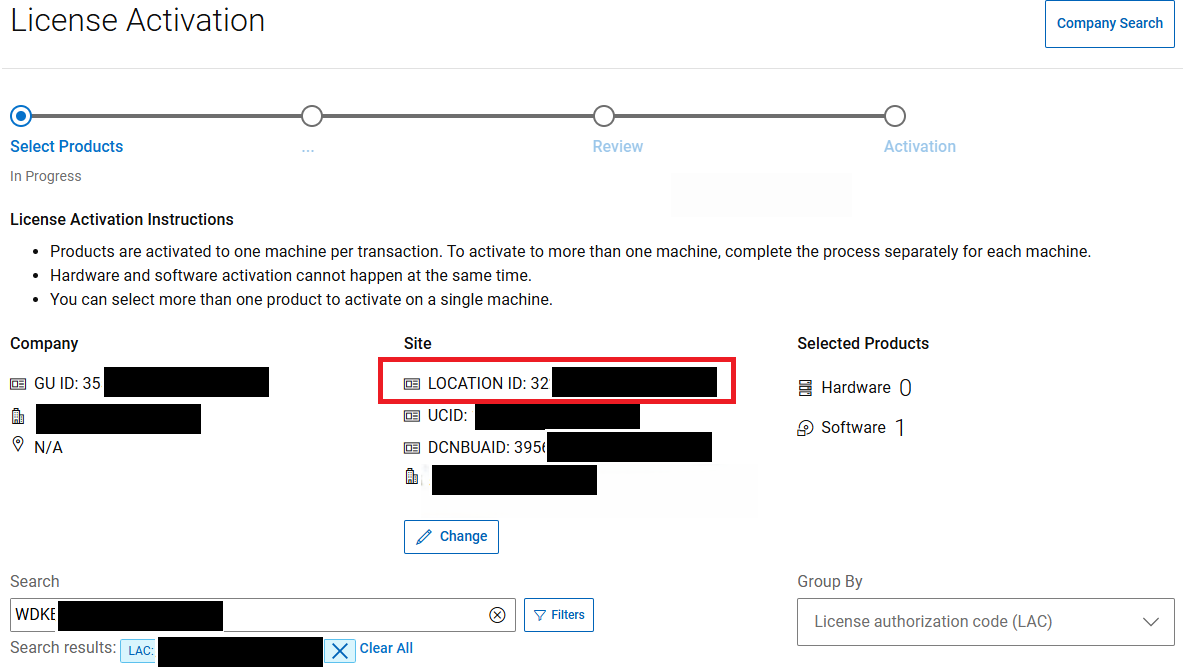
- A License Activation Instructions appears above the table
- In the Site column, record the LOCATION ID value. This is the Location ID needed for the access key and PIN portal
- After the location ID has been selected, click Search
- The expected result is a single entry. Select the Location ID link in the first column.
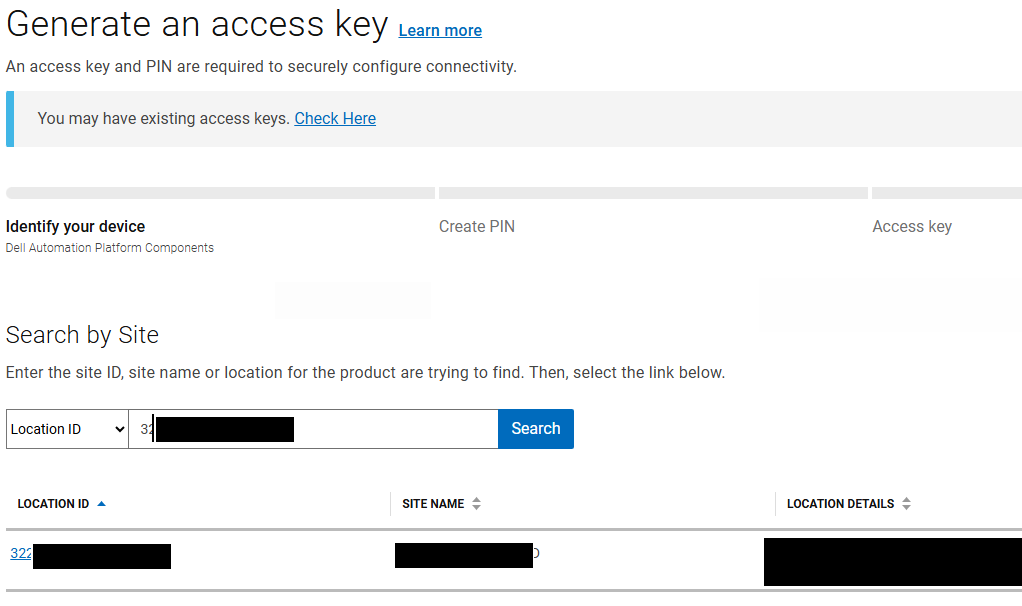
- Click Next to proceed
- Enter the desired PIN and click Next to complete the process. Dell then sends an email acknowledgement to the address associated with your Dell Identity account.
Alternate Methods:
The access key and PIN portal allows you to search by location name or address (Details option). If you search by name, the results return one or more matching locations. You must select one of the locations to continue. These options are not recommended, and may be removed in the future, because the object is to select the location associated with the entitlements.
Additional Information
The steps that follow apply to the scenarios listed below:
- Enable connectivity on a SaaS Dell Automation Platform orchestrator
- Enable connectivity on an on-premises Dell Automation Platform orchestrator that we initially installed as air-gapped
- Regenerate the access key and PIN for an orchestrator that is already connected (SaaS or on-premises)
- Navigate to the Dell Automated Platform Components product page and select the Generate Access Key link.
- Select No, already connected
- Enter the orchestrator SWID (software identifier) in the Serial Number box and click Search
The SWID can be retrieved by logging into to your portal and then selecting the orchestrator.
Navigate to Settings, Entitlement and copy the orchestrator serial number value. - Once the SWID is validated, you can advance to the next step.
- Enter the desired PIN and click Next to complete the process. Dell will send an email acknowledgment to the address associated with your Dell Identity account.
Troubleshooting:
If assistance is required with an account, it is recommended to contact the Advanced Services Team (AST). Use the Contact Us on www.dell.com and search for Enterprise Accounts to do so. Additional information about the Advanced Services Team can be found at KB 000021768 How to Register for Access to Dell Technologies Online Support or Upgrade an Existing Account.
Affected Products
Dell Automation Platform, Dell Automation Platform ComponentsArticle Properties
Article Number: 000414197
Article Type: How To
Last Modified: 24 May 2026
Version: 3
Find answers to your questions from other Dell users
Support Services
Check if your device is covered by Support Services.