Data Domain: DD3300 Disk replacement procedure when a predictive drive failure occurs
Summary: This article describes how to replace a predictive failure disk on a Data Domain DD3300 appliance.
This article applies to
This article does not apply to
This article is not tied to any specific product.
Not all product versions are identified in this article.
Symptoms
The blinking Disk LED alternates between green and amber.
The Data Domain Operating System (DDOS) does not post an alert for a related hard drive failure.
Disk state is in normal status in DDOS.
Cause
DDOS does not post an alert for a related hard drive failure.
The disk has been identified for proactive replacement by underlying system infrastructures (for example iDRAC)
Resolution
Replacement steps for predictive fail hard drive:
- Verify the hard drive blinking LED alternates between green and amber.
- Collect the TSR logs to confirm the Predictive Failure.
* Pred Fail (Predictive Failure) occurs in slot 3 similar to the example below.
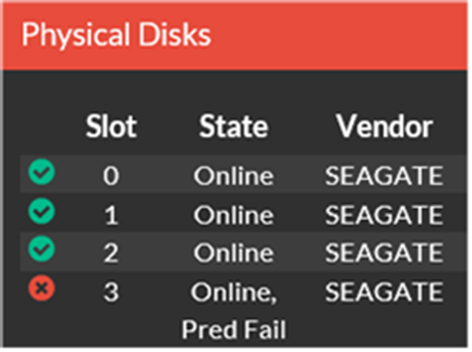
- Verify that there are no disk reconstructions in progress before proceeding.
- Remove the predictive fail hard drive, Wait a few minutes for the system to recognize the disk has been removed.
- Insert a new hard drive.
- Verify that the disk becomes active and RAID reconstruction automatically starts on the newly inserted hard drive.
Replacement steps for predictive fail on rear SSD:
- Verify the SSD health - blinking LED alternates between green and amber.
- Collect the TSR logs to confirm the Predictive Failure on SSD rear slot 12.

- Shut down the DD3300 appliance (Power Off)
- Remove the predictive fail SSD.
- Insert a new SSD.
- Power on and boot the DD3300.
- Verify that the disk LED status is GOOD.
NOTE: There is no rebuild operation required as the SSD hosts the nvram emulation and DDVE data cache.
The boot time may be a bit longer because the system takes time to use the new SSD.
Additional Information
References
Data Domain: DD3300 Mapping disk alerts to the correct physical disk slot KB518338
Data Domain: Understanding DD3300 disk LED behavior KB520092
Data Domain: How to gather a TSR log from DD3300 or DP4400 KB524081
Affected Products
Data DomainProducts
Data Domain, DD3300 ApplianceArticle Properties
Article Number: 000037699
Article Type: Solution
Last Modified: 18 Feb 2025
Version: 3
Find answers to your questions from other Dell users
Support Services
Check if your device is covered by Support Services.