Avamar: How to Change Datasets to Store Backups on Data Domain Instead of Avamar
Summary: This article provides an overview of where backup data is stored, and how to change a dataset to store backups on Data Domain instead of Avamar.
Instructions
In an integrated environment, backup data can be stored on the Avamar grid or the Data Domain Restorer (DDR or DD).
When backups are stored on Data Domain, the backup data is stored on DD, and the metadata is stored on the Avamar grid.
When backups are stored on Avamar, both the backup data and metadata are stored on the Avamar grid.
This article provides an overview of how to change a dataset to send backup data from Avamar to Data Domain.
An incorrectly configured dataset may have caused this, or a DD may have been added to the environment.
1. Use the capacity.sh script can be used to identify which clients have been backing up to Avamar:
capacity.sh --gb --avamar
The script defaults to 14 days. For longer timeframes, use the --days= switch.
For additional information, see Avamar: How to manage capacity with the capacity.sh script
2. Using an mccli command, obtain further information about where specific clients send back up to:
mccli backup show --name=<full-path-to-client> --verbose
Example of a client whose backups reside on Avamar:
mccli backup show --domain=/domain1/subdomain1/client_hostname1 --verbose
0,23000,CLI command completed successfully.
Created          LabelNum Size    Retention Hostname         Location Label                       Plugin            Expires                  Server
---------------- -------- ------- --------- ---------------- -------- --------------------------- ----------------- ------------------------ ------
2025-08-07 19:00 1        21.1 GB D         client_hostname1 Local    XXH-XH-Domain-XXXXXXXXXXXXX Linux File System 2025-09-07 19:00:00 CEST Avamar
2025-08-08 17:06 2        21.2 GB DW        client_hostname1 Local    XXH-XH-Domain-XXXXXXXXXXXXX Linux File System 2025-09-07 17:06:00 CEST Avamar
Example of a client whose backups reside on a Data Domain:
mccli backup show --domain=/domain1/subdomain1/client_hostname2 --verbose
0,23000,CLI command completed successfully.
Created          LabelNum Size    Retention Hostname         Location Label                       Plugin            Expires                  Server
---------------- -------- ------- --------- ---------------- -------- --------------------------- ----------------- ------------------------ ------
2025-08-06 19:05 1        19.2 GB D         client_hostname2 Local    XXH-XH-Domain-XXXXXXXXXXXXX Linux File System 2025-09-06 19:05:00 CEST DD - DD_hostname
2025-07-08 17:01 2        20.1 GB DW        client_hostname2 Local    XXH-XH-Domain-XXXXXXXXXXXXX Linux File System 2025-10-07 17:01:00 CEST DD - DD_hostname
3. For each client reporting that it has backups on Avamar that must be moved to Data Domain:
a. Determine which group or groups the client is a member of:
mccli client show --name=<full-path-to-client> |grep "Fully Qualified Name\|Member of Group"
Example and sample output:
mccli client show --name=/domain/subdomain/client_hostname1 |grep "Fully Qualified Name\|Member of Group"
Fully Qualified Name     /domain/subdomain/client_hostname1
Member of Group          /Default Group
Member of Group          /GROUP1
Member of Group          /GROUP2
Member of Group          /GROUP7
b. Determine which groups use which datasets:
mccli group show --name=<full-path-to-group> |grep Dataset
Example and sample outputs:
mccli group show --name=</GROUP1> |grep Dataset
Dataset /Linux Dataset
mccli group show --name=</GROUP2> |grep Dataset
Dataset /Linux Dataset
mccli group show --name=</GROUP7> |grep Dataset
Dataset /Hi-Priority Dataset
As per the output above, the same dataset may appear in multiple groups.
c. Repeat steps (a) and (b) for each client to be moved to Data Domain so that a full list of Datasets to review is available.
4. For each Dataset:
a. Determine if the backup data is configured to be stored on Avamar or Data Domain:
mccli dataset show --name=<dataset> |grep ddr
Example and sample outputs:
mccli dataset show --name=/Linux Dataset |grep ddr
Linux File System Flag      type=checkbox:name=ddr:value=true
Linux File System Flag      type=pulldown:name=ddr-encrypt-strength:value=default
Linux File System Flag      type=pulldown:name=ddr-index:value=1
mccli dataset show --name=/Hi-Priority Dataset |grep ddr
Solaris File System Flag         type=checkbox:name=ddr:value=false
Linux VMware Image Flag          type=checkbox:name=ddr:value=false
HP-UX File System Flag           type=checkbox:name=ddr:value=false
Macintosh File System Flag       type=checkbox:name=ddr:value=false
Linux File System Flag           type=checkbox:name=ddr:value=false
Openstack Image Plugin Flag      type=checkbox:name=ddr:value=false
AIX File System Flag             type=checkbox:name=ddr:value=false
Solaris File System Flag         type=pulldown:name=ddr-encrypt-strength:value=default
Linux VMware Image Flag          type=pulldown:name=ddr-encrypt-strength:value=default
HP-UX File System Flag           type=pulldown:name=ddr-encrypt-strength:value=default
Macintosh File System Flag       type=pulldown:name=ddr-encrypt-strength:value=default
Linux File System Flag           type=pulldown:name=ddr-encrypt-strength:value=default
AIX File System Flag             type=pulldown:name=ddr-encrypt-strength:value=default
Linux VMware Image Flag          type=pulldown:name=ddr-vm-segmentation-mode:value=default
mccli dataset show --name=/Windows Dataset |grep ddr
Windows File System Flag       type=checkbox:name=ddr:value=true
Windows VMware Image Flag      type=checkbox:name=ddr:value=false
Windows File System Flag       type=pulldown:name=ddr-encrypt-strength:value=default
Windows VMware Image Flag      type=pulldown:name=ddr-encrypt-strength:value=default
Windows VMware Image Flag      type=pulldown:name=ddr-index:value=1
Windows File System Flag       type=pulldown:name=ddr-index:value=1
-
-
-
- If the "
ddr-index=1" (or higher) and "ddr=true," backups are configured to be stored on the Data Domain - If the "
ddr-index=0" and "ddr=false," backups are configured to be stored on Avamar - If "
ddr=false," there may be no "ddr-index" displayed.
- If the "
-
-
b. For all datasets that must be edited, go to Step 5.
5. The easiest way to update the datasets is using the UI.
Update each dataset using the Management Console Server (MCS) UI or the Avamar Web User Interface (AUI):
MCS UI:
a. Log in to the MCS UI.
b. Go to Tools, Manage Datasets, and select the first dataset to review.
c. Review the options.
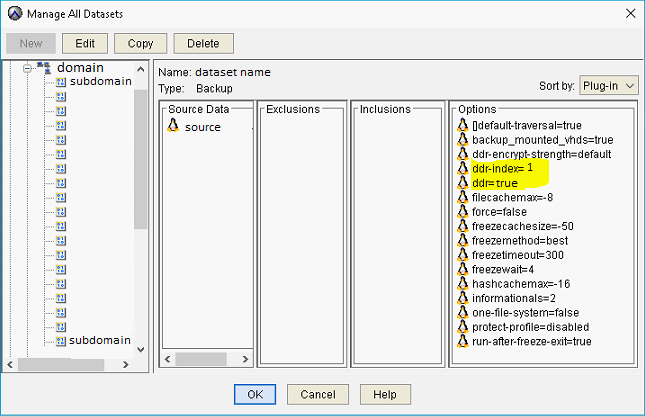
The values "ddr-index=0" and "ddr=false" indicate that the backup data is stored on Avamar.
For example:

d. Edit the dataset:
i. Take note of the icon in the "Source Data" window.
ii. Edit the dataset.
iii. Select the appropriate Source Data is selected in the Source Data Tab.
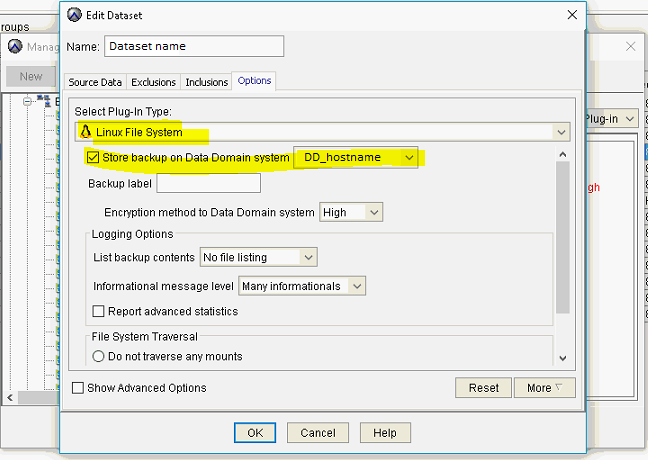
iv. From the options tab, select the drop-down menu, and select all the plugins within the "Select Plug-in Type" that have the same icon as the "Source Data" tab.
v. Ensure that "Store backup on Data Domain system" is selected for every plugin used. The Data Domain must also be specified.
For example:
vi. Save the changes.
The values should be "ddr-index=1" and "ddr=true" after saving the changes, meaning backup data is stored on the Data Domain:
e. Repeat for each of the required datasets.
AUI:
a. Log in to the AUI.
b. From the Dashboard, select Settings (Administration), Dataset, and edit the first dataset.
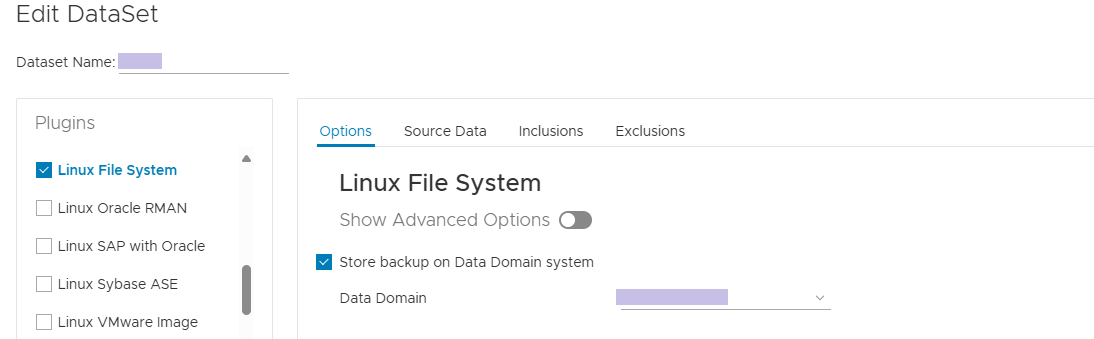
c. For each plug-in, select the appropriate Source Data, and ensure that "Store backup on Data Domain system" is selected for every plugin used. The Data Domain must also be specified:
For Example:
d. Click Submit.
e. Repeat for each of the required datasets.