How to Safe List Files in Dell Endpoint Security Suite Enterprise
Yhteenveto: Files may be safe listed in Dell Endpoint Security Suite Enterprise by following these instructions.
Tämä artikkeli koskee tuotetta
Tämä artikkeli ei koske tuotetta
Tämä artikkeli ei liity tiettyyn tuotteeseen.
Tässä artikkelissa ei yksilöidä kaikkia tuoteversioita.
Oireet
Note:
- As of May 2022, Dell Endpoint Security Suite Enterprise has reached End of Maintenance. This article is no longer updated by Dell. For more information, reference Product Life Cycle (End of Support and End of Life) Policy for Dell Data Security. If you have any questions on alternative articles, either reach out to your sales team or contact endpointsecurity@dell.com.
- Reference Endpoint Security for additional information about current products.
A Dell Endpoint Security Suite Enterprise administrator may be required to safe list files to:
- Prevent third-party conflicts
- Resolve performance issues
- Clear false positives
This article discusses how to safe list files in the Dell Data Security (formerly Dell Data Protection) administration console for Dell Endpoint Security Suite Enterprise.
Affected Products:
- Dell Endpoint Security Suite Enterprise
Syy
Not applicable
Tarkkuus
- Open a web browser and go to
https://servername.company.com:8443/webui.

Note:
- The example FQDN (fully qualified domain name) will differ from the server in your environment.
- Port 8443 may differ from the administration console port in your environment.
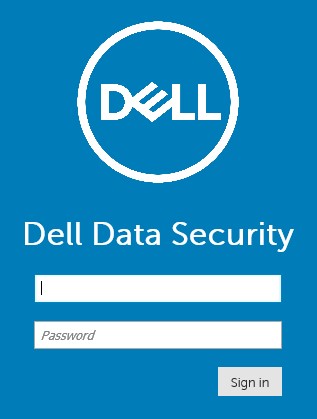
- Sign in to the administration console.
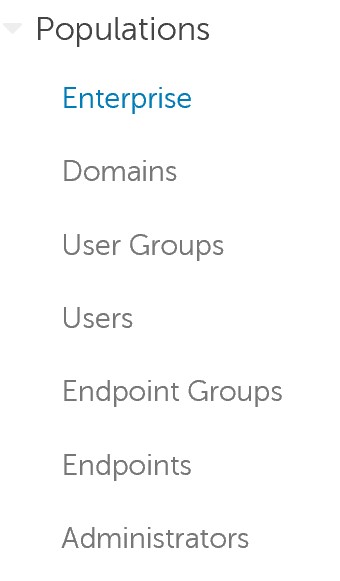
- In the left menu, expand Populations and then click Enterprise.
- Click the Advanced Threats tab.

- Click the Global List tab.

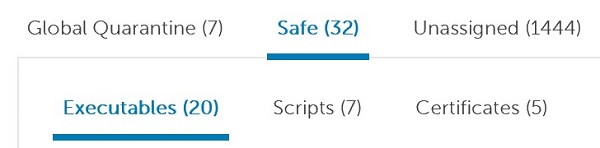
- Click Safe and then select either:
- Executables
- Scripts
- Certificates
- Click Add File.

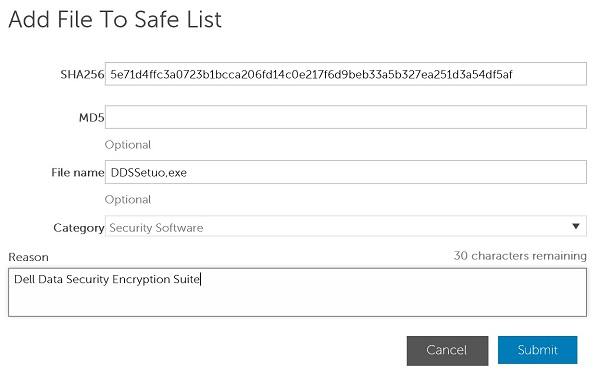
- In the Add File to Safe List menu:
- Populate the File’s SHA256.
- Optionally, add the File’s MD5.
- Optionally, add the File name.
- Select the appropriate Category for the file.
- Populate a Reason for safe listing the file.
- Click Submit.
Note:
- For more information, see How to Identify a File's SHA-256 Hash for Anti-Virus / Malware Prevention Applications.
- The examples that are used in the screenshot will differ in your environment.
- Click Add Script.

- In the Add Script to Safe List menu:
- Populate the File’s SHA256.
- Optionally, add the File name.
- Populate a Reason for safe listing the file.
- Click Submit.
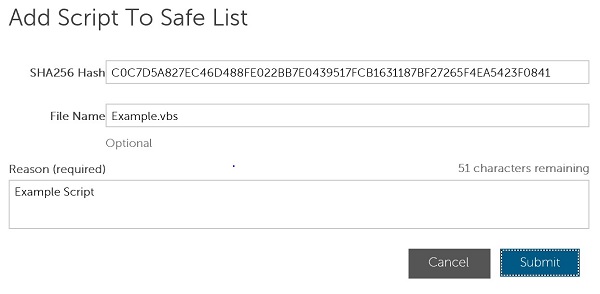
Note:
- For more information, reference How to Identify a File's SHA-256 Hash for Anti-Virus / Malware Prevention Applications.
- The examples that are used in the screenshot will differ in your environment.
Note: A signing certificate must be added to the Dell Data Security administration console before safe listing files. For more information, reference How to Add a Signing Certificate in Dell Endpoint Security Suite Enterprise.
- Click Add Certificate.

- In the Add to Safe List menu:
- Check at least one certificate.
- Select a Category for the certificates.
- Populate a Reason for safe listing the file.
- Click Submit.
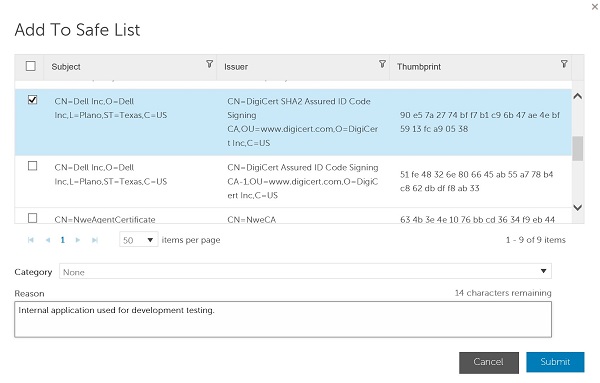
Note: The examples that are used in the screenshot will differ in your environment.
To contact support, reference Dell Data Security International Support Phone Numbers.
Go to TechDirect to generate a technical support request online.
For additional insights and resources, join the Dell Security Community Forum.
Tuotteet, joihin vaikutus kohdistuu
Dell Endpoint Security Suite EnterpriseArtikkelin ominaisuudet
Artikkelin numero: 000129502
Artikkelin tyyppi: Solution
Viimeksi muutettu: 25 lokak. 2023
Versio: 10
Etsi vastauksia kysymyksiisi muilta Dell-käyttäjiltä
Tukipalvelut
Tarkista, kuuluuko laitteesi tukipalveluiden piiriin.