如何安裝 Linux 版 Dell Endpoint Security Suite Enterprise
Riepilogo: 瞭解如何依照以下指示,透過終端機命令行介面 (CLI) 安裝 Linux 版 Dell Data Security Endpoint Security Suite Enterprise。
Questo articolo si applica a
Questo articolo non si applica a
Questo articolo non è legato a un prodotto specifico.
Non tutte le versioni del prodotto sono identificate in questo articolo.
Istruzioni
Linux 版 Dell Data Security Endpoint Security Suite Enterprise 的安裝程序會使用命令列處理。
如需產品系統需求的詳細資訊,包括支援的 Linux 版本,請參閱 Dell Endpoint Security Suite Enterprise 系統需求。
- 開啟終端機。

- 在 「終端機」中,鍵入以下命令,然後按 Enter 鍵。
sudo tar –xvf '/FilePathA/DellESSE.tar.gz' –C /FilePathB 註:
註:- 在上述範例中:
FilePathA是 TAR 檔所在的路徑。FilePathA範例:/home/admin/Desktop/Downloads/
FilePathB是 TAR 檔案解壓縮到的路徑。FilePathB範例:/home/admin/Desktop/ESSE
- 命令區分大小寫。
- 範例路徑可能與您環境中的有所不同。
- 在上述範例中:
- 類型
sudo 'filepath/install.sh'從解壓縮的安裝程式套件輸入 至終端機中,然後按 Enter 鍵。

- 填入所用帳戶的密碼,然後按下 Enter 鍵。

- 填入 Dell Security Management Server 的 IP 或 DNS,然後按 Enter 鍵。

- 填入 Dell Security Management Server 核心伺服器服務的連接埠,然後按 Enter 鍵。
 依預設,核心伺服器服務會在 8888 上執行。
 - 當系統提示您安裝 DellESSE 套件及其相依項目時,請按下是,然後按下 Enter 鍵。
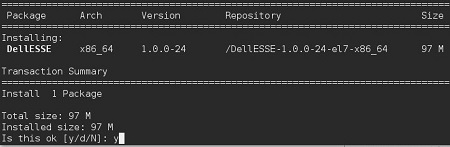
- 如果系統提示您核准指紋,請按下是。否則,請前往步驟 9。

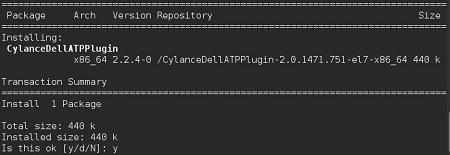
- 按下是以安裝 CylanceDellATPPlugin 套件,然後按下 Enter 鍵。
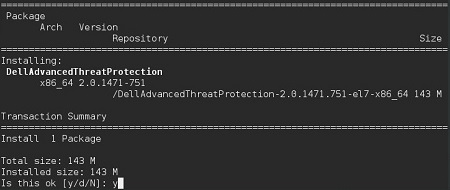
- 按下是以安裝 DellAdvancedThreatProtection 套件,然後按下 Enter 鍵。
- 安裝完成後,請輸入下列命令,然後按下 Enter 鍵。
exit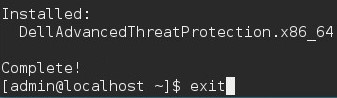
Informazioni aggiuntive
Video
Prodotti interessati
Dell Endpoint Security Suite EnterpriseProprietà dell'articolo
Numero articolo: 000124563
Tipo di articolo: How To
Ultima modifica: 05 ago 2026
Versione: 17
Trova risposta alle tue domande dagli altri utenti Dell
Support Services
Verifica che il dispositivo sia coperto dai Servizi di supporto.