Dell Data Security Shield-Modi
Riepilogo: In diesem Artikel werden die Shield-Modi von Dell Data Security (ehemals Dell Data Protection) beschrieben.
Questo articolo si applica a
Questo articolo non si applica a
Questo articolo non è legato a un prodotto specifico.
Non tutte le versioni del prodotto sono identificate in questo articolo.
Sintomi
Betroffene Produkte:
- Credant Mobile Guardian
- Dell Encryption Enterprise
- Dell Data Protection | Enterprise Edition
- Dell Encryption External Media
- Dell Data Protection | External Media Edition
- Dell Encryption Personal
- Dell Data Protection | Personal Edition
- Dell Data Protection | Security Tools
- Dell Encryption Enterprise for Server
- Dell Data Protection | Server Edition
Betroffene Plattformen:
- Windows
Policy-basierte Dell Data Security-Software (ehemals Dell Data Protection) verwendet eine Shield-Modus-Kennung für die Produktklassifizierung.
Causa
Warnung:
- Der Shield-Modus wird zum Zeitpunkt der Produktinstallation festgelegt und kann nicht manuell geändert werden.
- Der Shield-Modus wird nur zur Fehlerbehebung des Produkttyps oder -status verwendet.
Risoluzione
Die Shield-Modi für Dell Data Security-Produkte sind:
| ID | Modus | Produkt |
|---|---|---|
| 0 | Unbekannt/Nicht initialisiert | Nicht initialisiert/nicht bereitgestellt1 |
| 1 | Enterprise-Modus | Dell Encryption Enterprise \ Dell Data Protection Enterprise Edition Shield |
| 2 | Standalone-Modus | Credant Mobile Guardian |
| 3 | Nur Enterprise EME-Modus | Dell Encryption External Media \ Dell Data Protection | Externe Medienausgabe |
| 4 | Lokal verwalteter Modus | Dell Encryption Personal \ Dell Data Protection | Personal Edition |
| 5 | Essentials-Modus | Dell Data Protection | Sicherheitstools2 |
| 6 | Server-Verschlüsselungsmodus | Dell Encryption Enterprise for Server \ Dell Data Protection | Serververschlüsselung |
| 7 | SaaS-Modus | Dell Encryption Enterprise Shield |
Nr. 1Alle Dell Data Protection-Produkte werden bis zur Aktivierung nicht bereitgestellt.
2Der Essential-Modus wird nur bei Installationen von Dell Data Protection | Sicherheitstools.
So finden Sie den Shield-Modus:
Warnung: Führt Sie in die Windows-Registrierung:
- Das Bearbeiten der Registrierung kann dazu führen, dass der Computer beim nächsten Neustart nicht mehr reagiert.
- Wenden Sie sich an die Telefonnummern des internationalen Supports von Dell Data Security, um Unterstützung zu erhalten, wenn Sie Bedenken hinsichtlich der Durchführung dieses Schritts haben.
- Klicken Sie mit der rechten Maustaste auf das Startmenü von Windows und wählen Sie Ausführen aus.
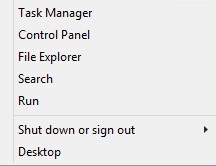
Abbildung 1: (Nur in englischer Sprache) Ausführen
- Geben Sie in der Benutzeroberfläche "Ausführen" (UI) regedit ein und drücken Sie dann OK.
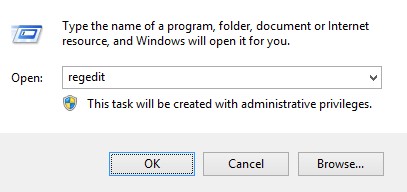
Abbildung 2: (Nur Englisch) Geben Sie regedit ein.
- Navigieren Sie zu HKEY_LOCAL_MACHINE\SOFTWARE\Credant\CMGShield.
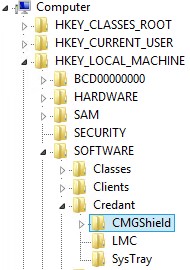
Abbildung 3: (Nur auf Englisch) CMGShield
- Suchen Sie den DWORD-Schlüssel SM.
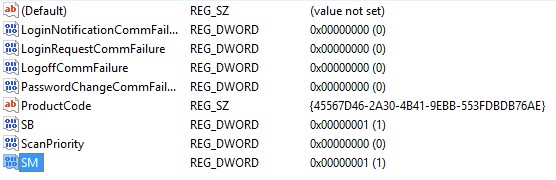
Abbildung 4: (Nur Englisch) SM
Hinweis: In diesem Beispiel ist der Schlüssel SM auf 1 festgelegt. Dies kennzeichnet den Shield-Modus Enterprise Edition.
Nutzen Sie zur Kontaktaufnahme mit dem Support die internationalen Support-Telefonnummern von Dell Data Security.
Gehen Sie zu TechDirect, um online eine Anfrage an den technischen Support zu erstellen.
Zusätzliche Einblicke und Ressourcen erhalten Sie im Dell Security Community Forum.
Informazioni aggiuntive
Video
Prodotti interessati
Dell EncryptionProprietà dell'articolo
Numero articolo: 000132837
Tipo di articolo: Solution
Ultima modifica: 19 apr 2026
Versione: 11
Trova risposta alle tue domande dagli altri utenti Dell
Support Services
Verifica che il dispositivo sia coperto dai Servizi di supporto.