How to Reinstall Windows 11 ARM on My Dell Qualcomm Based Computer
Riepilogo: This article provides information about reinstalling Windows 11 ARM on Dell computers with Qualcomm hardware.
Questo articolo si applica a
Questo articolo non si applica a
Questo articolo non è legato a un prodotto specifico.
Non tutte le versioni del prodotto sono identificate in questo articolo.
Istruzioni
Windows 11 ARM
Dell SupportAssist OS recovery tools do not support Dell Qualcomm-based computers. Repair or reinstallation of Windows 11 ARM can be accomplished through two methods.
Note: Dell is not responsible for data loss. Before repairing or reinstalling Windows, it is recommended that any valuable data should be backed up prior to the attempt.
- Windows 11 Push-Button reset after three failed attempts to boot to Windows 11.
Or
- Use of the Dell Operating System Recovery tool to create Dell operating system Recovery Media used to reinstall Windows 11 ARM on the computer.
Note: You must use a blank USB flash drive with a minimum capacity of 32 GB.
Note: The XPS 13 9345 has USB Type-C ports. A USB Type-C flash drive or a USB Type-A to USB Type-C adapter is required for this tool on the XPS 13 9345.
Note: The Windows startup repair option can be used as well: How to Run Windows Startup Repair on a Dell computer.
Here are the steps to initiate a push-button reset of Windows 11 ARM.
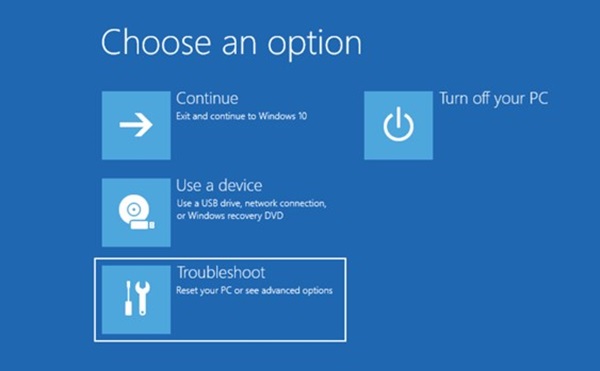
- After three consecutive failed attempts to boot to Windows 11, the computer displays a Choose an Option menu. Click the "Troubleshoot" Option.
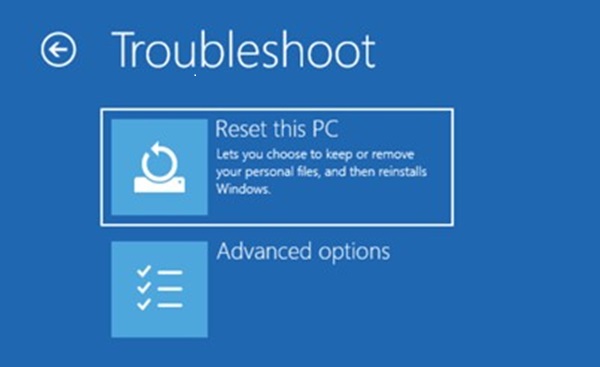
- The next screen displays a Troubleshoot Menu. Click the "Reset this PC" option.
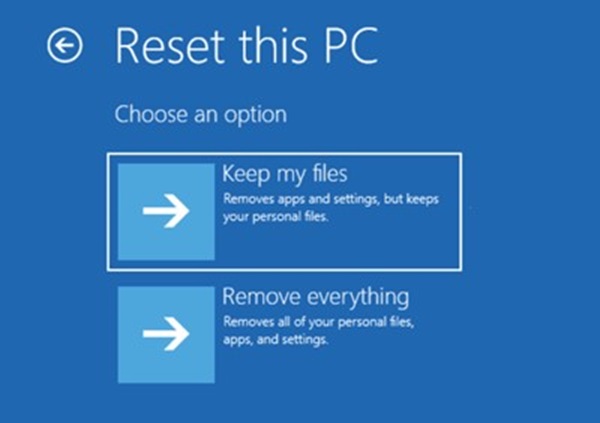
- On the Reset this PC screen there are two options: Keep My Files or Remove Everything. Choose the option that is best for your situation.
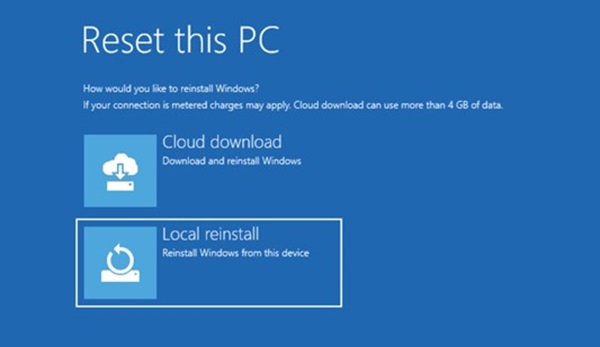
- On the next screen, there are options for Cloud Download, or Local Reinstall. Choose Local Reinstall.
- The Reset this PC screen appears. Click the Reset button to continue.
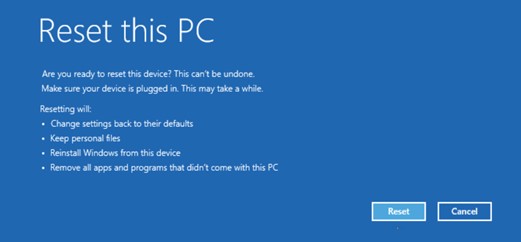
- The reset process starts, and the process takes several minutes to complete the reset.
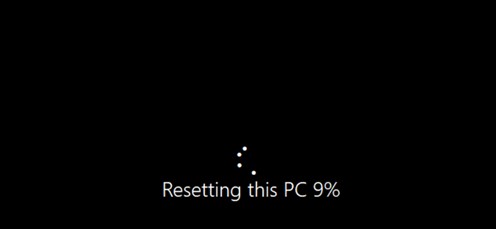
- When completed, the computer restarts, and the Windows login screen should appear.
If you are unable to complete the Push-Button Reset of Windows 11 ARM, then reinstall Windows using the Dell OS Recovery Image. Click the link for Article 000123667 below for the process to download and create the bootable USB Flash drive to install Windows 11 ARM using the Dell OS Recovery Image.
- Article number 000123667 - Reinstall Windows or Linux using the Dell OS Recovery Image
Prodotti interessati
Inspiron 14 5441, Inspiron 14 Plus 7441, Latitude 5455, Latitude 7455, XPS 13 9345Proprietà dell'articolo
Numero articolo: 000227658
Tipo di articolo: How To
Ultima modifica: 31 ott 2025
Versione: 11
Trova risposta alle tue domande dagli altri utenti Dell
Support Services
Verifica che il dispositivo sia coperto dai Servizi di supporto.