How to Apply a VMware Carbon Black Cloud Endpoint Policy
概要: Learn step-by-step instructions to apply VMware Carbon Black Cloud Endpoint policies by following these directions.
この記事は次に適用されます:
この記事は次には適用されません:
この記事は、特定の製品に関連付けられていません。
すべての製品パージョンがこの記事に記載されているわけではありません。
手順
This article covers how to automatically and manually apply a VMware Carbon Black Cloud Endpoint policy in the VMware Carbon Black Cloud console.
Affected Products:
- VMware Carbon Black Cloud
- VMware Carbon Black Cloud Endpoint
Affected Operating Systems:
- Windows
- Mac
- Linux
By default, VMware Carbon Black Cloud Endpoint sensors are assigned to the Standard policy. Sensors can be assigned automatically to any policy they meet criteria for within a sensor group.
Note: For more information about assigning a device to a sensor group, reference How to Create a VMware Carbon Black Cloud Endpoint Sensor Group.
Warning: Manually applying a policy overrides any automatic assignment.
- In a web browser, go to [REGION].conferdeploy.net.
Note: [REGION] = Region of tenant
- Americas = https://defense-prod05.conferdeploy.net/
- Europe = https://defense-eu.conferdeploy.net/
- Asia Pacific = https://defense-prodnrt.conferdeploy.net/
- Australia and New Zealand = https://defense-prodsyd.conferdeploy.net
- Americas = https://defense-prod05.conferdeploy.net/
- Sign In to the VMware Carbon Black Cloud.

- In the left menu pane, click Inventory and then click Endpoints.
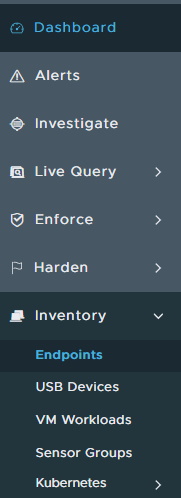 Note: The layout in the example may differ slightly from your environment.
 - In the All Sensors user interface (UI):
- Check the appropriate Device Name.
- Click Take Action.
- Click Assign policy.
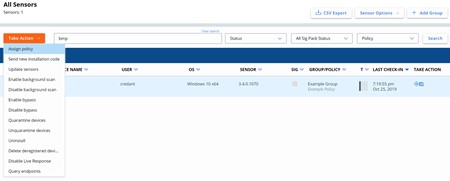 Note: The examples in the screenshot will differ in your environment.
 - Select the appropriate policy and then click Save.
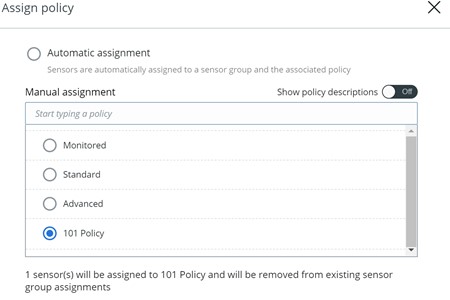

対象製品
VMware Carbon Black文書のプロパティ
文書番号: 000125895
文書の種類: How To
最終更新: 15 7月 2026
バージョン: 12
質問に対する他のDellユーザーからの回答を見つける
サポート サービス
お使いのデバイスがサポート サービスの対象かどうかを確認してください。