How to Manage the CrowdStrike Falcon Sensor Maintenance Token
概要: Learn to manage the CrowdStrike Falcon Sensor maintenance token with these instructions to enable, locate, or disable the token from the Falcon console.
この記事は次に適用されます:
この記事は次には適用されません:
この記事は、特定の製品に関連付けられていません。
すべての製品パージョンがこの記事に記載されているわけではありません。
手順
This article provides steps to enable, locate, and disable the CrowdStrike Falcon Sensor maintenance token.
Affected Products:
- CrowdStrike Falcon Sensor
Affected Versions:
- 5.10.0 and later
Affected Operating Systems:
- Windows
- Mac
- Linux
In CrowdStrike Falcon Sensor version 5.10 and later, a maintenance token is used to protect the software from unauthorized removal or tampering. The maintenance token replaces the previous password protection feature. A CrowdStrike falcon administrator can Enable, Locate, or Disable maintenance tokens in their environment. Click the appropriate action for more information.
Enable
Note: New Sensor Update Policies have uninstall and maintenance protection enabled for individual hosts. These steps are only required for older Sensor Update Policies or enabling Bulk maintenance mode.
- In a Google Chrome or Microsoft Edge browser, go to your Falcon Console login URL.
- Falcon US-1: https://falcon.crowdstrike.com/login/
- Falcon US-2: https://falcon.us-2.crowdstrike.com/login/
- Falcon EU-1: https://falcon.eu-1.crowdstrike.com/login/
- Falcon US-GOV-1: https://falcon.laggar.gcw.crowdstrike.com/login/
- Falcon US-1: https://falcon.crowdstrike.com/login/
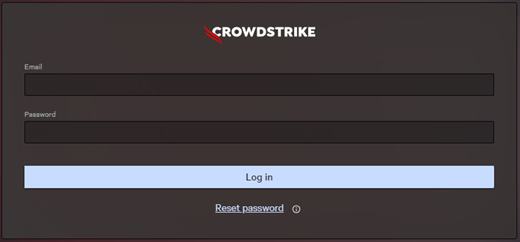
- Populate the CrowdStrike account holder’s credentials and then click Log in.
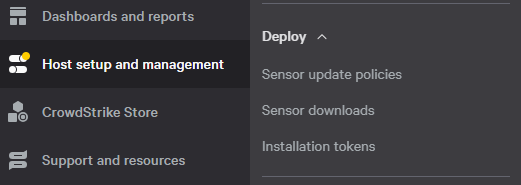
- In the left menu pane, select Host setup and management and then select Sensor update policies.
- Select the targeted Sensor Update Policy Name and then click Edit Policy.
 Note: The Sensor Update Policy Name may differ in your environment.
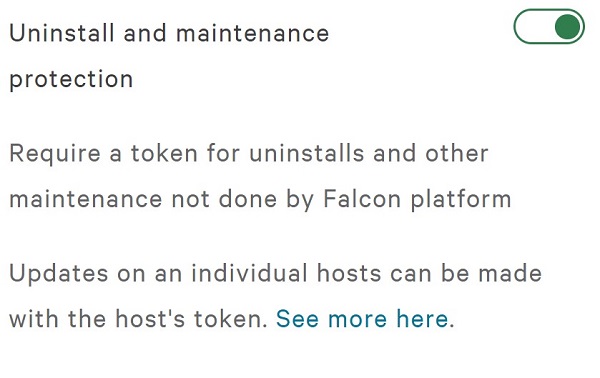
 - Turn on Uninstall and maintenance protection.
- If using Bulk maintenance mode, go to Step 7. Otherwise, go to Step 9.
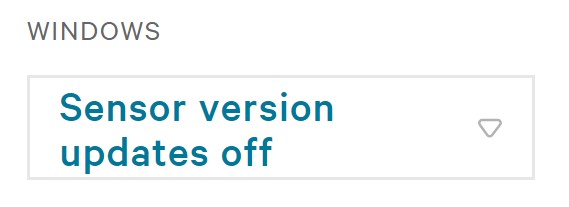
- Under Sensor version, select Sensor version updates off.
- Turn on Bulk maintenance mode.
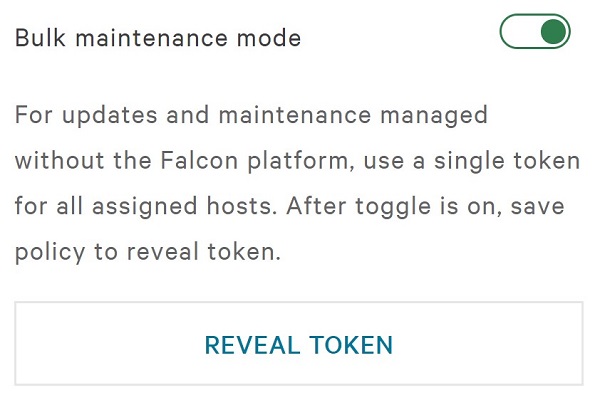
- To the right of Sensor update policy settings, click Save.

- Confirm the policy change.
Note: Online hosts may take up to five minutes to receive the new policy.

Locate
A maintenance token can be configured to:
- Individual hostnames using a unique token
- Bulk groups using a static token
Click Individual or Bulk for location information.
Individual
- In a Google Chrome or Microsoft Edge browser, go to your Falcon Console login URL.
- Falcon US-1: https://falcon.crowdstrike.com/login/
- Falcon US-2: https://falcon.us-2.crowdstrike.com/login/
- Falcon EU-1: https://falcon.eu-1.crowdstrike.com/login/
- Falcon US-GOV-1: https://falcon.laggar.gcw.crowdstrike.com/login/
- Falcon US-1: https://falcon.crowdstrike.com/login/
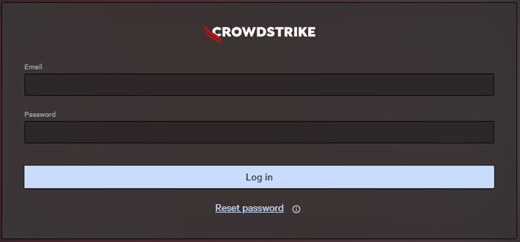
- Populate the CrowdStrike account holder’s credentials and then click Log In.
- In the left menu pane, select Host setup and management and then select Host management.
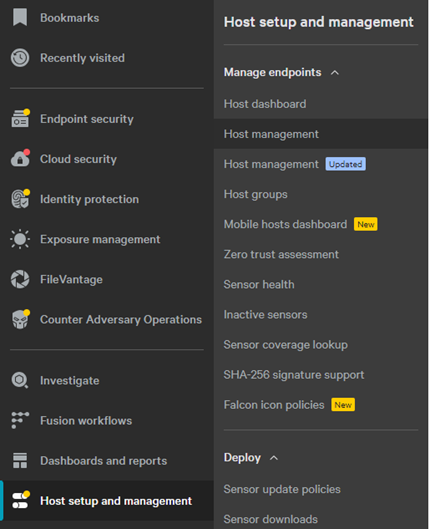 Note: The layout in the example may differ slightly from your environment.
 - Locate and then click the targeted Hostname.
- In the hostname display, click Reveal maintenance token.
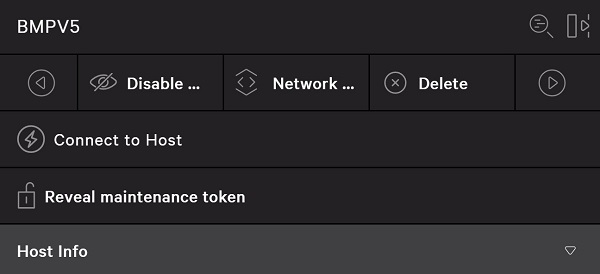 Note: Reveal maintenance token is disabled if the bulk maintenance token is enabled.
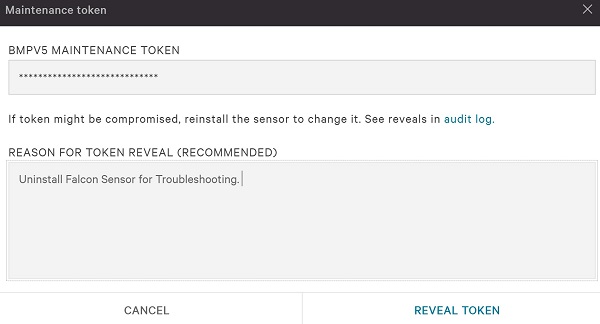
 - Optionally, input a Reason for Token Reveal and then click Reveal Token.
- Record the hostname Maintenance Token and then click Done.
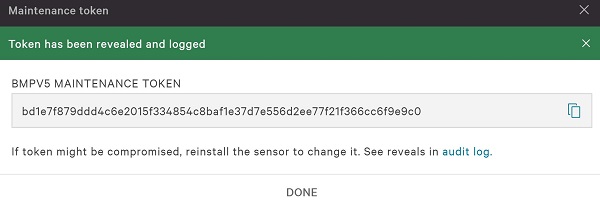 Note: The Maintenance Token will differ in your environment.
Bulk
- In a Google Chrome or Microsoft Edge browser, go to your Falcon Console login URL.
- Falcon US-1: https://falcon.crowdstrike.com/login/
- Falcon US-2: https://falcon.us-2.crowdstrike.com/login/
- Falcon EU-1: https://falcon.eu-1.crowdstrike.com/login/
- Falcon US-GOV-1: https://falcon.laggar.gcw.crowdstrike.com/login/
- Falcon US-1: https://falcon.crowdstrike.com/login/
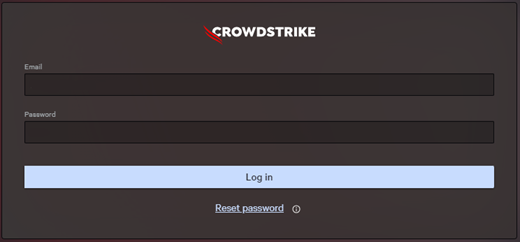
- Populate the CrowdStrike account holder’s credentials and then click Log In.
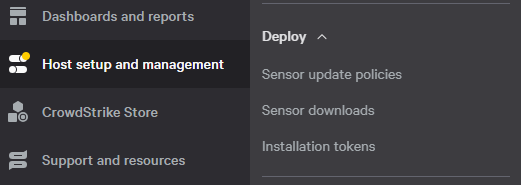
- In the left menu pane, select Host setup and management and then select Sensor update policies.
- Select the targeted Sensor Update Policy Name and then click Edit Policy.
 Note:
Note:- The Sensor Update Policy Name can also be located under the specific hostname in Host Management.
- The Sensor Update Policy Name may differ in your environment.
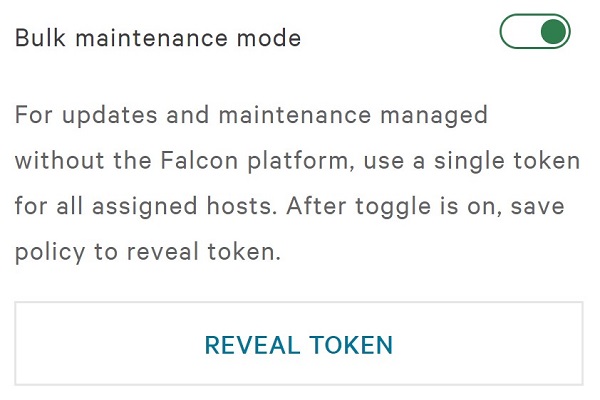
- Under Bulk maintenance mode, click REVEAL TOKEN.
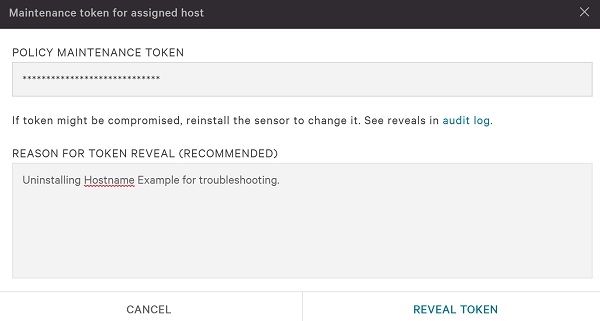
- Optionally, input a Reason for Token Reveal and then click Reveal Token.
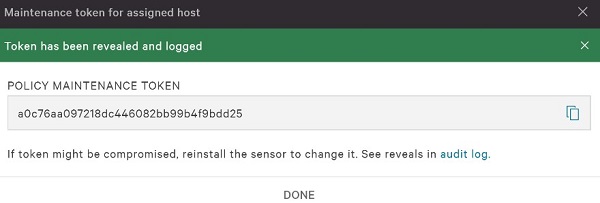
- Record the Policy Maintenance Token and then click Done.
 Warning:
- A Policy Maintenance Token is not re-created on reinstall.
- A Policy Maintenance Token should not be provided directly to the end user.
- The Policy Maintenance Token will differ in your environment.
Disable
- In a Google Chrome or Microsoft Edge browser, go to your Falcon Console login URL.
- Falcon US-1: https://falcon.crowdstrike.com/login/
- Falcon US-2: https://falcon.us-2.crowdstrike.com/login/
- Falcon EU-1: https://falcon.eu-1.crowdstrike.com/login/
- Falcon US-GOV-1: https://falcon.laggar.gcw.crowdstrike.com/login/
- Falcon US-1: https://falcon.crowdstrike.com/login/
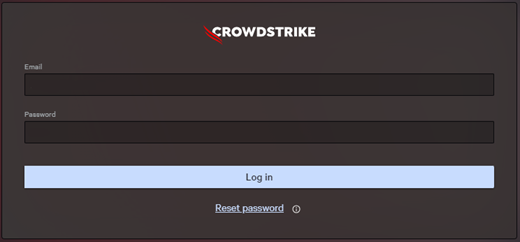
- Populate the CrowdStrike account holder’s credentials and then click Log In.
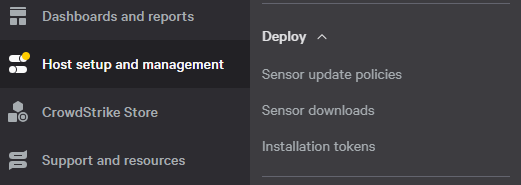
- In the left menu pane, select Host setup and management and then select Sensor update policies.
- Select the targeted Sensor Update Policy Name and then click Edit Policy.
 Note: The Sensor Update Policy Name may differ in your environment.
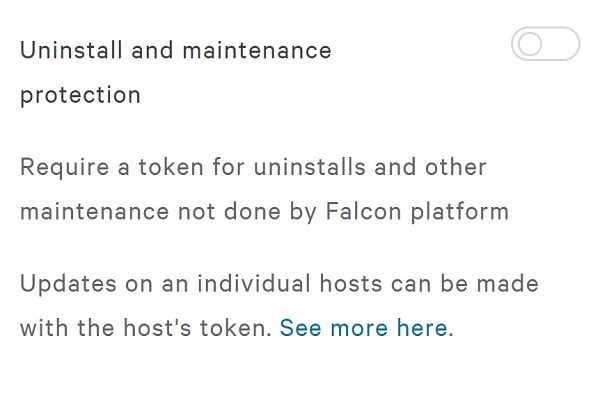
 - Turn off Uninstall and maintenance protection.
- To the right of Sensor update policy settings, click Save.

- Confirm the policy change.
Note:
- If Bulk maintenance mode was enabled, it will be disabled after clicking Confirm.
- Online hosts may take up to five minutes to receive the new policy.
対象製品
CrowdStrike文書のプロパティ
文書番号: 000130591
文書の種類: How To
最終更新: 27 7月 2026
バージョン: 18
質問に対する他のDellユーザーからの回答を見つける
サポート サービス
お使いのデバイスがサポート サービスの対象かどうかを確認してください。