How to Install the Dell Data Protection Remote Management Console
概要: Learn step-by-step instructions to install the Dell Data Protection Remote Management Console by following these instructions.
この記事は次に適用されます:
この記事は次には適用されません:
この記事は、特定の製品に関連付けられていません。
すべての製品パージョンがこの記事に記載されているわけではありません。
手順
Dell Data Protection Enterprise Edition and Dell Data Protection Virtual Edition servers require the Remote Management Console to manage:
- Policies
- Reports
- Encryption keys
Affected Products:
- Dell Data Protection Enterprise Edition
- Dell Data Protection Virtual Edition
Affected Versions:
- 8.0 to 9.1
Affected Operating Systems:
- Windows
The steps below cover installing the Remote Management Console (RMC) for both Dell Data Protection Enterprise Edition and Dell Data Protection Virtual Edition versions 8.0 to 9.1. Versions 9.2 and newer use a browser-based administration console. For versioning information, reference How to Identify the Dell Data Security Server Version. The RMC installer is located in the Dell Data Protection Virtual Edition package.
- Right-click and Extract the server software.
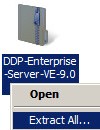 Note: For more information about how to download the server software, reference How to Download Dell Security Management Server.
 - From the extracted installer files, go to either:
- x64 bit:
Installers\Remote Console\x64 - x86 bit:
Installers\Remote Console\x86
- x64 bit:
- Double-click setup.exe.

- Select a language and then click OK.
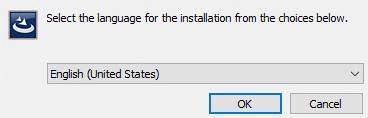
- Click Next.
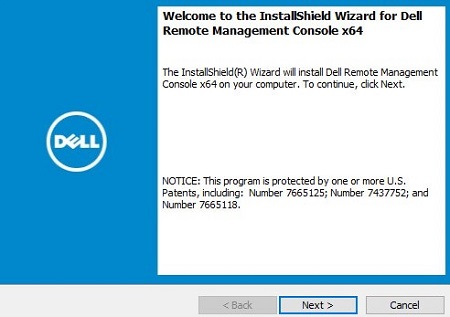
- Select I accept the terms in the license agreement and then click Next.
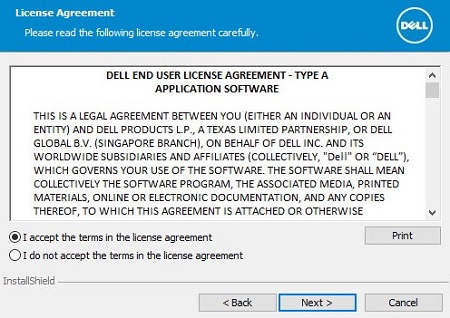
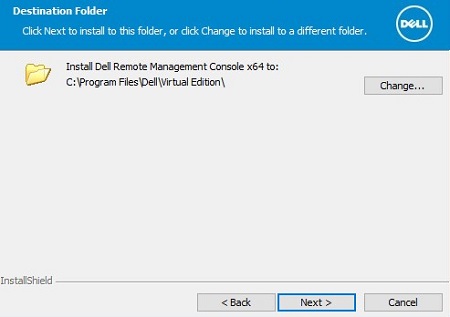
- Optionally, click Change to change the install location and then click Next.
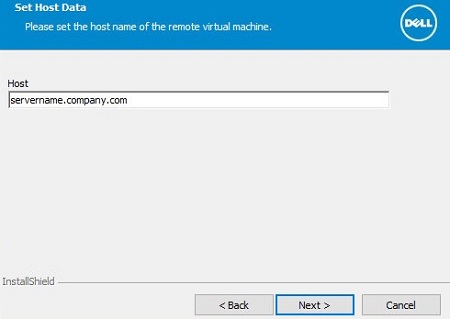
- Populate the Dell Data Protection server fully qualified domain name (FQDN) and then click Next.
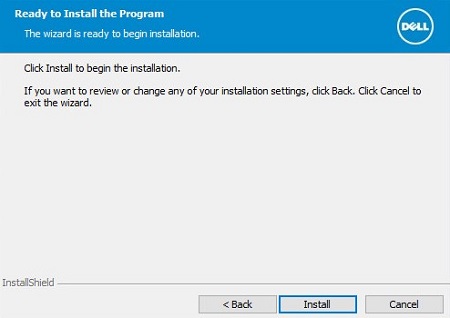
- Click Install.
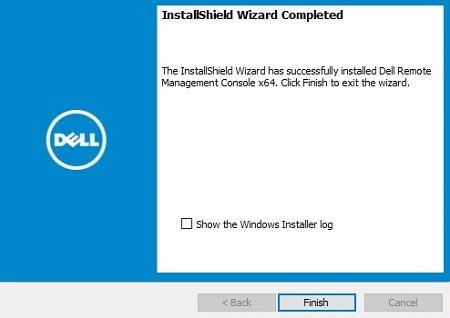
- Click Finish.
対象製品
Dell Encryption文書のプロパティ
文書番号: 000175222
文書の種類: How To
最終更新: 07 7月 2026
バージョン: 12
質問に対する他のDellユーザーからの回答を見つける
サポート サービス
お使いのデバイスがサポート サービスの対象かどうかを確認してください。