Dell Azure Stack HCI完全コンバージド ネットワーク構成
概要: この記事では、デル・テクノロジーズ ソリューションのMicrosoft Azure Stack HCIクラスター ホストの完全コンバージド ネットワークを構成する方法の例を示します。この記事の情報は、https://infohub.delltechnologies.com/en-us/l/e2e-deployment-and-operations-guide-with-scalable-networking-windows-1/fully-converged-network-configuration-38/2/ で入手可能な「完全コンバージド ネットワーク構成の導入手順」から抜粋したものです。 ...
この記事は次に適用されます:
この記事は次には適用されません:
この記事は、特定の製品に関連付けられていません。
すべての製品パージョンがこの記事に記載されているわけではありません。
手順
以下のすべての手順は、PowerShell を使用して実行されます。クラスター管理とストレージ ネットワーク トラフィックは、同じスイッチ組み込みチーム(SET)を使用します。3つのネットワークは、3つの別々の仮想アダプターにまたがって実行されます。SETスイッチ、VLAN、および仮想アダプターの構成は以下のとおりです
以下のPowerShellコマンドをラップしないでください。ラップすると、スクリプトの大部分をPowerShellウィンドウにコピーした後に失敗します。以下の構成スクリプトは、すべてのクラスター ノードで実行する必要があります
次の図は、管理およびストレージ ネットワーク通信にSETを使用して構成されたAzure Stack HCIコンバージド ネットワークのハードウェア図です。
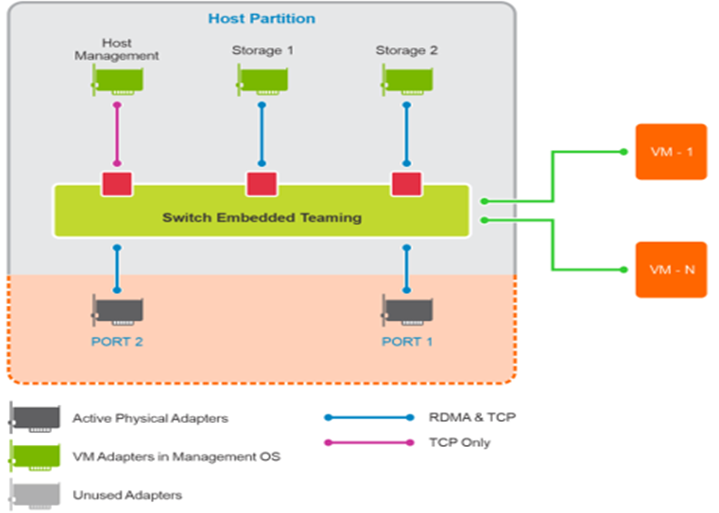
図1: Azure Stack HCIの完全コンバージド ネットワークの図
次のスクリプト手順は、管理者のPowerShellプロンプトで実行する必要があります。
注:スクリプト内のアダプター名、オブジェクト名、IPアドレス、VLANタグの値は、HCIクラスターが導入されている環境によって異なります。スクリプトを実行する前に、これらの値を適切に設定してください。
$ErrorActionPreference = 'Stop'
#region Variables for the scenario
# You must specify 2 or 4 network adapter port names
$netAdapterName = @('SLOT 4 PORT 1','SLOT 4 PORT 2')
$switchName = 'S2DSwitch'
# Management Adapter Parameters
$managementAdapterName = 'Management'
# VLAN ID for host management traffic; if no VLAN is preferred set this to 0
$managementVlanId = 102

# Management Gateway address
$managementGateway = '10.0.0.1'

# DNS server address
$managementDns = '10.0.0.19'

# Set this to a string 'DHCP' for a dynamic IP address
$managementIPAddress = '10.0.0.51'

# Management address prefix (24 translates to subnet mask 255.255.255.0)
$managementAddressPrefix = 24

# Storage Adapter Parameters
$storageAdapterPrefix = 'Storage'

# You must specify 1 or 2 or 4 VLANIDs
# You can use 0 as the value if you don't want to use VLANs for storage traffic
$storageVlanId = @(103,104)

# You must specify 2 or 4 IP Addresses
# DHCP as a value is accepted if you want dynamically assigned IP addresses
$storageIPAddress = @('171.16.101.51','172.16.102.51')

# You can specify 1 or 2 or 4 prefix length values
$StorageAddressPrefix = @(24)

#endregion

## Create a VM switch for management and Storage traffic
$null = New-VMSwitch -Name $switchName -AllowManagementOS 0 -NetAdapterName $netAdapterName -Verbose

## Add VM Network Adapters and configure VLANs and IP addresses as needed
### Management Adapter
$managementAdapter = Add-VMNetworkAdapter -SwitchName $SwitchName -ManagementOS -Passthru -Name $managementAdapterName -Verbose

if ($managementVlanId -and ($managementVlanId -ne 0))
{
Set-VMNetworkAdapterVlan -VMNetworkAdapter $managementAdapter -Access -VlanId $managementVlanId -Verbose
Start-Sleep -Seconds 5
}
if ($ManagementIPAddress -ne 'DHCP')
{
$null = New-NetIPAddress -InterfaceAlias "vEthernet ($managementAdapterName)" -IPAddress $managementIPAddress -DefaultGateway $managementGateway -PrefixLength $managementAddressPrefix -Verbose
Set-DnsClientServerAddress -InterfaceAlias "vEthernet ($managementAdapterName)" -ServerAddresses $managementDns -Verbose
}

### Storage Adapters
for ($i = 0; $i -lt $netAdapterName.Count; $i++)
{
$storageAdapterName = "${storageAdapterPrefix}$($i+1)"
# if there is a single VLAN for storage use the first and only element
if ($storageVlanId.Count -eq 1)
{
$storageVlan = $storageVlanId[0]
}
else
{
# else use the right index to get the VLAN ID
$storageVlan = $storageVlanId[$i]
}

# Check if only one prefix is provided
if ($StorageAddressPrefix.Count -eq 1)
{
$StoragePrefix = $StorageAddressPrefix[0]
}
else
{
# if more than one, use the right index to get the address prefix
$StoragePrefix = $StorageAddressPrefix[$i]
}
$storageAdapter = Add-VMNetworkAdapter -SwitchName $SwitchName -ManagementOS -Passthru -Name $storageAdapterName -Verbose

 if ($storageVlan -and ($storageVlan -ne 0))
{
# Set VM Network adapter VLAN only if the VLAN ID specified is other than 0
Set-VMNetworkAdapterVlan -VMNetworkAdapter $storageAdapter -Access -VlanId $storageVlan -Verbose
Start-Sleep -Seconds 5
}
if ($StorageIPAddress[$i] -ne 'DHCP')
{
$null = New-NetIPAddress -InterfaceAlias "vEthernet ($storageAdapterName)" -IPAddress $StorageIPAddress[$i] -PrefixLength $StoragePrefix -Verbose
}
## Set VMnetwork adapter to Physical adapter mapping
Set-VMNetworkAdapterTeamMapping -VMNetworkAdapterName $storageAdapterName -ManagementOS -PhysicalNetAdapterName $netAdapterName[$i]
}
対象製品
AX Nodes, AX-640, ax-650, AX-6515, AX-740XD, AX-750, AX-7525, Integrated System for Microsoft Azure Stack Hub 13G, Integrated System for Microsoft Azure Stack Hub 14G製品
Microsoft Windows Server 2016, Microsoft Windows Server 2019, Microsoft Windows Server 2022文書のプロパティ
文書番号: 000200958
文書の種類: How To
最終更新: 14 5月 2026
バージョン: 7
質問に対する他のDellユーザーからの回答を見つける
サポート サービス
お使いのデバイスがサポート サービスの対象かどうかを確認してください。