Frequently Asked Questions for Dell Keyboard and Mice
概要: This article provides general information about Dell keyboards and mouses.
この記事は次に適用されます:
この記事は次には適用されません:
この記事は、特定の製品に関連付けられていません。
すべての製品パージョンがこの記事に記載されているわけではありません。
手順
Quick Answer Index
|
Topic |
Refer to |
|---|---|
|
What DDPM is and how to get it |
Question #1, and Question #2 |
|
Mac OS compatibility |
Question #3, and Question #4 |
|
Wireless device not detected |
Question #5 |
|
Lag, delay, or erratic mouse/keyboard |
Question #6, and Question #7, and Question #8 |
|
Re-pairing a keyboard or mouse |
Question #9 |
|
Firmware updates |
Question #10 |
|
Finding the USB receiver |
Question #11 |
|
Using one receiver for multiple devices |
Question #12, and Question #13 |
|
Function/media keys |
Question #14 |
|
Range and battery life |
Question #15, and Question #16, and Question #17 |
|
Caps Lock / Num Lock LED behavior |
Question #18 |
|
Cleaning |
Question #19 |
|
Drivers and software requirements |
Question #20 |
|
Service Tag vs. PPID |
Question #21, and Question #22 |
Frequently Asked Questions
Question #1. What is Dell Peripheral Manager, and where do I get more information?
Dell Display and Peripheral Manager (DDPM) is a free Windows application for managing and customizing Dell monitors and peripherals — including keyboards and mice — from a single interface. It is used throughout this article for pairing, firmware updates, and battery status. For download links, system requirements, and full feature details, see Dell Knowledge Base article Dell Display and Peripheral Manager for Windows.
Question #2. What are the system requirements to install DDPM?
DDPM runs on:
- x64-based systems: Windows 10 build 17763 or later (Home, Pro, Enterprise); Windows 11 (Home, Pro, Pro for Workstation, Enterprise, Education)
- ARM-based systems: Windows 11 on ARM (arm64) with Qualcomm Snapdragon X-Elite or X-Plus chipsets
DDPM does not support Windows SE, Windows IoT Enterprise, or Windows LTSC. To check your Windows build, press and hold the Windows key, and then press the R. In the Run box, type winver, and press the Enter key.
Download DDPM directly from the Dell Display and Peripheral Manager download page, or from your device's Drivers & Downloads page on Dell Support. Installation typically takes under 20 minutes; the first launch can take up to 5 minutes while the application initializes.
Question #3. Does Dell Peripheral Manager support Mac?
No. DDPM (the Windows application) does not run on macOS. Mac users who want equivalent pairing, firmware, and customization features should use the Dell Knowledge Base Dell Display and Peripheral Manager for macOS article instead.
Question #4. Do Dell keyboards and mice work on a Mac?
Yes. Dell keyboards and mice function on macOS using standard USB/Bluetooth drivers built into the operating system. The Windows version of DDPM is not supported on macOS — (see Question #3) for the macOS-specific management app.
Question #5. My wireless keyboard or mouse is not working or isn't detected. What should I check?
Work through these steps in order:
- Confirm you are using fresh batteries, installed correctly (check polarity).
- Turn the keyboard or mouse on. Most models have an LED that lights when powered on.
- Plug the USB receiver directly into a USB port on the computer. Do not connect it through a USB hub, switch box, port replicator, or extension cable — these can prevent detection.
- If it is still not detected, try a different USB port on the computer.
If the device is still not detected after these steps, the issue may be USB radio-frequency (RF) interference (see Question #6 for interference fixes).
Question #6. My keyboard or mouse is laggy, delayed, or erratic. Why, and how do I fix it?
Nearby computers, monitors, docking stations, and other equipment can radiate radio-frequency (RF) noise that interferes with wireless keyboard and mouse signals. To correct it:
- Move the USB receiver farther away from the interfering equipment (for example, a monitor's built-in USB ports or a desktop's rear USB ports).
- Increase the physical distance between the receiver and the source of interference.
- Plug the receiver into a different port or a port on the opposite side of the machine from the interference source.
Question #7. Repositioning the receiver did not fix the interference. What else can I try?
Use a short USB extension cable (available from most retailers) to relocate the receiver away from the source of interference while keeping it connected to the computer.
Question #8. Where can I read more about USB RF interference?
Intel publishes a technical whitepaper on this topic: USB 3.0 Radio Frequency Interference Impact on 2.4 GHz Wireless Devices (Intel, PDF).

Question #9. My keyboard or mouse became unpaired from the computer. How do I re-pair it?
- Install DDPM if it is not already on your computer (see Question #2 for download links).
- Open DDPM.
- Select the + (add device) control in the app (located in the upper-right corner).
NOTE: If no device is detected, the Add your first device screen appears.
- In the Add device side bar, select Keyboard and Mouse > Wireless receiver tab.
- Follow the steps as outlined on the Wireless Reciever Connection page.
- The device will automatically connect to the wireless receiver after a few seconds. If it does not connect, repeat the steps as outlined on the page.
- Verify the pairing status in DDPM. The main screen will display the paired drvice.
Question #10. How do I update the firmware on my Dell keyboard or mouse?
- Install DDPM if it is not already on your computer (see Question #2).
- If the device uses a USB receiver, make sure the receiver is plugged in and the keyboard or mouse is powered on.
- Open DDPM. Select the gear icon (located in the upper-right corner), select the Updates tab, and then select Check for updates. If an update is available, select the update prompt and follow the on-screen instructions.
If the firmware update fails:
- Keep the device connected for the entire update — do not disconnect it partway through.
- Make sure your computer has a stable internet connection.
- For wireless devices, charge the battery above 20% before updating.
- If prompted during a wireless keyboard update, press the U key twice.
- If prompted during a wireless mouse update, move the mouse or click the left button twice.
Question #11. Where is the USB receiver for my keyboard or mouse?
Depending on your keyboard or mouse the USB receiver could be in several locations (see Figures 1-4 for possible locations).
NOTE: For precise location of the USB receiver, see the User's Guide for your Keyboard or Mouse. For information obtaining the User's Guide, see Dell Knowledge base article Manuals and Documentation for your Dell Product.
Dongle location examples

Figure 1: Mouse USB Receiver Location Example
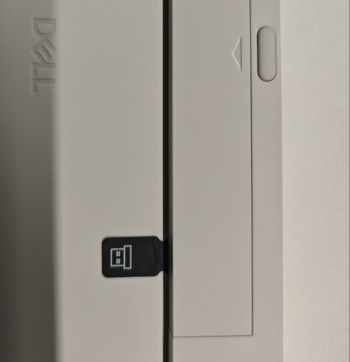
Figure 2: Keyboard Battery and USB Receiver Door Example
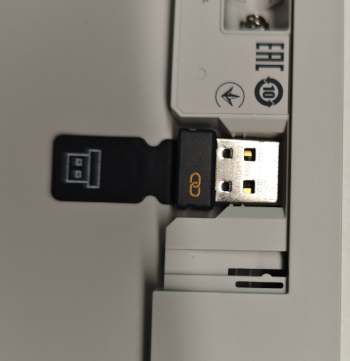
Figure 3: Keyboard USB Receiver Location Example
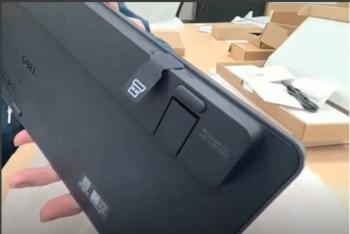
Figure 4: Example of Keyboard USB Receiver Storage Slot Location
Question #12. I bought a keyboard-and-mouse combo. How many USB receivers do I need?
Just one. A single USB receiver pairs and operates both the keyboard and the mouse in a combo set simultaneously.
Question #13. I bought a keyboard and a mouse separately, each with its own receiver. Can I use just one receiver for both?
It depends on the receiver (dongle) type.
- If both dongles have the same symbol printed on them: Yes. Use DDPM to add the second peripheral to the existing dongle:
- Install DDPM if needed (see Question #2).
- Open DDPM.
- Plug in the USB receiver, turn on the original peripheral, and confirm it is working and listed in DDPM.
- Select + (add device) in DDPM (located in the upper-right corner).
- Follow the on-screen instructions to pair the second device with the same receiver.
- If the dongles have different symbols: No — each device requires its own receiver. To confirm which software and receiver types are compatible with your specific dongle, see the "How do I know which products I have and what software to use?" section of Dell Display and Peripheral Manager for Windows.
Question #14. How do I use the multimedia and F1–F12 function keys on my Dell external keyboard?
See Dell Knowledge Base article How To Use Multimedia and Function Keys on Dell External Keyboards for the complete key-by-key explanation.
Question #15. What is the wireless range of a Dell keyboard or mouse?
Up to 30 feet (about 10 meters), depending on the placement of the USB receiver and any nearby sources of interference.
Question #16. Why is my battery life shorter than I expected?
Published battery-life figures come from Dell's internal usage-model testing; real-world results vary with usage patterns, operating conditions, and other factors. Rechargeable batteries in particular may deliver shorter runtime than standard alkaline batteries. Dell recommends using a reputable, top-quality battery brand. To extend battery life, turn the keyboard and mouse off when not in use.
Question #17. How do I check the battery status of my keyboard or mouse?
Open DDPM and view the device's battery indicator on its detail screen. (Requires DDPM — see Question #2 for installation.)
Question #18. Why doesn't the Caps Lock or Num Lock LED stay on?
This is expected behavior, not a defect. To conserve battery life, the Caps Lock and Num Lock LEDs stay lit for 5 seconds after the key is pressed, then turn off automatically — even if the lock state (Caps Lock or Num Lock) remains active and you keep typing. Pressing the key again re-lights the LED for another 5 seconds.
If DDPM is installed, the current lock state is also shown in the Windows 11 and Windows 10 on-screen display (OSD) that appears when you press Caps Lock or Num Lock, so you can confirm the state at a glance even after the physical LED turns off.
Question #19. How do I clean my Dell keyboard and mouse?
Before cleaning:
- Unplug the device and make sure it is powered off.
- Remove the batteries.
- Keep liquids away from the device.
- Do not use solvents or abrasive cleaners.
For full cleaning guidance, see Guidance for Keeping Your Dell Technologies Equipment Clean.
Question #20. Does a Dell keyboard or mouse require software or drivers to work?
No. Dell keyboards and mice work out of the box using the generic HID (Human Interface Device) drivers built into the operating system — plug it in (or pair it) and it functions immediately. Install DDPM only if you want to re-pair a device, customize buttons/keys, check battery status, or update firmware (see Question #2 for installation).
Question #21. Is there a Dell Service Tag on my keyboard or mouse?
No. Keyboards and mice do not carry a Dell Service Tag. The Service Tag — a seven-character identifier — is used on Dell computers and monitors only.
Question #22. If there is no Service Tag, how is my keyboard or mouse identified? What is a PPID?
Keyboards and mice are identified by a Piece Part Identification (PPID) number instead of a Service Tag. The PPID is a 20-character string plus a 3-character revision suffix; the 20-character portion is the unique identifier regardless of which revision is appended.
Find the PPID on the underside of the device, on the battery cover, or on the label inside the battery compartment.
Quick Troubleshooting Reference (from DDPM documentation)
|
Symptom |
Try this |
|---|---|
|
DDPM will not open |
Confirm system requirements, (see Question #2) > restart the computer > reinstall DDPM |
|
Device not responding |
Check the connection > try a different USB port > update firmware (see Question #10) > unpair and re-pair, (see Question #9) > restart the computer. |
|
Firmware update fails |
Keep the device connected > confirm a stable internet connection > charge above 20% (wireless) > follow the on-screen key-press/click prompt (see Question #10). |
For issues beyond this list, see the troubleshooting chapter of the DDPM User's Guide.
対象製品
Alienware Advanced Gaming Keyboard – AW568, Alienware Advanced Gaming Mouse – AW558, Alienware Elite Gaming Mouse – AW958, Alienware Mechanical Gaming Keyboard | AW310K, Alienware RGB Mechanical Gaming Keyboard AW410K
, Alienware Tenkeyless Gaming Keyboard AW420K, Alienware Low-Profile RGB Mechanical Gaming Keyboard | AW510K, Alienware Wireless Gaming Mouse AW310M, Alienware RGB Gaming Mouse AW510M, Alienware Wired/Wireless Gaming Mouse AW610M, Alienware Tri-Mode Wireless Gaming Mouse AW720M, Alienware Elite Gaming Mouse - AW959, Alienware Pro Gaming Keyboard – AW768, Alienware Wired Gaming Mouse AW320M, Alienware Pro Wireless Gaming Keyboard, Alienware Pro Wireless Gaming Mouse, Alienware Tri-Mode Wireless Gaming Keyboard AW920K, Alienware Wireless Gaming Mouse AW620M, Dell Wireless Chrome Keyboard KB5220W-C, Dell Business Multimedia Keyboard KB522, Dell Wired Keyboard KB216, Dell Bluetooth Keyboard Folio WK415, Dell Bluetooth Mouse WM615, Dell Bluetooth Travel Mouse MS700, Dell Pro Plus Compact Keyboard KB740, Dell Pro Silent Wired Collaboration Keyboard KB525C, Dell Pro Premium Collaboration Keyboard KB900, Dell Advanced Wireless Keyboard and Mouse KM520, Dell Pro 5 Keyboard and Mouse KM526, Dell Pro Compact Silent Keyboard and Mouse - KM555, Dell Wireless Keyboard & Mouse Bundle KM632, Dell Premium Wireless Keyboard and Mouse KM720, Dell Pro 7 Slim Keyboard and Mouse KM726, Dell Pro 7 Rechargeable Compact Keyboard and Mouse KM746, Dell Pro Premium Collaboration Keyboard and Mouse KM900, Dell Pro Wired Mouse MS3220, Dell Laser Mouse, Dell Pro Plus Keyboard KB700, Dell Pro Plus Compact Mouse MS5120W, Dell Mobile Wireless Mouse MS3320W, Dell Pro Compact Silent Mouse MS355, Dell Advanced Wireless Compact Mouse MS510, Dell Pro 5 Mouse MS526, Dell Pro 5 Wired Fingerprint ESS Mouse MS526C, Dell Pro 7 Silent Mouse MS726, Dell Pro 7 Rechargeable Compact Mouse MS746, Dell Pro Premium Mouse MS900, Dell Pro Plus Compact Keyboard and Mouse KM7120W, Dell Pro Plus Mouse MS5320W, Dell Pro Plus Keyboard and Mouse KM7321W, Dell Pro Premium Compact Mouse MS7421W, Dell Premier Wireless Keyboard and Mouse KM717, Dell Premier Wireless Keyboard WK717, Dell Premier Wireless Mouse WM527, Dell Pro Keyboard and Mouse KM5221W, Dell Pro Smartcard Keyboard KB813, Dell Travel Mouse WM524, Dell Wireless Keyboard and Mouse - KM117, Dell Keyboard and Mouse KM3322W, Dell Wireless Keyboard and Mouse- KM636 (black), Dell Wireless Keyboard & Mouse KM714, Dell Wireless Laser Mouse WM514, Dell Wireless Mouse WM324, Dell Wireless Touch Mouse WM713, Dell Wired Mouse MS116, Dell Pro Keyboard KB500, Dell Pro Mouse MS300, Dell Mouse WM118, Dell Wireless Mouse WM126, Dell Wireless Mouse WM326, Wired Mouse with Fingerprint Reader - MS819
...
文書のプロパティ
文書番号: 000202575
文書の種類: How To
最終更新: 08 7月 2026
バージョン: 21
質問に対する他のDellユーザーからの回答を見つける
サポート サービス
お使いのデバイスがサポート サービスの対象かどうかを確認してください。