Live Optics | Upload an SIOKIT File using the Live Optics Collector
概要: How to upload an SIOKIT file using the Live Optics collector.
この記事は次に適用されます:
この記事は次には適用されません:
この記事は、特定の製品に関連付けられていません。
すべての製品パージョンがこの記事に記載されているわけではありません。
手順
The Live Optics collector sends data to the Live Optics web portal for analysis in two ways:
- Automatically, while a Live Optics collector run is in progress
- Manually, by uploading an encrypted SIOKIT file which is created and saved locally to the machine on which it is run.
This article describes how to manually upload an SIOKIT file using the Live Optics collector.
- Open the Live Optics collector and select Upload SIOKIT.
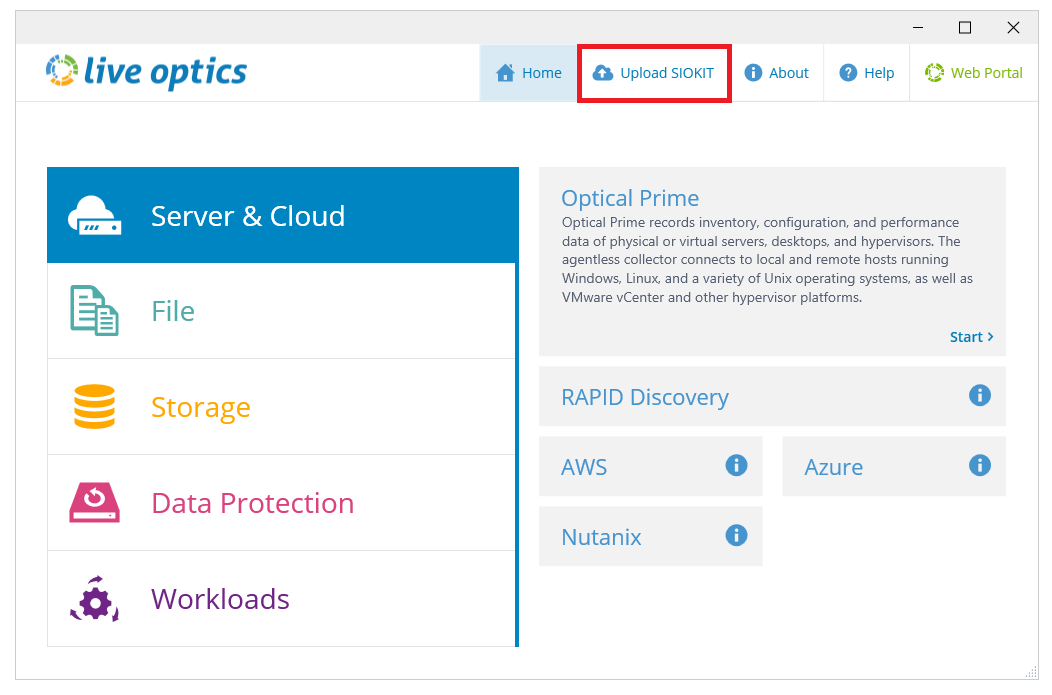
- Click Browse for File and choose the SIOKIT file you want to upload. Enter a project name and click Upload to continue.
- The file is uploaded to the Live Optics web portal. During the upload, a status bar indicates the progress. The upload may take some time to complete depending on the speed of your Internet connection and size of the file. When the upload is complete, the following screen displays. A confirmation email follows, when your project is ready to view on the Live Optics web portal.
- Click Quit to close the Collector.
その他の情報
If you have any questions, reach out to Live Optics Support at liveoptics.support@dell.com.
対象製品
Analytics文書のプロパティ
文書番号: 000228710
文書の種類: How To
最終更新: 21 10月 2025
バージョン: 3
質問に対する他のDellユーザーからの回答を見つける
サポート サービス
お使いのデバイスがサポート サービスの対象かどうかを確認してください。