How to Export Tech Support Report via Rocky Linux 9
概要: This article provides a step by step to collect Tech Support Report via Rocky Linux 9.
この記事は次に適用されます:
この記事は次には適用されません:
この記事は、特定の製品に関連付けられていません。
すべての製品パージョンがこの記事に記載されているわけではありません。
手順
Prerequisites.
- Rocky Linux 9 installed on the system.
- Internet connection to download the iDRAC Tools tool.
- Superuser privileges.
Step 1: Download and Unzip the iDRAC Tools Tool.
- Open the terminal and get superuser privileges by running the command
su root - Change to the "Downloads" directory using the command
cd Downloads/ - Download the iDRAC Tools using the
wget https://dl.dell.com/FOLDER08637461M/1/DellEMC-iDRACTools-Web-LX-10.3.0.0-4945_A00.tar.gz
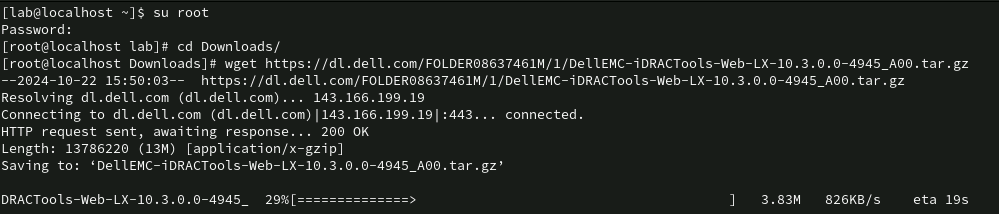
- Uncompress the contents using the
tar -zxvf DellEMC-iDRACTools-Web-LX-10.3.0.0-4945_A00.tar.gz
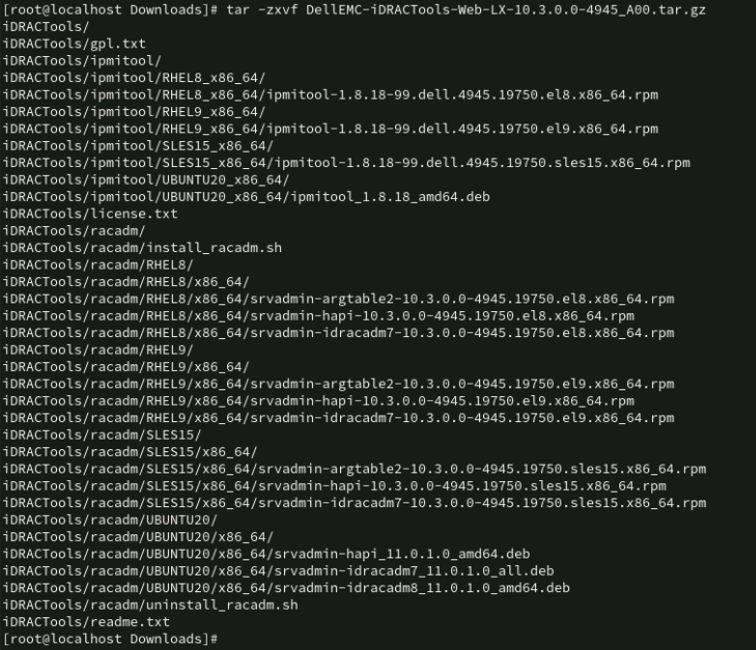
Step 2: Install the iDRAC Tools tool.
- Change to the iDRAC Tools directory using the
cd iDRACTools/racadm/RHEL9/x86_64/ - Install the packages using the command
rpm -ivh *.rpm

Step 3: Start Registry Collection.
- Open a new terminal, and gain superuser privileges by running the command
su root - Change to the iDRAC Tools directory using the
cd /opt/dell/srvadmin/sbin/ - Start the collection using the command
racadm techsupreport collect -t sysInfo,ttyloga Job ID will be generated, for example: JID_296417746055.
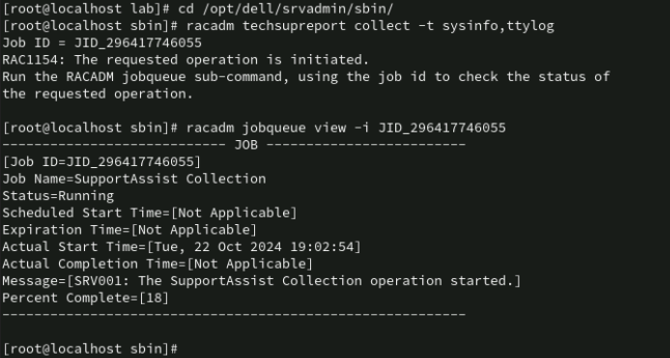
- Monitor the Job progress using the
racadm jobqueue view -i <ID_do_Job>Replace<ID_do_Job>by the Job ID generated in the previous step, repeat the command until the Job Status shows the value "Completed".
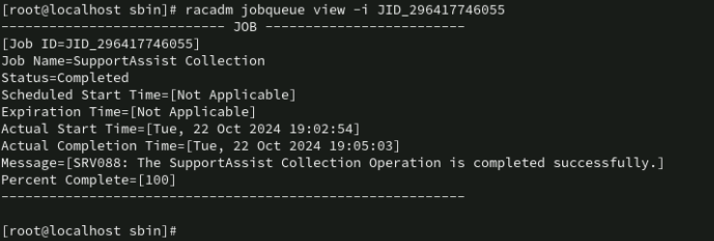
Step 4: Export the iDRAC log
- Export the collection to the host using the
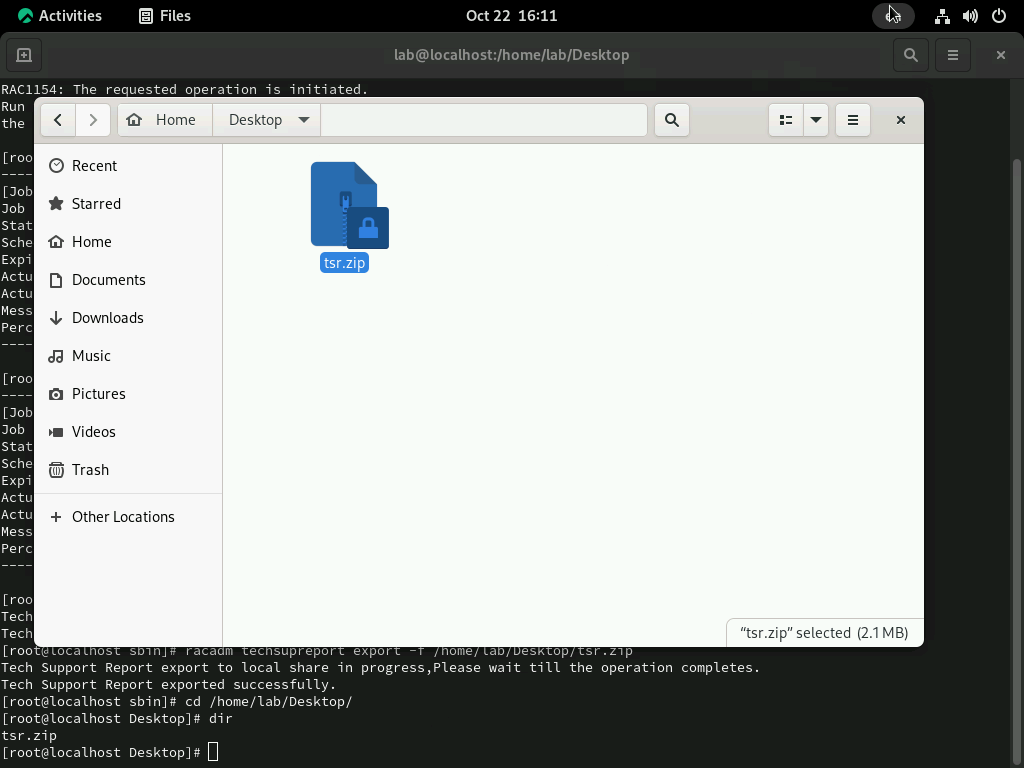
racadm techsupreport export -f /home/[nome_do_usuário]/Desktop/tsr.zip
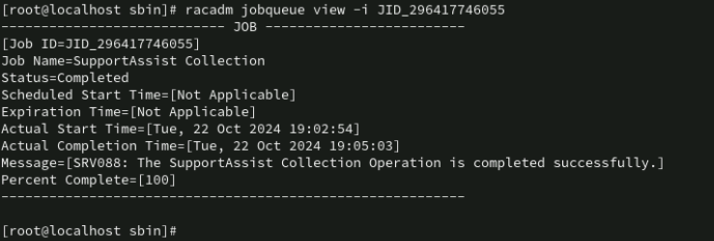
- Enter the directory to check if the file was exported. Ready! You can now send the generated collection file to the technical support agent for analysis.

対象製品
iDRAC8, iDRAC9製品
Red Hat Enterprise Linux Version 9文書のプロパティ
文書番号: 000242537
文書の種類: How To
最終更新: 16 3月 2026
バージョン: 5
質問に対する他のDellユーザーからの回答を見つける
サポート サービス
お使いのデバイスがサポート サービスの対象かどうかを確認してください。