How to Add CrowdStrike Falcon Console Administrators
요약: Learn about how to create an administrator account or add more administrators for CrowdStrike Falcon Console by following these instructions.
이 문서는 다음에 적용됩니다.
이 문서는 다음에 적용되지 않습니다.
이 문서는 특정 제품과 관련이 없습니다.
모든 제품 버전이 이 문서에 나와 있는 것은 아닙니다.
지침
Falcon Administrators can access all functionality in the CrowdStrike Falcon Console except certain Real Time Response (RTR) functionality. This article discusses how to add additional administrators to the CrowdStrike Falcon Console.
Affected Operating Systems:
- Windows
- Mac
- Linux
- In a Google Chrome or Microsoft Edge browser, go to your Falcon console login URL.
- Falcon US-1: https://falcon.crowdstrike.com/login/
- Falcon US-2: https://falcon.us-2.crowdstrike.com/login/
- Falcon EU-1: https://falcon.eu-1.crowdstrike.com/login/
- Falcon US-GOV-1: https://falcon.laggar.gcw.crowdstrike.com/login/
- Falcon US-1: https://falcon.crowdstrike.com/login/
- Log In to the Falcon Console.
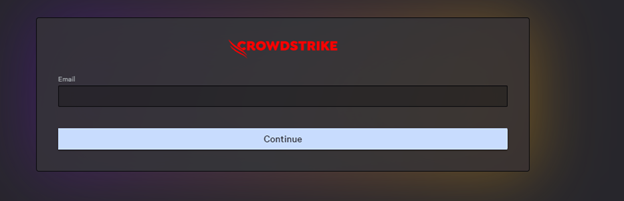
- In the left menu pane, click Host Setup and Management and then select User management.
 Note: The layout in the example may differ slightly from your environment.
 - In the upper right corner, click Create user.

- In the Create User menu:
- Populate Email.
- Populate First Name.
- Populate Last Name.
- Search for at least one administration role.
- Click Save.
 Note: For more information about administration role functions, select the information icon (
 ) next to the selected role.

To contact support, reference Dell Data Security International Support Phone Numbers.
Go to TechDirect to generate a technical support request online.
For additional insights and resources, join the Dell Security Community Forum.
해당 제품
CrowdStrike문서 속성
문서 번호: 000130804
문서 유형: How To
마지막 수정 시간: 02 7월 2024
버전: 15
다른 Dell 사용자에게 질문에 대한 답변 찾기
지원 서비스
디바이스에 지원 서비스가 적용되는지 확인하십시오.