CloudLink: Disable AWS console access to CloudLink OS
Samenvatting: AWS has pre-installed SSM agent on all supported Operating Systems, this SSM agent will also let access to CloudLink OS console directly.
Dit artikel is van toepassing op
Dit artikel is niet van toepassing op
Dit artikel is niet gebonden aan een specifiek product.
Niet alle productversies worden in dit artikel vermeld.
Symptomen
Dell recommends the removal of SSM agent from CloudLink instances as it will lead to security vulnerabilities.
Oorzaak
In AWS, the SSM agent is pre-installed on all supported Operating Systems to allow access to the Operating System console directly.
Affected Products and Version/s: All versions of CloudLink till 7.1.3 when deployed in AWS.
Affected Products and Version/s: All versions of CloudLink till 7.1.3 when deployed in AWS.
Oplossing
In order to disable login via Session Manager to CloudLink OS, Administrator must uninstall the SSM agent from the CloudLink instance.
There are two workarounds:
Remediation workflow 1: When user has access to CloudLink console via Session Manager.
Remediation workflow 2: When user has no access to CloudLink console via Session Manager.
Remediation workflow 1:
1. Instance of CloudLink.
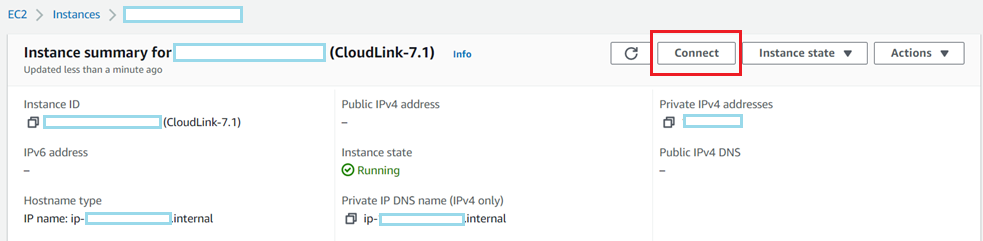
2. On Session Manager tab -> Click on Connect button
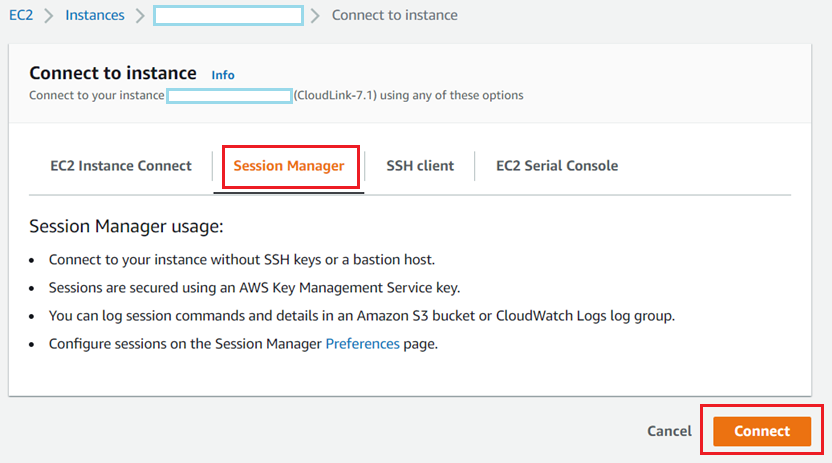
3. Once you are on CloudLink console using Session Manager, enter sudo su

4. To check the Status of SSM Agent running on CloudLink console run the below command
“systemctl status snap.amazon-ssm-agent.amazon-ssm-agent.service”
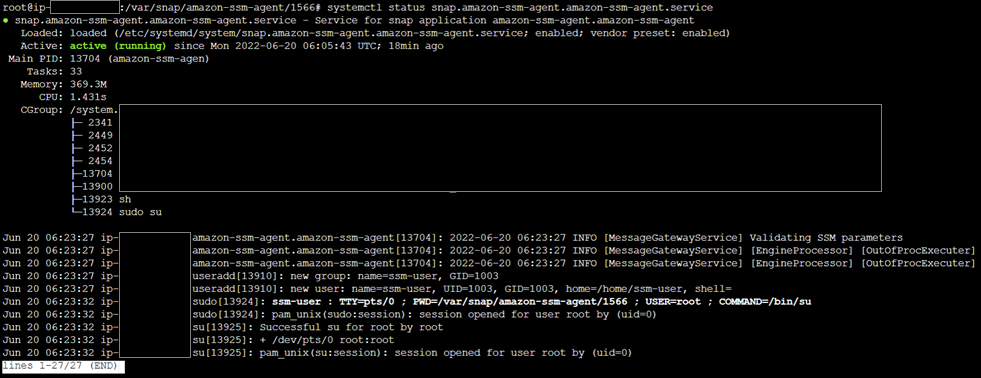
5. To list the running SSM agent on CloudLink console run the below command
“snap list amazon-ssm-agent”

6. To remove the SSM agent from CloudLink console run the below command
“snap remove amazon-ssm-agent”

Validate SSM agent is removed from CloudLink instance.
7. When SSM agent gets uninstalled CloudLink instance, the “connect” button gets disabled
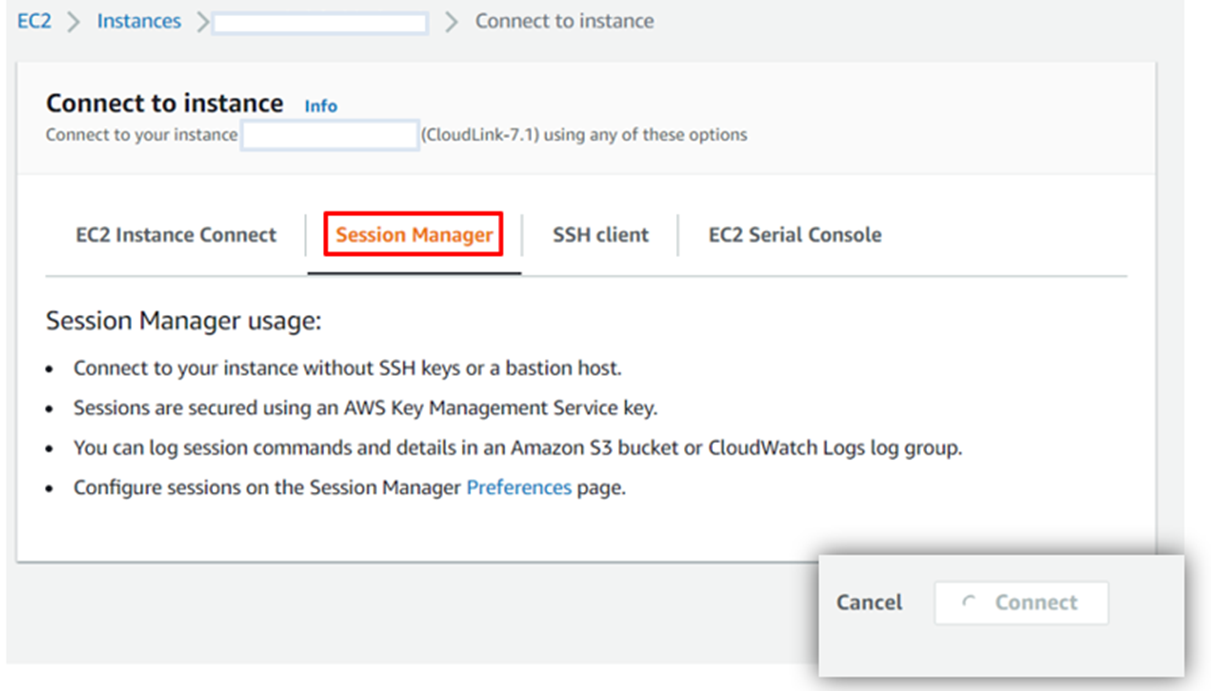
8. When user tries to SSH to CloudLink IP address it takes user to CloudLink login prompt

9. Check for status of SSM agent . Verify Agent is “Stopped”
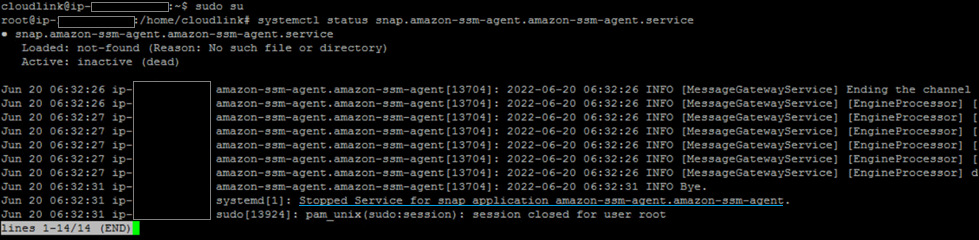
10. Check the list of SSM agents. Status return “No matching snaps installed”.

Remediation workflow 2:
Session Manager is not enabled when an IAM Role is not selected. Thus with no presence of Session manager, the user will not be able to access CloudLink console.
To verify IAM Profile, login to AWS -> Launch EC2 instance -> Advanced details -> IAM Instance profile
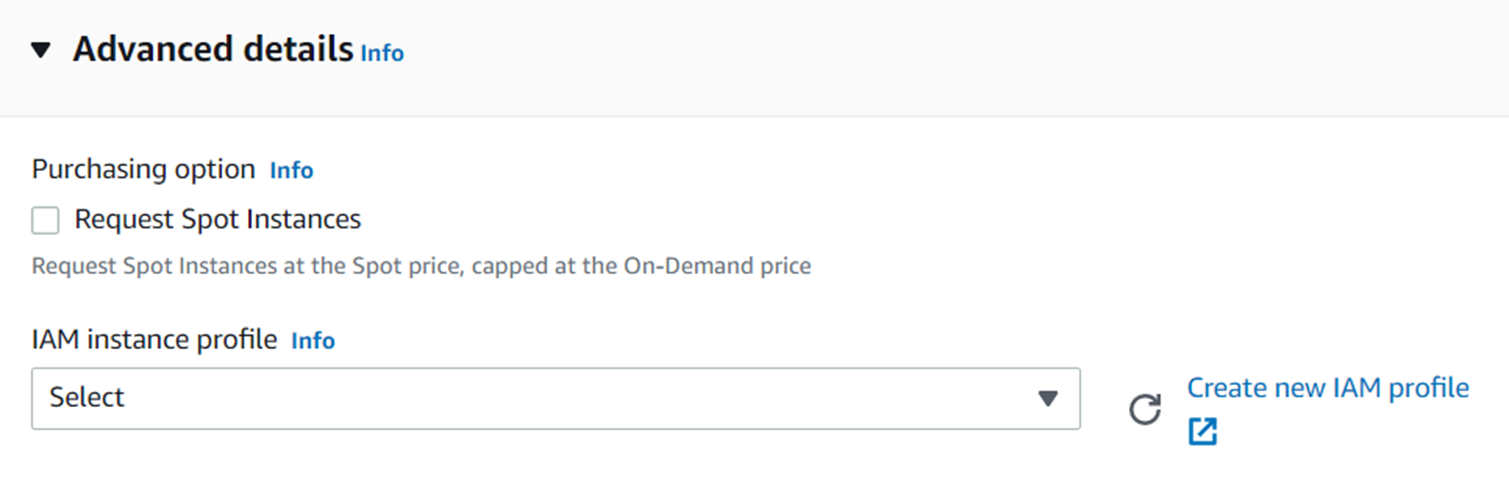
Recommended not to select any profile under "IAM Instance profile", this will lead to Session Manager not being able to establish a connection to CloudLink console.
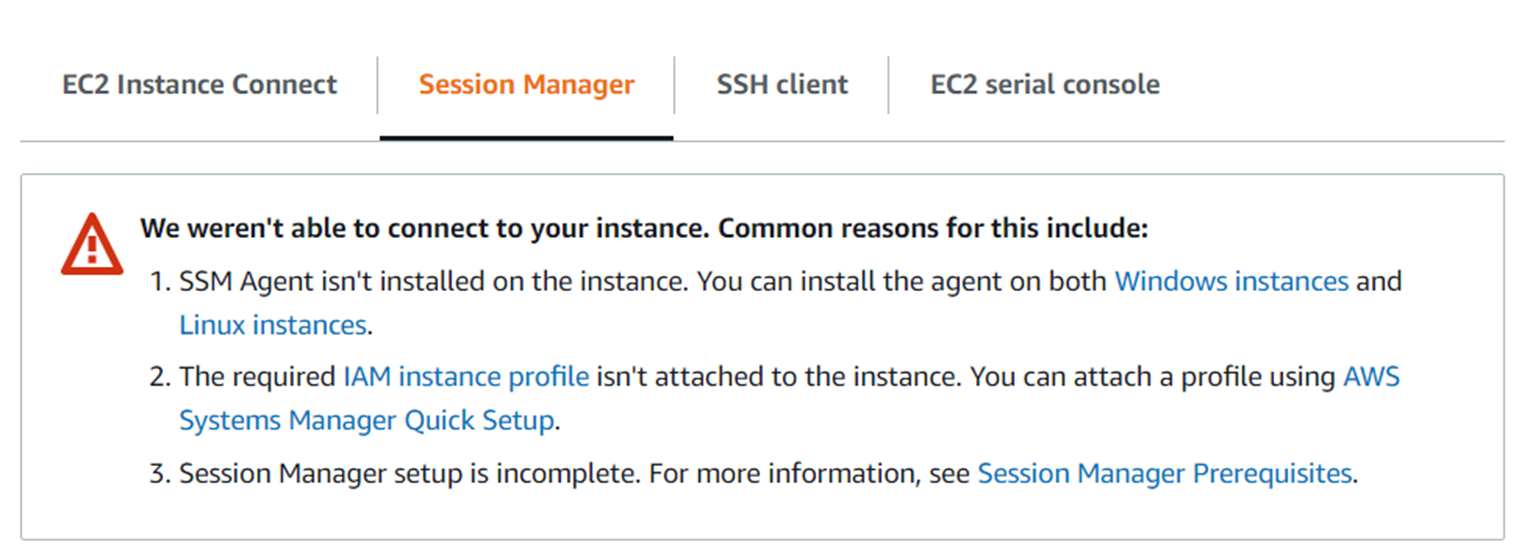
NOTE: At this point when Session Manager cannot establish connection to the CloudLink console, User has to contact Technical Support to assist in uninstalling SSM agent from CloudLink instances.
There are two workarounds:
Remediation workflow 1: When user has access to CloudLink console via Session Manager.
Remediation workflow 2: When user has no access to CloudLink console via Session Manager.
Remediation workflow 1:
1. Instance of CloudLink.
2. On Session Manager tab -> Click on Connect button
3. Once you are on CloudLink console using Session Manager, enter sudo su
4. To check the Status of SSM Agent running on CloudLink console run the below command
“systemctl status snap.amazon-ssm-agent.amazon-ssm-agent.service”
5. To list the running SSM agent on CloudLink console run the below command
“snap list amazon-ssm-agent”
6. To remove the SSM agent from CloudLink console run the below command
“snap remove amazon-ssm-agent”
Validate SSM agent is removed from CloudLink instance.
7. When SSM agent gets uninstalled CloudLink instance, the “connect” button gets disabled
8. When user tries to SSH to CloudLink IP address it takes user to CloudLink login prompt
9. Check for status of SSM agent . Verify Agent is “Stopped”
10. Check the list of SSM agents. Status return “No matching snaps installed”.
Remediation workflow 2:
Session Manager is not enabled when an IAM Role is not selected. Thus with no presence of Session manager, the user will not be able to access CloudLink console.
To verify IAM Profile, login to AWS -> Launch EC2 instance -> Advanced details -> IAM Instance profile
Recommended not to select any profile under "IAM Instance profile", this will lead to Session Manager not being able to establish a connection to CloudLink console.
NOTE: At this point when Session Manager cannot establish connection to the CloudLink console, User has to contact Technical Support to assist in uninstalling SSM agent from CloudLink instances.
Getroffen producten
CloudLink SecureVM, CloudLinkArtikeleigenschappen
Artikelnummer: 000200819
Artikeltype: Solution
Laatst aangepast: 14 mei 2026
Versie: 6
Vind antwoorden op uw vragen via andere Dell gebruikers
Support Services
Controleer of uw apparaat wordt gedekt door Support Services.