如何访问 Dell Data Security 服务器管理控制台
Resumo: 按照这些逐步说明了解如何访问 Dell Data Security 或 Dell Data Protection 服务器管理控制台。
Este artigo aplica-se a
Este artigo não se aplica a
Este artigo não está vinculado a nenhum produto específico.
Nem todas as versões do produto estão identificadas neste artigo.
Instruções
Dell Data Security(以前称为 Dell Data Protection)需要安装管理控制台才能管理:
- 策略
- 报告
- 加密密钥
受影响的产品:
- Dell Security Management Server
- Dell Data Protection Enterprise Edition Server
- Dell Security Management Server Virtual
- Dell Data Protection Virtual Edition
受影响的版本:
- 8.0 及更高版本
登录管理控制台的说明因 Dell Data Security 服务器的版本而异。
单击相应的产品版本,了解有关访问管理控制台的具体步骤。有关版本信息,请参阅 如何确定 Dell Data Security 服务器版本。
9.2 及更高版本
- 打开网页浏览器并访问 https://servername.company.com:8443/webui。
 注:
注:- 该 FQDN(完全限定域名)示例将不同于您的环境中的服务器。
- 端口 8443 可能与您环境中的管理控制台端口不同。
- 登录管理控制台。
 注:
注:- 在版本 11.4 及更高版本中,如果为用户配置了 Google Authenticator 或电子邮件 MFA(多重身份验证),则系统会提示用户输入 OTP(一次性密码)。
- 有关配置 MFA 的更多信息,请参阅如何在 Dell Security Management Server 管理控制台中管理多因素身份验证。
8.0 至 9.1.5
- 在 Windows 资源管理器中,转至:
- Dell Data Protection Enterprise Edition Server:
C:\Program Files\Dell\Enterprise Edition - 端点:
C:\Program Files\Dell\Virtual Edition
注:- 端点访问需要从 Dell Data Protection Virtual Edition 介质安装管理控制台(以前称为远程管理控制台)。
- 有关安装步骤,请参阅如何安装 Dell Data Protection 远程管理控制台。
- Dell Data Protection Enterprise Edition Server:
- 双击
Credant.Console。

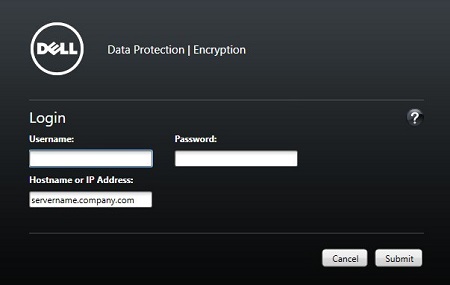
- 提交凭据以登录到管理控制台。
Mais informações
Vídeos
Produtos afetados
Dell EncryptionPropriedades do artigo
Número do artigo: 000126852
Tipo de artigo: How To
Último modificado: 21 jul. 2026
Versão: 16
Encontre as respostas de outros usuários da Dell para suas perguntas.
Serviços de suporte
Verifique se o dispositivo está coberto pelos serviços de suporte.