PowerScale: How To Activate Cluster Using Activation File
Summary: This article explains how to generate an activation XML file from a PowerScale cluster, upload it though My Account, and complete license activation or regeneration process.
Acest articol se aplică pentru
Acest articol nu se aplică pentru
Acest articol nu este legat de un produs specific.
Acest articol nu acoperă toate versiunile de produs existente.
Instructions
Prerequisites
- Administrative access to the PowerScale cluster
- Valid Dell Technologies My Account credentials
- Web browser for the OneFS web UI and My Account portal
- Network connectivity between the cluster and your workstation
Generate the Activation XML File:
- Log in to the OneFS web administration interface.
- Open the Activate File Licensing Wizard and follow the prompts to create the activation XML file.
- Alternatively, open a OneFS command‑line session and run the isi license command to generate the file.
- Transfer the generated activation XML file from the cluster to your desktop.
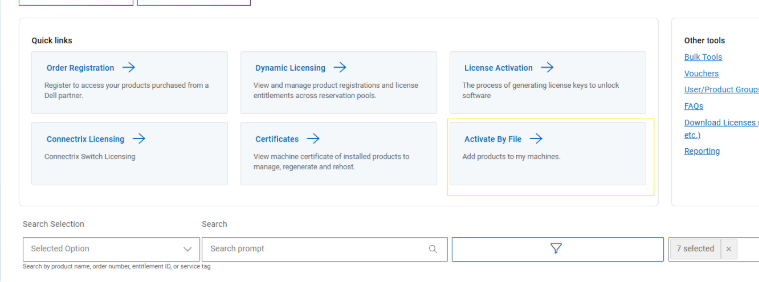
Upload the Activation File in My Account:
- Log in to My Account.
- Go to the Activate by file section.
- Click Browse Files and select the activation XML file transferred.
- Confirm the upload.
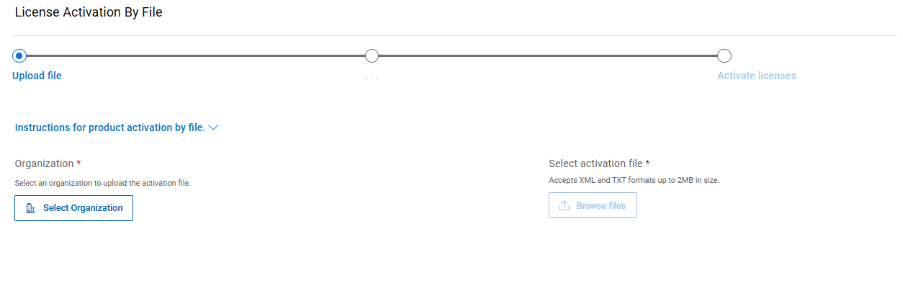
Complete Activation or Regenerate a License:
- Upon uploading the file, the system will process the activation and generate a new license for the cluster.
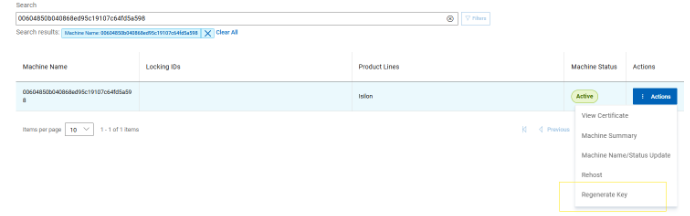
- If there is a want to regenerate an existing license without an activation file, stay in My Account, search for the cluster ID in the certificate section, and click the Regenerate Key button.
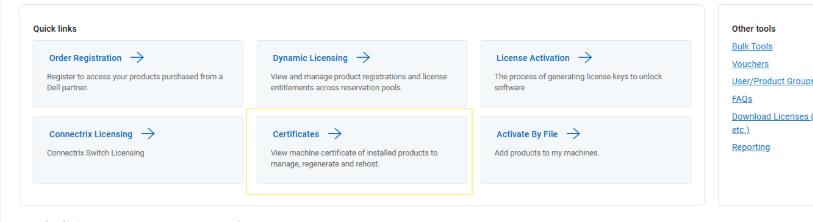
- Locate the machine entry for the cluster ID, then select the Regenerate action.
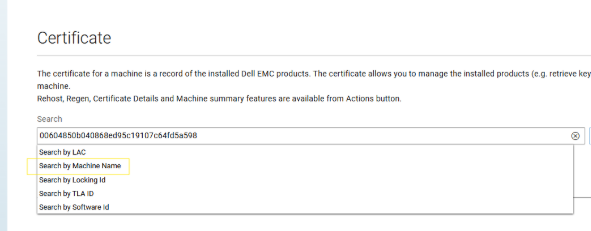
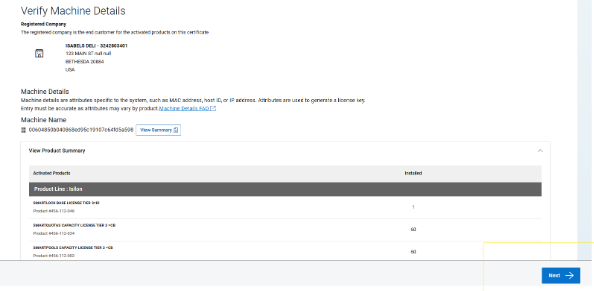
- Follow the on‑screen prompts to complete the regeneration.
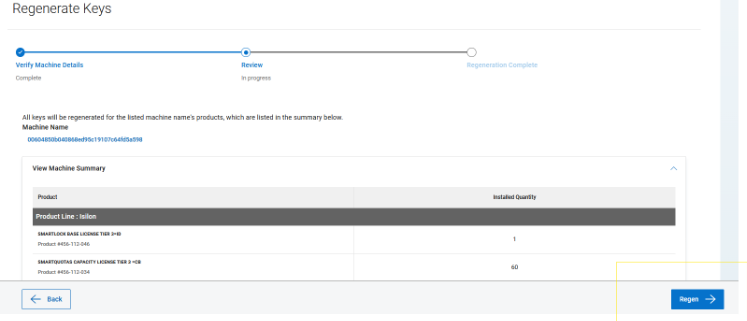
- On the final page, click the Regen button to create a copy of the license with a current timestamp.
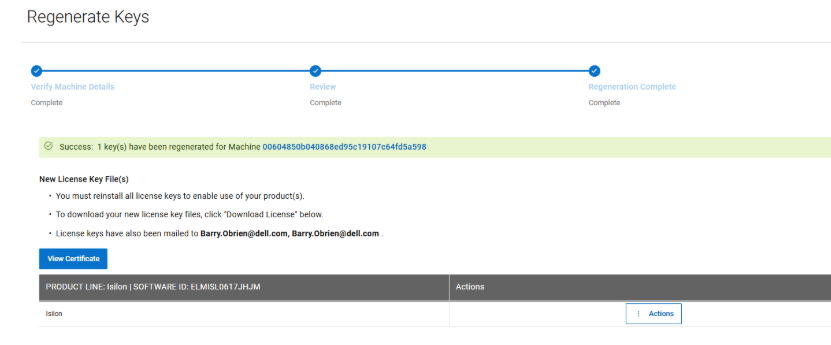
- The regenerated license is emailed to the user logged in to My Account.
- Verify that the new license appears in the cluster’s license list.
Note: If any step is unclear, refer to the official OneFS documentation for detailed instructions.
Produse afectate
Isilon, PowerScale OneFSProprietăți articol
Article Number: 000456425
Article Type: How To
Ultima modificare: 24 apr. 2026
Version: 1
Găsiți răspunsuri la întrebările dvs. de la alți utilizatori Dell
Servicii de asistență
Verificați dacă dispozitivul dvs. este acoperit de serviciile de asistență.