Dell Data Security Shield Modes
Sammanfattning: This article discusses the Dell Data Security (formerly Dell Data Protection) shield modes.
Den här artikeln gäller för
Den här artikeln gäller inte för
Den här artikeln är inte kopplad till någon specifik produkt.
Alla produktversioner identifieras inte i den här artikeln.
Symptom
Affected Products:
- Credant Mobile Guardian
- Dell Encryption Enterprise
- Dell Data Protection | Enterprise Edition
- Dell Encryption External Media
- Dell Data Protection | External Media Edition
- Dell Encryption Personal
- Dell Data Protection | Personal Edition
- Dell Data Protection | Security Tools
- Dell Encryption Enterprise for Server
- Dell Data Protection | Server Edition
Affected Platforms:
- Windows
Policy-based Dell Data Security (formerly Dell Data Protection) software use a shield mode identifier for product classification.
Orsak
Warning:
- Shield mode is determined at the time of product installation and cannot be modified manually.
- Shield mode is only used to troubleshoot product type or status.
Upplösning
The shield modes for Dell Data Security products are:
| ID | Mode | Product |
|---|---|---|
| 0 | Unknown/ Uninitialized | Not Initialized/ Unprovisioned1 |
| 1 | Enterprise Mode | Dell Encryption Enterprise \ Dell Data Protection Enterprise Edition Shield |
| 2 | Stand Alone Mode | Credant Mobile Guardian |
| 3 | Enterprise EME Only Mode | Dell Encryption External Media \ Dell Data Protection | External Media Edition |
| 4 | Locally Managed Mode | Dell Encryption Personal \ Dell Data Protection | Personal Edition |
| 5 | Essentials Mode | Dell Data Protection | Security Tools2 |
| 6 | Server Encryption Mode | Dell Encryption Enterprise for Server \ Dell Data Protection | Server Encryption |
| 7 | Saas Mode | Dell Encryption Enterprise Shield |
1All Dell Data Protection products remain unprovisioned until activated.
2Essential Mode only occurs on installations of Dell Data Protection | Security Tools.
To locate the Shield Mode:
Warning: Takes you into the Windows Registry:
- Editing the Registry can cause the computer to become unresponsive on the next reboot.
- Contact Dell Data Security International Support Phone Numbers for assistance if you have concerns about performing this step.
- Right-click the Windows Start Menu and then select Run.
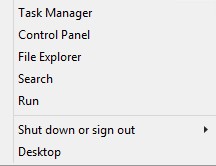
Figure 1: (English Only) Run
- In the Run user interface (UI), type regedit and then press OK.
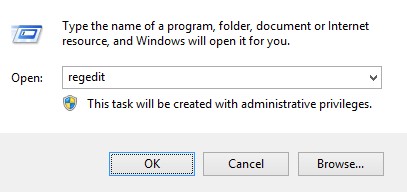
Figure 2: (English Only) Type regedit
- Go to HKEY_LOCAL_MACHINE\SOFTWARE\Credant\CMGShield.
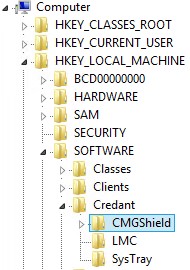
Figure 3: (English Only) CMGShield
- Locate DWORD key SM.
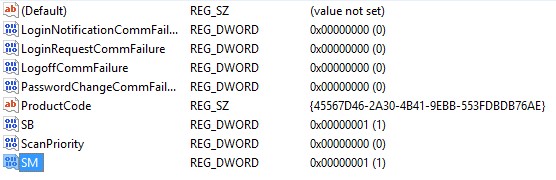
Figure 4: (English Only) SM
Note: In the example, the SM key is set for 1. This identifies the shield mode enterprise edition.
To contact support, reference Dell Data Security International Support Phone Numbers.
Go to TechDirect to generate a technical support request online.
For additional insights and resources, join the Dell Security Community Forum.
Berörda produkter
Dell EncryptionArtikelegenskaper
Artikelnummer: 000132837
Artikeltyp: Solution
Senast ändrad: 19 apr. 2026
Version: 11
Få svar på dina frågor från andra Dell-användare
Supporttjänster
Kontrollera om din enhet omfattas av supporttjänster.