PowerScale: Isilon: How to power cycle and drain an Isilon node
摘要: How to power cycle and drain a PowerScale: Isilon node
本文章適用於
本文章不適用於
本文無關於任何特定產品。
本文未識別所有產品版本。
說明
NOTE: You need physical access to the node in order to complete the power drain.
Procedure Gen 5
STEP 1. Establish a serial connection as 'root' user with the node that you want to power-cycle and drain.
STEP 2. Power-off the node.
# isi_flushand wait for the flush to complete.
Then run
# shutdown -p nowto shut down node
Visually verify that all lights on the node have turned off.
NOTE: Sometimes this commands fails to power down the node. On occasions, it will reboot the node instead or simply fail to work. In those situations, follow the next options in order until the node is fully powered-down and remains off.
*** If node successfully powers off, go to STEP 3.
If shutdown command does NOT power down the node, but reboots it instead, wait for the node to finish booting, then run the command again - it should shut down properly. If it does not, or if the command did not reboot the node either, please contact EMC-Isilon Technical Support.
STEP 3. Once the node is powered off, to fully power drain the node and reset the BMC, for gen 4 and 5 remove both power cords, then wait 3 minutes and hold the power button for 30 seconds.
STEP 4. Reinsert the power cords
STEP 5. Restart the node by pressing the power button on the back of the node.
If the node does not power back on, or if it fails to boot successfully, please collect boot logs and contact EMC-Isilon Support.
Procedure Gen 6 and MLK:
STEP 1. Establish a serial connection as 'root' user with the node you want to power-cycle and drain.
STEP 2. Power-off the node.
# isi_flushand wait for flush to complete
Then run
# shutdown -p nowto shut down node
Visually verify that all lights on the node have turned off.
NOTE: Sometimes this commands fails to power down the node. On occasions, it will reboot the node instead or simply fail to work. In those situations, follow the next options in order until the node is fully powered-down and remains off.
NOTE:Having issued a shutdown -p on the node, If you see the shutdown start but it doesn't appear to proceed. The only output you receive after the standard messages are correctable memory errors. If you run isi status on the cluster, the node will show as down, but you are still able to ping it across the back end network. Please follow this k/b
https://dellservices.lightning.force.com/lightning/r/Lightning_Knowledge__kav/ka06P000000Tc6WQAS/view
*** If node successfully powers off, go to STEP 3.
If shut down command does NOT power down the node, please contact EMC-Isilon Technical Support.
STEP 3. Once the node is powered off, to fully power drain the node, remove the power cord, and pull the node out of the chassis 1 inch, then wait 3 minutes and hold the power button for 30 seconds.
STEP 4. Push node back into enclosure and reinsert the power cord. The node should power up on its own
If the node does not power back on, or if it fails to boot successfully, please collect boot logs and contact EMC-Isilon Support.
Procedure Gen 6.5:
STEP 1. Establish an SSH session as 'root' user with the node that you want to power-cycle and drain.
STEP 2. Power-off the node.
# isi_flushand wait for the flush to complete
Then run
# shutdown -p now
to shut down node
Visually verify that all lights on the node have turned off.
NOTE: Sometimes this command fails to power down the node. On occasions, it will reboot the node instead or simply fail to work. In those situations, follow the next options in order until the node is fully powered-down and remains off.
*** If node successfully powers off, go to STEP 3.
If the shut down command does NOT power down the node, but reboots it instead, wait for the node to finish booting, then run the command again - it should shut down properly. If it does not, or if the command did not reboot the node either, please contact EMC-Isilon Technical Support.
STEP 3. Once the node is powered off, to fully power drain the node remove power cord, then wait 3 minutes and hold the power button for 30 seconds.
STEP 4. Reinsert the power cord
STEP 5. Restart the node by pressing the power button on the front of the node.
If the node does not power back on, or if it fails to boot successfully, please collect boot logs and contact EMC-Isilon Support.
STEP 1 Log into node and issue shut down commands:
# isi_flushand wait for flush to complete
Then run
# shutdown -p nowto shut down the node.
STEP 2 Log into IDRAC and confirm that node is powered down though vConsole.
STEP 3 In IDRAC go to Configuration -> BIOS Settings.
- Under Miscellaneous Settings: Change Power Cycle Request to "Full Power Cycle" and Apply.

If the host is ready to reboot, go ahead and initiate by "Apply and Reboot." Else the user can save this for a manual reboot using "At Next Reboot"
Option 2: Boot into BIOS Settings
You can access this remotely by the iDRAC Virtual Console or any physical KVM hookup.
- Boot into the BIOS Settings (F2)
- System BIOS -> Miscellaneous Settings -> Power Cycle Request, select Full Power Cycle.
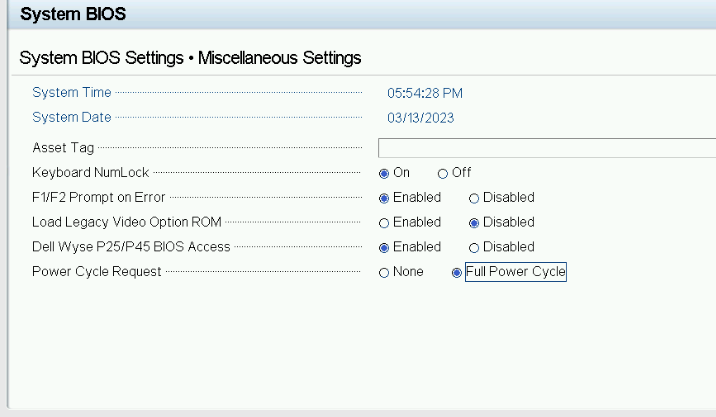
- Click the Back Button, then Finish, Accept setting changes, OK to confirm, and then Finish Button to select to reboot.
受影響的產品
Isilon產品
Isilon, Isilon NL-Series, Isilon NL410, PowerScale OneFS, Isilon X-Series, Isilon X200, Isilon X210, Isilon X400, Isilon X410文章屬性
文章編號: 000020498
文章類型: How To
上次修改時間: 23 5月 2024
版本: 5
向其他 Dell 使用者尋求您問題的答案
支援服務
檢查您的裝置是否在支援服務的涵蓋範圍內。