Deployment Guide—Ready Bundle for Microsoft SQL Server 2016
Sep 27, 2026
Overview
About this guide
This guide is for IT professionals who want to deploy a virtualized Microsoft SQL Server 2016 solution using Microsoft Hyper-V virtualization on Microsoft Windows Server 2016, Dell EMC™ PowerEdge™ R740 servers, and Dell EMC Unity™ 400 Hybrid Flash storage.
This guide provides instructions for deploying the solution. It describes how to set up and configure the following hardware components and to test the infrastructure deployment for component failures:
- Dell EMC Networking S4048-ON switch
- Dell EMC PowerEdge R740 server
- Brocade 6505 switch
- Dell EMC Unity 400 Hybrid Flash storage
This guide also provides information about the installation and configuration of Hyper-V virtualization on Windows Server 2016 and SQL Server 2016.
Deployment overview
The complete deployment sequence for this solution is as follows:
- Gather all the hardware components according to the solution requirements.
- Set up the cabling.
- Perform pre-virtualization configuration.
- Configure virtualization.
- Perform post-virtualization configuration.
- Configure the cluster.
- Verify the deployment.
- Install the SQL Server failover cluster.
Additional resources
Dell EMC Services and Dell EMC certified channel partners provide consulting solutions to help you plan, deploy, and manage even the most advanced and complex virtualized configurations.
Additional resources include:
- Dell EMC Support, which is dedicated to meeting customer requirements with proven services
- Dell EMC TechCenter, where you can connect with Dell EMC customers and Dell EMC employees to share knowledge, best practices, and information about Dell EMC products and services
We value your feedback
Dell EMC and the authors of this document welcome your feedback on the solution and the solution documentation. Contact EMC.Solution.Feedback@emc.com with your comments.
Authors: Sanjeev Ranjan, Karen Johnson
Solution Architecture and Requirements
Solution architecture
This solution uses Microsoft SQL Server 2016 architectural design principles and guidelines to achieve balanced virtualization on the PowerEdge R740 server and Unity 400 Hybrid Flash storage arrays. The solution employs Hyper-V virtualization on Windows Server 2016 to build an efficient infrastructure for SQL Server databases.
Figure 1 shows the architectural design of the solution. It might not accurately depict all the required hardware components in terms of quantity or sizing.
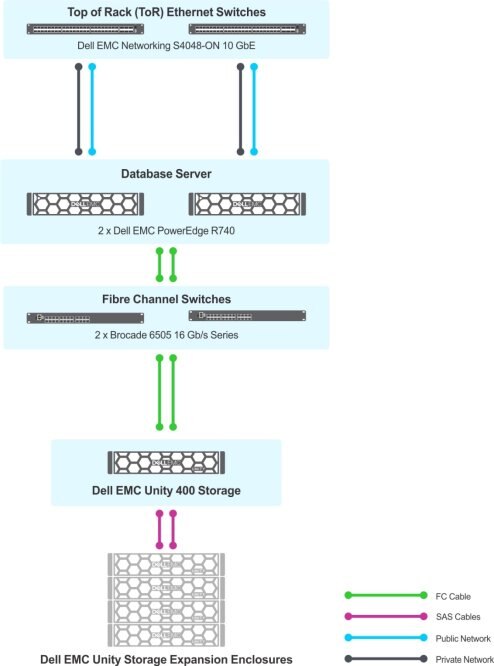
Figure 1. Architecture design
Hardware requirements
Table 1 lists the solution hardware requirements.
Table 1. Hardware requirements
|
Component |
Specifications |
|
Servers |
Dell EMC PowerEdge R740 |
|
Switches |
|
|
Network Daughter Card |
Dell Quad Port Broadcom 57412 (2 x 10 Gb SFP+ + 5720, 2 x 1 Gb Base-T, rNDC) |
|
SAN storage |
Dell EMC Unity 400 Hybrid Flash |
Software requirements
Table 2 lists the solution software requirements.
Table 2. Software requirements
|
Component |
Specifications |
|
Hypervisor |
Microsoft Hyper-V on Microsoft Windows Server 2016 |
|
Guest OS |
Microsoft Windows 2016 Datacenter Edition |
|
Database |
Microsoft SQL Server 2016 SP 1 |
Firmware requirements
Table 3 and Table 4 list the firmware that we used to deploy and validate the solution.
Table 3. Firmware for PowerEdge R740 server
|
Component |
Version |
|
BIOS |
1.0.7 |
|
CPLD |
1.0.1 |
|
iDRAC9 Enterprise |
3.00.00.00 |
|
Lifecycle Controller |
3.00.00.00 |
|
PERC H330 Mini |
25.3.0.0016 |
|
Network Controller Dell Quad Port Broadcom |
7.10.0 |
|
Emulex LightPulse LPe31002-M6-D 2-port 16 Gb Fibre Channel |
02.01.01 |
|
Network drivers |
Dell Quad Port Broadcom 57412 network drivers: 20.06.02.08 (downloaded from Dell.com/support/drivers) |
Table 4. Firmware for switches and Unity 400 Hybrid Flash storage
|
Component |
Version |
|
Dell EMC Networking S4048-ON |
9.8 or later |
|
Brocade 6505 |
7.3.0 or later |
|
Dell EMC Unity 400 Hybrid Flash |
OE v4.2.0.9433914 or later |
Network Connectivity
End-to-end I/O connectivity
The end-to-end I/O connectivity, as shown in Figure 2, consists of multiple port channels and VLT configurations for LAN connectivity. Networking S4048-ON switches provide 10 GbE network connectivity between the compute cluster and the rest of the data center. According to Microsoft SQL Server 2016 best practices and Dell EMC infrastructure design principles, each application network is deployed as a separate workload VLAN that is defined in the data-center core network. All the workload VLANs are created as virtual network adapters on the converged virtual switch across all network connections. The Emulex LightPulse LPe31002 Fibre Channel adapters are used for Fibre Channel connectivity in the host operating system, and virtual Fibre Channel adapters are used for the virtual machines (VMs) that require in-guest Fibre Channel connectivity.
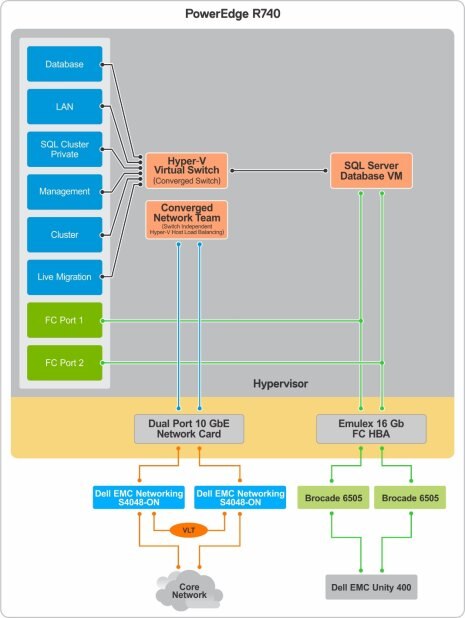
Figure 2. End-to-end I/O connectivity
Connectivity between server and Brocade switches
Figure 3 shows the port assignments for Fibre Channel connectivity. Ports 4 and 5 are used to connect Dell EMC storage. The rest of the ports that are marked are used to connect the PowerEdge R740 servers.
Connect the cables of the dual-port Emulex LightPulse LPe31002 cards on the PowerEdge R740 server as follows:
- From the first port of each Emulex card, connect to the first Brocade 6505 switch on ports 0 and 1 respectively.
- From the second port of each Emulex card, connect to the second Brocade 6505 switch on ports 0 and 1 respectively.
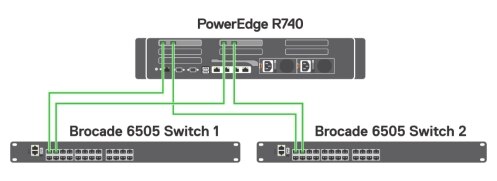
Figure 3. Connectivity between server and Brocade switches
Connectivity between Unity 400 Hybrid Flash storage and Brocade switches
Unity 400 Hybrid Flash storage has two 16 Gb/s Fibre Channel ports from each controller for the front-end connectivity. Connect one port from each controller to switch 1 and connect the remaining port from each controller to switch 2.
Figure 4 and Figure 5 illustrate the connections between the storage and the switches.
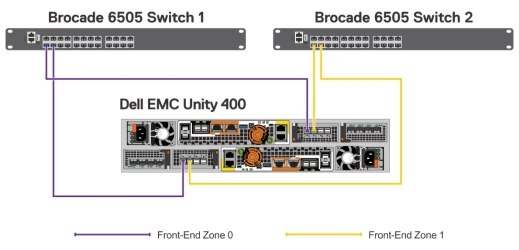
Figure 4. Connections between Unity 400 Hybrid Flash storage and Brocade switches
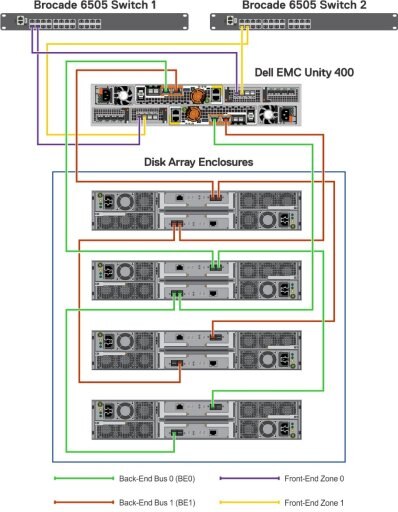
Figure 5. Connectivity between Unity 400 Hybrid Flash storage and Brocade switches
Pre-Virtualization Configuration
Introduction
Before you set up Hyper-V virtualization on Windows Server 2016 on the virtual infrastructure, configure the following components, as described in this chapter:
Configuring Dell EMC Networking S4048-ON switches
Configure the Networking S4048-ON top and S4048-ON bottom switches, one at a time, as follows:
- Connect to the serial console port on the switch via the CLI.
To access the console, connect one end of the serial cable to the console port on the S4048-ON switch, and the other end to the terminal server (laptop).
- Use HyperTerminal to open the switch console.
- Configure the following:
- Hostname:
Syntax: hostname <name>
configure
hostname <name>
exit
- System username and password to access the system remotely:
Syntax: username <username> password <password> privilege <privilege level>
configure
username admin password <password> privilege 15
exit
- Management IP address for the switches:
configure
interface ManagementEthernet 1/1 ip address <xxx.xxx.xxx.xxx/xx>
no shutdown
exit
- Login credentials:
FTOS(conf) username admin privilege 15 password 0 <yourpassword>
FTOS(conf) enable password level 15 0 <yourpassword>
- Enable the following:
- Switch ports:
FTOS configure
FTOS(conf)interface range tengigabitethernet 1/1 – 1/48
FTOS(conf-if-range-te-1/1-1/48) switchport
FTOS(conf-if-range-te-1/1-1/48) no shutdown
FTOS(conf-if-range-te-1/1-1/48) exit
FTOS(conf)
exit
- MTU Settings frames:
FTOS configure
FTOS(conf) interface range tengigabitethernet 1/1 – 1/48
FTOS(conf-if-range-te-1/1-1/48) mtu 12000
- Configure spanning tree on edge ports:
FTOS(conf-if-range-te-1/1-1/48) spanning-tree rstp edge-port
FTOS(conf-if-range-te-1/1-1/48) exit
- Configure the port channel for a link aggregation group (LAG) by typing the following commands to configure the switch interconnect as a LAG:
FTOS (conf) interface Port-channel 1
FTOS (conf-if-po-1) mtu 12000
FTOS (conf-if-po-1) switchport
FTOS(conf-if-po-1) no shutdown
FTOS(conf-if-po-1) exit
- Configure the QSFP ports for the LAG by typing the following commands to assign the 40 Gb QSFP ports to the port channel:
FTOS(conf) interface range fortyGigE 1/49-1/50
FTOS (conf-if-range-fo-1/49-1/50) no ip address
FTOS (conf-if-range-fo-1/49-1/50) mtu 12000
FTOS (conf-if-range-fo-1/49-1/50) no shutdown
FTOS (conf-if-range-fo-1/49-1/50) flowcontrol rx on tx off
FTOS (conf-if-range-fo-1/49-1/50) port-channel-protocol lacp
FTOS (conf-if-range-fo-1/49-1/50-lacp) port-channel 1 mode active
FTOS (conf-if-range-fo-1/49-1/50-lacp) exit
FTOS (conf-if-range-fo-1/49-1/50) exit
FTOS (conf) exit
- Configure VLANs:
- VLAN 10 for the host management network:
configure interface vlan 10 description “host-management”
ip address <xxx.xxx.xxx.xxx/xx>
tagged port- channel 1
tagged tengigabitethernet 1/1 – 1/4
no shutdown
exit
- VLAN 20 for the cluster network:
configure interface vlan 20 description “Cluster”
ip address <xxx.xxx.xxx.xxx/xx>
tagged port- channel 1
tagged tengigabitethernet 1/5 – 1/8
no shutdown
exit
- VLAN 30 for the live migration network:
configure interface vlan 30 description “Live Migration”
ip address <xxx.xxx.xxx.xxx/xx>
tagged port- channel 1
tagged tengigabitethernet 1/9 – 1/12
no shutdown
exit
- VLAN 50 for the application network:
configure interface vlan 50 description “Application Network”
ip address <xxx.xxx.xxx.xxx/xx>
tagged port-channel 1
tagged tengigabitethernet 1/13 – 1/16 no shutdown
exit
- VLAN 60 for the front-end network:
configure interface vlan 60 description “Front End Network”
ip address <xxx.xxx.xxx.xxx/xx>
tagged port-channel 1
tagged tengigabitethernet 1/17 – 1/20
no shutdown
exit
- VLAN 70 for the SQL private network:
configure interface vlan 70 description “SQL Private Network”
ip address <xxx.xxx.xxx.xxx/xx>
tagged port-channel 1
tagged tengigabitethernet 1/21 – 1/24 no shutdown
exit
- Save the configuration:
FTOS copy running-config startup-config
Verifying Networking S4048-ON switch configuration
Verify the Networking S4048-ON switch configuration as follows:
- Confirm that the VLT domain status is Up:
show vlt brief
- Confirm that port-channel 100 status is Up:
show interfaces port-channel 100
- Confirm that port-channel 100 is tagged on the VLAN interfaces (10, 20, 30):
show vlan
- Confirm that the port-channel interfaces are Up, port-channel 100 consists of interfaces 1/2, 1/4, and 1/6, and the interface statuses are Up:
show interfaces port-channel 100 brief
Configuring the iDRAC IPv4 address
Configure the iDRAC IPv4 address:
- Turn on or restart the server.
- At F2=System Setup, press F2.
- In the System Setup Main Menu, click iDRAC Settings, and then click Network.
- In IPv4 SETTINGS, type the following information:
- Starting IP Address
- Starting Gateway
- Starting Subnet Mask
- Click Back, and then in System Setup, click Finish.
- When the confirmation message appears, click Yes.
Configuring the BIOS
Configure the BIOS:
- Turn on or restart the server.
- At F2=System Setup, press F2.
- Ensure that the logical processor is enabled:
- In System Setup Main Menu, click System BIOS > Processor Settings.
- In Processor Settings, verify that Processor Settings is set to Enabled.
- Ensure that Virtualization Technology is enabled:
- In System Setup Main Menu, click System BIOS > Processor Settings.
- In Processor Settings, verify that Virtualization Technology is set to Enabled.
Configuring Brocade 6505 Fibre Channel switches
Introduction
After racking and cabling the SAN switches, configure the switches by performing the following tasks:
- Assign the management IP address for the switch.
- Access the Brocade switch through Web Tools.
- Enable Dynamic Ports on Demand.
Assigning the management IP address to the SAN switches
Assign the management IP address to the SAN switches:
- Connect one end of the serial cable to the RJ-45 serial port on the switch, and the other end to the serial port on the server (workstation).
- Use HyperTerminal to open the switch console.
- In the console, configure the serial connection settings as follows:
- Bits per second–9600
- Data bits–8
- Parity–None
- Stop bits–1
- Flow control–None
- Log in to the switch by using the default username and password.
- Assign the management IP address for the switch:
switch: admin> ipaddrset
Ethernet IP Address <IP address>
Ethernet Subnetmask <subnet mask>
Gateway IP Address <gateway>
DHCP [Off]: off
Accessing the Brocade switch through Web Tools
Brocade Web Tools is an embedded UI that enables administrators to monitor and manage single or small fabrics, switches, and ports. Launch Web Tools directly from a web browser:
- Open the web browser, type the IP address of the switch in the address field, and press Enter.
- In the Please Login dialog box, type the username and password, and then click OK.
Enabling Dynamic Ports on Demand
The Dynamic Ports on Demand (POD) feature automatically assigns POD licenses from a pool of available licenses that is based on the server blade or switch installation. Enable the Dynamic POD feature:
- Connect to the switch and log in as an administrator.
- Type the following command to change the license assignment method to dynamic:
switch: admin> licenseport --method dynamic
- Type the following command to restart the switch:
switch: admin> reboot
Configuring Unity 400 Hybrid Flash storage
Dell EMC Professional Services or Certified Channel Partners perform the initial setup of Unity 400 Hybrid Flash storage.
Virtualization Configuration
Introduction
To set up virtualization, perform the following tasks, as described in this chapter:
- Configure a virtual disk for OS deployment on the PowerEdge R740 server.
- Configure prerequisites to install Windows Server.
- Install the Windows Server 2016 operating system on the PowerEdge R740 server.
- Install Broadcom network driver files on Windows Server 2016.
- Enable Hyper-V and multipath features in Windows Server 2016.
- Set up NIC teaming in Windows Server 2016.
Configuring a virtual disk for OS deployment on the PowerEdge 740 server
Configure a virtual disk for OS deployment on the PowerEdge 740 server:
- Log in to iDRAC and launch the virtual console.
- From the Power menu, select Power on the system.
- When the following message appears, click Yes:
You are about to execute a server control action. Are you sure you want to continue?
The system restarts.
- To run the RAID configuration utility, press Ctrl-R when the following message appears:
press CTRL + R to Run configuration utility
- In the configuration utility, select PERC H730 Mini, and then press F2 to enable operations.
- From the list box, select Create New VD.
- Set RAID Level to RAID-1, select physical disks, set the basic settings, use default virtual disk size, virtual disk name, and then click OK.
Note: The OS partition is not I/O intensive. RAID 1 is recommended for OS partitions so that they have hardware redundancy.
- When the following message appears, click OK:
It is recommended that all newly created logical drives be initialized unless you are attempting to recreate a previous configuration and recover data as initialization is a destructive process. Are you sure you want to skip initialization?
The virtual disk is created.
- Exit Setup and restart the server.
Configuring prerequisites to install Windows Server
Configure the prerequisites to install Windows Server:
- Map the virtual disk:
- In the virtual console, click Connect Virtual Media, and then click Map CD/DVD.
- In the Drive/Image File dialog box, provide the drive location, and then click Map Device.
- Set the boot device and load the OS executable files:
- In the virtual console, select Next Boot, and then select Virtual CD/DVD/ISO.
- When the following message appears, click OK:
The selected device is set as the boot device for the next boot until another user changes the selected boot device. Therefore, it is recommended to reboot the server immediately after saving this selection. Click OK to save the selection.
- Virtual CD/DVD/ISO is set as the boot device.
- Restart the server.
Installing Windows Server 2016 OS on the PowerEdge R740 server
Install Windows Server 2016 on the PowerEdge R740 server:
- Power on the server and press any key after you see the following message:
Booting from Virtual CD
Press any key to boot from CD or DVD.
The Windows Server setup appears.
- Select language preference, time and currency format, and keyboard or input method, and then click Next.
- In Windows Setup, click Install now.
- Type the product key, and then click Next.
- Select OS - Windows Server 2016 Datacenter (Server with GUI), and then click Next.
- In License terms, select I accept the license terms, and then click Next.
- In Installation type, select Custom: Install windows only (advanced).
- Select Drive0 Unallocated Space and click New to create the partition, and then click Next > Next.
- When the following message appears, click OK:
To ensure that all Windows features work correctly, Windows might create additional partitions for system files
- After the installation is complete, on the Settings page, set the username and password.
Installing Broadcom network driver files on Windows Server 2016
Install the Broadcom network driver files on Windows Server 2016:
- Log in to the PowerEdge R740 server.
- Copy the Broadcom 57412 network driver for 64-bit Windows to a location on the PowerEdge R740 server.
- Run the network driver installer.
- On the welcome screen, click Next.
- At the License Agreement, select I accept the terms in the license agreement, and then click Next.
- In Custom Setup, select the default settings, and then click Next.
- At Ready to Install the Program, click Install.
- In InstallShield Wizard, click Finish.
- To view the network card, on the Windows desktop, click Start, select Run, and then type ncpa.cpl.
The Network Connections page displays all the NIC cards.
Enabling Hyper-V, failover clustering, and multipath features in Windows Server 2016
Type the following Windows PowerShell command to install Windows features.
Note: In Windows Server 2016, run the Windows PowerShell command as an administrator. This step requires a restart.
Install-WindowsFeature –Name Failover-Clustering, Multipath-IO, Hyper-V–IncludeManagementTools – Restart
Setting up NIC teaming in Windows Server 2016
Set up NIC teaming in Windows Server 2016:
- In Server Manager, select Local Server.
- In Properties, click NIC Teaming status – Disabled.
- In NIC Teaming, from TASKS, select New Team.
- In New team, type the team name, for example ConvergedNet Team, and select the NICs that you want to include in the team.
- In Additional properties, set Teaming mode to Switch Independent and Load balancing mode to Dynamic, and then click OK.
Note: The dynamic mode is a new feature of Windows Server 2016. The load balancing algorithm, which balances traffic using flowlets, can spread both inbound and outbound traffic. The Hyper-V port algorithm forces all VM traffic only through one physical NIC, whereas the dynamic mode spreads traffic across all the NICs, regardless of workload.
- Verify that the NICs are active.
Post-Virtualization Configuration
Configuring SAN switches and Fibre Channel array for Hyper-V
Introduction
To map storage volumes to the Hyper-V cluster, perform the following tasks, as described in this section:
- Create a zone configuration.
- Create a zone alias to easily manage the zone configuration.
- Create zones.
- Enable the zone configuration.
- Create a storage pool.
- Add the host to the Unity 400 storage.
- Create a LUN and map it to the host.
Creating a zone configuration
Create and enable a zone configuration:
- In Web Tools, select the switch from the Fabric tree.
- Click Configure, and then click Zone Admin.
- In Zone Administration, from the New list box, select New Zone Config.
- In the Create New Config dialog box, type a name for the new configuration, and then click OK.
Creating a zone alias
Create a zone alias:
- In Web Tools, select the switch from the Fabric tree.
- Click Configure > Zone Admin.
- In the Zone Administration window, from the New list box, click New Alias.
- In the Create New Alias dialog box, type a name for the new alias and click OK.
For example, server ports, storage ports.
- Expand the Member Selection List to view the nested elements.
- Click the ports that are connected.
- Click the World Wide Name (WWN) of the card, and then click the right arrow to add the WWN to alias members.
- Repeat the preceding steps to create an alias for all the servers and storage physical ports and virtual ports.
- Click Action > Save Config to save the configuration changes.
Note: You can also view the WWN of the servers from the iDRAC console.
Creating zones
Create zones:
- In Web Tools, select the switch from the Fabric tree.
- Click Configure > Zone Admin.
- In the Zone Administration window, from the New list box, click New Zone.
- In the Create New Zone dialog box, type a name for the new zone, and click OK.
- Expand Member Selection List to view the nested elements.
- In Member Selection List, select the storage virtual ports and server ports alias that you want to include in the zone.
- Click the right arrow to add the zone members to the zone alias.
- Select Zoning Actions > Save Config to save the configuration changes.
- Repeat the preceding steps to create zones for all the servers and storage virtual ports.
Enable the zone configuration:
- In Web Tools, select the switch from the Fabric tree.
- Click Configure > Zone Admin.
- In the Zone Administration window, click the Zone Config tab.
- Expand Member Selection List to view the nested elements.
- In Member Selection List, select the zones that you have created.
- Click the right arrow to add the zones.
- Select Zoning Actions > Save Config to save the configuration changes.
- On the toolbar, click Enable Config.
- In the Choose Zone Config to be enabled dialog box, select the config, and click OK.
- Click Yes to confirm that you want to enable the configuration.
The Brocade switch for SAN connectivity is configured and enabled.
Creating a storage pool
Create a storage pool:
- Log in to the Unisphere DBUnity 400 dashboard.
- In the left panel, go to Storage > Pools, and click the plus sign (+).
- In the Create Pool window, type the name of the pool and then click Next.
- Select the type of tier from the available options—Extreme Performance, Performance, and Capacity.
- Select Use FAST Cache if you want to enable FAST cache for this pool.
- Select a RAID configuration for the drives.
- Click Next.
- In the Summary window, select the drives to be included in the pool.
- Verify the total capacity of the pool.
- Click Finish.
Adding the host to the Unity 400
Add the host to the Unity 400:
- Log in to the Unisphere DBUnity 400 dashboard.
- In the left panel, go to Access > Hosts, click the plus sign (+), and then select Host.
- In the Add a Host window, type the following details:
- Hostname
- Operating system
- Network address (IP of the host)
- Click Next.
- In the Initiators window, select Initiator WWN, and then click Next.
- In the Summary window, click Finish.
Creating a LUN and mapping it to the host
Create a LUN and map it to the host:
- Log in to the Unisphere DBUnity 400 dashboard.
- In the left panel, go to Storage > Block, and click the plus sign (+).
The Create LUN window opens.
- In the Configure tab, type or select the following details:
- Number of LUNs
- Name of the LUN
- Pool (select the pool that you created from the list of pools)
- Tiering policy (choose one of the options—Start High Then Auto-Tier, Highest Available Tier, and Lowest Available Tier)
- Size of the pool
- Host I/O limit (select No Limit)
- In the Access tab, click the plus sign (+).
- In the Select Host Access window, select the hostname that you configured earlier.
- Click OK.
- Click Next.
- In the Summary window, click Finish.
Storage specifications
Typically, you can enhance SQL Server performance by placing the database and transaction log files on separate drives. Read I/O for database files is typically random while the I/O for the transaction log is typically sequential. Table 5 lists the storage specifications for the Hyper-V cluster and the SQL Server databases.
Table 5. Storage specifications
|
Storage specification |
Number of volumes |
Size of each volume |
|
Hyper-V cluster |
||
|
Clustered shared volume for hosting VMs |
1 |
2 TB |
|
Quorum volume |
1 |
1 GB |
|
SQL Server database servers |
||
|
SQL Server datafile |
1 |
1 TB |
|
SQL Server log file |
1 |
500 GB |
|
tempdb |
1 |
200 GB |
|
Quorum volume (guest clustering) |
1 |
1 GB |
Configuring the network in Windows Server 2016
On the PowerEdge R740 server, start Windows PowerShell and configure the network:
- Create a VM switch:
New-VMSwitch –AllowManagementOS 1 –Name ConvergedNetSwitch –MinimumBandwidthmode weight – Verbose
NetAdapterName: ConvergedNet Team
- Create a VM network adapter for the cluster:
Add-VMNetworkAdapter –ManagementOS –SwitchName ConvergedNetSwitch –Name Cluster –Verbose
- Create a VM network adapter for a live migration:
Add-VMNetworkAdapter –ManagementOS –SwitchName ConvergedNetSwitch –Name LiveMigration – Verbose
- Set VLAN access properties for the management network adapter:
Set-VMNetworkAdapterVlan –ManagementOS –VMNetworkAdapterName ConvergedNetSwitch –Access – VlanId 10
- Set VLAN access properties for the cluster network adapter:
Set-VMNetworkAdapterVlan –ManagementOS –VMNetworkAdapterName Cluster –Access –VlanId 20
- Set VLAN access properties to LiveMigration:
Set-VMNetworkAdapterVlan –ManagementOS –VMNetworkAdapterName LiveMigration –Access –VlanId 30
- Set the minimum bandwidth reservation for the management network adapter:
Set-VMNetworkAdapter -ManagementOS -Name ConvergedNetSwitch -MinimumBandwidthWeight 5
- Set the minimum bandwidth reservation for the cluster network adapter:
Set-VMNetworkAdapter -ManagementOS -Name Cluster -MinimumBandwidthWeight 40
- Set the minimum bandwidth reservation for the live migration network adapter:
Set-VMNetworkAdapter -ManagementOS -Name LiveMigration - MinimumBandwidthWeight 20
Note: In Network Connections, you can view vEthernet (ConvergedNetSwitch) and adapters for the cluster and live migration networks.
Configuring the vEthernet switch in Windows Server 2016
Configure the vEthernet switch:
- In Network Connections, right-click vEthernet (ConvergedNetSwitch), and select Properties from the list box.
- In vEthernet (ConvergedNetSwitch) Properties, configure IPV4 protocol properties, include the IP address and DNS server details, and then click OK.
- Ping the VLAN 10 network to test the network connection.
Renaming and adding servers to the domain
Rename and add servers to the domain:
- Type the following Windows PowerShell command:
Add-Computer -DomainName <domainname> -NewName <Hostname> –Restart -Force
- At the Windows prompt, type the credentials of the domain controller.
Installing Dell EMC PowerPath software
Install Dell EMC PowerPath™ software:
- Download the PowerPath software from the Dell EMC website.
- Follow the instructions in the installation wizard to install the software.
- Activate the PowerPath software using the license key that you received when you purchased it.
Adding volumes in the PowerEdge R740 server
Add volumes in the PowerEdge R740 server:
- Log in to the PowerEdge R740 server and, in Run, type:
diskmgmt.msc
- In Disk Management:
- Right-click New Disk and select Online.
- Right-click the disk and select Initialize disk.
- Right-click the disk and select New Simple Volume.
- In the New Simple Volume wizard, click Next.
- In Specify volume size in MB, use the default disk size, and then click Next.
- In Assign Driver Letter or Path, select Do not assign a driver letter or driver path, and then click Next.
- In Format Partition:
- Select Format this volume with the following settings.
- Set File system to NTFS, Allocation unit size to 64fK, and Volume label to Quorum.
- Select perform a quick format.
- Click Next.
- In the Completing the New Simple Volume wizard, click Finish.
- Repeat the preceding steps to create the second volume for storing the VHD files of the VMs.
Cluster Configuration
Establishing VM-to-SAN connectivity
The Virtual Fibre Channel feature in Hyper-V makes it possible for a VM to connect directly to a SAN through a virtualized Fibre Channel adapter. Establishing connectivity to the SAN by using a virtual Fibre Channel adapter is a two-step process. Create a VMware vSAN, and then add a virtual Fibre Channel adapter to the VM and connect it to the vSAN.
Creating a vSAN
Create a vSAN:
- On the Windows Start screen, click Server Manager.
- Click Tools, and then click Hyper-V Manager.
- In the Action panel, click Virtual SAN Manager.
- Click Create.
- In the Name field, type the name for the new vSAN.
- In the Notes field, type any notes that are important for the vSAN.
- Ensure that you select at least one available WWN for the vSAN to be used by the virtual Fibre Channel adapter.
- Click OK to create the vSAN.
- In Hyper-V Manager, click Virtual SAN Manager to see the new vSAN.
Adding and connecting a virtual Fibre Channel adapter to vSAN
Add and connect a virtual Fibre Channel adapter:
- On the Windows Start screen, click Server Manager.
- Click Tools, and then click Hyper-V Manager.
- In Hyper-V Manager, under Virtual Machines, click the name of the VM that you want to add.
- In the Action panel, click Settings.
In Add Hardware, you can view a list of hardware options that you can add to the VM.
- Click Fibre Channel Adapter, and then click Add.
- In Settings, connect the virtual Fibre Channel adapter to a vSAN that you previously created:
- Click the Virtual SAN list box that shows Not connected.
- Click the name of the required vSAN.
- Configure the WWNs (Set A and Set B) for the virtual Fibre Channel adapter.
You can use the automatically generated default WWNs or manually assign them. Configure both WWN sets to ensure a successful live migration of the VM.
Creating a VM
Create a VM, running the PowerShell commands as an administrator:
- Create fixed VHD for better I/O performance:
$VHDPath="C:\ClusteredStorage\volume1\HDD\<HDDname>.vhdx" New-VHD -SizeBytes <size> –Path $VHDPath –Fixed
- Create a VM:
$VMPath="C:\ClusteredStorage\volume1\VMs\<VMname>"
New-VM -Name SP -Path $VMPath -MemoryStartupBytes <Memory> -BootDevice CD -SwitchName
<switchname> -VHDPath $VHDPath
- Configure the VM:
Set-VMProcessor -VMName DB -Count <vcpu count>
Add-VMNetworkAdapter -VMName <VMName> -Name <Virtual Network adapter>
Set-VMNetworkAdapterVlan -VMName <VMName> -VMNetworkAdapterName <Virtual Network adapter> - Access -VlanId <VLANID>
- Add the vSAN switches to the VM:
Add-VMFibreChannelHba –VMName <VMName> –SanName <vSAN switch name1> Add-VMFibreChannelHba –VMName <VMname> –SanName <vSAN switch name2>
Deployment Verification
Verifying the deployment
After you complete the deployment, verify the solution as follows:
- Create VMs.
- Migrate VMs across the cluster and check to see if the migration is progressing without any interruption.
- Shut down one of the hosts and check to see if the VMs on that host are migrating within the cluster.
- Power off one of the S4048-ON network switches and ensure that the VMs are running without any network loss.
SQL Server 2016 Failover Cluster Installation
Prerequisites for installing a SQL Server 2016 failover cluster
Before you install a SQL Server 2016 failover cluster, ensure that you have completed these steps:
Configuring database VMs
Table 6 lists the specifications for the database VMs.
Table 6. Configuring database VMs
|
Component |
Specification |
|
vCPUs |
24 |
|
Memory |
160 GB |
|
Memory for database |
128 GB |
|
Size of database LUN |
600 GB |
|
Size of log LUN |
100 GB |
|
Size of tempdb LUN |
100 GB |
Initializing and formatting the storage volumes
The storage volumes are formatted with a 64 KB allocation unit to maximize the disk performance. Initialize and format the storage volumes on all the database server nodes by running the PowerShell commands in the following procedure.
Note: Ensure that both the database servers are assigned the same drive letter for a LUN.
- Get newly added storage volumes:
Get-Disk | where-object Isoffline -eq $True
- Initialize the disk:
Initialize-Disk -Number 1 -PartitionStyle MBR
- Partition the disk:
New-Partition -DiskNumber 1 -DriveLetter 'E' –UseMaximumSize
- Format the volume:
Format-Volume -DriveLetter 'E' -FileSystem NTFS -AllocationUnitSize 65536 -Confirm:$false
- Repeat the preceding steps for all the storage volumes that are assigned to the server.
Installing the failover cluster
Prerequisites
Before you install the failover cluster, ensure that the SQL Server installation media is ready to start the installation. Install a SQL Server cluster instance by first running the setup in the first node. After the initial installation in the first node, run setup.exe in all the other nodes where you want to install the SQL Server clustered instance.
Installing the SQL Server failover cluster in the first node
Install the SQL Server failover cluster in the first node:
- Initiate the installation:
- Run Setup.exe as an administrator.
- In the SQL Server Installation Center window, select Installation in the left panel, and then click New SQL Server failover cluster installation.
- In Product key, type the product key, and then click Next.
- In License Terms, select I Accept the license terms, and then click Next.
The installation wizard identifies any issues in the Global Rules window and reports them.
- In Microsoft Update, select Use Microsoft Update to check for updates (recommended), and then click Next.
- Click Next and continue with the installation:
- In Install Failover Cluster Rules, review and resolve any reported errors, and then click Next.
- In Setup Role, select SQL Server Feature Installation, and then click Next.
- In Feature Selection, select Database Engine Services and Management Tools - Basic, and then click Next.
- In Feature Rules, ensure that all the rules have passed, and then click Next.
- In Instance Configuration, type the SQL Server instance network name in SQL Server Network Name, and then click Next.
- In Cluster Resource Group, type the SQL Server cluster resource group name in SQL Server Cluster Resource Group Name, and then click Next.
- In Cluster Disk Selection, select the default cluster disk, and then click Next.
- In Cluster Network Configuration, select the IPv4 network and configure the IP address.
- In Server Configuration:
i On the Service Accounts tab, specify the domain accounts and passwords for the SQL Server agent and SQL Server engine.
ii On the Collation tab, click Customize, and then select SQL_Latin1_General_CP1_CI_AS for the SQL collation.
iii Select Grant Perform Volume Maintenance Task privilege to SQL Server Database Engine Service.
- In the Server Configuration tab of Database Engine Configuration, select Windows authentication mode, and then click Add to enter the SQL server administrators.
- In Database Engine Configuration:
i Click the Data Directories tab.
ii To store the SQL database files, define the paths for disks or paths of the root for the following:
- System databases directory
- User databases
- Log files
- Backup files
- tempdb
- Click Next.
- In Feature Configuration, click Next.
- In Ready to Install, review all the displayed configurations, and then click Install.
The wizard displays the installation progress.
- In the Complete window, verify that all the items have been successfully installed, and then click Close.
- Add the other nodes to the SQL Server failover clustered instance.
Installing SQL Server 2016 failover cluster in the second node
Install the SQL Server failover cluster in the second node:
- Initiate the installation:
- Run Setup.exe as an administrator.
- In the SQL Server Installation Center window, select Installation in the left panel, and then click Add node to a SQL Server failover cluster.
- In Product key, verify the product key, and then click Next.
- In License Terms, select I Accept the license terms, and then click Next.
The installation wizard identifies any issues in the Global Rules window and reports them.
- In Microsoft Update, select Use Microsoft Update to check for updates (recommended), and then click Next.
- Continue with the installation:
- In Node Rules, review and resolve any reported errors, and then click Next.
- In Cluster Nodes Configuration, select the SQL Server instance that you want to add to the node.
- In Cluster Network Configuration, select the IPv4 network and configure the IP address.
- In Service Accounts, type and confirm the SQL Server agent and SQL Server engine passwords.
- In Feature Rules, review all the displayed rules, and then click Next.
- In Ready to Add Node, confirm the settings, and then click Install.
The wizard displays the installation progress and prompts you with the completed window after the installation is over.
- Click Close to exit the installation wizard.
The SQL Server failover cluster installation is now complete.
Configuring SQL Server 2016
To get the best database performance, perform these steps:
- Open SQL Server Management Studio and click New Query.
- Set the maximum memory by typing the following SQL query:
sp_configure 'show advanced options', 1;
GO
RECONFIGURE;
GO
sp_configure 'max server memory', <'Memory in MB'>;
GO
RECONFIGURE;
GO
- Set MAXDOP to 0 by typing the following SQL query:
USE Master:
GO
EXEC sp_configure 'show advanced options', 1;
GO
RECONFIGURE WITH OVERRIDE;
GO
EXEC sp_configure 'max degree of parallelism', 0;
GO
RECONFIGURE WITH OVERRIDE;
GO
- Move the tempdb to a different volume to isolate the tempdb I/O operations from other databases:
- Open SQL Server Management Studio, and click New Query.
- Type the following SQL query to move the tempdb files:
USE master;
GO
ALTER DATABASE tempdb MODIFY FILE (NAME = temp, FILENAME = 'E:\SQLData\tempdb.mdf');
GO
ALTER DATABASE tempdb MODIFY FILE (NAME = temp2, FILENAME = 'E:\SQLData\tempdb_mssql_2.ndf');
GO
ALTER DATABASE tempdb MODIFY FILE (NAME = temp3, FILENAME = 'E:\SQLData\tempdb_mssql_3.ndf');
GO
ALTER DATABASE tempdb MODIFY FILE (NAME = temp4, FILENAME = 'E:\SQLData\tempdb_mssql_4.ndf');
GO
ALTER DATABASE tempdb MODIFY FILE (NAME = temp5, FILENAME = 'E:\SQLData\tempdb_mssql_5.ndf');
GO
ALTER DATABASE tempdb MODIFY FILE (NAME = temp6, FILENAME = 'E:\SQLData\tempdb_mssql_6.ndf');
GO
ALTER DATABASE tempdb MODIFY FILE (NAME = temp7, FILENAME = 'E:\SQLData\tempdb_mssql_7.ndf');
GO
ALTER DATABASE tempdb MODIFY FILE (NAME = temp8, FILENAME = 'E:\SQLData\tempdb_mssql_8.ndf');
GO
ALTER DATABASE tempdb MODIFY FILE (NAME = templog, FILENAME = 'E:\SQLLog\templog.ldf');
GO
- Restart the SQL Server service.
Tags: