Design Guide—Modernize Your Microsoft SQL Server Platform and Accelerate Deployments
Introduction
Solution introduction
Architecture and baseline configuration
Physical architecture
Software architecture
Baseline configuration
Best practices and configuration guidelines
PowerStore best practices
For best practices on the storage layer, we had to
- Additional FC ports
Additional FC ports
PowerStore storage arrays use appliances that enable customers to add power, performance, and capacity to an existing array. Each PowerStore appliance has two nodes. These nodes support multiple functions including front-end I/O modules. The front-end I/O modules provide connectivity to the array using various interfaces including Fibre Channel SCSI, Fibre Channel NVMe, iSCSI, and others. In the best practice validation tests, we used only the Fibre Channel interface.
Four PowerStore front-end I/O modules were allocated to each PowerEdge R750 servers. In the baseline configuration, we used one of the total four front-end I/O modules. Figure 2 shows the ports and nodes that we used. The two other front-end modules were reserved for replication. Each front-end module was a 32 Gbps Fibre Channel connection, and the baseline connection consisted of six modules.
In the baseline configuration, we used two of the total four front-end I/O modules per PowerEdge R750 server which limits the paths and the bandwidth available between the PowerEdge servers and the PowerStore storage array.
For this best practice, the two front-end modules were re-zoned and two additional front-end I/O modules were added for each of the PowerEdge servers. We also recreated our Hosts and Host Groups with the updated initiators. This resulted in four paths and bandwidth available for FC connectivity between the PowerEdge hosts and PowerStore Storage.
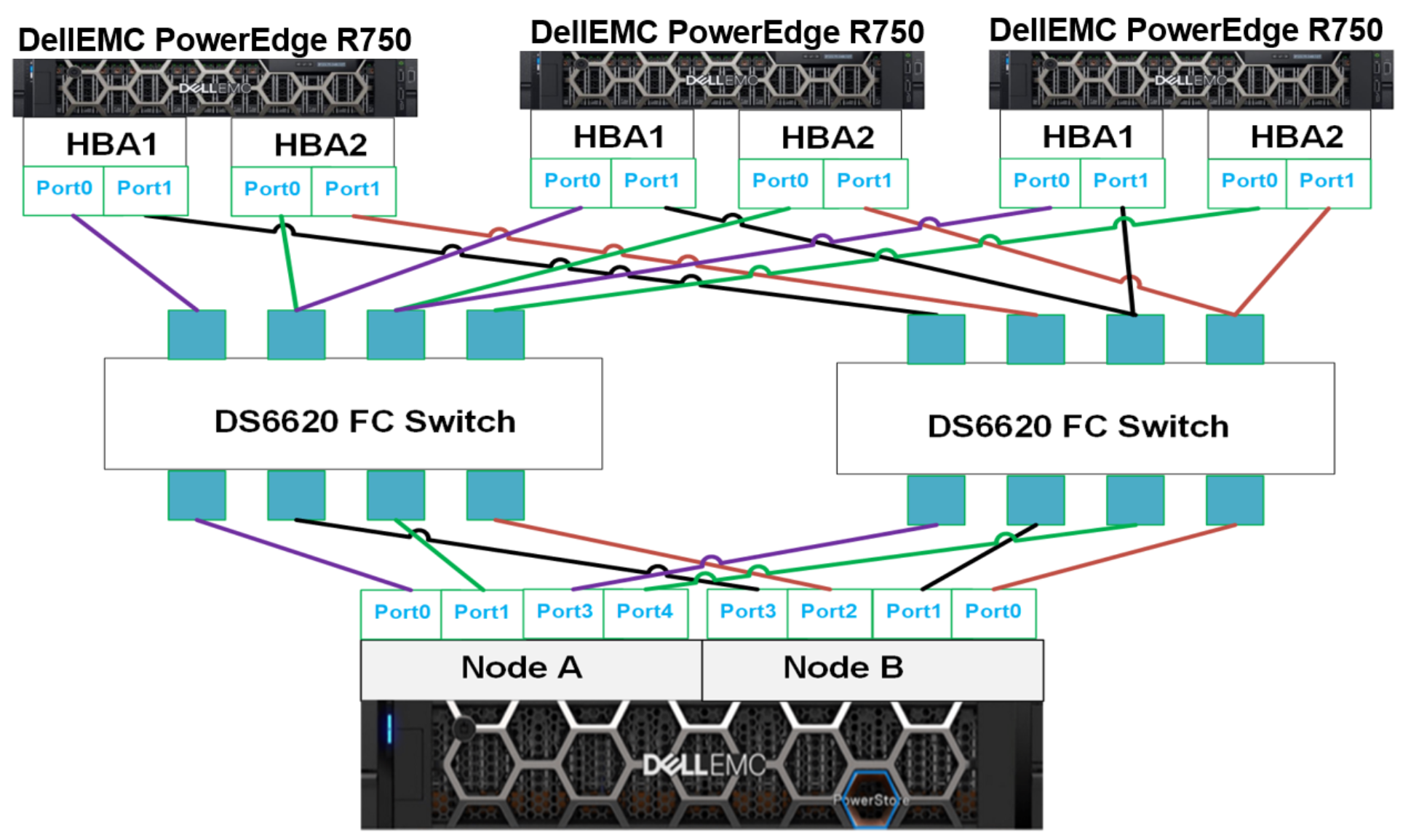
Figure 2. Best practice of maximizing Front-end I/O modules
Recommendation
Each PowerStore appliance and subsequent nodes should be zoned to maximize the FC bandwidth to make the SAN connectivity available. If the ports are not zoned correctly, it can lead to bottlenecks and ultimately performance issues.
Implementation steps
- Add the necessary ports to the FC switches.
- Reconfigure the zoning so the mapping for initiators and targets is implemented appropriately.
- Create new Host Groups on the PowerStore Manager.
- Re-map volumes to new Host Groups.
Contact Dell support for issues related to appropriate reconfiguration.
Additional resources
Dell PowerStore: Microsoft SQL Server Best Practices
Adding storage volumes
Storage configuration can directly influence database performance. This best practice validates the number of storage groups that to further optimize database performance.
Volume groups were allocated to two groups: TarragonDB1 and TarragonDB2. This nomenclature was derived from the program name, Tarragon. All database files for the first of two databases were in the TarragonDB1 volume group. By incrementing the number in the volume group name (TarragonDB<#>), the engineering team created an additional copy of the first database for load tests. This storage configuration minimizes the number of PowerStore volume groups, which eases management but is not an optimized configuration. The following table shows the baseline storage group configuration:
Table 7. Baseline storage group configuration
|
Volume group |
Volume name |
VMware volumes |
Volume size (TB) |
Notes |
|
TarragonDB |
TarragonDB1 |
Tarragon_DB1 |
1.5 |
All database files |
|
TarragonDB2 |
Tarragon_DB2 |
1.5 |
All database files |
Using multiple volumes for the most active portion of an SQL Server database has many benefits. The primary benefit of using multiple volumes is that the operating system creates an I/O queue path per storage group. The following table shows the optimized PowerStore storage configuration for the SQL Server database.
Table 8. Optimized PowerStore storage group configuration
|
Volume group |
Volume Name |
VMware volumes |
Volume size (GB) |
|
TarragonDB# |
DB#_Data1 |
DB#_Data1 |
300 |
|
DB#_Data2 |
DB#_Data2 |
300 |
|
|
DB#_Data3 |
DB#_Data3 |
300 |
|
|
DB#_Data4 |
DB#_Data4 |
300 |
|
|
DB#_Log |
DB#_Log1 |
300 |
|
|
TarragonTempDB |
TempDB1_Data |
TempDB1_Data |
300 |
|
TempDB1_Log |
TempDB2_Log |
250 |
|
|
TempDB2_Data |
TempDB2_Data |
300 |
|
|
TempDB2_Log |
TempDB2_Log |
250 |
The goal of generating an optimized configuration was to expand the number of volumes to create more logical I/O paths, resulting in optimized storage performance. The three groups were named: TarragonDB1, TarragonDB2 and TarragonTempDB.
The optimized storage configuration improves the number of I/O paths and other actions like performance monitoring, storage snapshots, and replication. In terms of monitoring storage, the enterprise can view metrics for each part of the database with the optimized configuration. This provides the capability to continually scale capacity and performance as the database grows.
Not all parts of the SQL Server database are required for snapshots. Using this optimized configuration, the database administrator can granularly select what to snapshot, which saves storage capacity. The principle applies to storage replication; the database administrator can select the parts of the database that require protection. By replicating only part of the database, the enterprise benefits from using less network bandwidth.
Recommendation
Implementation steps
To create volumes and volume groups on the PowerStore using the PowerStore Manager, use the instructions provided in the Dell PowerStore Manual.
Creating A VMFS Datastore:
Once storage groups and volumes are created on the PowerStore, create respective VMFS datastores on the vSphere client using the instructions provided in the VMware vSphere product documentation.
When the disks are attached and visible on the operating system, use below steps to partition, format and mount the disks onto the system.
View storage device on RHEL using the following command:
df -h
or
cat /proc/partitions
Once you see your desired storage device listed, use the following commands to create GUID partition table (GPT) on the given storage device.
parted /dev/sdb mklabel gpt -- sdb is a storage device example
Once the partition table is created, use the following command to create volume partitioning. In our case, we will be creating single primary partition with 100% capacity on each storage device.
parted /dev/sdb mkpart primary 2048s 100%
partprobe /dev/sdb
Once partition is created on the storage devices, create the file system (xfs on this case) on the same storage device using the following command:
mkfs.xfs /dev/sdb1
After file system created on the device, we will find the block id and mount on the directory of our choice.
mkdir -p /opt/db/data1  -- data1 is the directory where we will be mounting the volume
mount /dev/sdb1 /opt/db/data1
Make an entry into /etc/fstab to for the mounting to be permanent.
UUID=c4cf7516-c092-4dcd-8366-df58d4f703b2 /opt/db/data1 xfs defaults 0 0
Replace the UUID in above command with one you receive by running the following command.
blkid | grep sdb1
Change ownership of the mounted volume.
chown mssql:mssql /opt/db/data1
Perform all the previous steps on each of the disks attached to the virtual machine.
Additional resources
Dell PowerStore: Microsoft SQL Server Best Practices
VMware vSphere: Adding PVSCSI controllers
Paravirtual SCSI (PVSCSI) controllers offer greater throughput and overall lower CPU use. This best practice tested adding multiple PVSCSI controllers to improve storage performance.
In the baseline configuration, one PVSCSI controller was connect the virtual machine to the PowerStore storage array. Before implementing multiple PVSCSI controllers, the volume group configuration best practiced was implemented. The optimal volume group configuration consisted of adding multiple volumes for data, TempDB data, and TempDB log to create more I/O paths.
The working assumption was using multiple I/O paths and multiple PVSCSI controllers would yield better performance. For this test three additional PVSCSI controllers to each virtual machine for a total of four controllers per virtual machine.
Implementation steps
Implement this best practice at the vCenter user interface. To add PVSCSI controllers, use the following steps:
- From vCenter, select the VM and click Edit Settings > Add Devices > SCSI controller.
- Add three more SCSI controllers, SCSI controller 1 through 3, with these settings:
- Adding PVSCSI controllers to Virtual machine
- Re-map all existing volumes to the new controllers by selecting Edit Settings > Virtual Device Node on each VM.
- Select the appropriate SCSI controller from the dropdown menu. Spread out the volumes across the four controllers as evenly as possible.
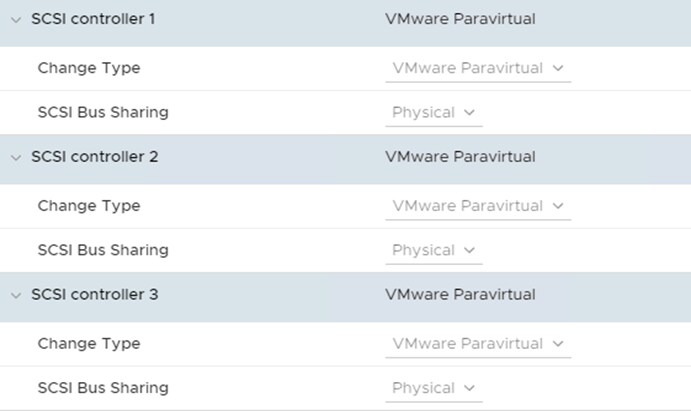
Figure 3. Adding PVSCSI controllers to Virtual machine
Additional resources
Configuring disks to use VMware Paravirtual SCSI (PVSCSI) controllers (1010398)
PowerStore Performance Policy
The PowerStore provides a direct method to manage volume performance relative to one another. It uses a performance policy that sets relative priority to a selected volume. The default performance policy is Medium, which provides equal performance to each volume. For SQL Server workloads, we recommend setting a High performance policy to the data volumes.
Implementation steps
Follow the steps in the PowerStore Manual page to update this property.
Additional resources
PowerEdge best practices
The following best practices were implemented on the PowerEdge servers:
- Database Optimized Performance Profile
- Disabling unused integrated devices
Database optimized performance profile
PowerEdge R750 servers provide a simple and effective manner to control and optimize BIOS level parameters for different workloads. The database optimized performance profile (DBOP) once selected, automatically makes multiple selections on the BIOS layer.
Table 9. System BIOS attribute value comparison
|
System Setup Screen |
BIOS Attribute Name |
BIOS Default Value |
DBOP Value |
|
Processor Settings |
Virtualization Technology |
Enabled |
Disabled |
|
System Profile |
System Profile |
Performance Per Watt (DAPC) |
Performance |
|
CPU Power Management |
System DBPM (DAPC) |
Max pref |
|
|
C1E |
Enabled |
Disabled |
|
|
C State |
Enabled |
Disabled |
|
|
Uncore Frequency |
DynamicUFS |
Maximum |
|
|
Energy Efficient Policy |
Balanced Performance |
Performance |
|
|
Monitor/Mwait |
Enabled |
Enabled |
|
|
CPU Interconnect Bus Link Power Management |
Enabled |
Disabled |
|
|
PCI ASPM L1 Link Power Management |
Enabled |
Disabled |
Implementation steps
To apply the DBOP on the iDRAC console, select BIOS settings. In the System Profile Settings, select Workload Profile as Database Optimized Performance Profile. These steps are described in the following figure:
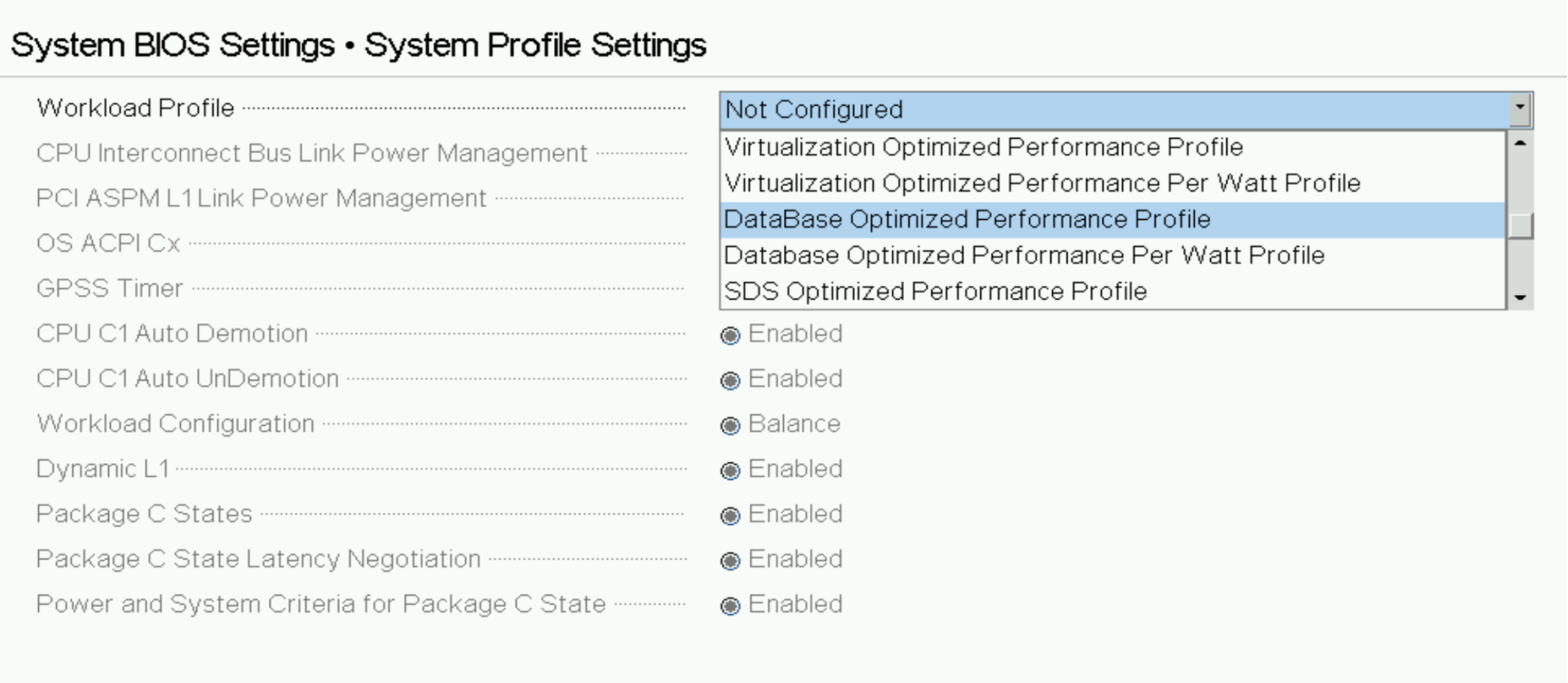
Figure 4. Applying Workload profile in system BIOS
Note: Applying the DBOP disables Virtualization Technology and x2APIC BIOS settings, so we reapply these through the same console.
Disabling unused integrated devices
By default, PowerEdge servers have USB and other ports enabled. In this best practice, USB and serial ports are disabled for both a security and performance purposes. We disabled the following ports in BIOS:
- User accessible USB ports
- iDRAC Direct USB port
- Serial communication
Recommendation
We recommend disabling unused integrated devices as a security precaution.
Implementation steps
Use the following steps to update the settings for integrated devices and serial communication.
- Turn on or restart your system.
- Press F2 immediately after you see the following message: F2 = System Setup.
Note: If your operating system begins to load before you press F2, wait for the system to finish booting, and then restart your system and try again.
- On the System Setup Main Menu screen, click System BIOS.
- Click Integrated devices.
- Select the following options:
- Select All ports off from the drop-down list of User accessible USB ports parameter
- Select Off for the parameter iDRAC direct USB port
- After updating the settings, click Back.
- In System BIOS settings display, click Serial communication.
- Select off from the drop-down list of Serial communication parameter.
- After updating the setting, click Back.
- Click Finish on the System BIOS screen.
- Click Yes on the Saving Changes display, to confirm the update. You will receive a message that indicates successful updating of values.
- Click Finish on the System Setup Main Menu screen.
- Click Yes to confirm Exit and system reboot.
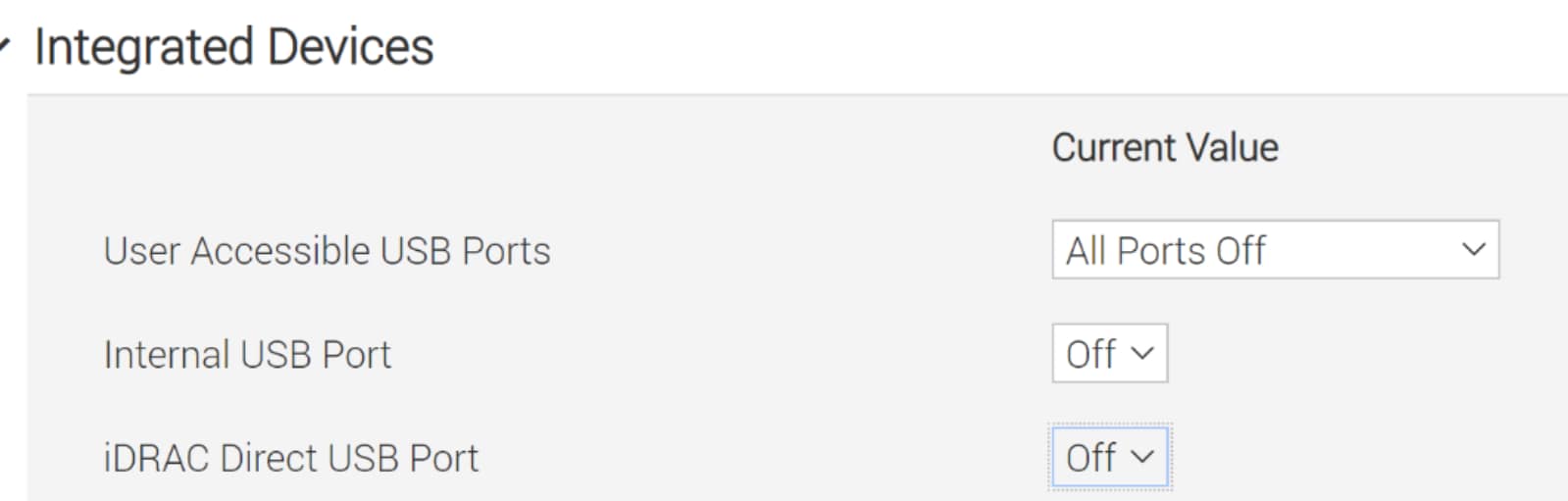

Figure 5. Disabling USB Ports and Serial communication in system BIOS
Additional resources
Setting up BIOS on 15th Generation (15G) Dell EMC PowerEdge Servers
RHEL OS and VMware best practices
For best practices on the RHEL OS and VMware layer, we enabled the following settings:
- Applying tuned-ADM profile
- Enabling ESXi power policy
Applying tuned-adm profile
Tuned-adm is a command line utility that allows the user to switch between multiple pre-defined and custom tuning profiles. In this best practice, we applied the tuned-adm profile recommended by Microsoft and RHEL for deployments on RHEL.
Recommendation
We recommend using the tuned mssql profile.
Implementation steps
To apply this profile, follow the steps and configuration guidelines that are described in Performance best practices and configuration guidelines for SQL Server on Linux.
Enabling ESXi power policy
There are four CPU Power Management Polices that can be selected for an ESXi host:
- High performance: maximize performance and disable power management features
- Balanced (default): use power management features that will minimally impact performance
- Low power: emphasis on power management features to minimize energy consumption over performance
- Custom: user-defined power management policy
The ESXi Power Management Policy enables the VMware vSphere administrator to assign a power profile to the virtualized database. In this best practice, the high performance power policy was selected.
Recommendation
We recommend updating the default power policy from balanced to high performance to ensure power management features do not impede database performance.
Implementation steps
Use the following steps to update the power management policy:
- Login to the VMware® vSphere Client
- Browse to the host in the vSphere Client.
- Click Configure.
- Under Hardware, select Power Management and click Edit Power Policy.
- Select High Performance and click OK
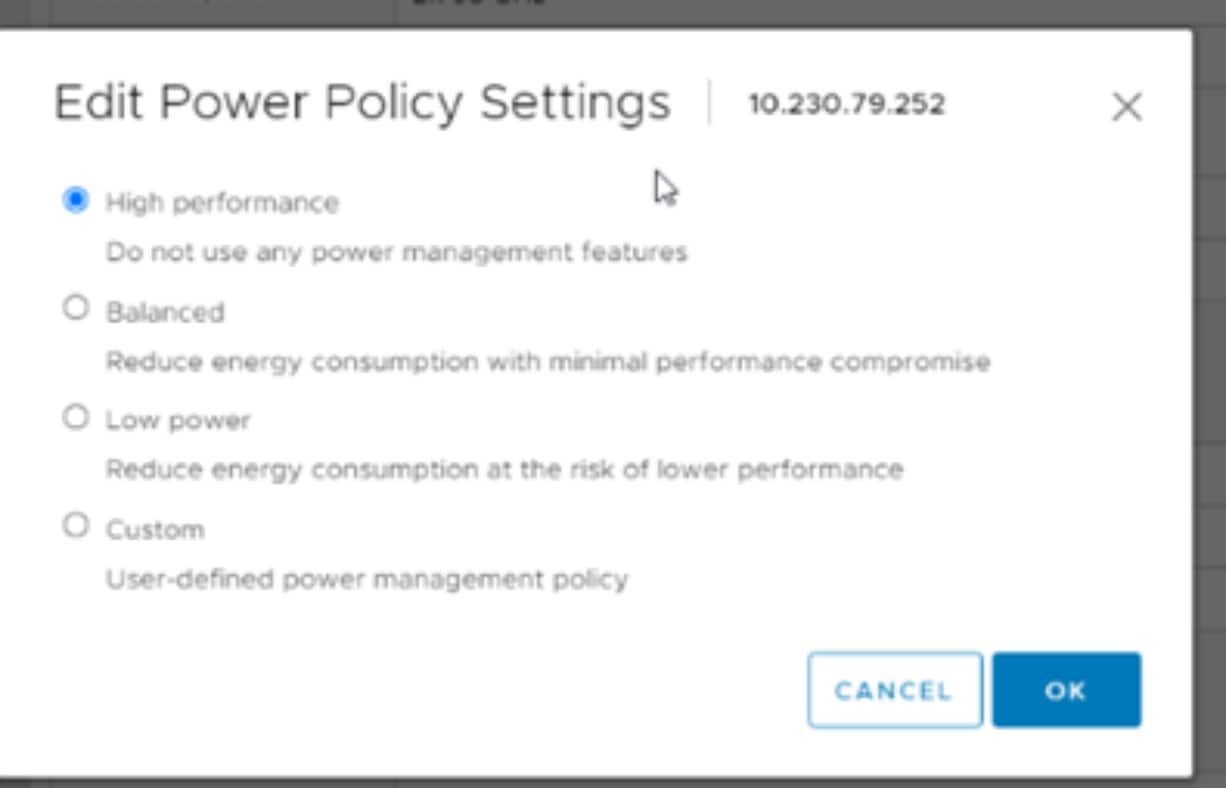
Figure 6. Edit Power Policy Settings display
Additional resources
ESXi Host Power Management Policies
vSphere Resource Management Update 2, VMware vSphere 7.0, VMware ESXi 7.0, vCenter Server 7.0
SQL Server best practices
Database best practices include:
- Moving and resizing Tempdb
- Autogrowth of UserDB files
- Max worker threads
- Process affinity for CPU and NUMA nodes
- Memory allocated to SQL Server
Moving and resizing Tempdb
TempDB is a SQL Server system database. As it is a resource designed to support all user databases connected to the same instance, it is important that it is appropriately sized, ideally on dedicated volumes for TempDB data and log. We created separate volumes to host both of for our best practice.
Recommendation
Size TempDB logs appropriately and, if available, host them on dedicated volumes for TempDB data and log.
Implementation steps
Use the steps outlined in Microsoft tempdb database to update properties for TempDB files.
Autogrowth for database files
User database files, including data and log files, can grow during the insert, delete, or update operations stages which are often performed during an OLTP workload. To limit the need for this autogrowth being triggered often, users can set the Autogrow value for the data and log files.
The autogrow default values for UserDB and TempDB files are 64 MB.
Modifying the default values for both UserDB and TempDB files helps optimize how the database adds space and minimizes the impact on transactions. By increasing the size of autogrowth database efficiency improves by avoiding excessive autogrowths events. Database administrators must determine the proper autogrow value for their databases, as each is different. To validate autogrow best practices, we implemented the following changes to our SQL Server databases:
- Data and log files for UserDB set to FILEGROWTH = 1048576 MB (1 GB)
- Data and log files for TempDB set to FILEGROWTH = 1048576 MB (1 GB)
Recommendation
We recommend assigning appropriate autogrowth values for database files.
Implementation steps
Use the steps provided in Considerations for the autogrow and autoshrink settings in SQL Server to update properties for database files.
Max Worker threads
The default value for worker threads is zero. This setting directs the SQL Server to automatically configure the number of worker threads at database startup. In our baseline tests we configured max worker threads to 864, which is the recommended value for databases using eight CPUs and 64-bit system starting with SQL Server 2016 (13.x) SP2 and SQL Server 2017 (14.x). For more information about Microsoft’s configuration recommendations see, Configure the max worker threads Server Configuration Option.
After testing a few max worker thread configurations, we found that increasing the value to 864 provided a slight performance improvement.
Recommendation
It is recommended to determine the updated max worker thread value for your environment and workload.
Implementation steps
For information about configuring max worker threads, see Configure the max worker threads Server Configuration Option.
Resources
Configure the max worker threads Server Configuration Option.
Process affinity for CPU cores and NUMA nodes
CPU affinity describes the ability to define which processor cores the SQL Server engine uses to multitask. By assigning processor cores, the SQL Server only uses the selected processors for multitasking database operations. This can improve performance by reducing processor reloads and thread migration across processors.
The virtual machine supporting the SQL Server has 6 vCPUs. For this reason, we implemented the following configuration changes in this best practice:
- SQL Server Processor Affinity was configured to use processors 0 through 5 for a total of 6 processors.
- We ran the code below to assign NUMA NODE 0.
Recommendation
We recommend setting SQL Server Process Affinity.
Implementation steps
To configure SQL Server Processor Affinity to use processors zero through seven, we performed the following command:
ALTER SERVER CONFIGURATION SET PROCESS AFFINITY CPU=0 TO 7
To configure SQL Server Processor Affinity to use NUMA NODE 0 we performed the following command:
ALTER SERVER CONFIGURATION SET PROCESS AFFINITY NUMANODE=0
Additional resources
Affinity mask Server Configuration Option
Memory allocated to SQL server
Database administrators can modify memory allocation for SQL Server using the minimum server memory and maximum server memory parameters.
Minimum server memory
Minimum server memory is the amount of allocated memory that the SQL Server reserves for the database. This setting is a memory allocation guarantee that the database administrator can use to optimize performance. Analysis of memory use from the operating system and other applications is required to accurately define the minimum server memory setting. Setting the minimum server memory to a high value can impact the operating system and lower overall performance.
We changed the minimum server memory from the default value to 360,448 MB (352GB).
Maximum server memory
Maximum server memory is the maximum amount of memory that the SQL Server can use. Setting the maximum server value limits the amount of memory that the database can use. The difference between minimum and maximum server values defines the amount of memory that the SQL Server can dynamically use. For example, if the minimum is set to 64 GB and the maximum is set to 128 GB, then the SQL Server can dynamically use 64 GB (128 – 64 = 64). We highly recommend analyzing your operating system and other application memory use to ensure that the database does not impact the overall system.
We used the default value for our baseline configuration tests. For additional tests, we changed the maximum server memory to a value of 360,448 MB (352 GB). By setting the maximum and minimum server memory values to 120 GB the database will allocate all the memory and not exceed the 352 GB memory configuration.
Recommendation
We recommend setting the minimum and maximum SQL Server memory to a value lower than that assigned to the operating system. These values should also be equal especially for predictable workloads.
Implementation steps
In SQL the Server Management Studio we selected Properties > Memory, as shown in Figure 5. We set the minimum and maximum server memory values to 122880 MB (120 GB).
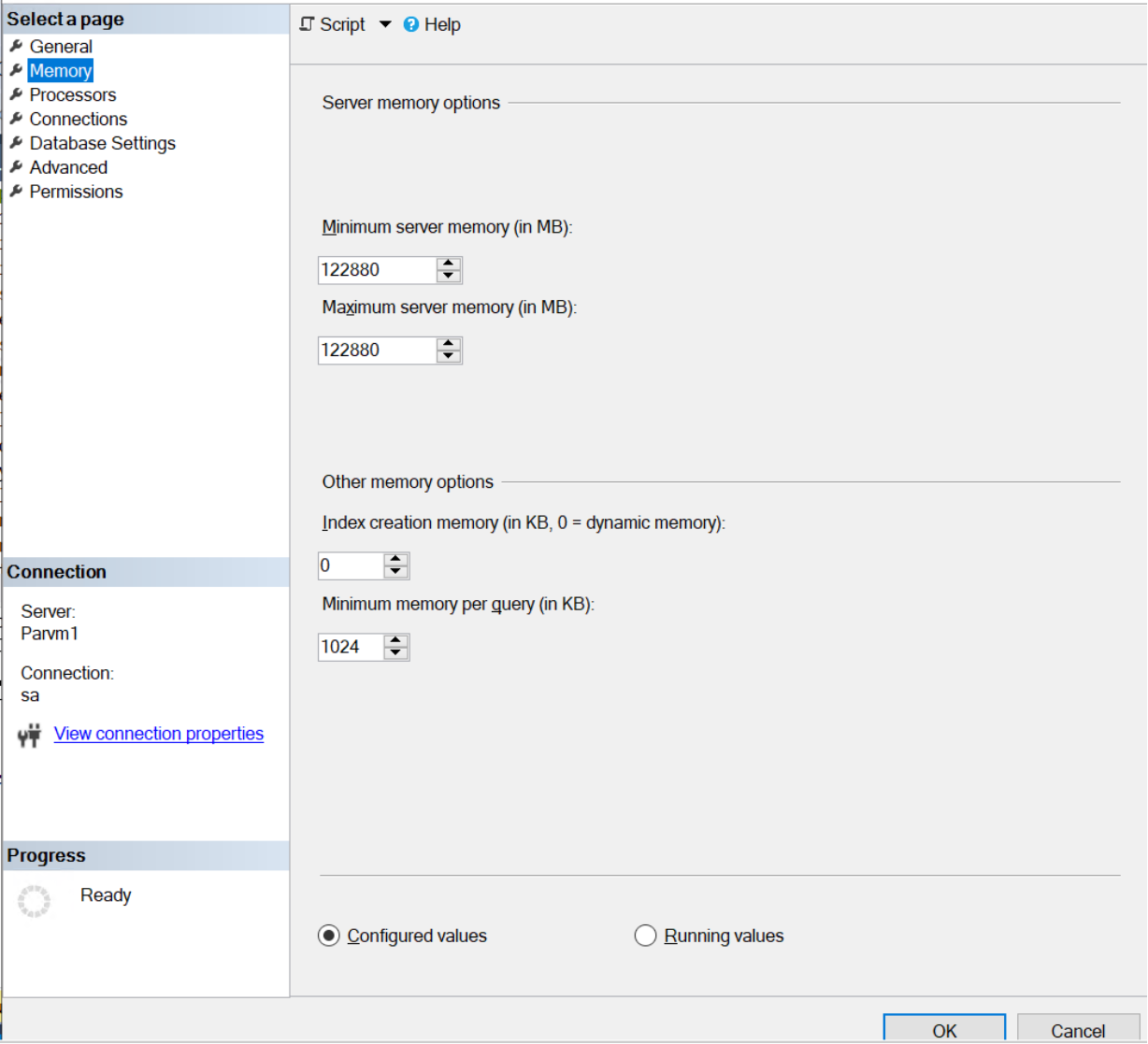
Figure 7. Memory page from SQL Server Management Studio
We also recommend applying this setting through the mssql config file. Run the following command to update the memory that is reserved for the SQL Server process to 120 GB:
/opt/mssql/bin/mssql-conf set memory.memorylimitmb 122880