How to Use and Troubleshoot the Dell S2716DG Monitor
Summary: Learn how to setup and use Dell S2716DG monitor. Find troubleshooting instructions for common video or display issues.
This article applies to
This article does not apply to
This article is not tied to any specific product.
Not all product versions are identified in this article.
Symptoms
Article Summary: This article provides information on How to Use & Troubleshoot your Dell S2716DG Gaming Monitor.
Table of Contents:
- Key Features
- Nvidia G-SYNC
- Specifications
- Setting Up Your Monitor
- Dell LCD Monitor Pixel Guidelines
- Using the On-Screen Display (OSD) Menu
- Reset to Factory Settings
- How do I set the maximum resolution on Dell S2716DG Monitor?
- Troubleshooting
- How to run the Monitor Self-Test?
- How to run the Built-In Diagnostics?
- How do I enable Ultra Low Motion Blur (ULMB)?
- How do I test the ULMB functionality on my Dell S2716DG Monitor?
- How do I Disable the Monitor Deep Sleep Mode?
- Monitor enters Power Saving Mode while running Self-Test
- Nvidia G-SYNC not working properly in a game
- Common Problems & USB Specific Problems
- Documentation
- Frequently Asked Questions
Key Features
The Dell S2716DG is Dell’s first gaming monitor offering one of the best gaming display performance along with a list of features to match up with gamers’ speed of reaction while displaying clear and undistorted images for the best gaming experience. Some of the key features of this monitor are:
- Nvidia G-SYNC enabled monitor with an extremely high refresh rate of 144Hz and a rapid response time of 1ms.
- Resolution up to 2560 x 1440 through DisplayPort and HDMI, with full-screen support or lower resolutions.
- Tilt, Swivel, Height & Rotate adjustment capabilities.
- Removable stand and VESA 100mm mounting holes for flexible mounting solutions.
- Equipped with 1 USB upstream and 4 USB downstream ports.
- Software and Documentation media includes an Information File (INF), Image Color Matching File (ICM) and product documentation.
- Analog backlight dimming control for flicker-free display.
Nvidia G-SYNC
NVIDIA G-SYNC is a groundbreaking new display technology that delivers the smoothest gaming experience ever. G-SYNC’s revolutionary smoothness is achieved by synchronizing display refresh rates to the GPU in your GeForce GTX-powered desktop or notebook, eliminating screen tearing and minimizing display stutter and input lag.
System Requirements
| Desktop Computer | Notebook Computer | |
|---|---|---|
| GPU | G-SYNC features require an NVIDIA GeForce GTX 650 Ti BOOST GPU or higher. | NVIDIA GeForce GTX 980M, GTX 970M or GTX 965M. SLI configurations are also supported. |
| GPU Driver Version | R340.52 or higher | R352.06 or higher |
| System Requirement | DisplayPort 1.2 directly from GPU | |
| Operating System | Windows 10, Windows 8.1, Windows 8 or Windows 7 | |
For a complete list of supported GPU's, visit Nvidia G-SYNC website.
How do I enable Nvidia G-SYNC?
Nvidia G-SYNC feature is automatically enabled on all supported computers. If it is not, you can manually enable to Nvidia G-SYNC feature using the Nvidia Control Panel by following these instructions:
- Ensure that the latest version of the Nvidia GPU driver is installed. If not, visit the Nvidia website to download and install the latest drivers for your graphics card.
- Right-click on the Windows Desktop and select Nvidia Control Panel.
- Select Display on the left pane and then choose Set Up G-SYNC.
- Check the box next to Enable G-SYNC (Figure 1).
- Select Set Up Multiple Displays on the left pane.
- Set the G-SYNC capable monitor as the primary display.
- Select Manage 3D Settings on the left pane.
- Under the Global Settings tab, locate Vertical Sync (Figure 2).
- Click the drop-down and select G-SYNC.
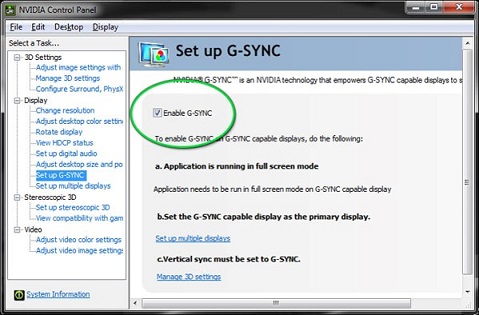
Figure 1: Nvidia Control Panel
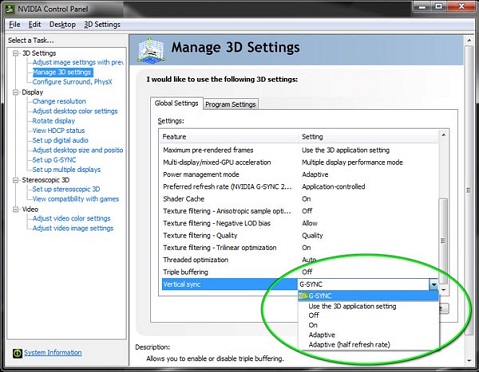
Figure 2: Vertical Sync
Back to Top
Specifications
This section provides some specifications of the Dell S2716DG Gaming Monitor. For more information about the Dell S2716DG Gaming Monitor, refer to the User Guide at the Dell Support website.
| Feature | Dell S2716DG |
|---|---|
| Maximum Resolution | 2560 x 1440 at 144 Hz |
| Luminance Output | 350 cd/m² (typical) |
| Contrast Ratio | 1000 to 1 (typical) |
| Video Input Connectors | HDMI 1.4
DisplayPort 1.2 |
| Screen Type | Active Matrix - TFT LCD |
| Video Display Capabilities | 480p, 576p, 720p, 1080p, 480i, 576i, 1080i, QHD |
Back to Top
Setting Up Your Monitor
This section provides information on How to Setup Your Monitor.- Attaching the Stand - Refer to the Setting Up The Monitor section in the User's Guide on Connecting the Stand to your Dell S2716DG Monitor.
- Connecting the Monitor - Refer to the knowledge base article How to Connect a Monitor to a Computer? for more information. Alternatively, you can also refer to the Setting Up The Monitor in the User's Guide for your Dell S2716DG Monitor.
Dell LCD Monitor Pixel Guidelines
For more information refer to Dell LCD Monitor Pixel Guidelines knowledge base article.
Back to TopUsing the On-Screen Display (OSD) Menu
For more information on Using the On-Screen Display (OSD) Menu, refer to the Operating Your Monitor section in the User Guide for Dell S2716DG Gaming Monitor.
Back to TopReset to Factory Settings
To reset your Dell S2716DG Monitor to Factory Settings, follow these instructions:
- Press Button 3 (Figure 3)on the monitor to enter the On-Screen Display (OSD) Menu.
- Press Button 1 or Button 2 to highlight Others option in the menu and press Button 3 to select.
- Press Button 1 or Button 2 to highlight the Factory Reset option in the menu and press Button 3 to select.
- Press Button 3 to confirm the reset action.
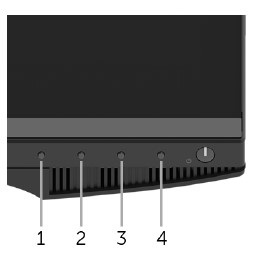
Figure 3: Front Panel Buttons
Back to Top
How do I set the maximum resolution on Dell S2716DG Monitor?
Using Windows Display Settings
For maximum display performance with Microsoft Windows Operating Systems, set the display resolution to 2560 x 1440 pixels by performing the following steps:
In Windows 7, Windows 8, Windows 8.1 and Windows 10:
- For Windows 8 and Windows 8.1 only, select the Desktop tile to switch to classic desktop view.
- Right-click on the desktop and click Screen Resolution.
- Click the dropdown list of the Screen Resolution and select 2560 x 1440.
- Click OK
If you do not see the recommended resolution as an option, you may need to update your graphics driver by visiting the Nvidia Drivers website.
Using the Nvidia Control Panel
To change the resolution using the Nvidia Control Panel:
- Right-click on the desktop and click Nvidia Control Panel.
- Click the + symbol next to Display on the left pane.
- Select Change Resolution under Display.
- In the dropdown menu on the right pane, select the resolution 2560 x 1440.
- Click Set up G-SYNC on the left pane.
- Select Enable G-SYNC for windowed and full-screen mode.
- Click Apply.
Troubleshooting
This section contains troubleshooting information for your Dell S2716DG Gaming Monitor.
- How do I run the Monitor Self-Test?
- How do I run the Built-In Diagnostics?
- How do I enable Ultra Low Motion Blur (ULMB)?
- How do I test the ULMB functionality on my Dell S2716DG Monitor?
- How do I Disable the Monitor Deep Sleep Mode?
- Monitor enters Power Saving Mode while running Self-Test
- Nvidia G-SYNC not working properly in a game
- Common Problems and USB Specific Problems
How do I run the Monitor Self-Test?
Your monitor provides a self-test feature that allows you to check whether the monitor is functioning properly. If the monitor and computer are properly connected but the monitor screen remains dark, run the monitor self-test by performing the following steps:
- Turn off both your computer and the monitor.
- Unplug the video cable from the back of the computer. To ensure proper Self-Test operation, remove all digital cables (DVI, HDMI or DisplayPort) from the back of the computer.
- Turn on the monitor.
- Turn off your monitor and reconnect the video cable: then turn on both your computer and the monitor.
If your monitor screen remains blank after you use the previous procedure, check your video card (GPU) and computer, because your monitor is functioning properly.
How do I run the Built-In Diagnostics?
Your monitor has a built-in diagnostic tool that helps to determine if the screen abnormality you are experiencing is a problem with the monitor or with the video card on your computer.
You can run the built-in diagnostics only when the video cable is unplugged and the monitor is in Self-Test mode.
- Make sure that the screen is clean (no dust particles on the surface of the screen).
- Unplug the video cable(s) from the back of the computer or the monitor. The monitor will now enter the self-test mode.
- On the front panel, press and hold Button 1 and Button 4 simultaneously for two seconds. A gray screen appears.
- Carefully inspect the screen for abnormalities.
- Press Button 4 on the front panel again. The color of the screen changes to red.
- Inspect the display for any abnormalities.
- Repeat step 5 and step 6 to inspect the display in green, blue, black, white and text screens.
- The test is complete when the white screen appears.
- Press Button 4 to exit the Built-In diagnostics.
If you do not detect any screen abnormalities upon using the built-in diagnostic tool, the monitor is functioning properly. Check the video card (GPU) and the computer.
Back to Top
How do I enable Ultra Low Motion Blur (ULMB)?
Disable Nvidia G-SYNC using Nvidia Control Panel
- Right-click on the desktop screen and select Nvidia Control Panel in the menu.
- Click on the + symbol next to Display.
- Click on Set up G-SYNC.
- Uncheck the box next to Enable G-SYNC.
Setup Ultra Low Motion Blur (ULMB) using the On-Screen Display (OSD) Menu.
- Ensure Nvidia G-SYNC is disabled in the Nvidia Control Panel.
- Press Button 3 on the Monitor. Use Button 1 or Button 2 and select Display in the menu.
- Use Button 1 or Button 2 to highlight ULMB (Figure 4).
- Press Button 3 to confirm the selection.
Ultra Low Motion Blur is available only when the monitor refresh rate is 85Hz, 100Hz or 120Hz.
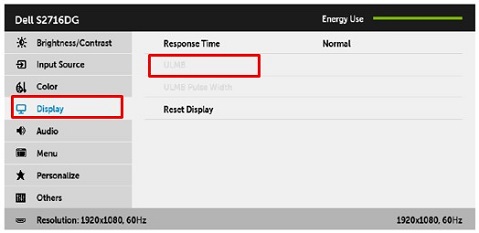
Figure 4: ULMB Mode in On-Screen Display (OSD) Menu
Back to Top
How do I test the ULMB functionality on my Dell S2716DG Monitor?
To verify the ULMB functionality on your Dell S2716DG Monitor, perform the following steps:
Requirement:- Ensure that your computer Graphics Card (GPU) is compatible with Nvidia G-SYNC.
- Ensure Nvidia G-SYNC feature is disabled in Nvidia Control Panel.
- Verify if ULMB is enabled on the Dell S2716DG Monitor using the On-Screen Display (OSD) Menu.
- Step 1: Visit http://www.testufo.com/ website on your computer.
- Step 2: Enable and Disable the ULMB feature on your Dell S2716DG Monitor.
- Verify that the image is clear and not blurry as shown in Figure 5.
If the image is blurry, try to Disable and Enable the ULMB feature using the OSD Menu on your Dell S2716DG Monitor.

Figure 5: ULMB Test (Without ULMB V/s With ULMB)
Back to Top
How do I Disable the Monitor Deep Sleep Mode?
Disable the Monitor Deep Sleep mode if you notice any of the two scenarios mentioned below. Follow the instructions mentioned to ‘Disable the Monitor Deep Sleep Mode.
Scenario 1
Your Dell S2716DG Monitor may appear to flash while in DC Off mode when connected to Chromebook. Chromebooks automatically enter sleep mode if the device is left unused for more than 5-6 minutes.
Scenario 2
Your Dell S2716DG Monitor resets to an incorrect resolution of 640 x 480 when connected using a DisplayPort cable. This issue may occur even after reseating the DisplayPort cable multiple times.
Disable the Monitor Deep Sleep Mode by following these steps:
- Press Button 3 to enter the On-Screen Display (OSD) Menu.
- Use Button 1 or Button 2 and highlight Others. Press Button 3 to select the option.
- Select Monitor Deep Sleep (Figure 6) option and Press Button 3 to Disable.
Pressing any button (except the Power button) on the front panel of your Dell S2716DG Monitor may also wake up the monitor after it goes into deep sleep.
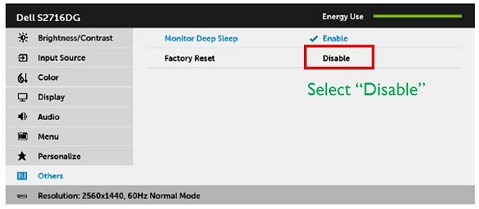
Figure 6: Monitor Deep Sleep Mode in On-Screen Display (OSD) Menu
Back to Top
Monitor enters Power Saving Mode while running Self-Test.
Your Dell S2716DG Monitor may enter ‘Power Save Mode’ when you try to run the Self-Test.
The Dell S2716DG Monitor does not support Self-Test Feature Check (STFC). When the monitor does not detect any signal, it will display the message "Enter Power Save Mode" for 15 seconds and then will go into Deep Sleep Mode.
You can try to wake up the monitor by moving the mouse or pressing any key on your keyboard.
Back to TopNvidia G-SYNC not working properly in a game.
- Ensure your computer meets the Nvidia G-SYNC System Requirements. Refer to the Nvidia G-SYNC section for more information.
- If required, download and install the latest Nvidia Graphic Card drivers from the Nvidia Drivers website.
- Check if your Dell S2716DG Monitor is connected to your computer using the DisplayPort cable.
- Enable Nvidia G-SYNC using Nvidia Control Panel.
- Check the Nvidia G-SYNC functionality using the Demo Test.
- Download the "Pendulum Demo" software from the Nvidia G-SYNC website.
- Check for G-SYNC functionality within the "Pendulum Demo". Different modes (V-Sync Off, V-Sync On, G-SYNC) will be displayed (Figure 7).
- Click on each mode to verify if they are working.
- The Pendulum Demo will not allow you to click on G-SYNC if the Nvidia G-SYNC feature is not working.
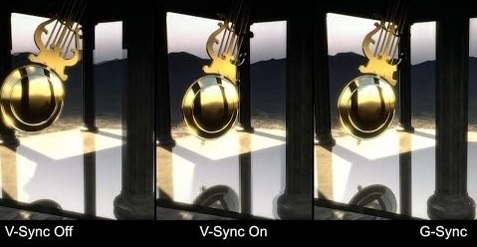
Figure 7: Pendulum Demo Test
Back to Top
Common Problems
| Common Problem | What User Experiences | Possible Solution |
|---|---|---|
| No Video - Power LED Off | No picture |
|
| No Video - Power LED On | No picture or no brightness. |
|
| Poor Focus | The picture is fuzzy, blurry or ghosting. |
|
| Shaky/Jittery Video | Wavy picture or fine movement. |
|
| Missing Pixels | The LCD screen has spots. |
|
| Stuck-On/Off Pixels | The LCD screen has a bright spot. |
|
| Brightness Problems | Picture too dim or too bright. |
|
| Geometric Distortion | Screen not centered correctly. |
When using DisplayPort input, the positioning adjustments are not available.
|
| Horizontal/Vertical Lines | The screen has one or more lines. |
When using DisplayPort input, the positioning adjustments are not available.
|
| Synchronization Problems | The screen is scrambled or appears torn. |
|
| Safety-Related Issues | Visible signs of smoke or sparks. |
|
| Intermittent Problems | Monitor malfunctions on and off. |
|
| Missing Color | The picture does not have color. |
|
| Wrong Color | The picture color is not good. |
|
| Image Retention from a Static Image Left on the Monitor for a Long Period | Faint shadow from the static image appears on the screen. |
|
| Video Ghosting or Overshooting | Motion videos appear to be blurry around moving objects. |
|
USB Specific Problems
| Specific Symptoms | What User Experiences | Possible Solution |
|---|---|---|
| USB interface is not working | USB peripherals are not working |
|
| High-Speed USB 3.0 interface is slow | High-Speed USB 3.0 peripherals working slowly or not working at all |
|
| Wireless USB peripherals stop working when a USB 3.0 device is plugged in | Wireless USB peripherals responding slowly or only working as the distance between itself and its receiver decreases |
|
Back to Top
Documentation
To view or download the User's Guide or Manuals for your Dell S2716DG Monitor, follow these instructions:
- Visit the Dell Manuals website.
- Click View Products button under Browse for a Product.
- Select Monitors & Projectors and then Select Monitors.
- From the list, click on Dell S2716DG Monitor.
- Click on PDF next to the required document.
- Click on More Languages to view the list of available language options.
- Click on PDF next to the preferred choice of language.
Frequently Asked Questions
- What is Nvidia G-SYNC?
- What are the requirements for using Nvidia G-SYNC?
- How do I enable the Nvidia G-SYNC feature on my computer?
- What Video Cards support the Nvidia G-SYNC feature?
- What is Ultra Low Motion Blur (ULMB)?
- What are the differences between Nvidia G-SYNC and ULMB?
What is Nvidia G-SYNC?
NVIDIA G-SYNC is a groundbreaking new display technology that delivers the smoothest gaming experience ever. G-SYNC’s revolutionary smoothness is achieved by synchronizing display refresh rates to the GPU in your GeForce GTX-powered desktop or notebook, eliminating screen tearing (Figure 8) and minimizing display stutter and input lag. The result: scenes appear instantly, objects look sharper, and the gameplay is super smooth, giving you a stunning visual experience and a serious competitive edge.
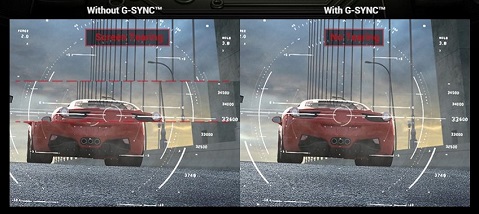
Figure 8: Without G-SYNC V/s With G-SYNC
What are the requirements for using Nvidia G-SYNC?
- Compatible Video Card (GPU) which supports Nvidia G-SYNC technology.
- Install the latest Video Card drivers. Refer to System Requirements for Nvidia G-SYNC for more information.
- Enable G-SYNC feature in the Nvidia Control Panel.
- Requires DisplayPort video input.
Nvidia G-SYNC technology currently supports only DisplayPort video input. Using DVI to DisplayPort or HDMI to DisplayPort converters/adapters is currently not supported.
How do I enable the Nvidia G-SYNC feature on my computer?
Nvidia G-SYNC feature is enabled by default. Ensure to install the latest video card drivers for your Nvidia Video Card.
Refer to How do I enable the Nvidia G-SYNC feature section of this article for more information.
Back to TopWhat Video Cards support the Nvidia G-SYNC feature?
For a comprehensive list of Nvidia G-SYNC supported Video Cards (GPU) refer to the Nvidia website.
Refer to System Requirements for Nvidia G-SYNC for more information.
Back to TopWhat is Ultra Low Motion Blur (ULMB)?
Ultra Low Motion Blur (ULMB) feature on the Dell S2716DG Monitor helps have lesser motion blur via backlight effect while you are watching fast-moving images (Figure 9).
Video Card (GPU) installed should support the Nvidia G-SYNC feature.
ULMB and Nvidia G-SYNC feature cannot be enabled at the same time. You can choose to eliminate screen tears or improve motion resolution but not both.
This function is available when the refresh rate is set to 85Hz, 100Hz or 120Hz.
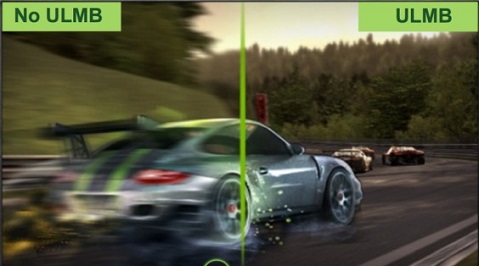
Figure 9: Without ULMB V/s With ULMB
Back to Top
What are the differences between Nvidia G-SYNC and ULMB?
| Main Function | Detail | Default Setting | |
|---|---|---|---|
| ULMB |
|
Uses backlight strobing to reduce motion blur. It is only available on refresh rates of 85Hz, 100Hz or 120Hz. |
|
| Nvidia G-SYNC | Reduce Screen tearing and lag. | Nvidia G-SYNC eliminates tearing, adding to the overall smoothness of gameplay. | Nvidia G-SYNC is enabled by default. |
Back to Top
Cause
N/A
Resolution
N/A
Affected Products
Dell S2716DGArticle Properties
Article Number: 000124858
Article Type: Solution
Last Modified: 19 Apr 2026
Version: 8
Find answers to your questions from other Dell users
Support Services
Check if your device is covered by Support Services.