Premier Sales Quotes
Summary: This article provides instructions on how to retrieve a Dell Sales Quote and place an order using a Dell Sales Quote.
This article applies to
This article does not apply to
This article is not tied to any specific product.
Not all product versions are identified in this article.
Instructions
Your Dell Premier page provides your organization with a customized, secure online toolset for purchasing, reporting, and product support. This is all backed by a dedicated account team that can adjust settings, and add or remove features and options that fit your organization.
Accessing a Dell sales quote from your personalized email
Retrieving your Dell sales quote from the Premier home page
Navigating the quote home page
Sales Quotes give users the ability to process an order using a quote that has been provided by the Dell Account Team. They can be retrieved and purchased through Dell Premier, but the quotes are locked. Any modifications require Dell Sales Support.
Sales Quotes are generated by the Dell Account Team and are configured per the details provided by the requestor. These quotes are specific to a Dell Customer Number and can contain a version number at the end. Example: 1234567890122.1
Accessing a Dell Sales Quote from your personalized email
Quotes you receive from Dell Sales are hyperlinked to Dell Premier checkout where you can download your preferred quote output format (PDF, HTML, XML, and XLXS) online.
Click "Place your order" button (Figure 1) to access your quote (Premier Sign-in is required)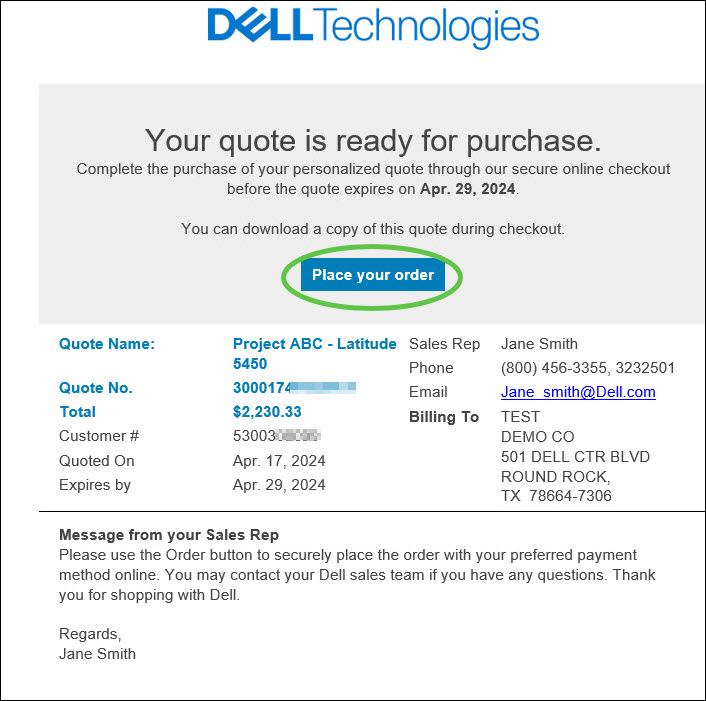
Figure 1- Click "Place your Order" to access your quote
Review the order information and download the quote documentation (PDF, HTML, XLXS, XML) if needed. You can add up to 10 quotes into a single checkout (Online capabilities may vary by country or region).
When you are ready to purchase, select your preferred payment option (for Purchase Order, include your PO number) and Submit your order. Within the Thank You screen, you see a "Thank you" message along with your Dell Purchase ID number confirming that the order has been submitted.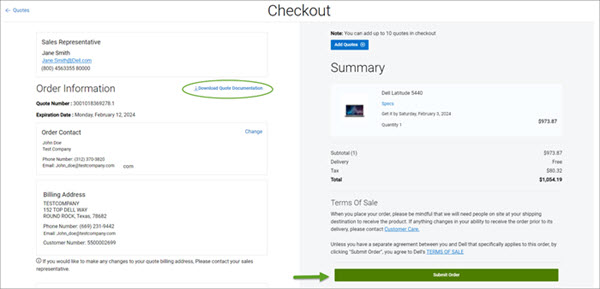
Figure 2- Review the order information, download the quote documentation, and submit your order when you are ready to purchase.
Note: Should you need to repurchase a particular quote, ask your Dell Sales Representative to set up a Standard Configuration for your repeat purchases.
Return to Top of Page
Retrieving your sales quotes from the Premier home page
Alternatively, you can access your sales quote from your Premier home page at any time.
- Sign into your Premier Page
- Locate the "Quotes" module. To view all available quotes, click the "View All" button (Figure 3)
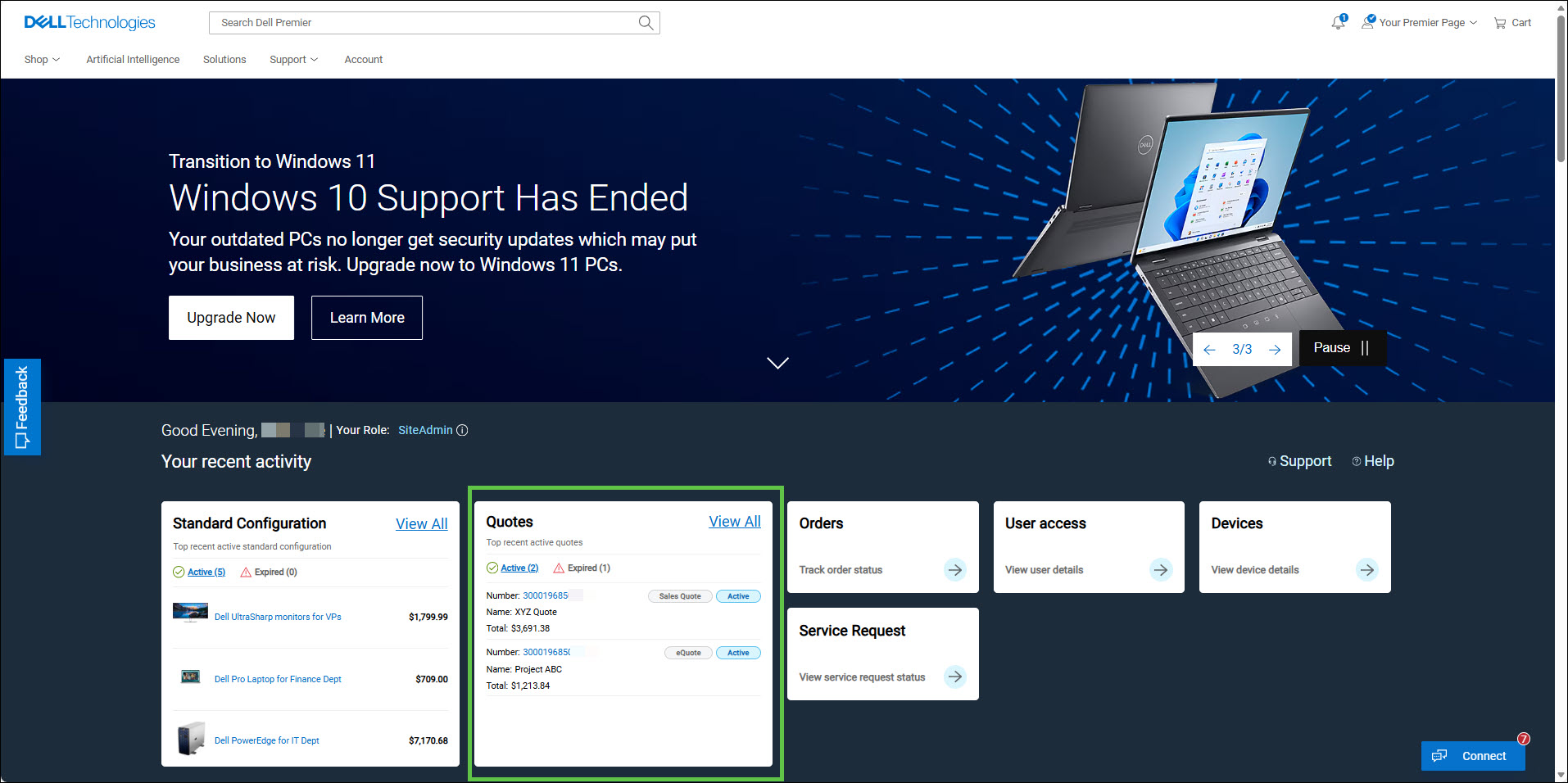
Figure 3- Access your quotes from the Premier home page
Navigating the Quotes home page
The Quotes home page displays user created eQuotes and quotes shared by your Sales representative both identified by type and sorted by creation date. If not visible, contact your Dell Account Team to get the quotes published on your page. (If available for your country or region. Users of Global Portal stores retrieve the sales-created quotes from the "Sales Quote" list.)
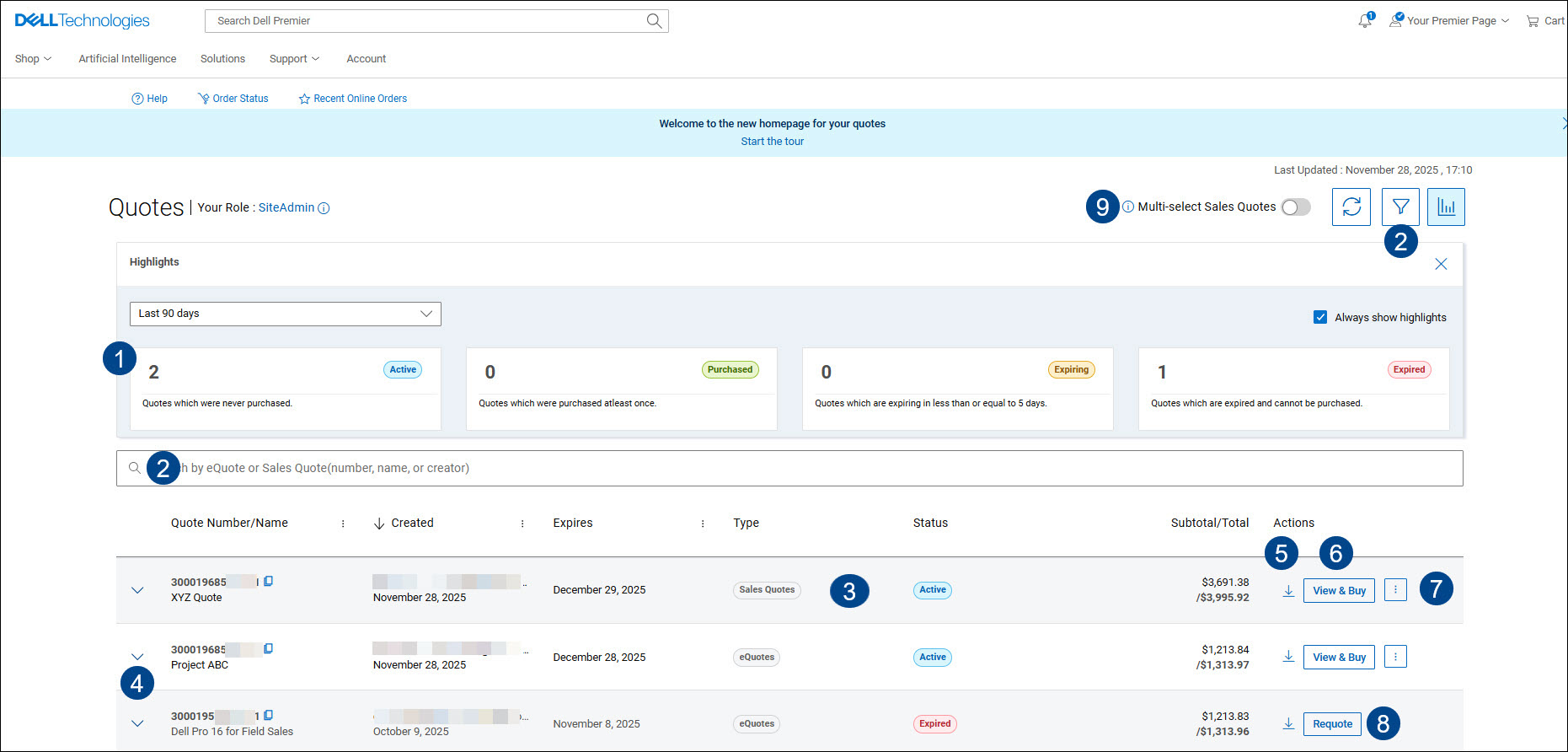
Figure 4- Quotes page
- The Activity Dashboard provides a snapshot of your quotes, including the number of active, purchased, nearing expiration, and expired quotes. Click any category to filter quotes by status, making it easier to manage them.
- Use our powerful search feature to find specific quotes quickly. You can sort them by quote number, creator, or expiration date to save you valuable time and effort. You can also find the quotes you need with our filtering options. Whether you are searching for eQuotes or sales quotes, you can filter by type, status, creation date, or solution ID to narrow down your list. If you are a Dell authorized partner, you see additional filters to search quotes by Deal ID, Solution ID, End Customer and, or Reseller name or number.
- View the type of quotes and their real-time status, ensuring you are always up to date.
- Expand each quote to access detailed information, including billing and shipping addresses, product information, quantity, and pricing details.
- Download quote documentation directly from the quote home page.
- Click the "View and Buy" button to go to checkout. Once the order is placed, the quote status updates to "Purchased."
- Access advanced capabilities. As an example, you can conveniently email an eQuote to selected colleagues by simply using the "Share Quote" link and entering the necessary information.
- Purchase an eQuote repeatedly as long as it is active. To generate a new quote with the same content, click "Requote" at any time.
- Save time by selecting up to 10 quotes for a single checkout. Enable the 'Multi-Select Sales Quotes' feature to move active Sales quotes to the top of the list and display checkboxes for selection. (Online capabilities may vary by country or region.)
Return to Top of Page
Notes
- Online capabilities may vary by country or region.
- Availability of this quote experience may vary by country or region. Roadmaps and timelines are subject to change. Contact your account teams for more information.
- For non-tied custom service deals, work with your Service Sales representative
If you have questions or need assistance, engage the Premier Support Teams
Article Properties
Article Number: 000122240
Article Type: How To
Last Modified: 01 Apr 2026
Version: 16
Find answers to your questions from other Dell users
Support Services
Check if your device is covered by Support Services.