Dell Latitude 5580 – Systemhandbuch
Zusammenfassung: In diesem Leitfaden erfahren Sie alles, was Sie zum Latitude 15 5580-Laptop bei Lieferung von Dell wissen müssen.
Dieser Artikel gilt für
Dieser Artikel gilt nicht für
Dieser Artikel ist nicht an ein bestimmtes Produkt gebunden.
In diesem Artikel werden nicht alle Produktversionen aufgeführt.
Symptome
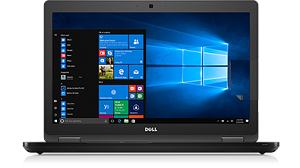
Dell Latitude 5580 – Systemhandbuch: mit Links zu Anleitungen und nützlichen Informationen zu Ihrem System
Erweitern Sie jeden Abschnitt weiter unten, um Informationen über die Verwendung Ihres Dell Latitude 5580 zu erhalten
Ursache
Vorstellung Ihres Computers:
Hier finden Sie einen Link zum Systemhandbuch:
In diesem Abschnitt finden Sie Links zu Informationen über Anschlusspositionen und Bilder Ihres Systems. Außerdem hilft Ihnen dieser Abschnitt bei den ersten Schritten mit dem System.
- Dell Latitude 5580 – Visuelle Anleitung
- Dell Latitude 5580 – Tastaturanleitung
- Ein Handbuch zu Dockingstationen und Port-Replikatoren bei Dell Notebooks
Achtung: Bevor Sie an Ihrem Rechner arbeiten, ist es ratsam, folgende Sicherheitsinformationen zu berücksichtigen:
Installationsoptionen:
In diesem Abschnitt werden die unterstützten Betriebssystem-Neuinstallationsoptionen für Ihr System beschrieben.
Weitere Informationen finden Sie auf den folgenden Registerkarten.
Microsoft Windows
Informationen zu den verschiedenen Betriebssystemen von Windows erhalten Sie, indem Sie auf den folgenden Link klicken:
Treiber:
Dieser Abschnitt informiert über Treiber und die erforderliche Installationsreihenfolge der verschiedenen Betriebssystemversionen, die von Ihrem Dell Computer unterstützt werden.
Reihenfolge für die Treiberinstallation:
Installieren von Treibern von der Dell Ressource-CD/DVD:
Ubuntu Linux
Weitere Informationen zu Ubuntu Linux auf Ihrem System finden Sie, indem Sie auf folgenden Link klicken:
- Häufig gestellte Fragen zu dem Betriebssystem Ubuntu Linux auf Ihrem Dell Computer
- Anleitung zum Installieren von Ubuntu Linux auf Ihrem Dell Computer
Weitere Informationen erhalten Sie außerdem auf der Website von Ubuntu:

Systemsicherung und -wiederherstellung
Dieser Abschnitt enthält Informationen über die Optionen der Systemsicherung und -wiederherstellung für Ihr System.
Wenn Sie die Option der Wiederherstellungsmedien nicht in Ihrer Bestellung angegeben haben, wird Ihr Windows 10-System nicht mit einem Wiederherstellungs-USB-Flash-Laufwerk oder den entsprechenden Medienträgern ausgeliefert. Weitere Informationen über das Erstellen von Wiederherstellungsmedien für das System im Falle eines katastrophalen Systemausfalls finden Sie unter dem nachfolgenden Link:
- Erstellen eines Wiederherstellungsmediums für Windows 10 für Ihren Dell Computer
- Windows Installationsmedien für Windows 8.1 und Windows 10 mithilfe des Media Creation Tools erstellen
Wiederherstellungsumgebung von Windows (WinRE)
Bei werkseitig installierten Windows 10-Systemen ermöglicht Ihnen WinRE die Wiederherstellung des ursprünglichen werkseitigen Systemstatus. Weitere Informationen finden Sie unter dem folgenden Link:
Dell Recovery Image von Microsoft Windows
Sie können auch ein Recovery Image des Microsoft Windows-Betriebssystems von der Dell Support-Website herunterladen, das an Ihr Dell Produkt angepasst ist.
Hinweis: Das Recovery-Image enthält die Windows-Version, die der auf Ihrem Computer installierten Version entspricht. Dieser Download ist nur auf bestimmten Systemen verfügbar.
Wenn Sie keine Wiederherstellungsmedien mitbestellt haben, wird Ihr System nicht mit einem USB-Stick oder anderen Datenträgern zur Wiederherstellung ausgeliefert.
Weitere Informationen finden Sie auf der Supportseite für Daten-Storage, Backup und Recovery:
Weitere allgemeine Informationen zum Wiederherstellen von Windows finden Sie im folgenden Artikel:
Dell SupportAssist für Privatkunden:
SupportAssist bietet Systemaktualisierungen, erkennt Probleme und sendet Ihnen Warnungen basierend auf Ihrem Gerät, was die Lösung und Vermeidung von Problemen einfacher als je zuvor macht. Diese Anwendung ermöglicht Ihnen den Zugriff auf alles, was Sie benötigen, um beim Warten Ihres PCs und Tablet nicht nur Vermutungen anstellen zu müssen. Weitere Informationen und Installationsanweisungen finden Sie unter dem folgenden Link:
Diagnose und Fehlercodes:
Dieser Abschnitt enthält Links zu Artikeln über Diagnosen und verschiedene Fehlermeldungen, Signaltoncodes und Diagnose-LED-Codes, die Sie beim Beheben potentieller Hardware- und Software-Probleme auf Ihrem System unterstützen.
- Verwenden der ePSA- oder PSA-Diagnosen und ein Handbuch zu den Fehlercodes
- Anleitung zum Ausführen der Dell Diagnose vor dem Start und Hardwaretests auf Ihrem Dell Computer
- Unterstützung für die Fehlerbehebung bei Systemabstürzen
- Identifizierung und Fehlerbehebung bei Windows-Abstürzen und Neustarts mit Bluescreen-Fehler (Absturzbildschirm)
- Fehlerbehebung bei Problemen mit langsamer Leistung bei einem Dell PC
Sie können außerdem die Diagnose auf der Dell Support-Seite verwenden, dazu ist erforderlich, dass Dell System Detect & SupportAssist auf Ihrem System installiert sind. Dies wird ausgeführt, sobald Sie sich dazu entschließen, die Diagnosen auszuführen. Sie können die Diagnosen über folgenden Link aufrufen:
Hardware:
Dieser Abschnitt enthält Links zu Artikeln mit Informationen über die unterschiedlichen Hardwarebestandteile Ihres Systems. Er kann Ihnen dabei helfen, alle Probleme zu beheben, die möglicherweise durch die oben genannten Diagnosen identifiziert wurden. Es stehen auch allgemeine Artikel zur Verfügung, die Ihnen bei verschiedenen Aufgaben helfen, z. B. Beispiel beim Aktualisieren des BIOS oder einer Festplatte.
Netzadapter- und Akku
- Überprüfen des Akkuzustands auf Dell Laptops und Notebooks
- Support-Website für Akku, Stromversorgung und Lüfter
- Anleitung zur Verbesserung der Akkuleistung Ihres Notebooks
Audio
- Computer macht Geräusche? Fehlerbehebung bei lauten Lüftern, Festplatten und mehr
- Beheben von Problemen mit unerwünschten Geräuschen über den Lautsprecher
- Das Beheben und Lösen eines "Kein Audio"-Problems bei einem Latitude-PC
BIOS und Hauptplatine
- Was ist das BIOS und wie wird das System-Setup oder BIOS auf Ihrem Dell System überprüft und aktualisiert?
- Durchführen eines BIOS- oder CMOS-Reset und/oder Löschen von NVRAM auf dem Dell System
- Anleitung zum BIOS-Update: Installieren und Aktualisieren des BIOS unter Windows
Probleme mit Lüfter und Überhitzung
- Beheben von Problemen bei Überhitzung, Herunterfahren oder Temperaturstörungen auf einem Dell PC
- Computer macht Geräusche? Fehlerbehebung bei lauten Lüftern, Festplatten und mehr
Probleme mit der Festplatte
Probleme mit Eingabegeräten
- Nutzungs- und Fehlerbehebungshandbuch für Tastatur
- Nutzungs- und Fehlerbehebungshandbuch für Maus
- Nutzungs- und Fehlerbehebungshandbuch für Touchpad
Arbeitsspeicher
- Das Beheben und Lösen eines Speicherproblems bei einem Dell Notebook-PC
- Latitude: Leitfaden zur Speicherkompatibilität
- Was ist ein DDR3L-Speicher?
Netzwerk, Wi-Fi, Bluetooth
- Dell Support Center für kabelgebundene und Drahtlosnetzwerke
- Informationen zur Fehlerbeseitigung und Lösung von kabelgebundenen Netzwerkkartenproblemen bei einem Dell Latitude-PC
- Eine Liste der verschiedenen Anleitungen zur Netzwerk- und WLAN-Fehlerbehebung für Dell Computer
- Fehlerbehebungshandbuch für Bluetooth-Probleme auf dem Latitude Dell PC
Kein POST, kein Strom
- Kein Strom, kein POST, kein Start oder kein Bild bei Ihrem Dell Computer
- Beheben des Fehlers "Kein Strom" bei einem Latitude Notebook-PC.
Optisches Laufwerk
Ports, Port-Replikatoren und Dockingstationen
- USB-Anschlüsse funktionieren nicht unter Windows: Gängige USB-Probleme lösen
- Anleitung zu den externen Ports und Anschlüssen an einem Dell Computer
- Ein Handbuch zu Dockingstationen und Port-Replikatoren bei Dell Notebooks
Probleme mit der Grafikkarte
- Links zu Artikeln, die beim Beheben von Anzeigeproblemen auf Ihrem Dell Notebook-Computer helfen
- Fehlerbehebung eines Problems mit dem LCD-Bildschirm eines Dell Notebooks
- Fehlerbehebung bei Laptop-Displayproblemen und Behebung von Problemen mit schwarzem Bildschirm
- Fehlerbehebung bei Problemen mit mehreren Monitoren auf Dell Systemen
Sonstige Software, Sicherheit und Verschlüsselung sowie Antivirenprogramme:
Dieser Abschnitt behandelt die Software, die auf Ihrem System unterstützt wird. Er enthält außerdem Informationen zur Sicherheit und Verschlüsselung sowie Antivirenprogrammen.
Schauen Sie sich die folgenden Registerkarten an, um mehr zu erfahren.
Software
Ihr System wird mit einigen vorinstallierten Anwendungen und Software ausgeliefert, die Ihnen das Leben leichter machen sollen. In diesem Abschnitt finden Sie Informationen zu diesen Anwendungen.
Zum Zugriff auf das Dell Download Center klicken Sie auf den folgenden Link:
Um die Website der Dell Anwendungen und Software aufzurufen, klicken Sie auf den folgenden Link:
Softwareanwendungen, die mit Ihrem System verkauft werden:
Dieser Abschnitt bietet Informationen zu einigen vorinstallierten Software-Programmen, die zusammen mit Ihrem System verkauft werden.
Ein Teil der Software, die zum Zeitpunkt des Erwerbs käuflich erhältlich ist, müssen Sie herunterladen, sobald Sie Ihr System erhalten haben.
Dies können Sie über Dell Digital Delivery tun. Weitere Informationen erhalten Sie über die folgenden Links:
HINWEIS: Die folgenden Software-Links werden im Rahmen der ProSupport-Gewährleistung angeboten.
Microsoft
Skype

Sicherheit und Verschlüsselung
Dieser Abschnitt enthält Links zu Informationen über Sicherheit und Verschlüsselung auf Ihrem Dell System.
Dell Data Protection
- Was ist Dell Encryption Personal / Dell Data Protection Personal Edition?
- Dell Encryption Personal Systemanforderungen
Antiviren-Software
Um die Support-Website der Dell Sicherheit und Antiviren-Software aufzurufen, klicken Sie auf den folgenden Link:
Auf Ihrem System ist möglicherweise ein Antivirenprogramm vorinstalliert. Weitere Informationen finden Sie unter dem nachfolgenden Link.
Weitere Informationen zu Viren, Spyware und Malware erhalten Sie über die nachfolgenden Links:
- Unterschiede zwischen Viren, Spyware und Malware, die Ihren Computer infizieren können
- Schützen Sie Ihren Computer, oder entfernen Sie Viren, Spyware oder andere Malware in Microsoft Windows
- Anleitung zum Identifizieren von Malware oder Viren auf infizierten Systemen und Reparatur
Lösung
Wenn Sie Hilfe zu einem Thema benötigen, das in diesem Handbuch nicht behandelt wird, verwenden Sie das Suchfeld oben rechts auf dieser Seite, um weitere Hilfe zu erhalten.
Betroffene Produkte
Latitude 5580Artikeleigenschaften
Artikelnummer: 000124369
Artikeltyp: Solution
Zuletzt geändert: 27 Jan. 2026
Version: 16
Antworten auf Ihre Fragen erhalten Sie von anderen Dell NutzerInnen
Support Services
Prüfen Sie, ob Ihr Gerät durch Support Services abgedeckt ist.