Connectrix Brocade SANnav: How to Configure SANnav login Banner
Summary: SANnav provides a login banner to display messages related to company security policy.
This article applies to
This article does not apply to
This article is not tied to any specific product.
Not all product versions are identified in this article.
Instructions
Configuring the Login Banner
To configure the login banner, complete the following steps:
To disable the login banner, complete the following steps:
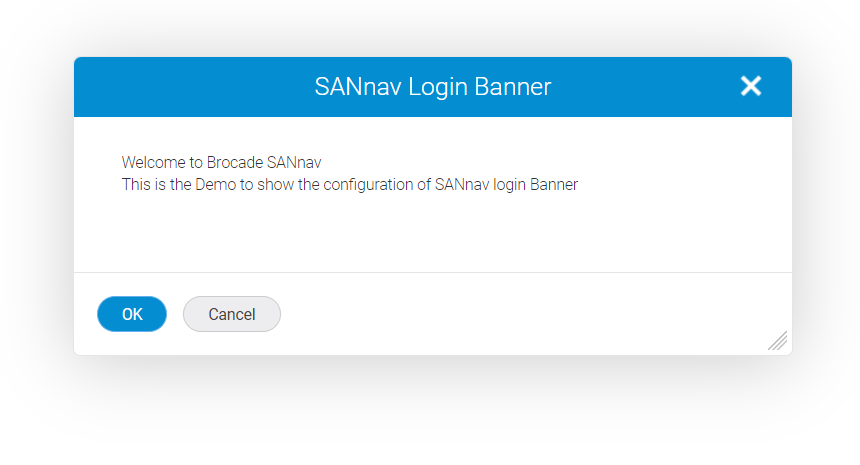
To configure the login banner, complete the following steps:
- Click SANnav in the navigation bar, and then select Security > Login Banner
- Enter a security policy message for your company in the Banner Message text field.
- You can enter up to 2048 characters in the field.
- Select the Display login banner upon client login checkbox.
- Click Save
To disable the login banner, complete the following steps:
- Click SANnav in the navigation bar, and then select Security > Login Banner.
- Clear the Display login banner upon client login checkbox.
- Click Save
Additional Information
Affected Products
Connectrix SANnavArticle Properties
Article Number: 000219236
Article Type: How To
Last Modified: 12 Jan 2024
Version: 3
Find answers to your questions from other Dell users
Support Services
Check if your device is covered by Support Services.