Data Protection Advisor (DPA): How To Create Associated Reports for Alerts
Summary: This article explains how to create alert-associated reports for Data Protection Advisor (DPA).
This article applies to
This article does not apply to
This article is not tied to any specific product.
Not all product versions are identified in this article.
Instructions
- Log in to the DPA GUI.
- Go to Policies-->Analysis Policies-->System Rule Templates.
- Select the Rule Template and click Save As Custom Rule Template.
A Create Rule Template dialog box appears.
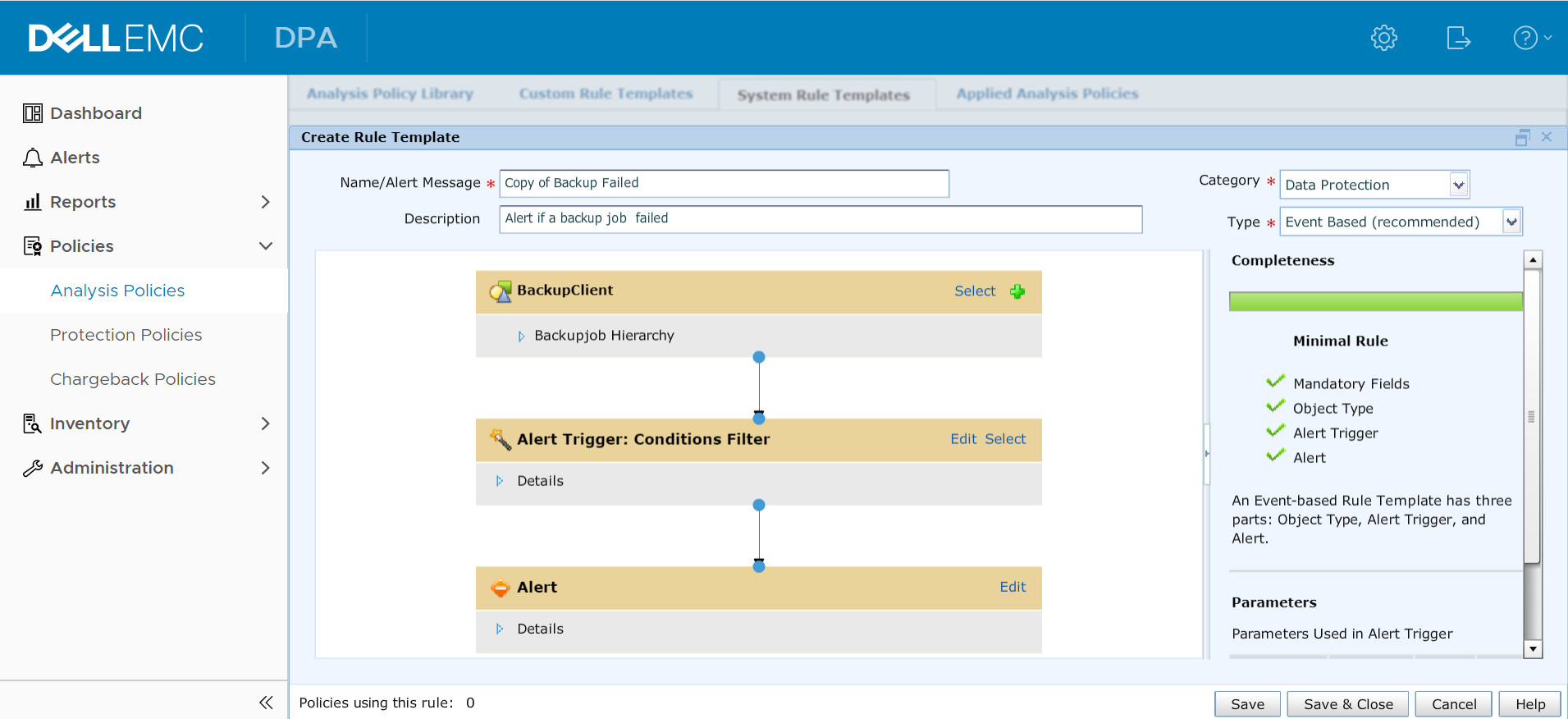 Figure 1. Create Rule Template dialog box
- In the Create Rule Template Dialog Box, click the Edit button on the Alert Box.
The Edit Alert dialog box appears.
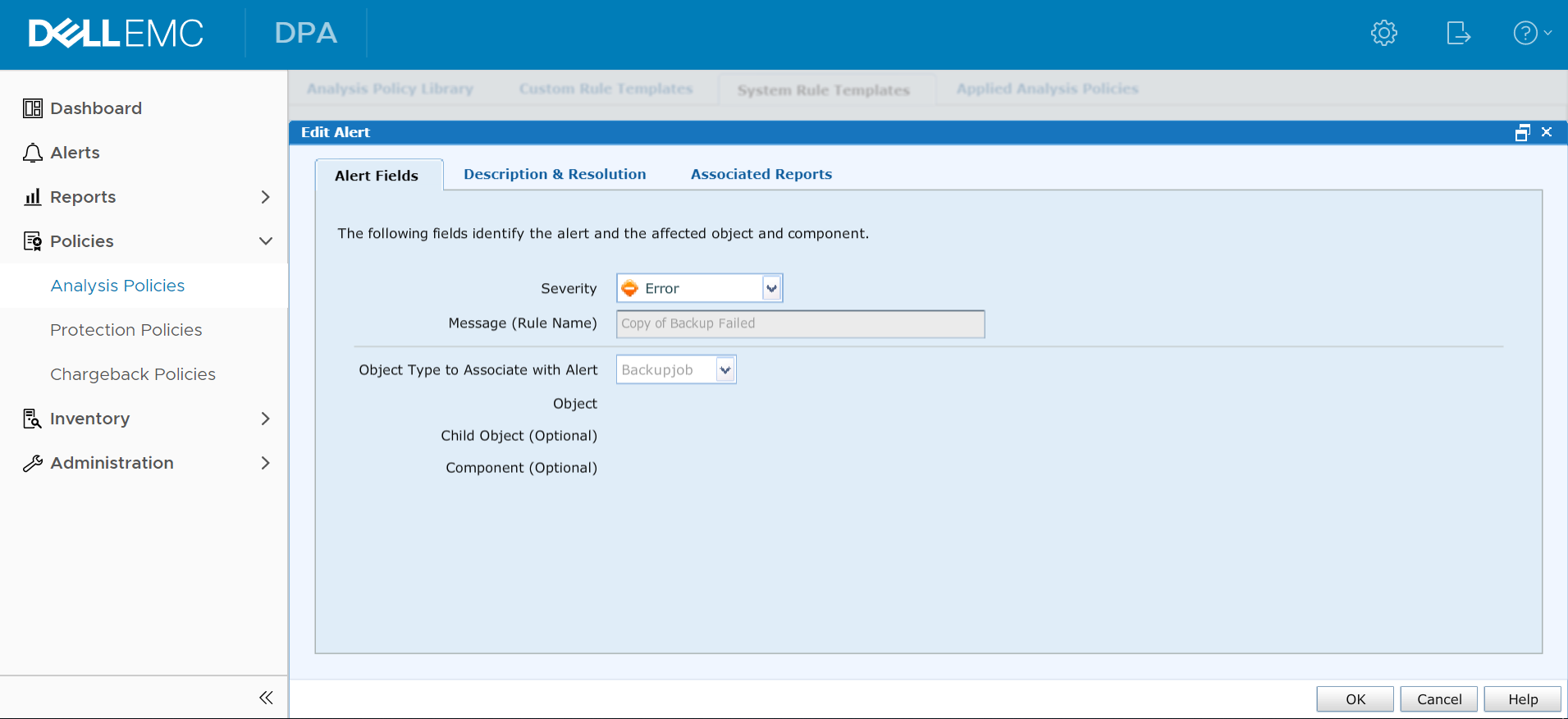 Figure 2. Edit Alert dialog box
- Go to the Associated Reports tab and click the Create Associated Report button. The Create Associated Report dialog box appears.
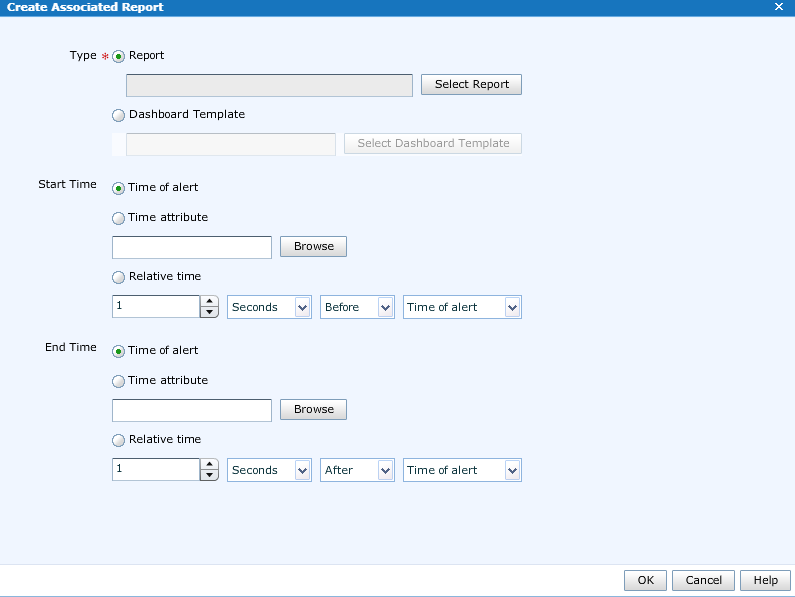 Figure 3. Create Associated Report dialog box
- Select either Report or Dashboard Template.
Select the appropriate report or dashboard for the alert. For example, if Backup Failed alerts are used, then select an Associated Reports template such as Backup Failed Jobs, Backup Failed Clients, or something similar. - Select the Start and End Time of the alert and click OK and click OK again.
- Click Save and close.
The created rule template appears under Policies-->Analysis Policies-->Custom Rule Template.
Affected Products
Data Protection AdvisorProducts
Data Protection AdvisorArticle Properties
Article Number: 000020182
Article Type: How To
Last Modified: 08 سبتمبر 2026
Version: 5
Find answers to your questions from other Dell users
Support Services
Check if your device is covered by Support Services.