How to Create a Code Upgrade Service Request
Summary: This article provides instructions on how to create an operating environment (OE) upgrade service request using Dell online support website.
This article applies to
This article does not apply to
This article is not tied to any specific product.
Not all product versions are identified in this article.
Instructions
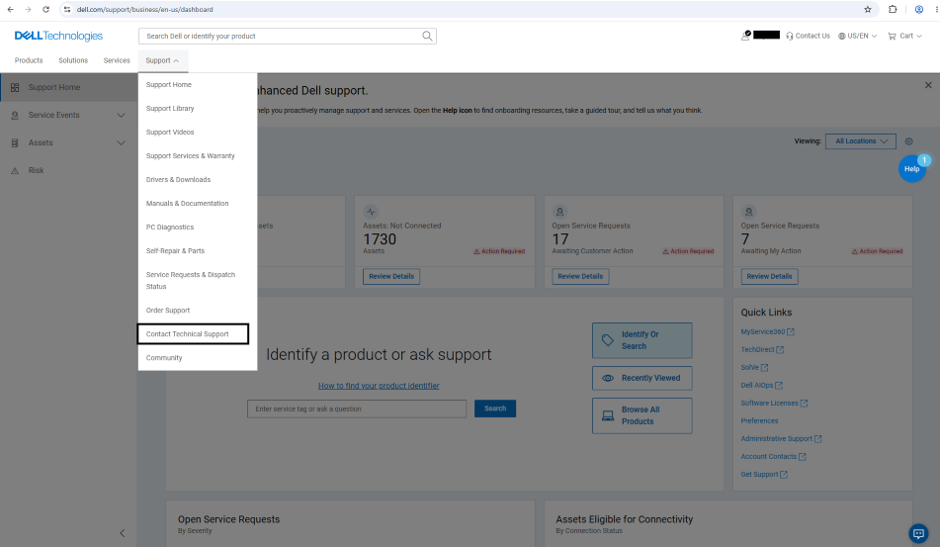
1. Log in to Dell Support website https://www.dell.com/support/home/ using your fully validated online support account. Select Support > Contact Technical Support from the menu bar.
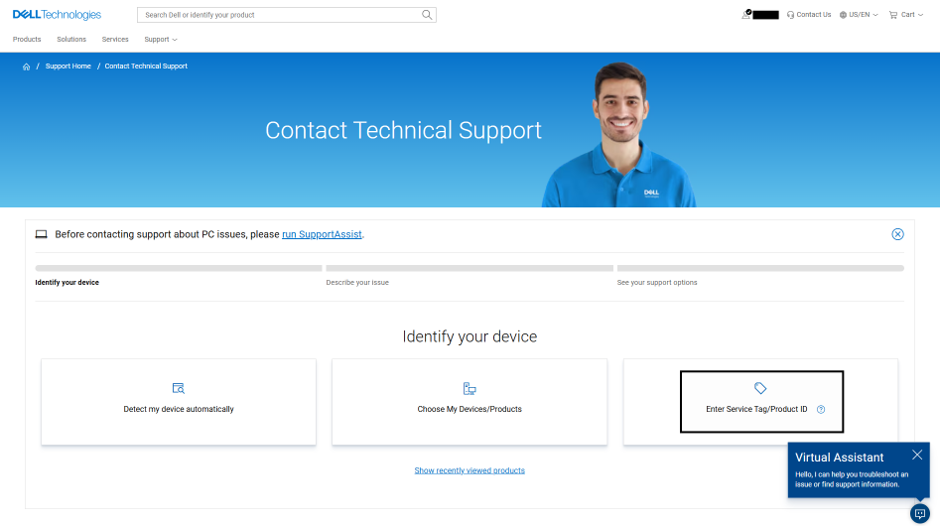
2. There are three options to a log a support ticket, select the option that suits you. Note: In this example, we will open the ticket using the service tag/product ID (Serial Number).
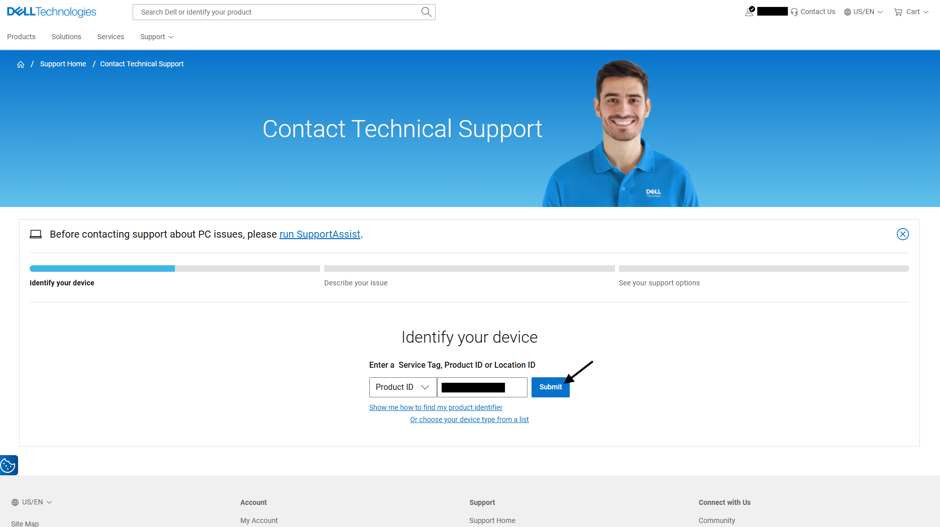
3. Enter the device serial number and click Submit. This will show information about the device.
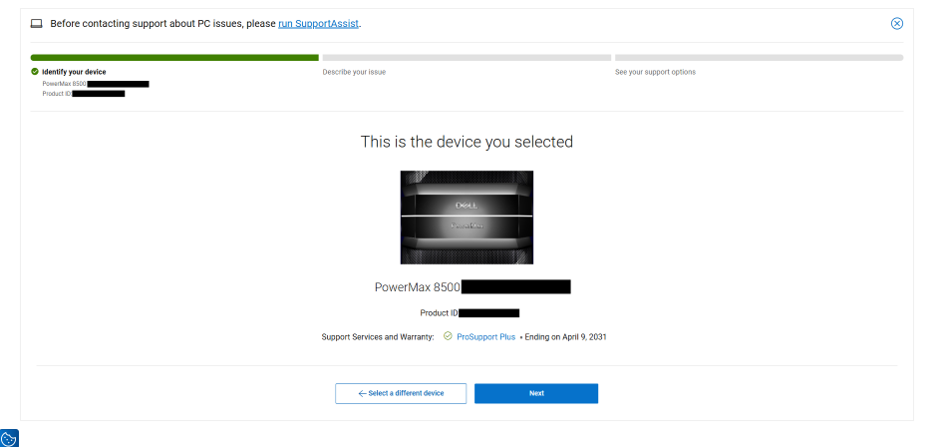
4. Confirm the device details and click Next.
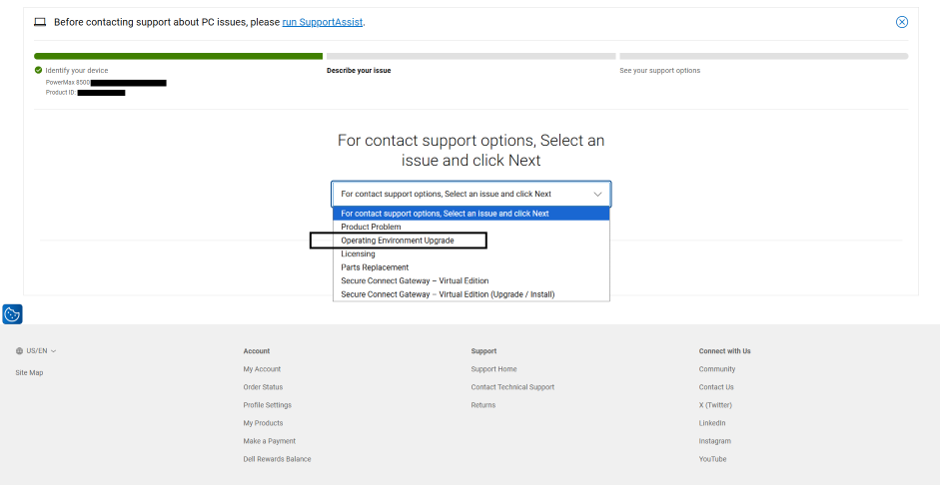
5. From the support options drop-down menu, select Operating Environment Upgrade and click Next.
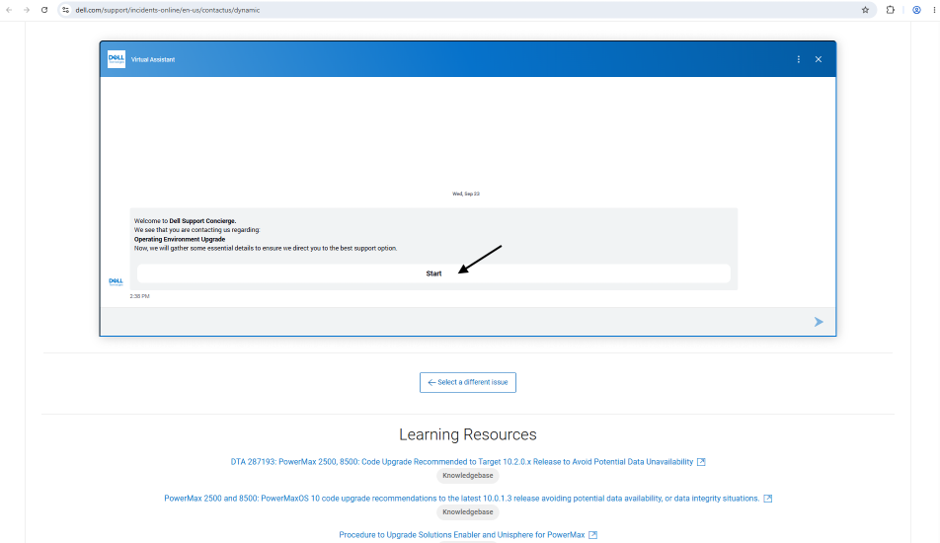
6. The virtual assistant window will appear. Click Start and provide the required information. The reference SR number will appear once all information were submitted.
7. Expect an email from Dell Global upgrade team to arrange the schedules of technical consultation (pre-check) and upgrade slot.
Affected Products
Isilon, Dell EMC Unity, Integrated Data Protection Appliance Software, PowerMax, Symmetrix Enginuity 5876, VMAX, XtremIO FamilyArticle Properties
Article Number: 000021054
Article Type: How To
Last Modified: 25 سبتمبر 2026
Version: 6
Find answers to your questions from other Dell users
Support Services
Check if your device is covered by Support Services.