PowerFlex 4.8: How to Enable Stringent Certificate Feature
Summary: Many users have CA policies that prohibit IP addresses in the Certificate Subject Alternative Name (SAN) and only Fully Qualified Domain Names (FQDNs) are allowed. The lack of IP addresses in the certificate conflicts with PowerFlex Manager logic when it comes to the zipper or yum repositories that we use. PowerFlex 4.8 has a new feature to support stringent rules for certificates. This is a new security mode within package manager. Now, when creating a custom certificate or the Powerflex appliance certificate, the customer can choose between Standard and Stringent modes. The Standard Mode does not require DNS, but includes IPs and FQDNs, and the Stringent mode in which PowerFlex Manager converts the ingress IPS to FQDNs and then builds the repo URLs. ...
This article applies to
This article does not apply to
This article is not tied to any specific product.
Not all product versions are identified in this article.
Instructions
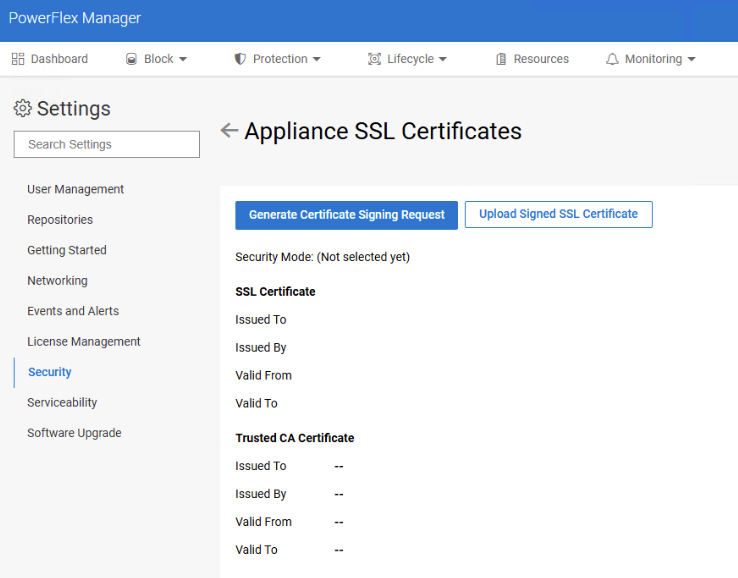
- Access PowerFlex Manager UI> Settings> Security> Appliance SSL Cetificate
- Select the option Generate Certificate Signing Request (CSR)
In the Appliance SSL Certificate, the Security Mode line shows if a customer is already using Stringent or Standard mode.
- On the pop up, choose Stringent as the Security Level
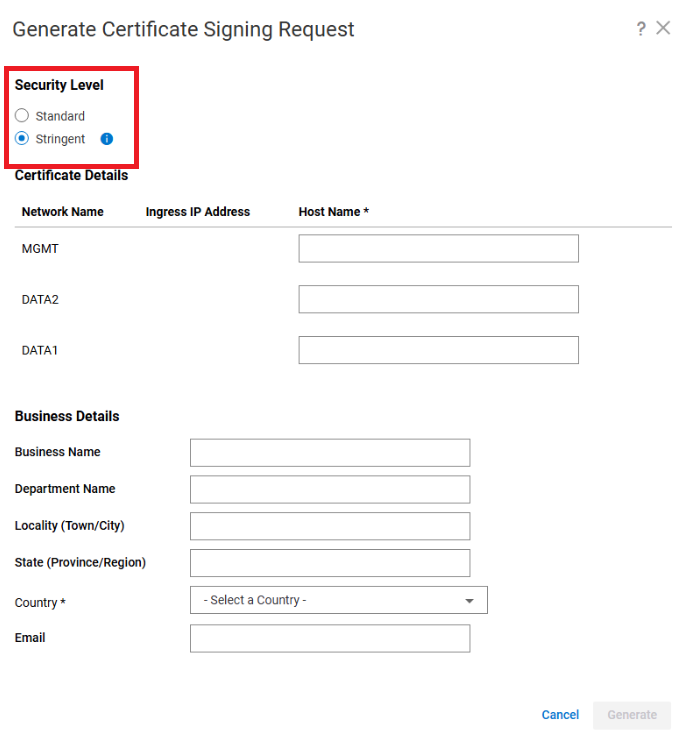
- Add the DNS Hostname details:
Note: It is always recommended to include one DNS per entry; however, if this is not possible, the Management DNS can be used for the Data entries as well. If there are physically isolated OOB networks, a DNS entry on the OOB network is required to resolve the FQDN to the OOB ingress IP.
Note: Once the CSR is generated, do not deviate from what is in the Subject Alternative Name (SAN) Section; otherwise, the system shows an error when trying to upload the signed certificate in the Upload SSL certificate section.
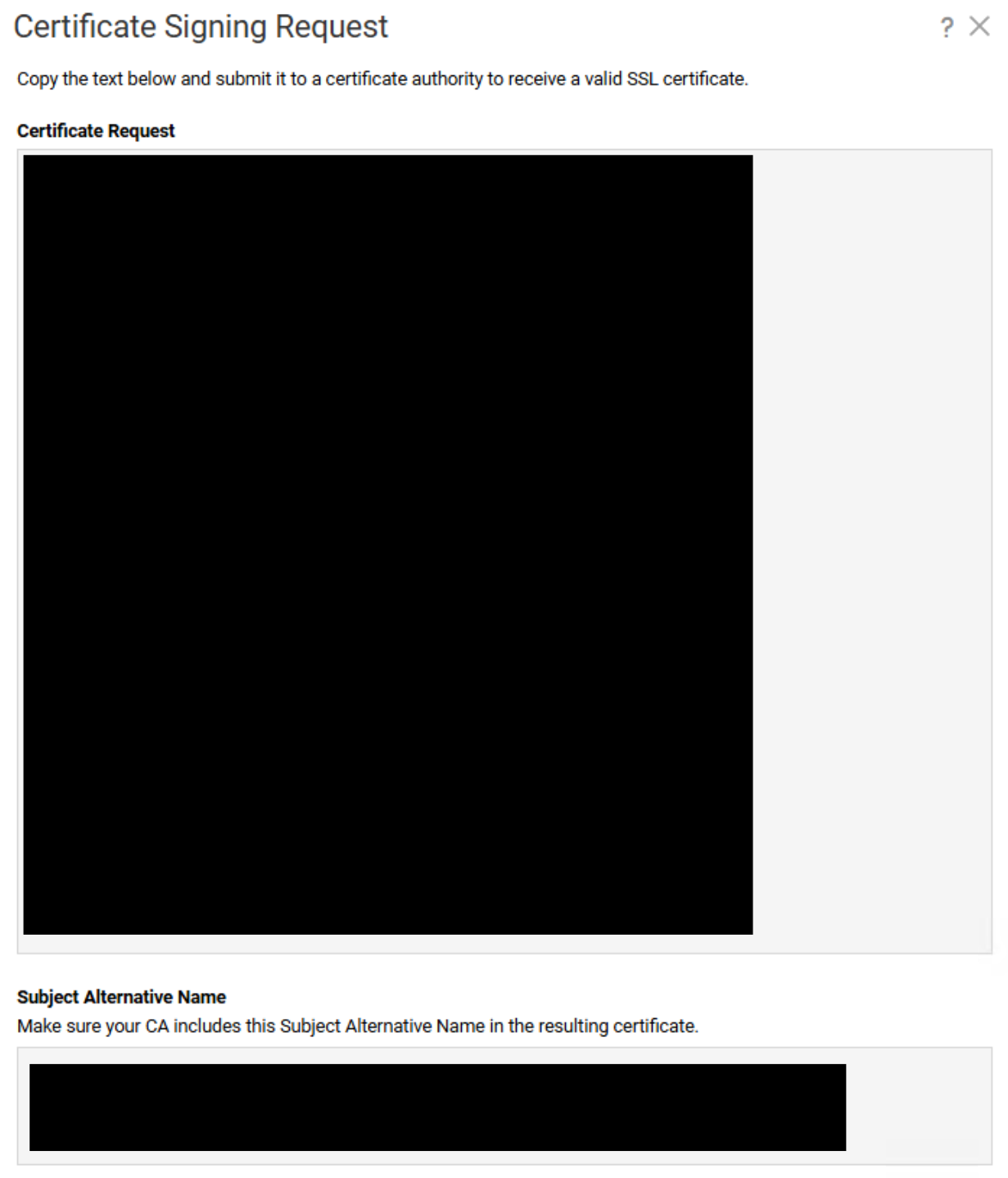
- Upload the signed certificate. See article Powerflex 4.X: How to Sign and Upload a Chain of SSL Certificates to PFMP
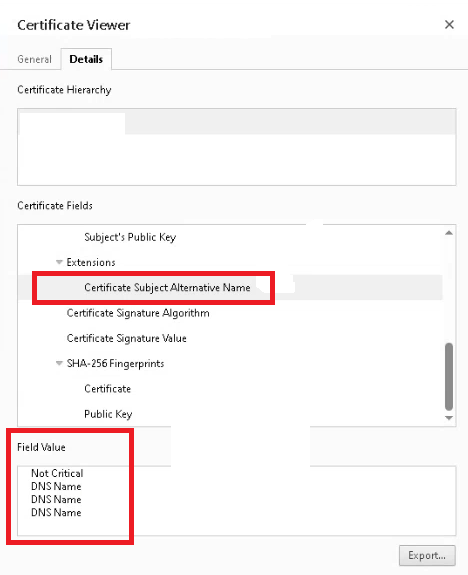
- You can review the DNS hostnames associated with the certificate:
Affected Products
PowerFlex rack, ScaleIOArticle Properties
Article Number: 000479321
Article Type: How To
Last Modified: 31 تموز 2026
Version: 2
Find answers to your questions from other Dell users
Support Services
Check if your device is covered by Support Services.