Dell Unity: Understanding File System Quotas, Quota Trees, and Quota Policies
Summary: Dell Unity provides file system quota functionality to control and monitor storage consumption on SMB, NFS, and multiprotocol file systems. This article explains user quotas, quota trees, quota policies, quota limits, and how to configure quota trees using Unisphere or UEMCLI. ...
This article applies to
This article does not apply to
This article is not tied to any specific product.
Not all product versions are identified in this article.
Instructions
Overview
Dell Unity includes full quota support to regulate storage consumption on SMB, NFS, and multiprotocol file systems. Quotas can be used to limit or monitor storage consumption by users or directories and provide administrators with flexible control over file system capacity utilization. Quotas are not supported on VMware file datastores.
Supported Quota Types
Dell Unity supports three quota types that can coexist on the same file system.
User Quotas
A user quota limits the amount of storage consumed by an individual user within a file system. User quotas can be created directly on a file system and optionally use default hard and soft limits defined at the file-system level.
A user quota limits the amount of storage consumed by an individual user within a file system. User quotas can be created directly on a file system and optionally use default hard and soft limits defined at the file-system level.
Quota Trees
A quota tree is a quota applied to a specific directory within a file system. Unlike user quotas, quota trees limit storage consumption for an entire directory regardless of which user owns or writes the data.
A quota tree is a quota applied to a specific directory within a file system. Unlike user quotas, quota trees limit storage consumption for an entire directory regardless of which user owns or writes the data.
Example:
/engineering/projects
/engineering/backups
/engineering/archive
A quota tree could be created for:
/engineering/backupsand configured with a 5 TB limit. Once the configured quota threshold is reached, additional writes may be restricted according to the quota settings.
Quota Tree User Quotas
A quota tree user quota limits the amount of storage consumed by an individual user within a specific quota tree. These quotas can use the default hard and soft limits configured for the quota tree.
A quota tree user quota limits the amount of storage consumed by an individual user within a specific quota tree. These quotas can use the default hard and soft limits configured for the quota tree.
Quota Limits
Each quota can be configured with the following parameters:
- Soft Limit (GB): Unlimited
- Hard Limit (GB): Unlimited
- Grace Period: Unlimited beginning with Unity OS 5.1
Soft Limit
A soft limit defines a warning threshold. Users can temporarily exceed this value until the grace period expires.
Hard Limit
A hard limit defines the maximum amount of storage that can be consumed. Once reached, additional writes are denied.
A hard limit defines the maximum amount of storage that can be consumed. Once reached, additional writes are denied.
Grace Period
The grace period determines how long a user may remain above the soft limit before enforcement occurs. Beginning with Unity OS 5.1, unlimited grace periods are supported.
The grace period determines how long a user may remain above the soft limit before enforcement occurs. Beginning with Unity OS 5.1, unlimited grace periods are supported.
Quota Policies
Before enabling quotas, select the quota policy that best matches the client environment. The quota policy determines how storage consumption is calculated.
File Size Policy (Default)
The File Size policy calculates usage based on logical file size in 1 KB increments. It ignores directory and symbolic link sizes.
The Block policy calculates usage using actual file system block allocation. Dell Unity uses 8 KB file system blocks and tracks actual allocated storage. Directory and symbolic link space consumption is included.
The File Size policy calculates usage based on logical file size in 1 KB increments. It ignores directory and symbolic link sizes.
Characteristics:
- Default quota policy
- Calculates logical file size
- Does not reflect actual physical allocation for sparse files
- Recommended for Windows and SMB environments where users expect quota usage to match file sizes displayed by the operating system
The Block policy calculates usage using actual file system block allocation. Dell Unity uses 8 KB file system blocks and tracks actual allocated storage. Directory and symbolic link space consumption is included.
Characteristics:
- Measures actual physical storage consumption
- Includes files, directories, and symbolic links
- More accurately reflects storage utilization
- Recommended for UNIX, Linux, and NFS environments
When using the Block policy, sparse files may report a logical size larger than the amount of space actually consumed on the file system.
Table 1. Policy Comparison
| Quota Policy | Usage Calculation | Recommended Environment |
| File Size (Default) | Logical file size in 1 KB increments | Windows / SMB |
| Block | Actual allocated file system blocks (8 KB units) | UNIX / Linux / NFS |
Information summarized from quota policy behavior descriptions.
Creating a Quota Tree
Using Unisphere
Navigate to:
Storage > File > File Systems > File System Properties > QuotasThen select either File System or Quota Tree and configure the desired quota settings.
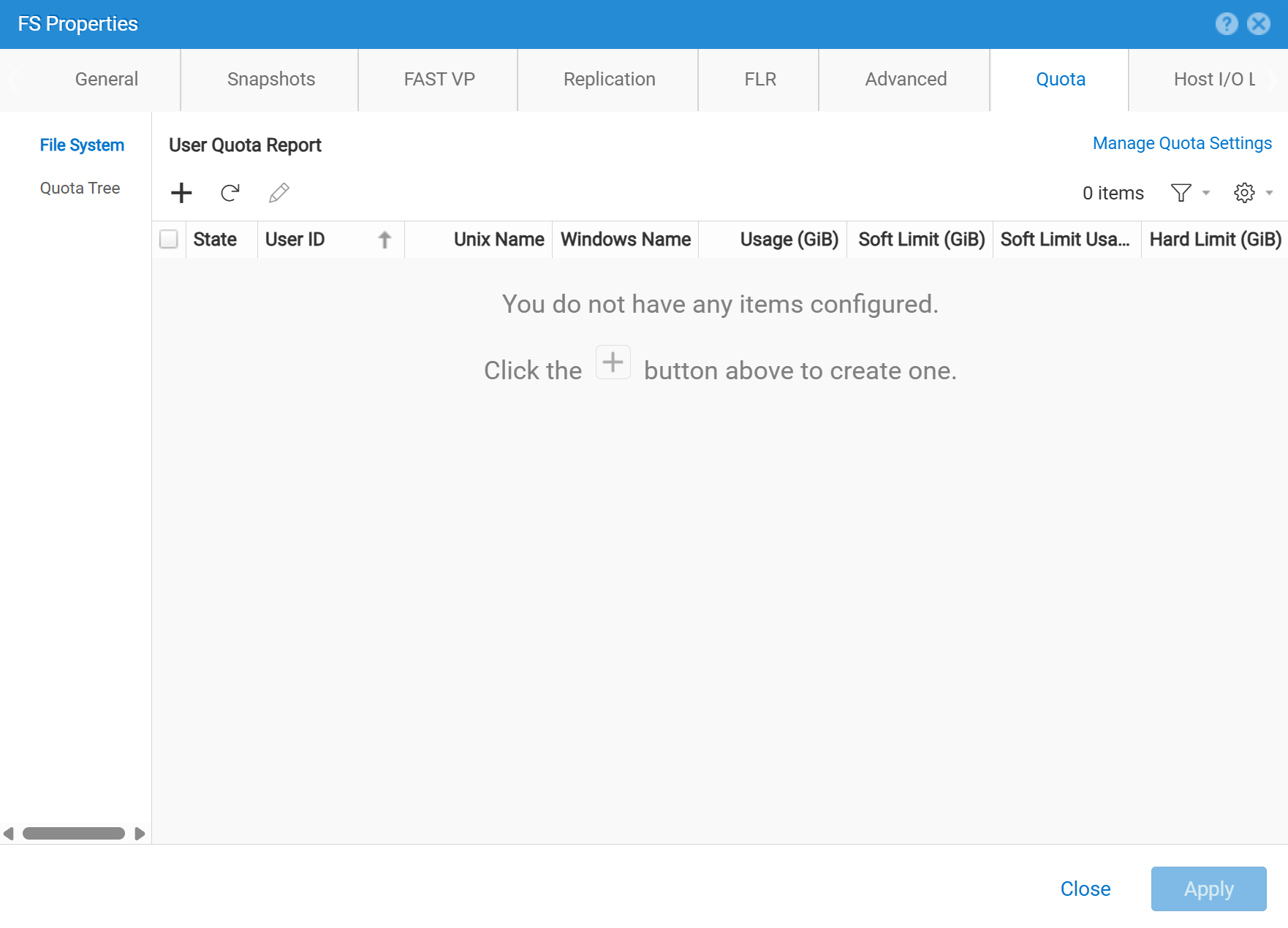
Figure 1. Quota Creation
Using UEMCLI
Example syntax:
uemcli /quota/user create [-async] {-fs | -fsName}
[-path]
{-userId | -unixName | -winName}
{default | [-softLimit] [-hardLimit]}
See the Dell Unity Family Unisphere CLI User Guide for complete quota and quota tree command syntax. Quota Tree commands begin in the quota management section of the guide.
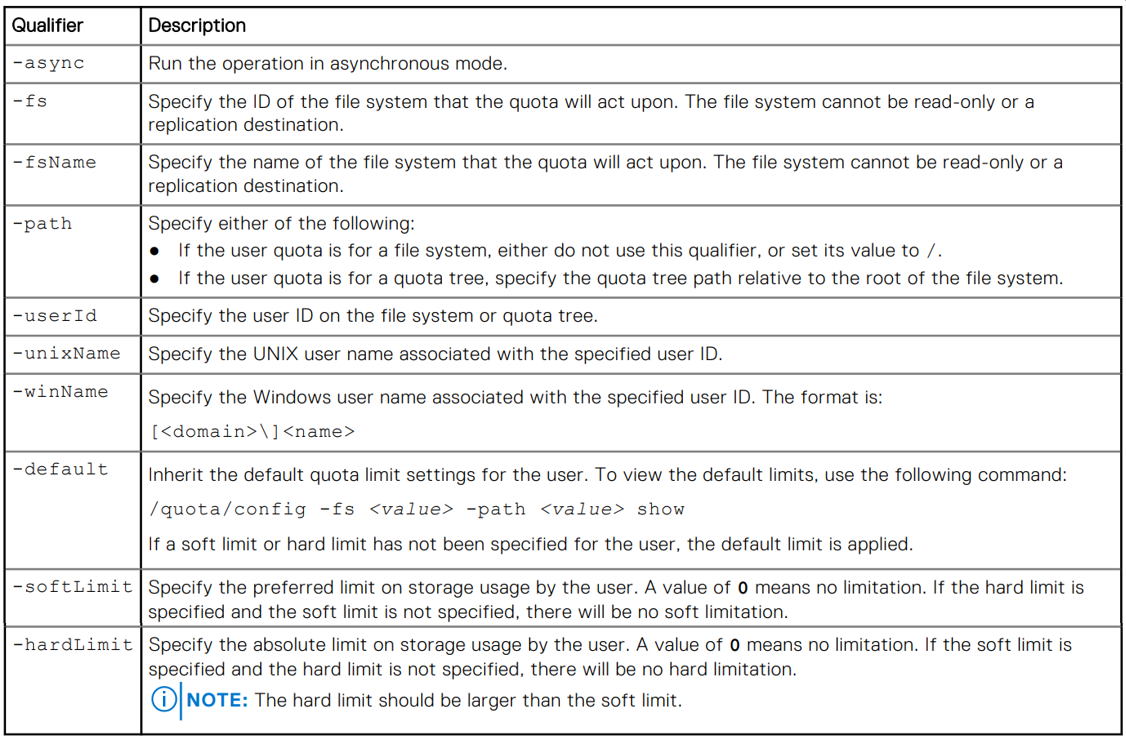
Figure 2. Command Qualifiers
Additional Information
When discussing quota trees in Dell Unity, two independent concepts are involved:
- Quota Tree - The directory on which the quota is enforced.
- Quota Policy - The method used to calculate storage consumption (File Size or Block).
Quota trees, user quotas, and quota tree user quotas can all coexist on the same file system to provide granular control of storage consumption.
Additional Information
Affected Products
Dell EMC Unity, Dell EMC Unity XT 380, Dell EMC Unity XT 380F, Dell EMC Unity XT 480, Dell EMC Unity XT 480F, Dell EMC Unity 650F, Dell EMC Unity XT 680, Dell EMC Unity XT 680F, Dell EMC Unity Family |Dell EMC Unity All Flash, Dell EMC Unity HybridProducts
Dell Unity 450F DC, Dell Unity 300 DC, Dell Unity 350F DC, Dell Unity 400 DC, Dell EMC Unity XT 880, Dell EMC Unity XT 880FArticle Properties
Article Number: 000004518
Article Type: How To
Last Modified: 15 سبتمبر 2026
Version: 5
Find answers to your questions from other Dell users
Support Services
Check if your device is covered by Support Services.