如何取得 Dell Command Update 的 MSI 安裝程式套件
Summary: 了解有關從 Dell Command 檢索 MSI 安裝程式包的更多資訊 |更新 (DCU) 可執行檔。
This article applies to
This article does not apply to
This article is not tied to any specific product.
Not all product versions are identified in this article.
Instructions
MSI 安裝程式套裝
以下步驟可用於取得 MSI 安裝程式包:
-
前往 Dell Command |更新 產品頁面。
-
下載 可用的最新版本。
注意:此表中的連結會自動識別電腦。如果這不是首選,請轉到 安裝部分 以安裝首選選項。適用於配備 Intel 或 AMD 處理器的電腦的 DCU 5.7 (2026 年 4 月發佈) 適用於 配備 ARM 處理器的 電腦的 DCU 5.6 (2025 年 11 月發佈) -
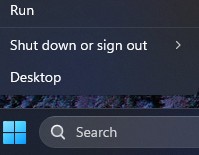
以滑鼠右鍵按一下 Windows 開始功能表圖示 ,然後選取執行。
-
在「執行」方塊中,輸入
CMD然後按 按Ctrl + 轉移 + 輸入 鍵同時運行提升的命令提示符。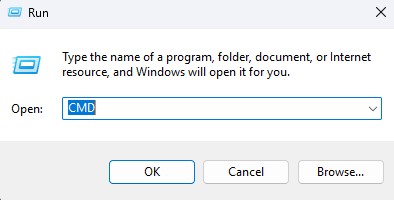
-
如果系統提示您進行使用者帳戶控制 (UAC),請按一下 是 以繼續。
-
瀏覽至下載的可執行檔的資料夾位置。
-
輸入下列命令,然後按下 Enter 鍵:
注意:切換值區分大小寫。Dell-Command-Update-Application_[VERSION].exe /passthrough /X /B”[EXTRACTION PATH]” Example: C:\Dell>Dell-Command-Update-Application_5CR1Y_WIN64_5.6.0_A00.exe /passthrough /X /B”C:\Dell\DCU_Extracted”
-
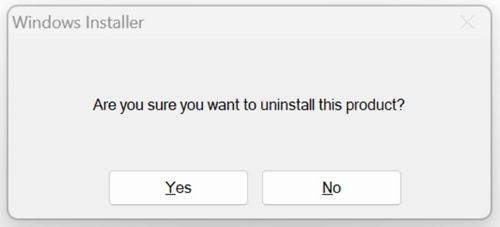
如果系統提示您解除安裝,請按一下 否 。
-
在 Windows 檔案總管中,前往
[EXTRACTION PATH],然後找到 MSI 安裝程式包。
Additional Information
建議的文章
以下是一些與本主題相關的建議文章,您可能會感興趣。
Affected Products
Dell Command | UpdateArticle Properties
Article Number: 000177292
Article Type: How To
Last Modified: 08 مايو 2026
Version: 17
Find answers to your questions from other Dell users
Support Services
Check if your device is covered by Support Services.