Dell Security Management Server Virtual Accessing the Postgres Database Using pgAdmin
Oversigt: This article provides information about how to access the Dell Security Management Server Virtual Postgres Database using pgAdmin.
Denne artikel gælder for
Denne artikel gælder ikke for
Denne artikel er ikke knyttet til et bestemt produkt.
Det er ikke alle produktversioner, der er identificeret i denne artikel.
Instruktioner
Affected Products:
- Dell Security Management Server Virtual
- Dell Data Protection | Virtual Edition
In order to change the database of a Dell Security Management Server Virtual (formerly Dell Data Protection | Virtual Edition), you have to access Postgres. This can be done in the command-line, but third-party tools such as pgAdmin can provide a better experience.
To access the database:
- Set a password.
- Allow remote access.
Note: These options can be found within the advanced configuration menu of the Dell Security Management Server Virtual console.
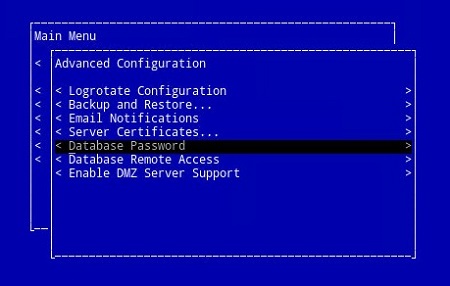
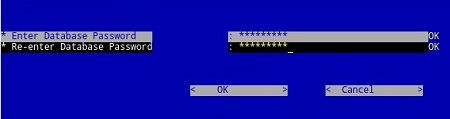
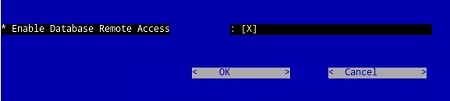
pgAdmin 3
- Now that access is configured, launch pgAdmin. From the drop-down menu, select File > Add Server….

- Populate the necessary fields in the New Server Registration screen:
- Name: The friendly name for the server you would like appears in the pgAdmin console.
- Host: The hostname or IP address of the Dell Data Protection | Virtual Edition server
- Port: The port number for accessing the database (It is 5432 by default and should be pre-populated.)
- Username:
ddp_admin - Password: The password that was entered in the database password field of the Dell Data Protection | Virtual Edition server console.
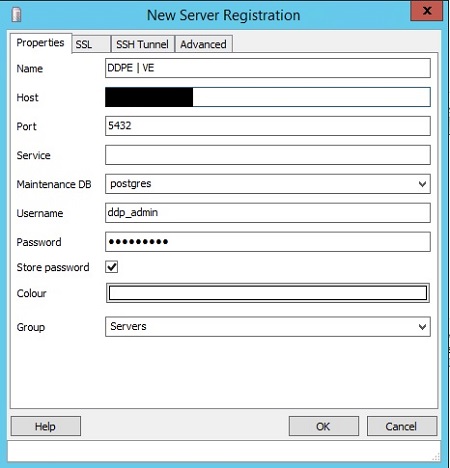
- Once that information is entered, press OK to complete the addition of the server to the pgAdmin console.
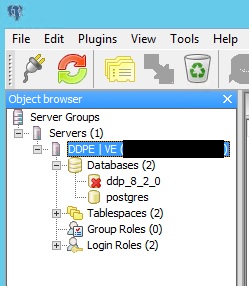
- Select ddp_8_2_0 and the red X should disappear, and a SQL icon should become available:
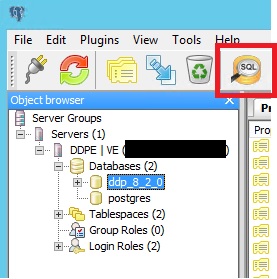
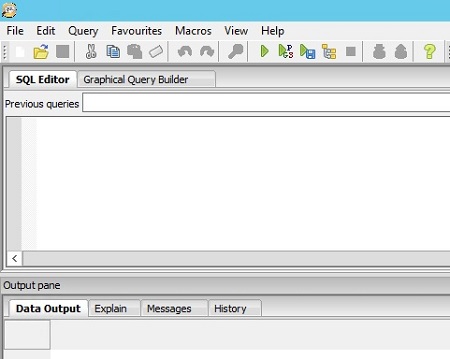
- Click that icon to bring up a query window:
pgAdmin 4
- Now that access is configured, open pgAdmin. From the drop-down menus, select Object > Create> Server:

- Give the Server a name (this is how it appears in your pgAdmin browser):
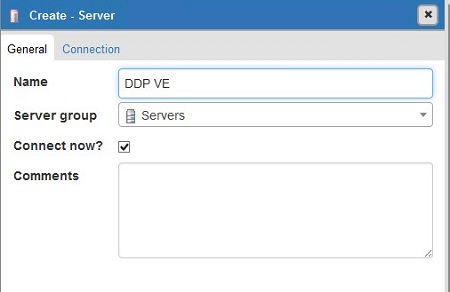
- Click the connection tab. Enter the following fields:
- Host: The hostname or IP address of the Dell Data Protection | Virtual Edition server
- Port: The port number for accessing the database (It is 5432 by default and should be pre-populated.)
- Username:
ddp_admin - Password: The password that was entered in the database password field of the Dell Data Protection | Virtual Edition server console.
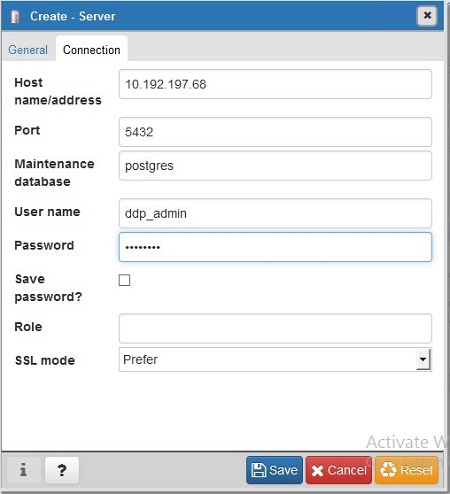
- Open your server and go to the ddp database:

- Right-click the database and select Query Tool…:
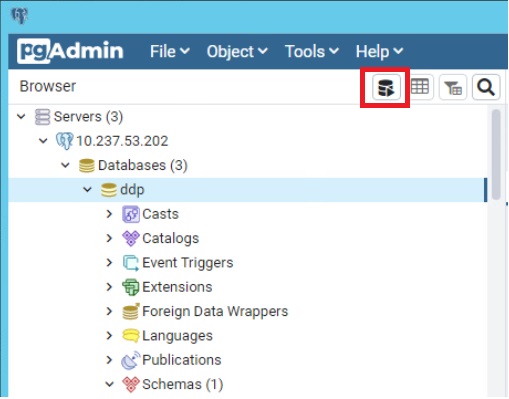
This brings up the query window:

To contact support, reference Dell Data Security International Support Phone Numbers.
Go to TechDirect to generate a technical support request online.
For additional insights and resources, join the Dell Security Community Forum.
Berørte produkter
Dell EncryptionArtikelegenskaber
Artikelnummer: 000131368
Artikeltype: How To
Senest ændret: 19 jun. 2026
Version: 13
Find svar på dine spørgsmål fra andre Dell-brugere
Supportservices
Kontrollér, om din enhed er dækket af supportservices.