How to Create a Code Upgrade Service Request
Summary: This article provides instructions on how to create an operating environment (OE) upgrade service request using Dell online support website.
Αυτό το άρθρο ισχύει για
Αυτό το άρθρο δεν ισχύει για
Αυτό το άρθρο δεν συνδέεται με κάποιο συγκεκριμένο προϊόν.
Δεν προσδιορίζονται όλες οι εκδόσεις προϊόντων σε αυτό το άρθρο.
Instructions
1. Log in to Dell Support website https://www.dell.com/support/home/ using your fully validated online support account. Select the Maintenance Service option from the right tab.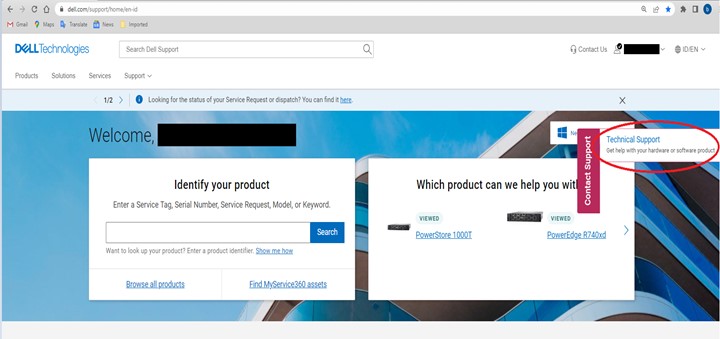
2. Indicate the asset serial number for the Case by choosing one of the available options.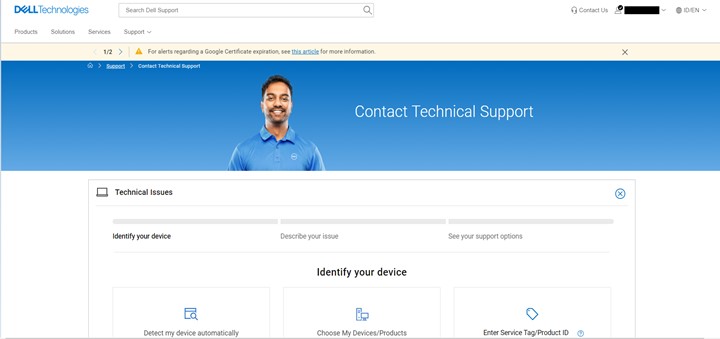
3. Once the product serial number is entered. Select the Case/Issue Type through the drop-down menu. For code or OE upgrades, choose Operating Environment Upgrade.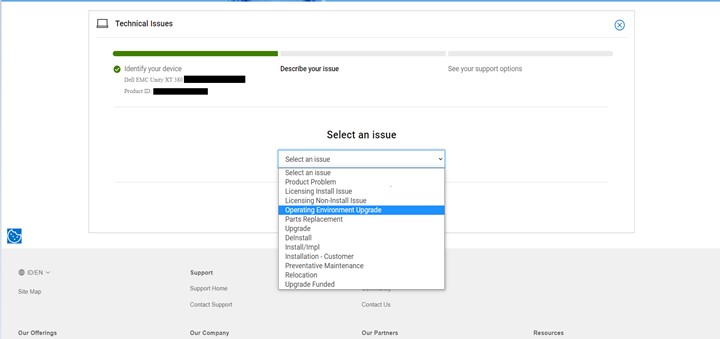
4. From the Available support options, select Create Service Request.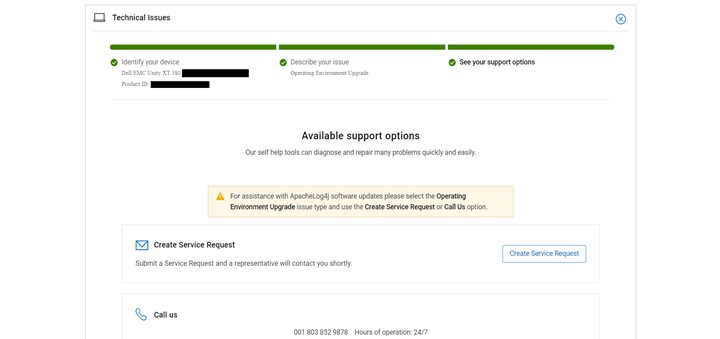
5. Check the Contact Information and update if needed. Click Continue. 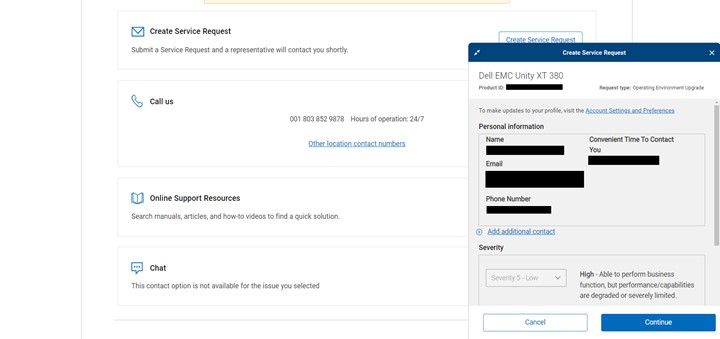
6. Provide all the required information then click Submit. Take note of the SR number for reference.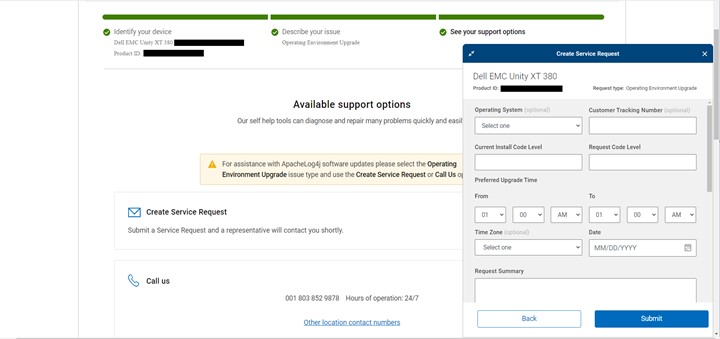
Επηρεαζόμενα προϊόντα
Isilon, Dell EMC Unity, Integrated Data Protection Appliance Software, PowerMax, Symmetrix Enginuity 5876, VMAX, XtremIO FamilyΙδιότητες άρθρου
Article Number: 000021054
Article Type: How To
Τελευταία τροποποίηση: 06 Νοε 2025
Version: 5
Βρείτε απαντήσεις στις ερωτήσεις σας από άλλους χρήστες της Dell
Υπηρεσίες υποστήριξης
Ελέγξτε αν η συσκευή σας καλύπτεται από τις Υπηρεσίες υποστήριξης.