Unisphere for PowerMax: VASA: Cannot Access vVol Datastore after Upgrading to Code v10.2
Summary: VMware cannot access a vVol datastore after upgrading to code v10.2.
Symptoms
After a microcode upgrade and unregistering and re-registering the VASA provider, the vVol datastores appear inaccessible in VMware. The VASA provider appears to be online and healthy.
In VMware, refreshing the datastore may result in the following error:
400 Validation Failed: Datastore has '0' backing volumes. Only single backing volume is supported for edit.
Cause
In code 10.2.0.1 or later, the VASA provider introduces support for VASA 5.0. With VASA 5.0, this introduces the functionality of provisioning Storage Containers to Virtual Hosts. Because of this, extra steps are required when registering the VASA provider.
In VASA 5.0, after the registration of the VASA provider, this automatically creates a Virtual Host on the array. The virtual host's name consists of the vCenter GUID with the suffix .emc.com. This information can be seen in Unisphere 10.2 under Serviceability > Applications > VASA > Virtual Hosts.
For example:
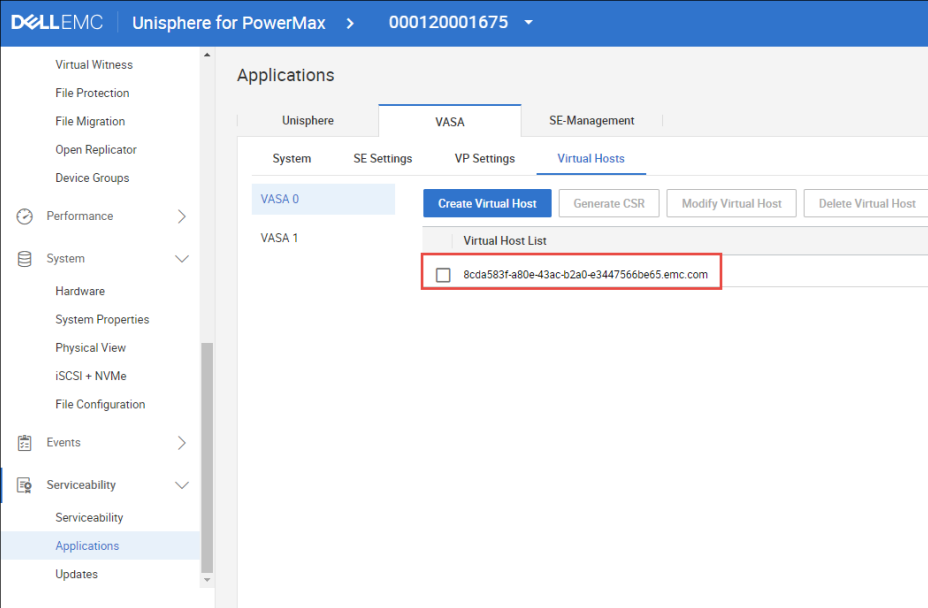
After the creation of the Virtual Host and the registration of the VASA Providers, the vCenter does not see any of the Storage Containers. The user must first grant the virtual host access to the Storage Containers, as it is blocked by default. This mechanism is new in v10.2 and helps to keep multiple vCenter hosts from seeing the same Storage Containers. Due to this feature, the extra step of provisioning the Storage Containers is required in order for VMware to access this storage.
Resolution
Workaround:
Use the following procedure to ensure that the Storage Containers are provisioned to the Virtual Hosts:
- In Unisphere, go to Serviceability > Applications > VASA > Virtual Hosts.
- Click the checkbox next to the Virtual Host of the required vCenter and click the Provision/De-Provision Storage Container button.
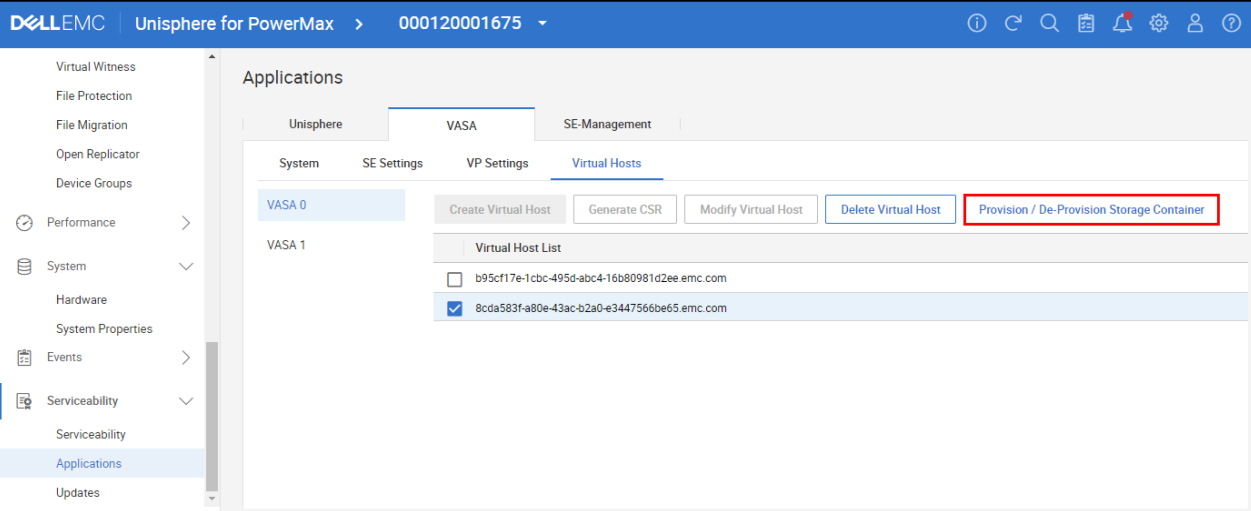
- Click the checkbox next to the chose Storage Containers and use the arrow to push it over to the right side. Another dialog box immediately opens indicating success:
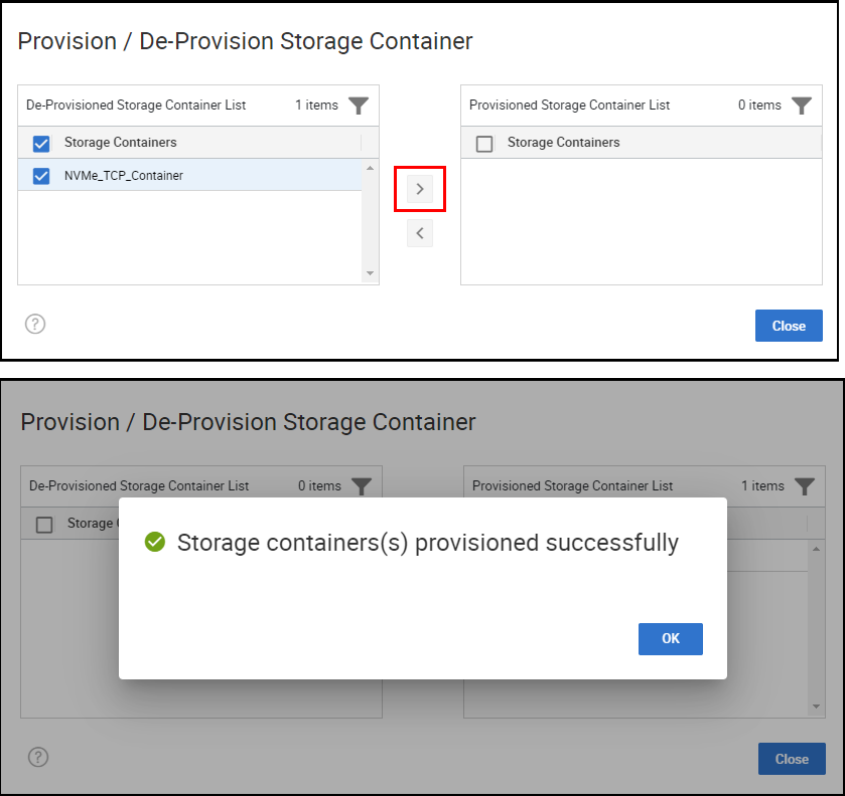
- In vCenter, Rescan Storage to update the hosts and confirm that they can now see the Storage Containers and mount these Datastores.
Additional Information
For additional information, see the following whitepaper: Using VMware vSphere Virtual Volumes and VASA with Dell PowerMax.