SCG-VE: How to Discover PowerVault ME4 Arrays with Secure Connect Gateway
Summary: This article outlines how to discover PowerVault ME4012, ME4024, and ME4084 array devices using Dell Secure Connect Gateway Virtual Edition (SCG-VE) appliance.
This article applies to
This article does not apply to
This article is not tied to any specific product.
Not all product versions are identified in this article.
Instructions
Index:
- Prerequisites for PowerVault ME4 device discovery
- Device discovery steps for PowerVault ME4.
- Troubleshooting PowerVault ME4 device discovery.
- Configure PowerVault ME4 to send Simple Network Management Protocol (SNMP) traps to SCG-VE.
- Frequently asked questions
Prerequisites
- Minimum supported PowerVault ME4 controller firmware version is version GT280R010-01. Dell Technologies recommends PowerVault ME4 administrators upgrade controller firmware to version GT280R014-01. To upgrade controller firmware, see PowerVault ME4: A controller firmware update is available for your system
- Minimum SCG-VE version to discover ME4 must be v5.14.00.16. Dell Technologies recommends upgrade SCG-VE to the latest available 5.x version. SCG-VE discovers the PowerVault ME4 series by establishing an encrypted TCP connection on port 443 to the controller A management port IP address. Administrators must use PowerVault ME4 manage level credentials to authenticate the session. Administrators use PowerVault Manager or CLI to view or update users. For details see the Managing users section of the PowerVault ME4 Series Storage System Administrator’s Guide.
SCG-VE uses Secure File Transfer Protocol (SFTP) protocol on TCP port 1022 to gather technical support logs when using SCG-VE to gather a support bundle from the PowerVault ME4 array.
Note: The credential profiles in SCG-VE must be updated in parallel when PowerVault administrators change passwords on PowerVault ME4 arrays, otherwise SCG-VE cannot authenticate the session when connecting to the array.
Note: For PowerVault ME484 enclosures directly attached to a PowerEdge Server connected using a SAS Host Bus Adapter (HBA), administrators can use SCG-VE to discover the PowerEdge server device or use OpenManage Enterprise V4.x combined with the connector plug-in between SCG-VE and OpenManage Enterprise to display OpenManage Enterprise discovered devices in SCG-VE. For details about the OpenManage Enterprise adapter, see the Adapters section in the SCG-VE user guide.
Discovery
Steps outline once logged into the SCG-VE appliance management interface on port 5700.- Go to Device management > Manage devices > Devices > Add device.
- From the Device type list, select Data Storage.
- Select the storage type: PowerVault (MD3 and ME4 Series)
- Enter the hostname or IP address of the PowerVault ME4 controller A management interface.
- Optionally, enter a name for the device that can be used to represent the device in secure connect gateway. If you do not enter a name, the IP address or hostname is used to represent the device.
- To discover and add other devices that are associated with the primary device, select Perform deep discovery. This is not necessary for discovering the PowerVault ME4 series.
- If you enabled deep discovery, select a credential profile that you want to assign to the primary device and its associated devices. To create a new credential profile, click Create profile. For more information, see Create a credential profile in the SCG-VE user guide.
- If you did not enable deep discovery, select an account credential that you want to assign to the device. To create an account credential, click Create a new account. See Add account credentials in the SCG-VE user guide.
- Optional: Select a custom group to which you want to assign the device. If you do not select a custom group, the device is automatically assigned to the default device group. To create a new custom group, click Create group. See Create a device group in the SCG-VE user guide.
- Click Next.
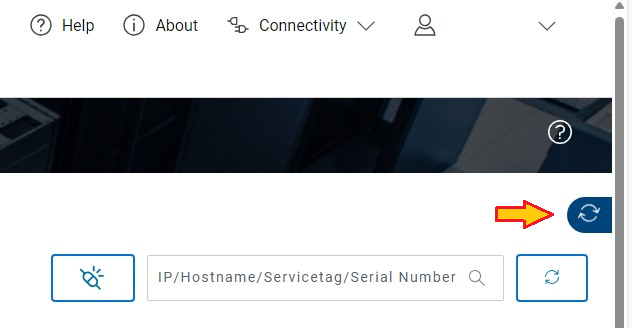
Click the Devices page to view the device discovery progress or the error message if the device discovery failed. Device discovery events are listed under Audit > Gateway Activity.
Troubleshooting

SCG-VE PowerVault ME4 device discovery fails with any of the following messages:
We could not complete this operation because of a connection with to the device. Check your connection to the device, then try again. Error code: SAE-020403

We could not complete discovery because of an access issue. Error code: SAE-020411

We could not stay connected to this device. Check your connection to the device and try again. Error code: SAE-020408
- PowerVault ME4 administrators can confirm that the user credentials are correct by logging into the PowerVault Manager web UI and confirming the user has managed level credentials.

- Using PowerVault Manager confirm the PowerVault ME4 array is online and resolve any outstanding faults that may cause discovery issues.
- Using PowerVault Manager confirm the PowerVault ME4 controller A management interface is correctly configured (IPv4 address, subnet mask and default gateway), that the management interface is connected to a network that can be reached from the SCG-VE appliance. See Configuring system Settings in the PowerVault ME4 Series Storage System Administrator’s Guide.
To test connectivity, PowerVault administrators can open an SSH session and use the CLI command:
ping to test responses from the SCG-VE appliance.
# ping 10.0.0.50
Info: Pinging 10.0.0.50 with 4 packets and packet size of 56.

Success: Command completed successfully. - The remote computer responded with 4 packets. (2024-07-11 12:04:00)
#
- Where domain host names are used for discovery, administrators can check their Domain Name System (DNS) server host records match the PowerVault ME4 controller management IP addresses.
- Confirm the PowerVault ME4 firmware version, see prerequisites above. If the firmware is at the required level, restart the management services by opening an SSH session to the controller management IP address and running the command:
restart mc both
Note: Restarting management controller services does not disrupt production. Access to the PowerVault Manager UI or CLI is lost while the services restart. Allow five minutes to complete before logging into the interface.
# restart mc both
During the restart process you will briefly lose communication with the specified Management Controller(s).

Do you want to continue? (y/n) y

Info: Restarting the local MC (A)...
Success: Command completed successfully. - Both MCs were restarted. (2024-07-11 11:56:05)
#
Once PowerVault ME4 settings have been validated, repeat the steps outlined in the Discovery section above.
Configure PowerVault ME4 to send SNMP traps
- Using PowerVault Manger, configure System Settings > Services and Enable SNMP protocol support.
- Using PowerVault Manger, configure System Settings > Notifications select SNMP tab to configured SNMP traps using SCG-VE appliance IP address or hostname.
To enable SNMP protocol support, see Dell PowerVault ME4 Series Storage System Administrator’s Guide section Enable or disable system-management settings.

For configuration instructions see Dell PowerVault ME4 Series Storage System Administrator’s Guide under the section Send notifications to SNMP trap hosts
Ensure that the DNS network settings are configured when using DNS hostnames instead of SCG-VE appliance IP address.

Frequently asked questions
Must controller B's management IP address be specified to discover PowerVault ME4?No.

This is expected. SCG-VE does not use SNMP to monitor the ME4 device. It is not planned to change this behavior.
Can the same discovery method be used with PowerVault ME5 arrays?
Dell Technologies recommends configuring SupportAssist on PowerVault ME5 arrays to connect to the SCG-VE appliance on port 9443 in order to send telemetry data. For instructions see PowerVault ME5: How to configure SupportAssist to Connect using Gateway Server.
Does PowerVault ME4 integrated SupportAssist integrate with Secure Connect Gateway (like ME5 arrays does)?
No. SupportAssist and optional CloudIQ service on PowerVault ME4 series arrays can only be configured to send telemetry data using a direct connection. For more information, see PowerVault ME4: How to enable SupportAssist.
How to find the SCG-VE appliance serial number?
The serial number is reported under About and is a 14-digit serial number beginning with "ELMA" when using the SCG-VE management interface.
Affected Products
ME Series, OEMR ME40XX and ME4XX, Dell EMC PowerVault ME4012, Dell EMC PowerVault ME4024, Dell EMC PowerVault ME4084, Dell EMC PowerVault ME412 Expansion, Dell EMC PowerVault ME424 Expansion, Secure Connect Gateway - Virtual EditionArticle Properties
Article Number: 000226852
Article Type: How To
Last Modified: 11 Jun 2025
Version: 5
Find answers to your questions from other Dell users
Support Services
Check if your device is covered by Support Services.