PowerEdge: Troubleshooting PCIe device detection issues
Summary: This article provides information about how to troubleshoot PCIe devices that are not being detected correctly.
This article applies to
This article does not apply to
This article is not tied to any specific product.
Not all product versions are identified in this article.
Instructions
How to Troubleshoot PCIE device detection issues
Table of Contents
- Is it a Dell device or third-party?
- Identify your server's Riser configuration
- Which CPU controls the PCIE Slot and Riser?
- Is it seen in the BIOS or OS but not IDRAC?
- Check the slot priority
- Troubleshooting Isolation
Is it a Dell device or third-party?
- Non-Dell devices do not have the Dell firmware required to interact with the iDRAC and might function, but not able to be seen outside of the OS.
- Running unsupported hardware or nondell devices can cause other symptoms such as the fan speeds increasing as since it cannot be properly monitored for temperature cooling it over corrects by speeding up the fans to make sure it is cooling properly.
- Non-Dell devices are not officially supported so even if the slot priority matrix shows that a device is supported with it not running Dell firmware there is no guarantee it works.
Identify your server's Riser configuration:
- First step is to confirm which riser configuration the server shipped with, this informs which risers are used when there is more than one type of a Riser (such as R1a R1b, so on.)
- In order to find which risers shipped with the system, check the riser configuration from the components list found on the Support Site when providing your service tag.
- After searching your service tag you see the Overview page of your server, from here select Product Specifications on the right-hand side.

Figure 1: Support Site product page
- From the list of components in the System Configuration search for "Riser configuration." This shows the configuration and can also show the specific risers that shipped with the server as well.

Figure 2: Server components list
- As seen in Figure 2 this server shipped with Riser configuration 0 which included Riser2 (R2A) and Riser 3 (R3A).
- From the Documentation tab of the Product Page, open the Servers Installation Service Manual go to Installing and removing system components -> Expansion cards and expansion card risers -> Expansion card installation guidelines.

Figure 3: Click Documentation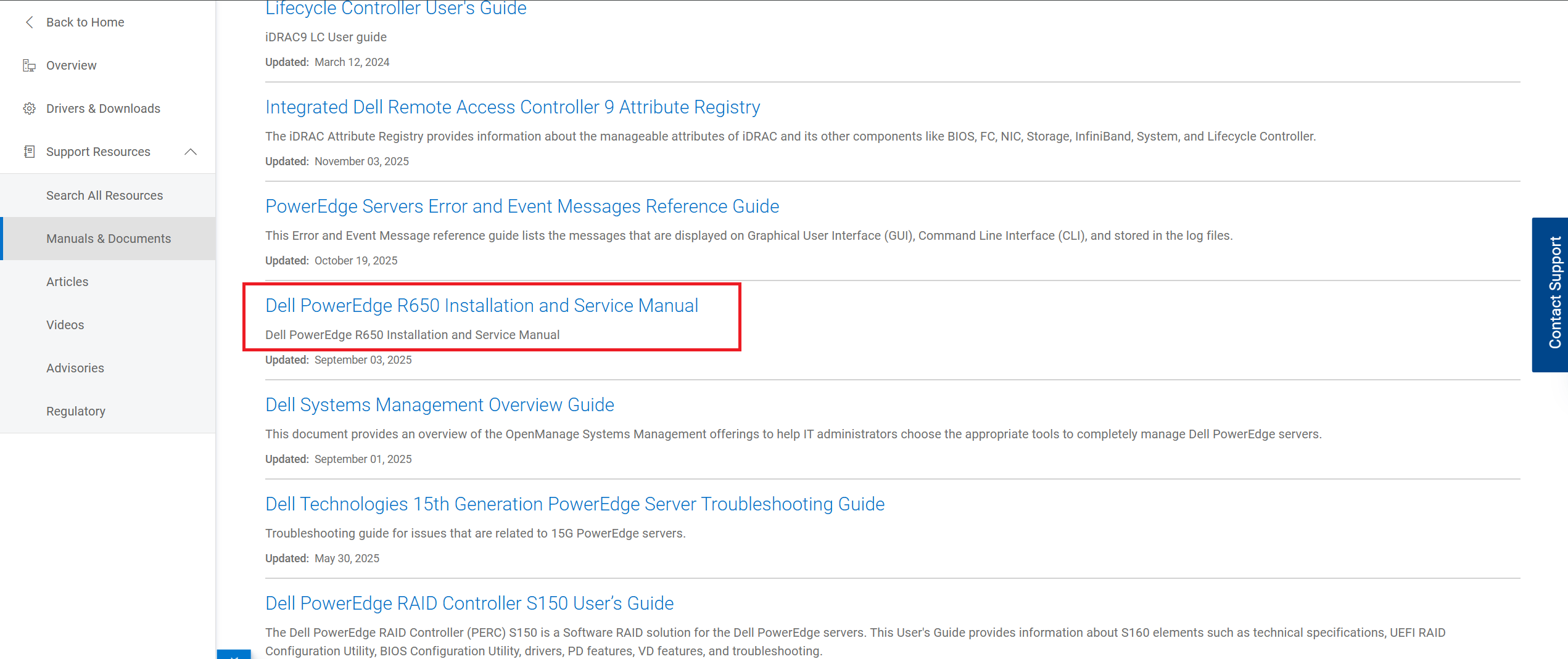
Figure 4: Select the Installation and Service Manual
Figure 5: The Expansion card installation guidelines page
- From this section of the ISM it is possible to find the crucial information about the risers and what slots they have and which CPU controls them. This information helps with identifying the troubleshooting options available.
Which CPU controls the PCIE Slot and Riser?
- Checking the riser configuration in the Installation Service Manual (ISM) can verify which slots are on which riser and which CPU controls them.

Figure 6: R650 Expansion card and risers
- In Figure 6, you can see the CPUs controlling each riser. If the required CPU is not installed, the riser slot does not function.
- For example: If the server only shipped with CPU1 then any card installed in Slots 2 or 3 would not be detected.
- If the slot is controlled by CPU-X, try moving to another riser or slot controlled by another CPU.
- For example: If it is controlled by CPU2 swap to a riser or slot controlled by CPU1.
Is it seen in the BIOS or OS but not IDRAC?
- Verify if it is not seen by only one component. For example it can be seen in the BIOS device settings, but not in the OS or IDRAC.
- If it is seen in the BIOS device settings but not the OS or IDRAC, then the focus of T/S would be on those components.
- If missing from OS, it may be a driver issue or OS support issue.
- If missing from the IDRAC, it may be firmware or IDRAC support issue. Some devices do not have firmware supported by the iDRAC.
- If it is seen by BIOS or OS but not iDRAC, try updating the firmware of the iDRAC and the component.
Check the slot priority:
- You can see slot priority in the server Installation Service Manual (ISM) or Field Service Manual (FSM)
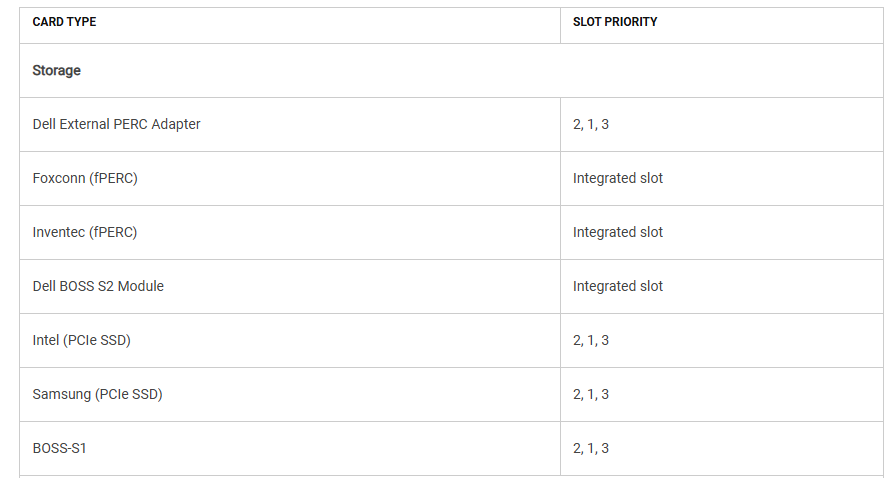
Figure 7: R650 Expansion card installation guidelines
- As seen in Figure 7 the slots are listed in order of priority. The slots must be populated in order, if the slots are filled already then install to the next available slot in the list.
- For example: If checking the BOSS-S1 priority, if slots 2 and 1 were already filled then you would install the BOSS into slot 3. If either slots 2 or 1 were empty, you would install into those slots first.
- If not already in a slot listed in that devices slot priority, swap it into the first available slot in the list.
Troubleshooting Isolation:
- For troubleshooting you want to isolate if the issue is either the component itself, the slot, the riser, the Motherboard slot, or the CPU.
- Before swapping make note of things such as, are there other devices working in the same riser, or other devices in controlled by the same CPU?
- Depending on what all is installed you can try swapping the device into another slot on a different riser and see if its detected.
- If its still not detected in the other riser or slot check is the other slot controlled by the same CPU or not.
- If it is not working in the other riser or slot, but it is controlled by the same CPU as the previous slot, then swap it again into another riser or slot controlled by a different CPU.
- If another slot or riser is not available, try swapping CPUs if possible and see if the issue changes.
Affected Products
C Series, HS Series, Rack Servers, Tower Servers, XE Servers, XR ServersArticle Properties
Article Number: 000300035
Article Type: How To
Last Modified: 19 Nov 2025
Version: 5
Find answers to your questions from other Dell users
Support Services
Check if your device is covered by Support Services.