Dell Optimizer Has Black Font Color in Dark Mode on the Dell 16 DC16250 and 16 DC16251
Summary: Information about Dell Optimizer version 6.0.2.0-76 showing black text when launched in headless mode.
This article applies to
This article does not apply to
This article is not tied to any specific product.
Not all product versions are identified in this article.
Symptoms
You see that the text color is black without a white outline when launching Dell Optimizer in headless mode. Headless mode means that the application runs without a User Interface (UI). This is applicable to scenarios such as servers, automated scripts, remote control or embedded systems.
Black text example: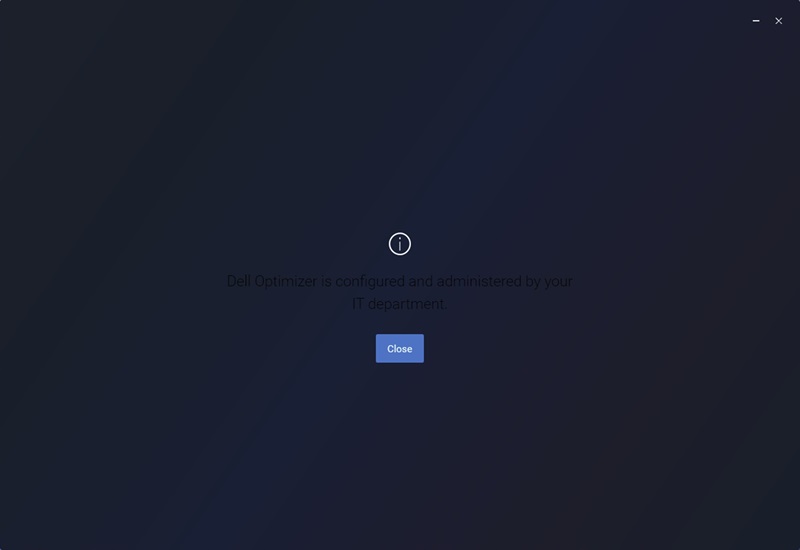
White text example: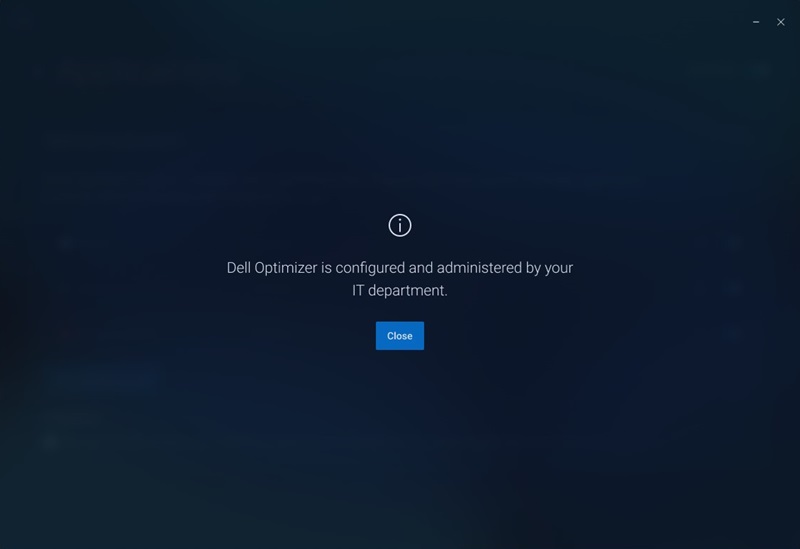
Affected Systems:
- Dell 16 DC16250
- Dell 16 DC16251
Cause
A new style has been used for text instead of overriding the base style. Due to this, dark mode text color is not applied, this is already defined in the base style.
Resolution
Update Dell Optimizer
Dark mode text color has been updated in Dell Optimizer version 6.1 and is expected to release at the end of June 2025.
As a workaround, use the following steps for restoring Dell Optimizer:
- Uninstall Dell Optimizer, then Dell Core Service from Windows Programs and Features.
- Download and install Dell Optimizer from the following link: Dell Optimizer Download
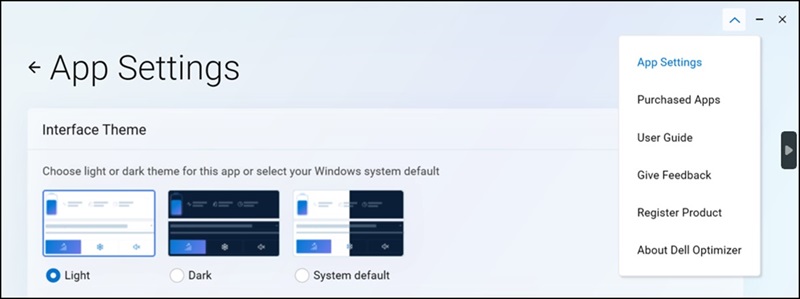
- Open Dell Optimizer and go to the App Settings drop-down menu.
- Set the Interface Theme back to Light mode.
Affected Products
Dell 16 DC16250, Dell 16 DC16251, Dell OptimizerArticle Properties
Article Number: 000320517
Article Type: Solution
Last Modified: 15 Sept 2025
Version: 2
Find answers to your questions from other Dell users
Support Services
Check if your device is covered by Support Services.