Cached User Credentials are not Working for Endpoints with Dell Encryption Enterprise
Summary: Once Dell Encryption Enterprise Policy Based Encryption is installed, the user is unable to unlock the endpoint leveraging the cached credential.
This article applies to
This article does not apply to
This article is not tied to any specific product.
Not all product versions are identified in this article.
Symptoms
Affected Products:
- Dell Encryption Enterprise
Affected Operating Systems:
- Windows
Cause
Not Applicable
Resolution
On a computer with Dell Encryption Enterprise Policy Based Encryption that is not connected to the Domain network. The user can successfully log in the endpoint at boot time, but cannot unlock the endpoint once it is locked manually or by screensaver or hibernation.
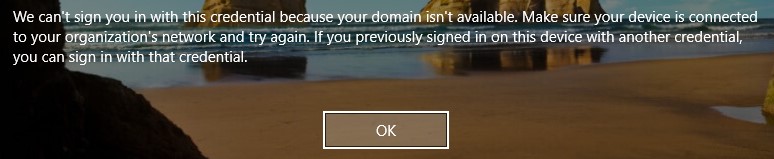
Figure 1: (English Only) Dell Encryption Enterprise Policy base encryption error
The Policy-Based Encryption policies below are enabled for this endpoint on the Dell Data Security administration console:
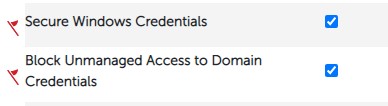
Figure 2: (English Only) Polciy-based encryption policies
The user is logging into the endpoint with username@upn.
The Shield is not activated for this user due to an unknown UPN in the username. The Device Activation ID in the Shield local console is Red:
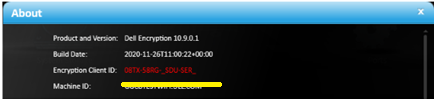
Figure 3: (English Only) About
In the CMGShieled.log in C:\ProgramData\Dell\Dell Data Protection\Encryption, it is possible to see the error below:
[04.16.21 14:38:16:017 XmlRpcActivate.: 129 H] Activation - Requesting activation for user@upn.com
[04.16.21 14:38:16:126 XmlRpcActivate.: 184 H] Activation - Sending activation request for user@upn.com
[04.16.21 14:38:16:456 XmlRpcActivate.: 207 E] Activation - Activation request failed [device server fault:0x13ec]: Auth failure: Error authenticating user user@upn.com
[04.16.21 14:38:16:456 Activator.cpp: 858 E] Activation - Unable to activate new user DOMAIN\user [MS error = 5100]
[04.16.21 14:38:16:456 Activator.cpp: 871 E] Activation - Verify network connectivity to the Dell Security Server at "servername.DOMAIN.local" and Dell Device Server at "https:// servername.DOMAIN.local:8443/xapi/"
The issue occurs due to the presence of the policy Block Unmanaged Access to Domain Credentials and an unmanaged logged in user.
To fix the issue, add the missing UPN on the Remote Management Console following the steps below:
- From a web browser, go to the Dell Data Security administration console at https://servername.DOMAIN.local:8443/webui.
Note: The example, servername.DOMAIN.local, may differ from the server DNS in your environment. The port, 8443, may differ from the Remote Management Console port in your environment. For more information about accessing the Remote Management Console, reference How to Access the Dell Data Security or Dell Data Protection Server Administration Console.
- Sign in to the Dell Data Security administration console.
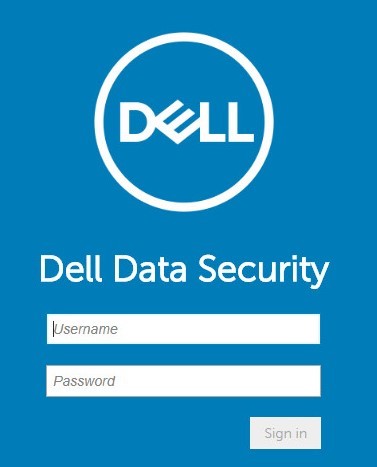
Figure 4: (English Only) Dell Data Security Sign In.
- From the left menu pane, click Populations, and then Domains.
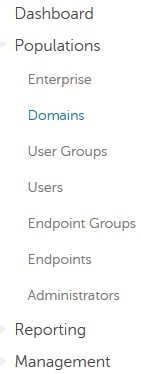
Figure 5: (English Only) Click Domains.
- Click DOMAIN name:
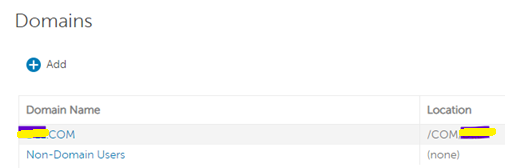
Figure 6: (English Only) Click the Domain name.
- Click the Settings tab and follow the steps below:

Figure 7: (English Only) Click Settings.
- Populate the password of the domain service account.
- Input each missing UPN suffix to the Alias field and click Add.
- Click Update Domain.
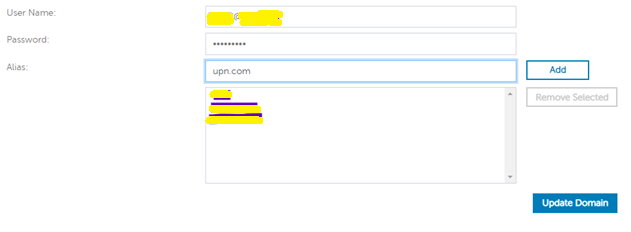
Figure 8: (English Only) Update Domain information.
Note: It is best practice to list all the UPNs used in the AD Domain on the Dell Data Security administration console.
Alternatively, as workaround, it is possible to disable the Policy-Based Encryption policy below on the Dell Data Security administration console:
Block Unmanaged Access to Domain Credentials.
This does not fix the activation issue for the users, but allows them to use the cached credentials.
To contact support, reference Dell Data Security International Support Phone Numbers.
Go to TechDirect to generate a technical support request online.
For additional insights and resources, join the Dell Security Community Forum.
Affected Products
Dell EncryptionArticle Properties
Article Number: 000185556
Article Type: Solution
Last Modified: 03 Jun 2024
Version: 11
Find answers to your questions from other Dell users
Support Services
Check if your device is covered by Support Services.