How Dell Wireless Keyboard Functions in macOS Devices
Summary: Learn how Dell wireless keyboards like KB900, KB740, KB700, and KB500 function with macOS. Covers key behavior, layout, shortcuts, and setup tips for Apple users.
Instructions
Table of Contents:
Overview
Dell wireless keyboards can be used with Apple desktops and laptops that use macOS if they have a Bluetooth or USB (Wireless Receiver) connection.
The following Dell wireless keyboard models are discussed in this article:
- Dell Pro Premium Collaboration Keyboard KB900 (Bluetooth and Dell Secure Link WR3 USB-A Wireless Receiver)
- Dell Pro Plus Compact Keyboard KB740 (Bluetooth and Dell Universal Pairing USB-A Wireless Receiver WR221)
- Dell Pro Plus Keyboard KB700 (Bluetooth and Dell Universal Pairing USB-A Wireless Receiver WR221)
- Dell Pro Keyboard KB500 (Dell Universal Pairing USB-A Wireless Receiver WR221)
How Keys Are Organized
The following image shows how groups of keys on the Dell wireless keyboard can be organized by general functionality.
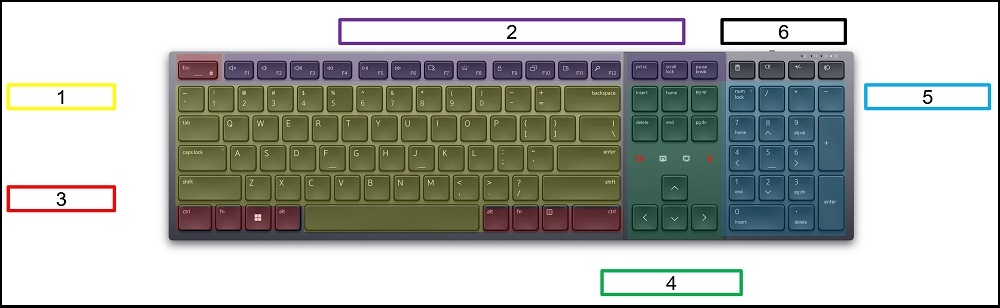
Figure 1: Dell Pro Premium Collaboration Keyboard KB900 with Labeled Groups
- General Typing Keys
- Function Keys
- Control Keys
- Navigation Keys
- Numeric Keypad
- D1-D4 Keys
Key Behavior in macOS
1. General Typing Key Behavior
These are alphabetical, numerical, and punctuation keys used for general typing.
| Key Name | KB900/KB740/KB700/KB500 Keys | macOS Key | KB900/KB740/KB700/KB500
Behavior in macOS |
|---|---|---|---|
| Caps Lock | Capital Letter Lock
 |

|
Same as macOS Caps Lock key
Long Press: Capital Letter Lock Short Press: Switch Input Method |
2. Function Key Behavior
Full-Size Keyboard Models:
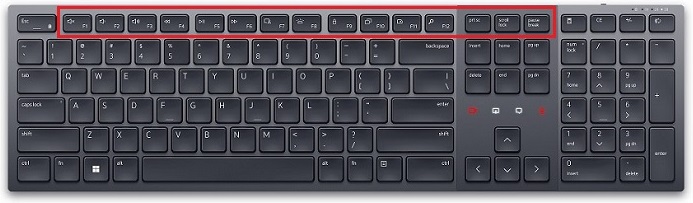
Figure 2: Dell Pro Premium Collaboration Keyboard KB900 Function Bar View |
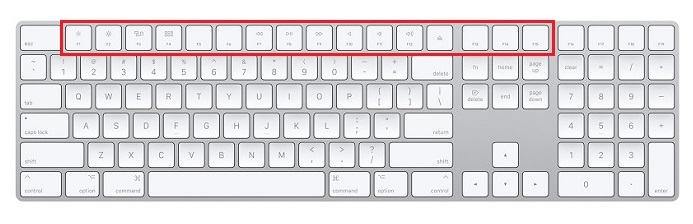
Figure 3: Apple Magic Keyboard with Numeric Keypad Function Bar View |
||||||||||||||||||||||||||||||||||||||||||||||||
|
|||||||||||||||||||||||||||||||||||||||||||||||||
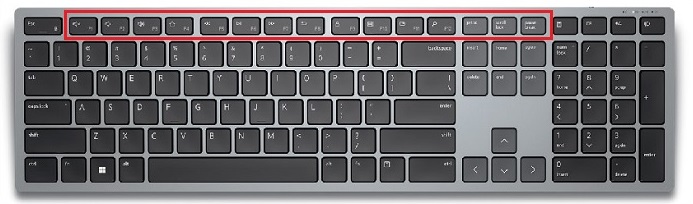
Figure 4: Dell Pro Plus Keyboard KB700 Function Bar View |
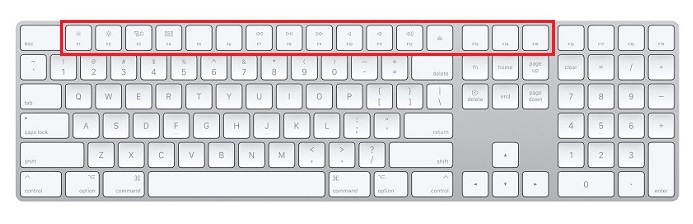
Figure 5: Apple Magic Keyboard with Numeric Keypad Function Bar View |
||||||||||||||||||||||||||||||||||||||||||||||||
|
|||||||||||||||||||||||||||||||||||||||||||||||||
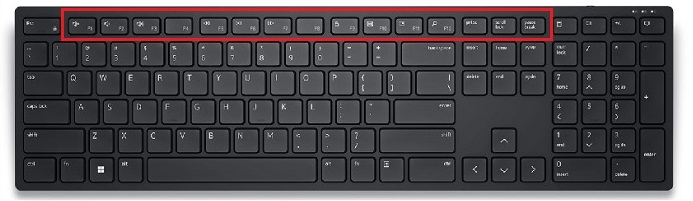
Figure 6: Dell Pro Keyboard KB500 Function Bar View |
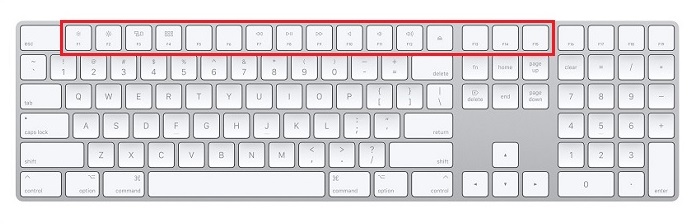
Figure 7: Apple Magic Keyboard with Numeric Keypad Function Bar View |
||||||||||||||||||||||||||||||||||||||||||||||||
|
|||||||||||||||||||||||||||||||||||||||||||||||||
Compact Keyboard Models:
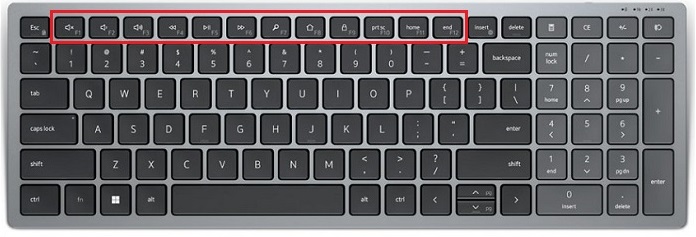
Figure 8: Dell Pro Plus Compact Keyboard KB740 Function Bar View |
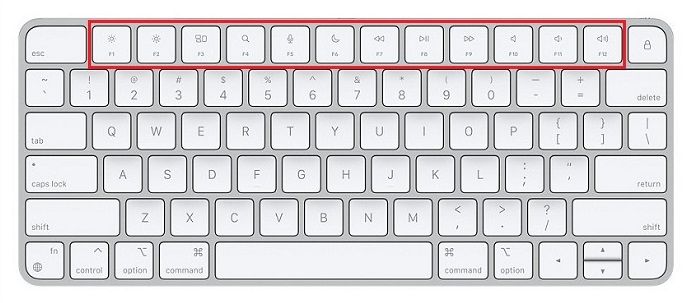
Figure 9: Apple Magic Keyboard Function Bar View |
|||||||||||||||||||||||||||||||||||||||
|
||||||||||||||||||||||||||||||||||||||||
You can Configure Dell keyboards in macOS:
Open System Settings > Keyboard > Keyboard Shortcuts
3. Control Key Behavior
| Control Keys | KB900/KB740/KB700/KB500 Keys | Equivalent macOS Keys | KB900/KB740/KB700/KB500
Behavior in macOS |
|---|---|---|---|
| Ctrl/Control | Ctrl
 |
Control
 |
Same as Control in Magic Keyboard |
| Fn | Fn
 |
Fn
 |
Same as Fn in Magic Keyboard |
| Win/Command | Win
 |
Command/CMD
 |
Same as Command/CMD in Magic Keyboard |
| Alt/Option | Alt
 |
Option
 |
Same as Option in Magic Keyboard |
| Right Task | Right Task
 |
No such key | No Response
KB740 does not have the Right Task key. |
4. Navigation Key Behavior
These are arrow keys, insert, delete, home, end, page up, and page down keys used for general cursor navigation.
| Key Name | KB900/KB740/KB700/KB500 Keys | macOS Key | KB900/KB740/KB700/KB500
Behavior in macOS |
|---|---|---|---|
| Insert | Typing Without Overwriting
 |
No Such Key | No Response |
5. Numeric Key Behavior
These are the number lock, numerical, and mathematical key symbols for typing general math formulas or calculator app input use.
| Key Name | KB900/KB740/KB700/KB500 Keys | macOS Key | KB900/KB740/KB700/KB500
Behavior in macOS |
|---|---|---|---|
| Num Lock | Lock Numeric Keypad
 |
No Such Key | Same as Mac Clear key.
All Clear (AC) when calculator is used. |
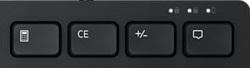
6. D1-D4 Key Behavior
| Dell | D1
Calculator |
D2
CE |
D3
+/- |
D4
Toggle Wifi |
|---|---|---|---|---|
KB900:
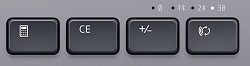 |
No Response | Delete on macOS.

Windows: Clear numbers in the Calculator app. macOS: Erase the characters right to the cursor. Apple full-size keyboard has two delete keys. |
F9 on macOS, configuration is required, otherwise no specific function. | Toggle |
KB740:
 |
||||
KB700:
 |
||||
Dell Pro Keyboard KB500:
 |
Select All | |||
Magic with Numeric Keypad
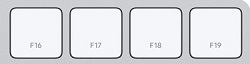 |
F16 | F17 | F18 | F19 |
| Magic | N/A | |||
Commonly Used Keyboard Shortcuts
The following list has the most commonly used keyboard shortcuts for Windows and macOS.
| Function | Windows Keyboard
In Windows |
Mac Keyboard
In macOS |
KB900/KB740/KB700/KB500
In macOS |
|---|---|---|---|
| Copy | Ctrl + C | CMD + C | Win + C |
| Paste | Ctrl + V | CMD + V | Win + V |
| Cut | Ctrl + X | CMD + X | Win + X |
| Select All Items | Ctrl + A | CMD + A | Win + A |
| Create a New Folder | Ctrl + Shift + N | Shift + CMD + N | Shift + Win + N (macOS) |
| Open the Computer Window | (No Function) | Shift + CMD + C | Shift + Win + C (macOS) |
| Open the Desktop Folder | (No Function) | Shift + CMD + D | Shift + Win + D (macOS) |
| Open the Recent Window | (No Function) | Shift + CMD + F | Shift + Win + F (macOS) |
| Open Sound Preferences | (No Function) | Option + Volume Up | Alt + Volume Up (macOS) |
| Task Manager | Ctrl + Shift + Esc | Option + CMD + ESC | Alt + Win + ESC (macOS) |
| Delete the Character to the Left of the Insertion Point | (No Function) | Ctrl + H | Ctrl + H (macOS) |
| Delete the Character to the Right of the Insertion Point | (No Function) | Ctrl + D | Ctrl + D (macOS) |
