RecoverPoint for VMs: Copy VM Fails to Boot During Image Access Due to a Mismatch in the Disk Descriptor
Summary: During Test a Copy (Image Access), if the Virtual Machine Disk (VMDK) disk descriptor does not match between the Production and Copy VMs, the Copy VM does not boot.
This article applies to
This article does not apply to
This article is not tied to any specific product.
Not all product versions are identified in this article.
Symptoms
During Image Access, the Copy VM may fail to boot properly and the following error may be observed:
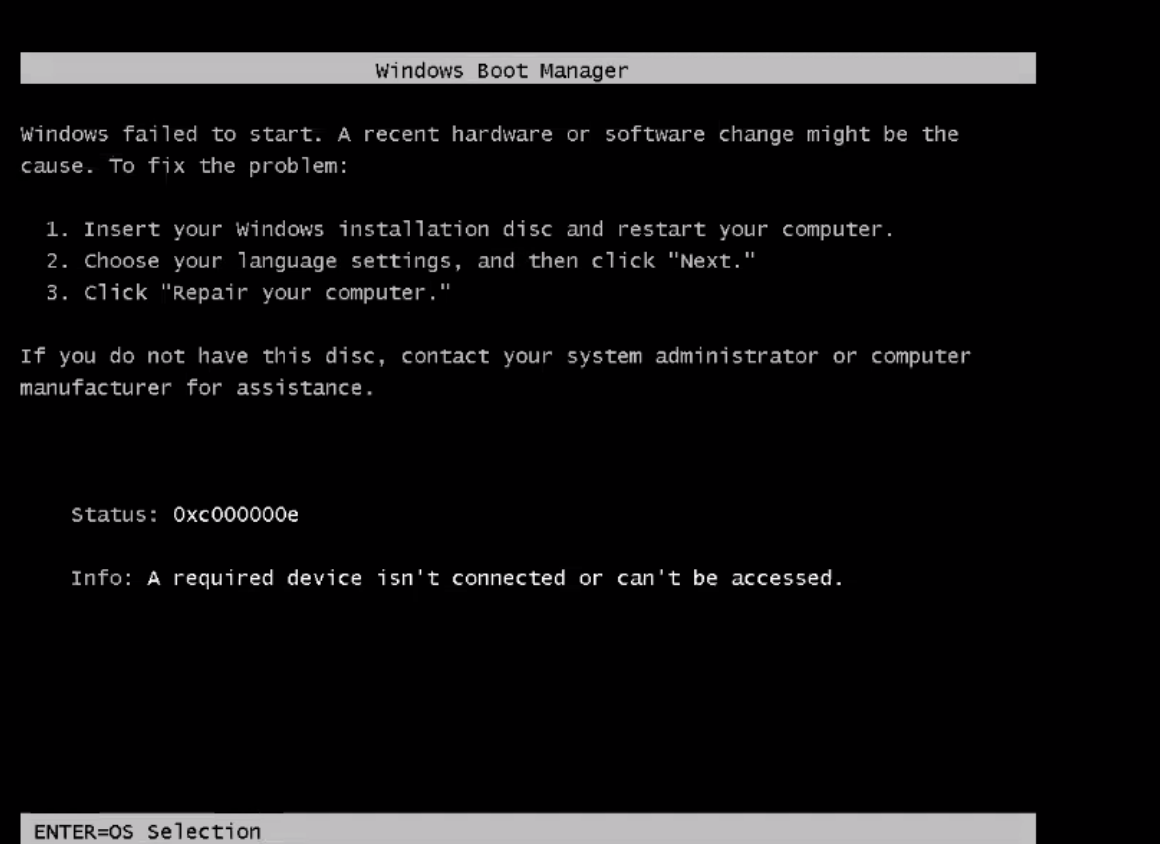
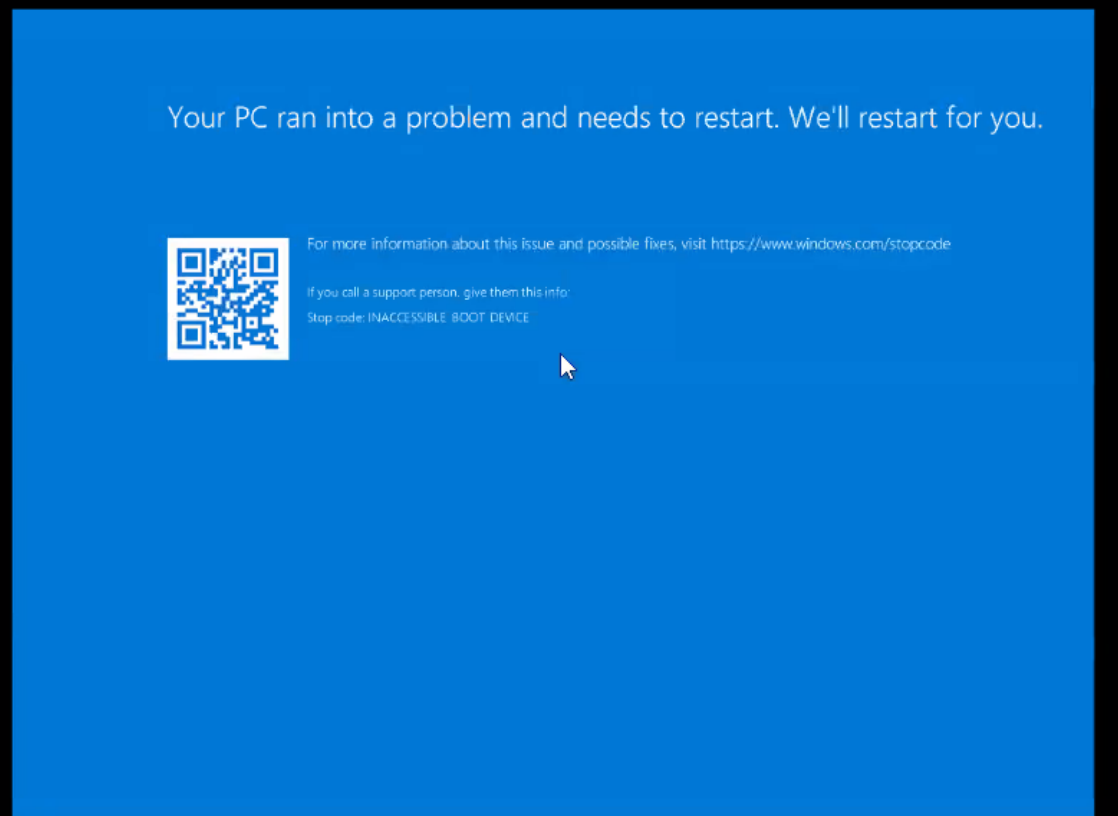
When checking the Production VMDK and Copy VMDK files, there is a mismatch. For example:
Production VM:
ddb.adapterType = "buslogic"
ddb.deletable = "true"
ddb.geometry.biosCylinders = "0"
ddb.geometry.biosHeads = "0"
ddb.geometry.biosSectors = "0"
ddb.geometry.cylinders = "13054"
ddb.geometry.heads = "255"
ddb.geometry.sectors = "63"
ddb.iofilters = "spif:vmwarelwd"
ddb.longContentID = "17189fda646b30fa8e07a2e11be39f0e"
ddb.sidecars = "vmwarelwd_1,<VM NAME>.vmfd"
ddb.thinProvisioned = "1"
ddb.toolsInstallType = "1"
ddb.toolsVersion = "12389"
ddb.uuid = "60 00 C2 9b 41 72 92 4a-01 1b 5c a1 cb 73 7d ff"
ddb.virtualHWVersion = "4"
Copy VM:
ddb.adapterType = "lsilogic"
ddb.geometry.cylinders = "13054"
ddb.geometry.heads = "255"
ddb.geometry.sectors = "63"
ddb.longContentID = "7632d38b5d143766f99a7787ce2dec62"
ddb.thinProvisioned = "1"
ddb.toolsInstallType = "1"
ddb.toolsVersion = "12389"
ddb.uuid = "60 00 C2 98 06 fb 7b 22-6a 46 d0 9c c4 8a 89 27"
ddb.virtualHWVersion = "14"
Cause
The disk descriptor files are mostly invisible to RecoverPoint for VMs and has no impact in how such a file is created in the target VM.
Usually the Copy VM accepts the VMware default values based on the VM settings.
If a VM is created in an older version of vCenter (even if said vCenter has since been upgraded), and then the VM is duplicated with the same settings in a newer version. The VMs have a slightly different descriptor files. Hence, this issue is more common with VMs that are created in older versions of vCenter.
Usually these differences do not matter, but sometimes the way the disc descriptor presents blocks and information to the VM's OS may make the VM read the information improperly or think the disk is corrupted. Per RecoverPoint Engineering a setting that may cause significant impact is the Hardware Version. Changing this hardware version is akin to physically taking a drive out of a computer and placing it in a new one. Such an action might allow the VM to boot, but it is likely to cause issues if the two are not compatible.
Resolution
Workaround:
To change the disk descriptor file in the Copy VM to match the Production VM, do the following:
- Make a note of the Datastore the Copy VM resides on
- Unprotect the VMs in question
- Power off Copy VM
- Remove Copy VM from inventory by right clicking > Remove From Inventory
- Identify the differences between the VMDK files, either through logs or using an SSH session as root to the relevant ESX hosts
- Change the VMDK file of the Copy VM to match the Production VM
For example, in the disk descriptor files provided previously in the article, the following fields must be added to the Copy VM:
ddb.deletable = "true"ddb.geometry.biosCylinders = "0"ddb.geometry.biosHeads = "0"ddb.geometry.biosSectors = "0"
And the existing fields must be changed to match the Production VM:
ddb.adapterType = "lsilogic" to ddb.aapterType = "buslogic"ddb.virtualHWVersion = "14" to ddb.virtualHWVersion = "4"
- Once the relevant modifications are made, re-add the VM to the inventory by going to the Datastore noted in Step 1 > Locate the correct directory for the VM and click into the folder > Locate the <VM Name>.vmx file > click the Register VM button
- Power on Copy VM to ensure it boots properly
- Re-protect VM and test Image Access after initialization
Note: Typically, the boot disk is the only one that must be modified, however, it is not possible to verify every potential configuration. If there is multiple VMDK present, on rare occasions, it might be necessary to modify all the VMDKs.
Affected Products
RecoverPoint for Virtual MachinesArticle Properties
Article Number: 000256168
Article Type: Solution
Last Modified: 24 Dec 2024
Version: 2
Find answers to your questions from other Dell users
Support Services
Check if your device is covered by Support Services.